Virtual experiences
Virtual Experience is the studio TV's scenic mode: a full-screen video — a forest ride, a coastal run, a nightclub — plays behind the live class while members' heart-rate rings and the room stats overlay on top. The videos are your own: anything you upload in the admin app appears in the picker on the TV, so a spin studio can ride a different world every night.
What you'll do
Upload a video to the experience library in the admin app, then start it on the TV and run a class over it.
You'll need: a video file (MP4, ideally 2 to 6 minutes — it loops seamlessly, up to 500 MB), the admin app, and a paired studio TV.
Steps
-
In the admin app, open Settings → Studio TV and switch to the Experiences tab.
-
Tap Upload new experience. In the Upload an experience sheet, give it the name the operator will see on the TV — Nightclub, Coastal walk — then pick the video file and tap Upload.
-
Wait for the upload to finish — the app transcodes each clip for both 4K and 1080p boxes and mutes its audio automatically, so any phone-shot or stock video works.
-
On the TV, select Virtual Experience from the Hub. The PICK YOUR EXPERIENCE dialog lists every clip in your library as a tile, each with an icon matched to its name (bike, forest, mountain, city and so on).
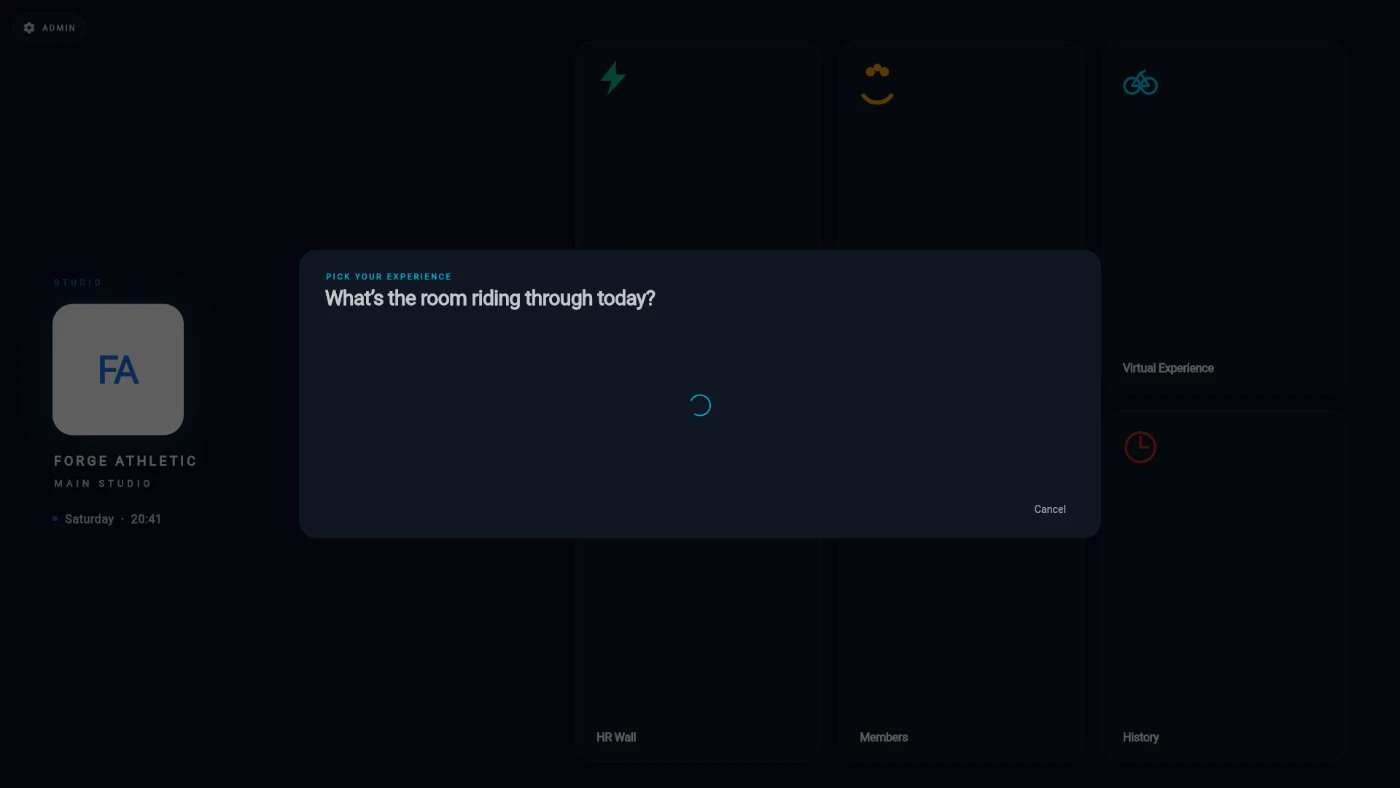
The PICK YOUR EXPERIENCE grid on the TV -
Choose a clip and confirm with PLAY EXPERIENCE. The video plays full-screen on an endless loop with the live heart-rate overlay on top — members appear exactly as on the other walls, as their straps come on air.
-
Run and end the class exactly like any other wall — END CLASS rolls the session up to the podium.
What you should see
The room riding through the scene you picked, heart-rate rings breathing over the footage, and the picker offering every clip you've uploaded, newest first.
If something goes wrong
- The TV says no experiences are uploaded yet — the library is empty. Upload an MP4 under Settings → Studio TV → Experiences and it appears in the picker straight away.
- The picker can't load the library — the TV lost its connection. Check the box's network and try again from the Hub.
- Playback stutters — the box is underpowered for the clip. The system serves a lighter encoding automatically, but very old boxes may still struggle with 4K-heavy scenes; try a 1080p source clip.
- You deleted a clip by mistake — deleting removes it from every TV's picker, but your original file is unaffected; just upload it again.
Still stuck? Email hello@prismgym.com — include your gym name, the device, and a photo of what you see.