Install the app and claim your account
The member app is your gym in your pocket — entry at the door, wallet payments, class bookings and your progress all live here. Setting it up takes two short steps: create an account, then link it to your membership.
What you'll do
Install the app, create an account with the email address your gym has on file for you, and verify a 6-digit code to link your membership — wallet, plan and all.
You'll need: the app installed on your phone (your gym will send you the download link), and access to the email inbox your gym has on record for you.
Steps
-
Open the app. The sign-in screen greets you with Sign in!
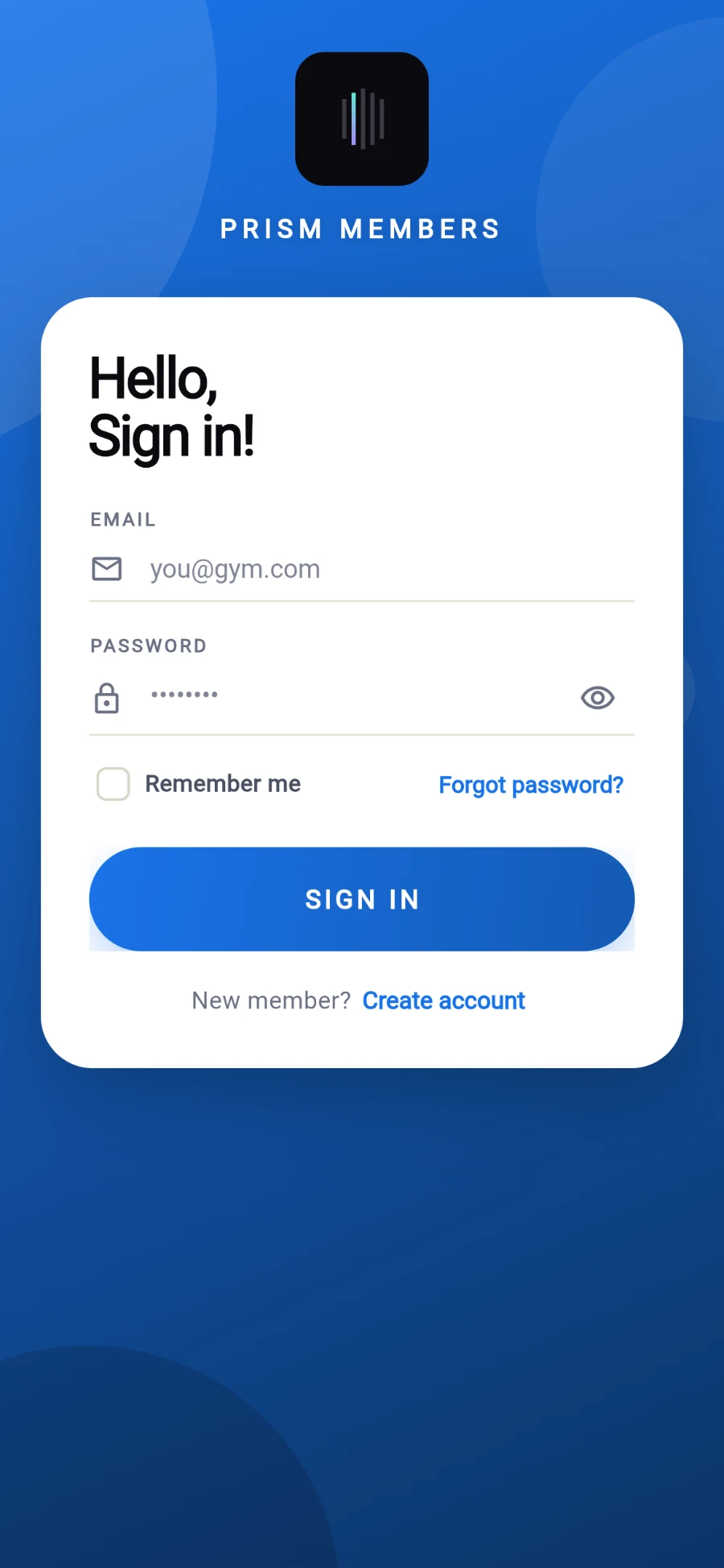
The first screen - sign in, or create an account from the link at the bottom. -
Already have an account? Enter your Email and Password, leave Remember me on, and tap Sign in. You're done.
-
First time here? Tap Create account next to New member?.
-
On the Create account screen, enter your email. The screen reminds you: Use the same email your gym has on file for you. If you use a different address, the app can't find your membership.
-
Pick a password of at least 8 characters. The app checks it against known data breaches and refuses passwords that have leaked — pick something unique.
-
If a friend referred you, enter their code in Referral code (optional) — you both earn reward points once your membership links.
-
Tap Sign up.
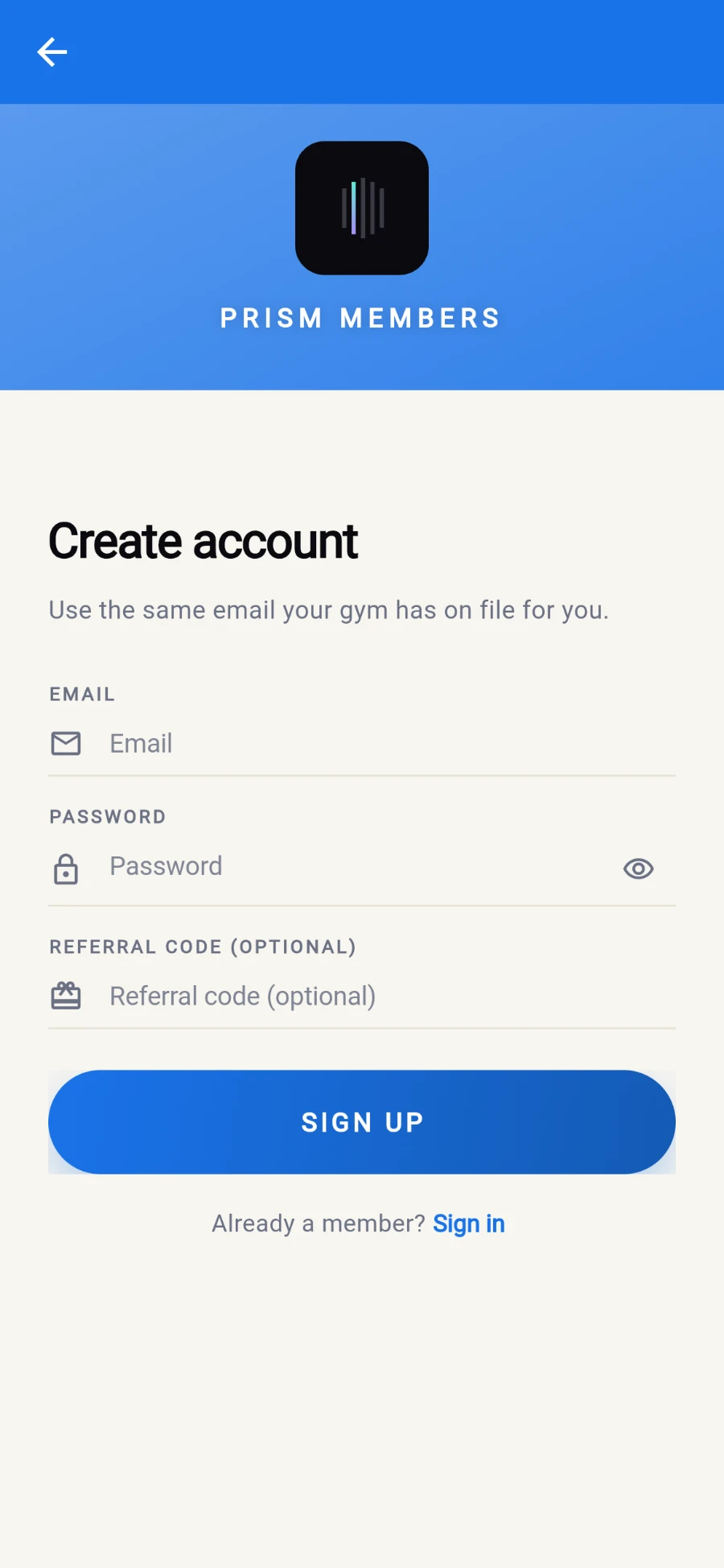
Use the email your gym already has for you, or the link cannot find your membership. -
If your new account isn't linked to a membership yet, the Not enrolled yet screen appears. Tap Email me a code.
-
Check your inbox for a 6-digit code, type it in, and tap Verify & link. Didn't get it? Tap Resend code.
What you should see
The Today tab opens with a greeting, your gym's logo and colours, and your three stat pills — visits, days left and points. You're in.
If something goes wrong
- "No membership found for this email" — your gym has a different (or no) email on record for you. Ask reception to add this exact address to your membership, then try Email me a code again.
- The code is rejected — codes expire quickly and each one is single-use. Tap Resend code and enter the newest one.
- "An account already exists for this email" — you've signed up before. Use Sign in instead, or Send reset link if you've forgotten the password.
- "Sign-ups are turned off for this gym" — some gyms create accounts at the front desk. Ask reception to set you up.
Still stuck? Email hello@prismgym.com — include your gym name, the device, and a photo of what you see.