Member photos
A member's photo isn't decoration — it can drive face recognition at the door and identity checks at the desk. So Prism treats the two photo moments differently: adding a photo to a brand-new member is routine, while replacing an existing member's photo is a protected action with its own permission and a recorded staff selfie.
What you'll do
Add a photo while creating a member, and replace one on an existing member through the authorization flow.
You'll need: any staff account to photograph a new member; the "Change profile photo" permission to replace an existing member's photo.
Steps
-
While creating a member, tap the photo circle at the top of the form.
-
Choose Camera to take the picture now or Gallery to pick an existing one. On the web version of Gym Admin, the camera option captures from your webcam.
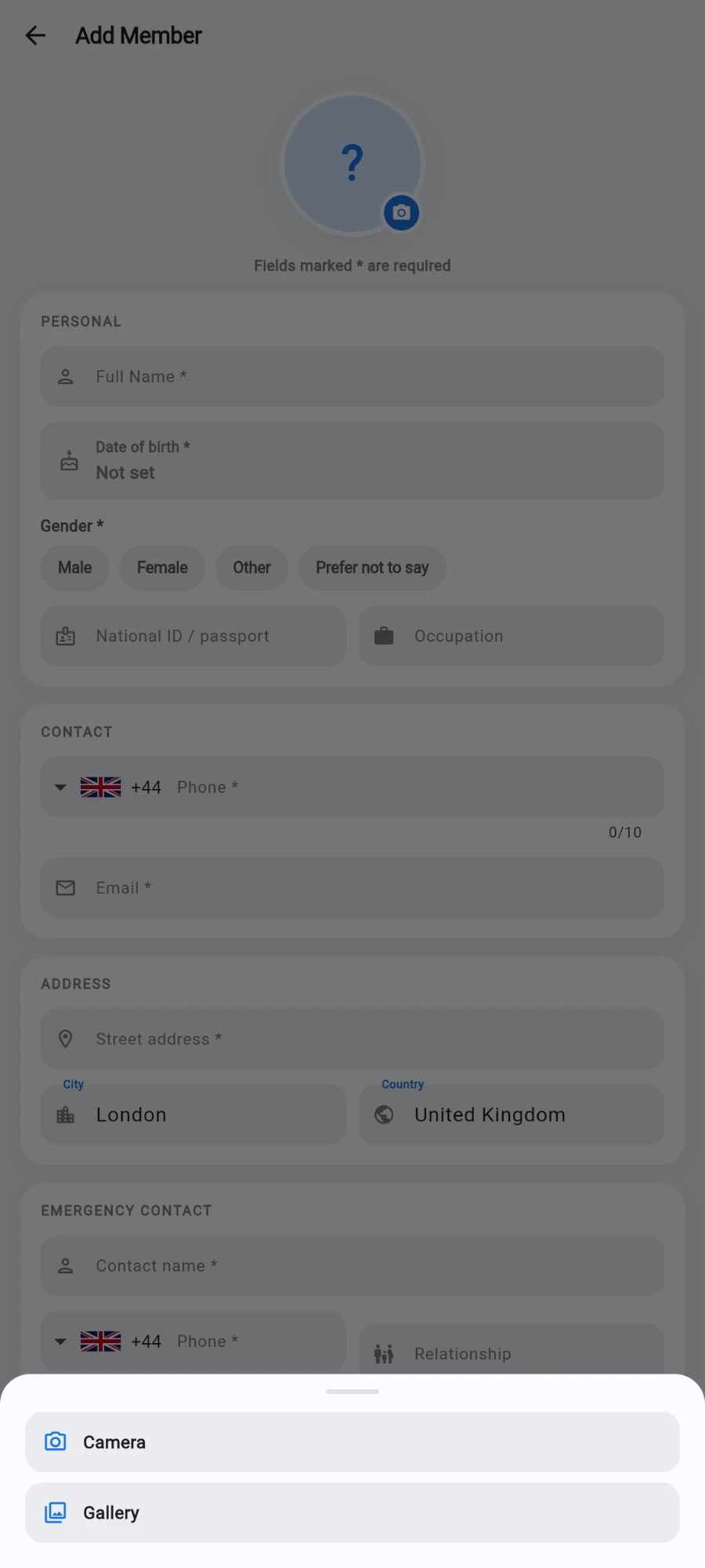
Camera or Gallery — no extra gate on a brand-new member. -
Save the form — the photo uploads with the member record. Done: no extra gates for a new member.
-
To replace an existing member's photo, open their profile and tap the pencil (Edit Member), then tap the photo circle.
-
If your account lacks the photo permission, the circle shows a lock and tapping it explains that changing a photo requires the "Change profile photo" permission — ask the owner.
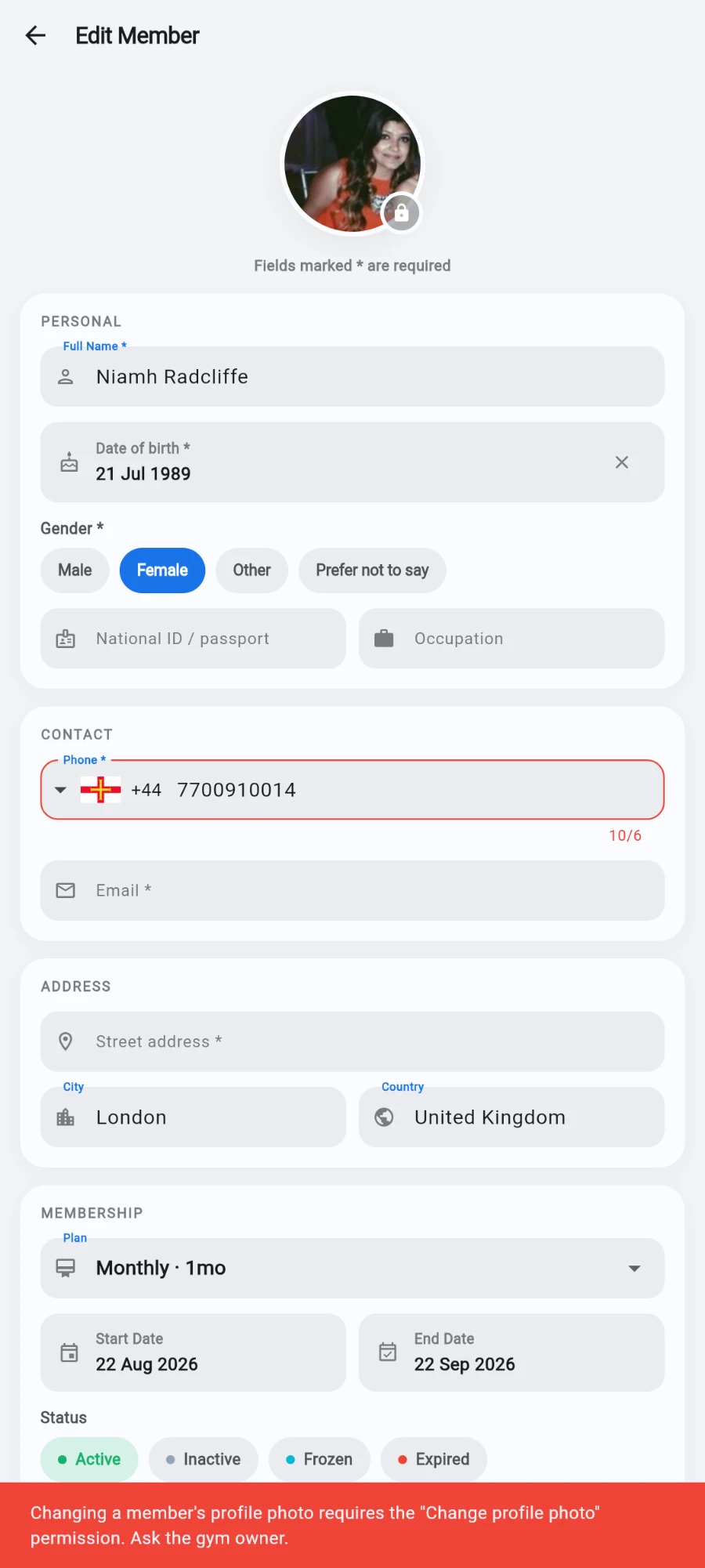
No permission, no photo change — and the app says so plainly. -
With the permission, an authorization sheet appears before the picker: tap Take selfie, capture your own face, then tap Authorise. The selfie is attached to a permanent audit-log entry recording who changed the photo and when.
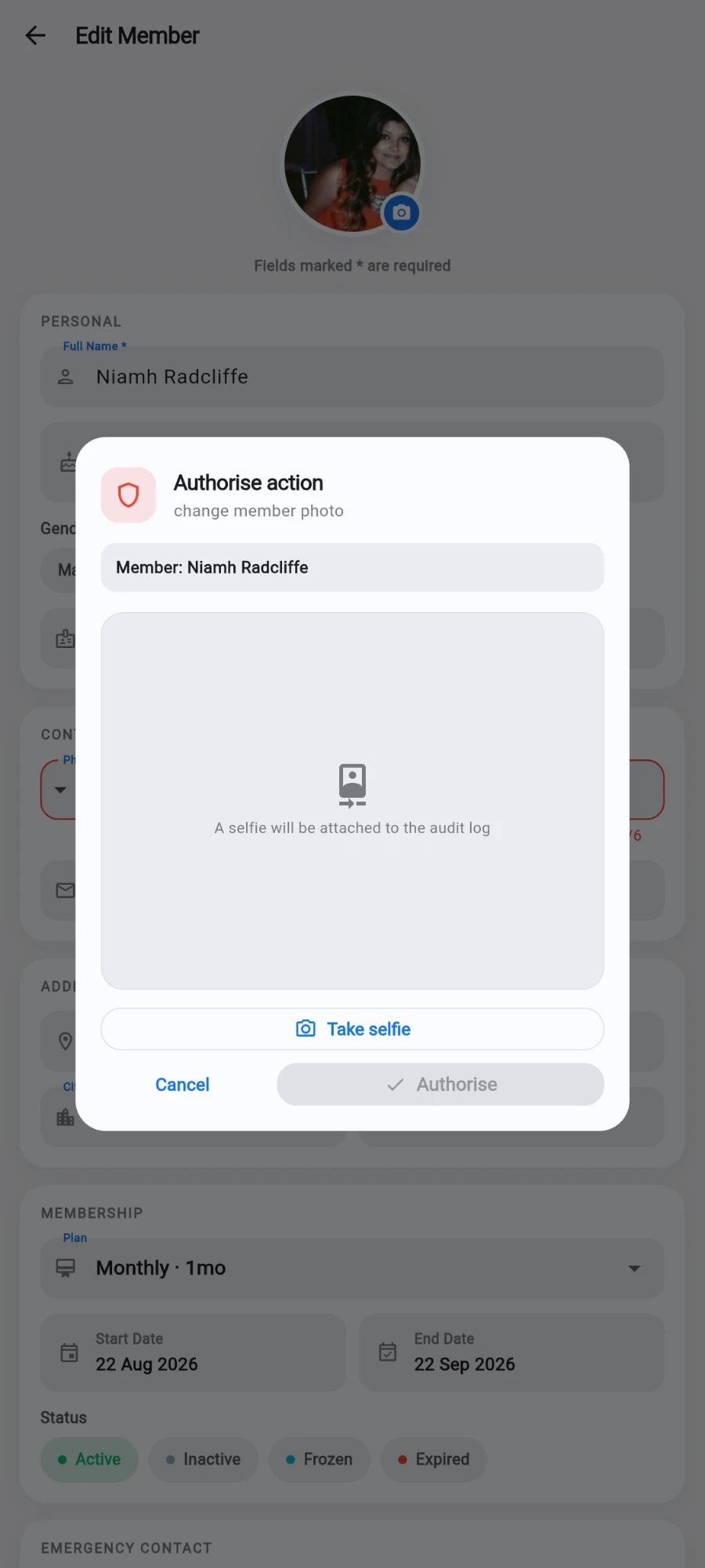
Authorise action — the Authorise button only wakes up once a selfie is captured. -
Pick the new photo from Camera or Gallery and save.
What you should see
The new photo appears on the profile immediately and flows out to everywhere the member's face shows — the member list, the check-in feed, and face terminals on their next sync. On the profile, tapping the photo opens a full-size, pinch-zoomable preview.
If something goes wrong
- The photo circle shows a lock — you can add photos to new members, but replacing an existing one needs the "Change profile photo" permission from the owner.
- The Authorise button stays disabled — it activates only after a selfie is captured; tap Take selfie first (or Retake if the shot failed).
- The selfie step fails on a device without a front camera — use a device with a camera; the authorization can't be skipped from the app.
- An old photo still shows at the door terminal — the terminal syncs on its own cycle; re-enrol the member from their profile to push the new face immediately.
Still stuck? Email hello@prismgym.com — include your gym name, the device, and a photo of what you see.