Wearables and fitness platforms
Members can connect their wearables and fitness apps to the member app, feeding daily activity into their profile. Your side of it is a settings console: choose which providers to offer, and for the ones that need it, register your gym's own developer app and paste in the credentials. The member does the actual connecting from their own phone.
What you'll do
Enable the providers you want to offer and add credentials where a provider requires them.
You'll need: owner-level access. For credential-based providers, a developer account with that provider (each card links its docs).
Steps
-
Go to Settings → Wearables & fitness.
-
Browse the three groups: Wearables (like Fitbit, Whoop, Oura), Activity platforms (like Strava), and Phone health kits (Apple Health, Samsung Health).
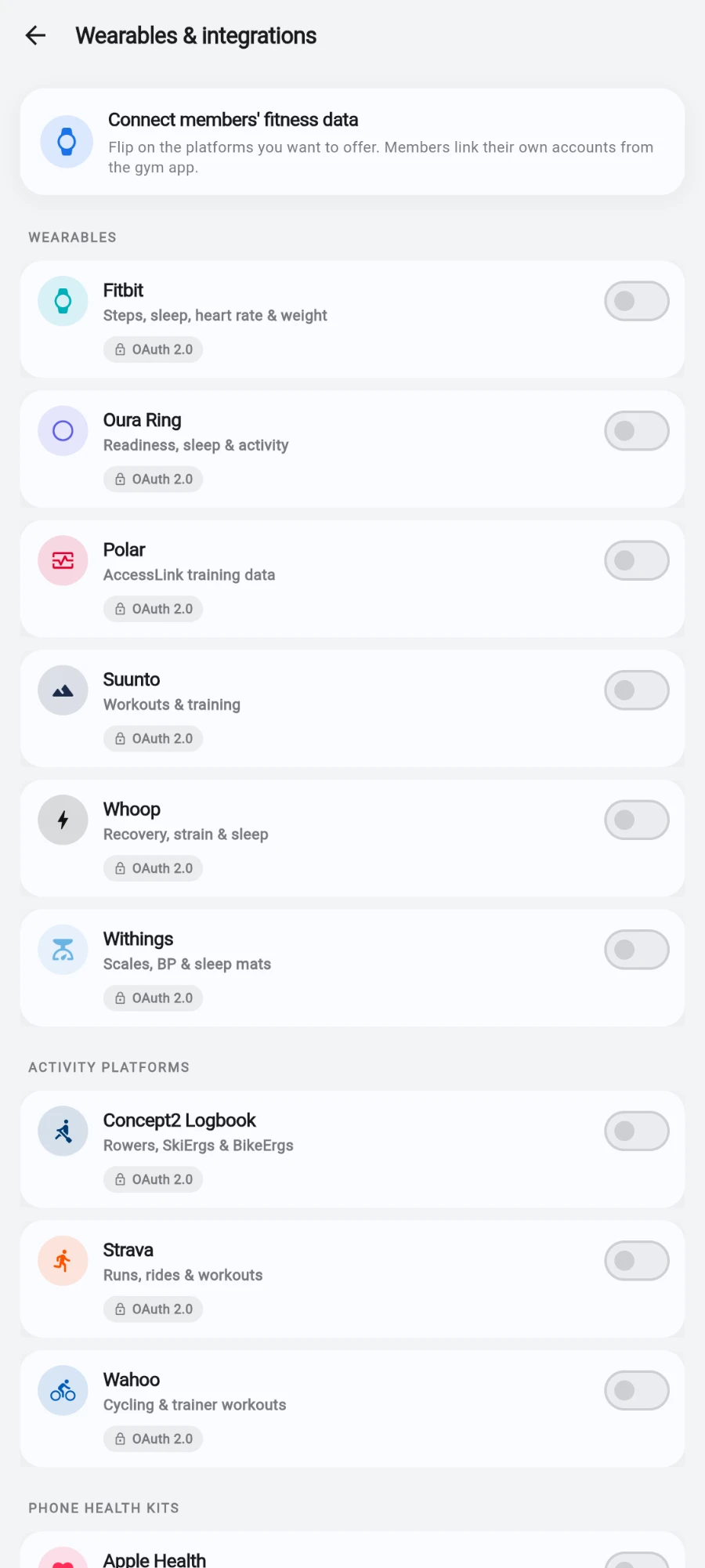
Providers in three groups, each with its own enable toggle. -
Flip on a provider marked Native app — Apple Health and Samsung Health — and you're done: the member app reads the phone's health data directly, no credentials needed.
-
For a provider marked OAuth 2.0, flip it on and it shows Credentials needed. Tap Add credentials.
-
Register an app in that provider's developer portal — the Docs link on the card takes you there — and copy the exact Redirect URI shown in the form into the provider's app settings.
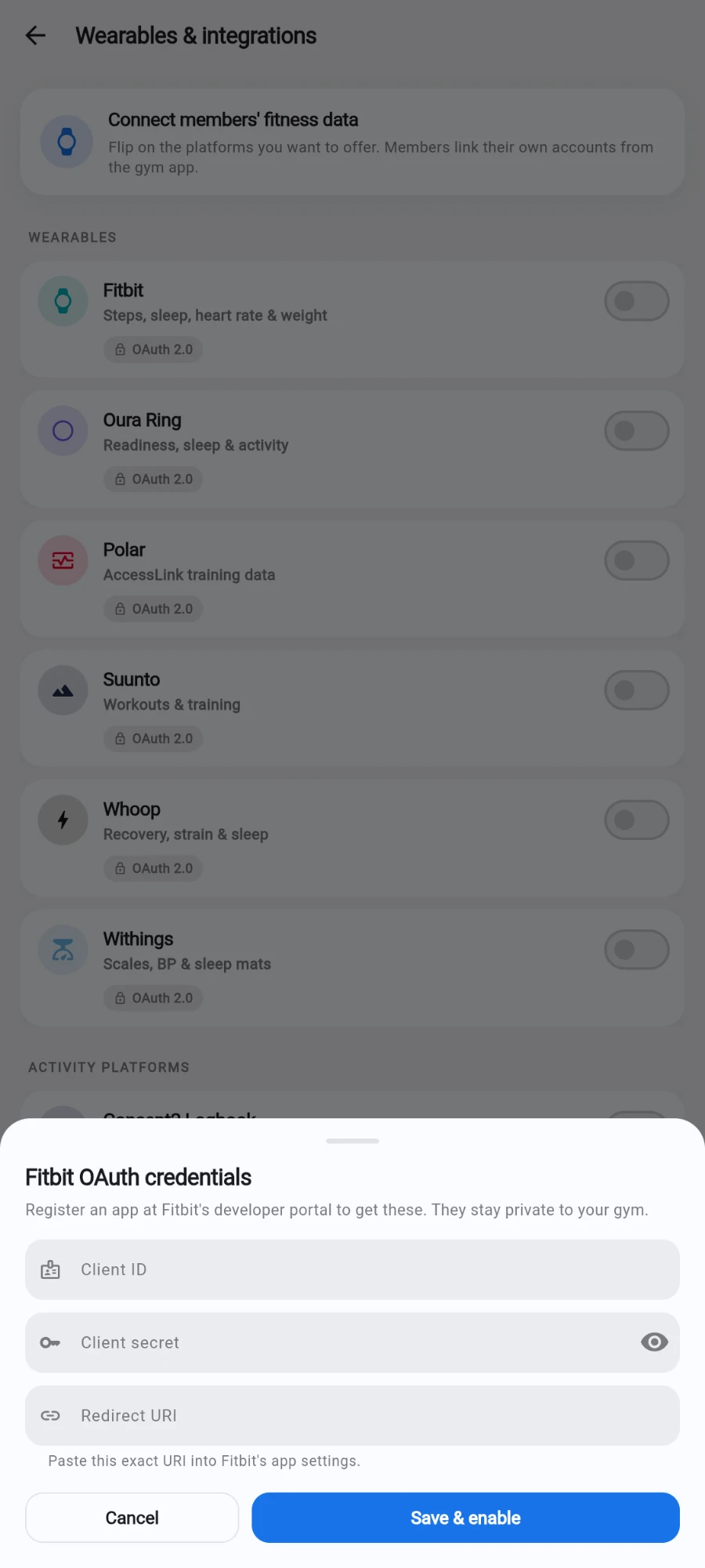
The credentials sheet for an OAuth provider. -
Paste the provider's Client ID and Client secret into the form and tap Save & enable. The card flips to Ready.
-
Tell members: they connect from their own app, granting access on the provider's consent page. The provider card shows how many members are connected, so you can watch adoption.
What you should see
Enabled providers marked Ready, native providers working immediately, and connection counts growing as members link their devices. Synced data flows into member profiles on a scheduled server-side sync.
If something goes wrong
- Save & enable is refused — the Client ID and Client secret are both required, and the Redirect URI must be a full URL. Re-copy from the developer portal.
- Members get an error on the provider's consent page — the redirect URI registered with the provider doesn't exactly match the one shown in the credentials form. Paste it character-for-character and save on the provider's side.
- A member's data stops updating — they may have revoked access from the provider's side; ask them to reconnect from the member app.
- Apple Health or Samsung Health shows no data — the member hasn't granted the health permissions on their phone; they can re-grant them from the member app's connect screen.
Still stuck? Email hello@prismgym.com — include your gym name, the device, and a photo of what you see.