Attendance and visit counting
Every way into your gym lands in one attendance log: face terminals, NFC cards, Bluetooth phones, the member's rotating QR code, USB desk scanners, and manual check-ins at the front desk. The Attendance tab is where you watch it live, step back through past days, and check someone in yourself.
What you'll do
Use the attendance workspace day to day, check a member in manually or by QR, and learn what counts as a visit in reports.
You'll need: a staff account with the attendance permission.
Steps
-
Open the Attendance tab. Today's check-ins stream in live — each row shows the member's photo, plan and status, the time, and a badge for how they got in (QR, Face, NFC, Bluetooth, Card, Wristband, Fingerprint, Manual).
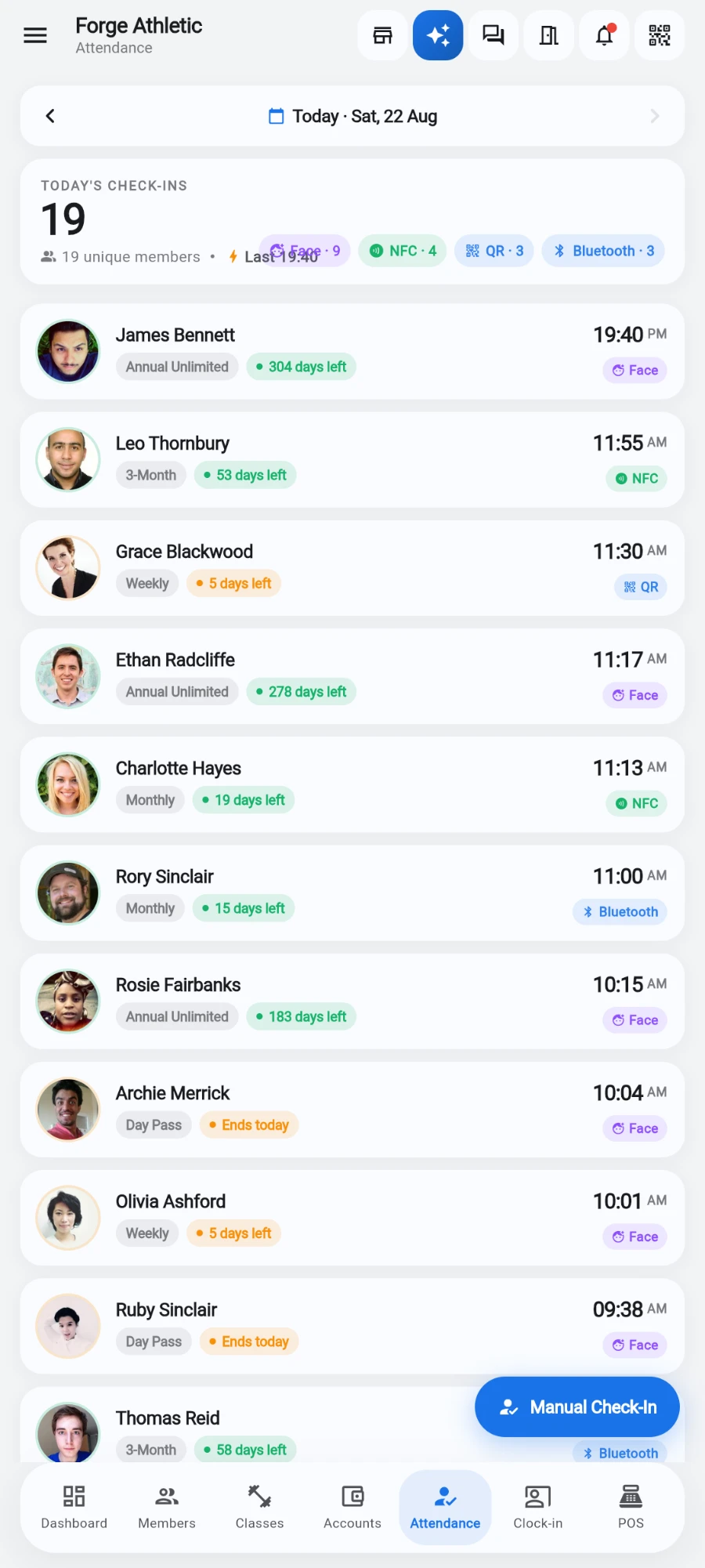
Today's check-ins — every method lands in the same log. -
Use the date stepper at the top to review any past day. Badge counts and the unique-member count update for the day you're viewing.
-
To check someone in by hand, tap Manual Check-In, search for the member, add an optional note, and confirm with Check In.
-
To scan a member's QR code, tap the scan button in the top bar and choose the scanner tile. The member shows the rotating code from their app; it refreshes every 60 seconds with a visible countdown, so screenshots go stale almost immediately.
-
Watch the row statuses: Frozen, Expired and Ends today are flagged on the member so the desk can act before the member walks off.
What you should see
Rows appear within seconds of each tap or face match, even when several gates fire at once. The dashboard's headline number counts distinct people today, while attendance reports count windowed visits — two complementary views of the same log.
If something goes wrong
- Invalid or expired QR — the code on the member's screen rotated or the phone clock is off. Ask them to pull the code up fresh; it renews itself every minute.
- The camera won't start for scanning — camera permission is off for the app. The screen offers Open settings to fix it, then Try again.
- A member appears twice within a minute — two gates both saw them; duplicates within about a minute are collapsed automatically, and visit counting absorbs the rest.
- One member shows a huge check-in count — that's the raw scan history (testing a reader does this). Reports already show windowed visits, so numbers there stay honest.
Still stuck? Email hello@prismgym.com — include your gym name, the device, and a photo of what you see.