Import members from another system
Switching to Prism from another gym system is a two-part job: import the people, then give each one their remaining membership days. The import wizard handles the first with a mapping step that recognises the column names competing tools actually export; the bulk complimentary tool handles the second without fabricating a single sale — so day one on Prism starts with clean books.
What you'll do
Run the four-step member import (File, Map, Defaults, Review), then export a seed CSV, fill in each member's target plan and end date, and commit the bulk grant.
You'll need: a super-admin account, your old system's member export as CSV or Excel, and a plan set up in Prism for each membership type you're migrating onto.
Steps
-
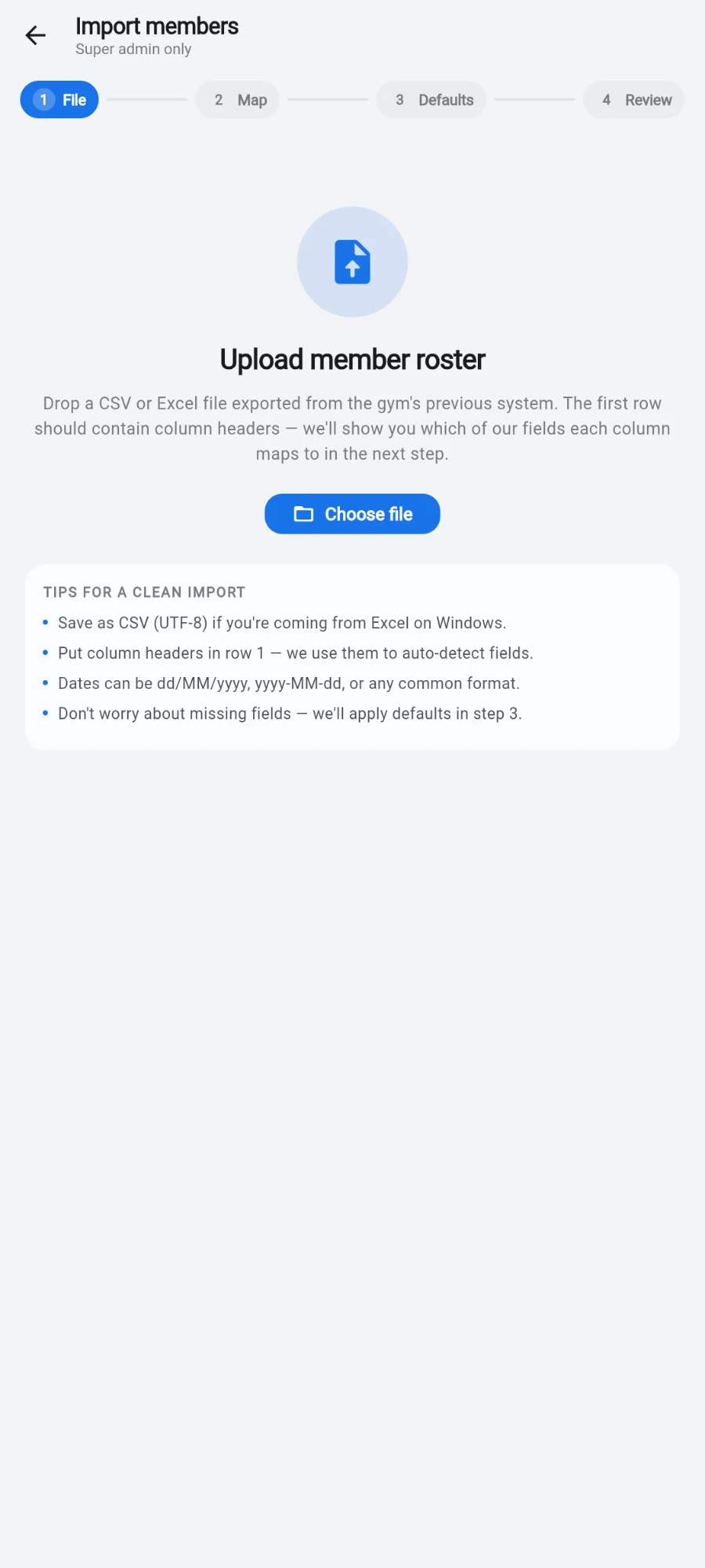
Open Settings → Member operations and tap Import members from file. The wizard's step rail reads File, Map, Defaults, Review.
-
Tap Choose file and pick the export — .csv, .tsv, .txt, .xlsx or .xls all work, including Excel-on-Windows files with odd characters. The first row must contain column names.
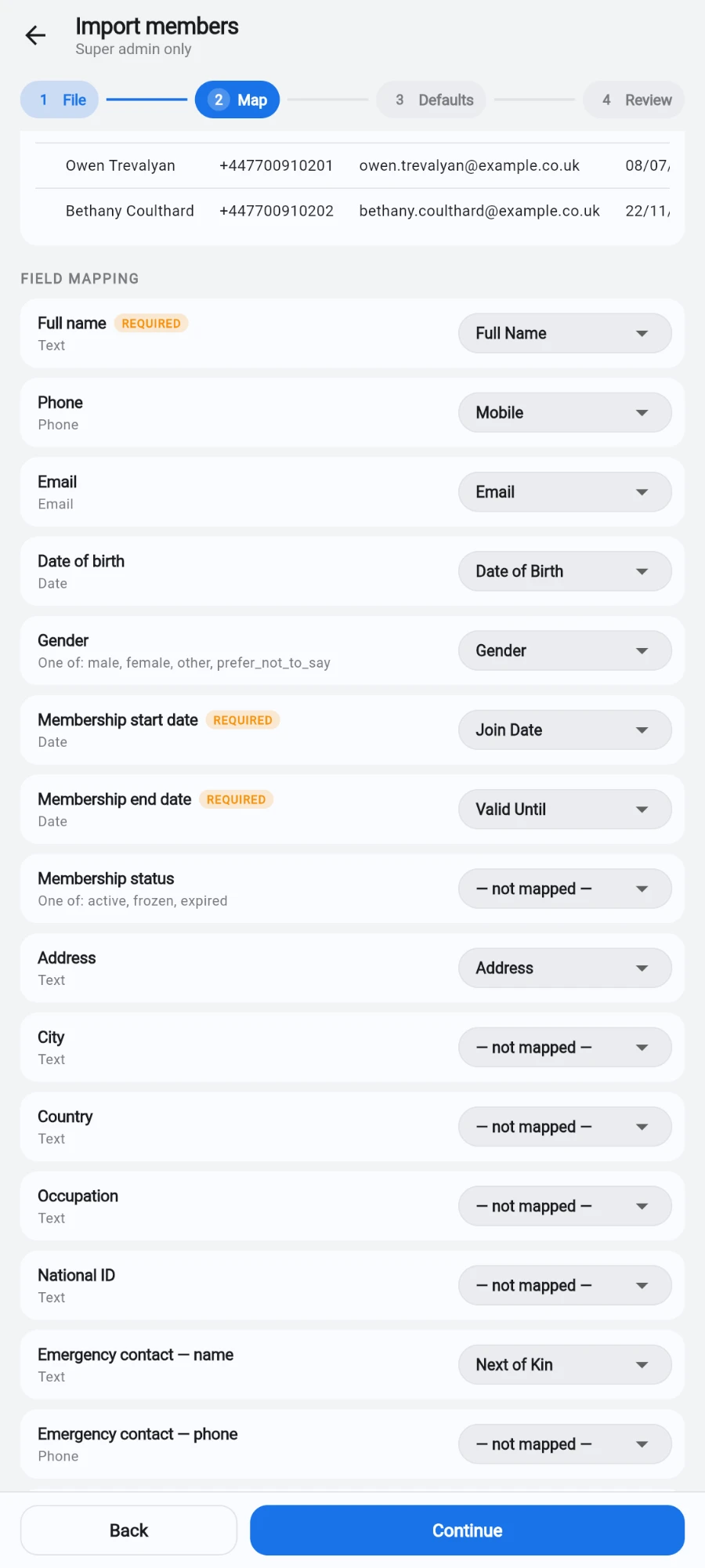
- On the Map step, check the auto-detected mapping. Common headers — dob, birthday, joindate, validuntil, nextofkin and dozens more — map themselves across 24 target fields including wallet balance, loyalty points and the marketing opt-ins. Fix any column by picking a different target; each source column can be claimed once. A preview of the first rows shows the effect.
-
On the Defaults step, set the Default membership plan, Default membership start date, Default membership end date and Default status — these fill rows where the file has gaps.
-
Still on Defaults, pick the Duplicate handling policy against phones and emails already in the gym: Skip duplicates (the default), Import anyway, or Flag as error to block the import until the source is clean.
-
Tap Validate & continue.
-
On the Review step, read the Ready to import, Rejected and Warnings counts and scan the row-issue table — every problem row states the field and the reason. Fix the source and re-run, or proceed if the rejects are acceptable.
-
Tap the import button and wait. Rows commit in batches with per-batch failure reporting, so one bad batch never loses the whole file. The closing dialog shows Imported, Skipped and Failed counts.
-
Now port the remaining days: back in Member operations, tap Bulk complimentary access.
-
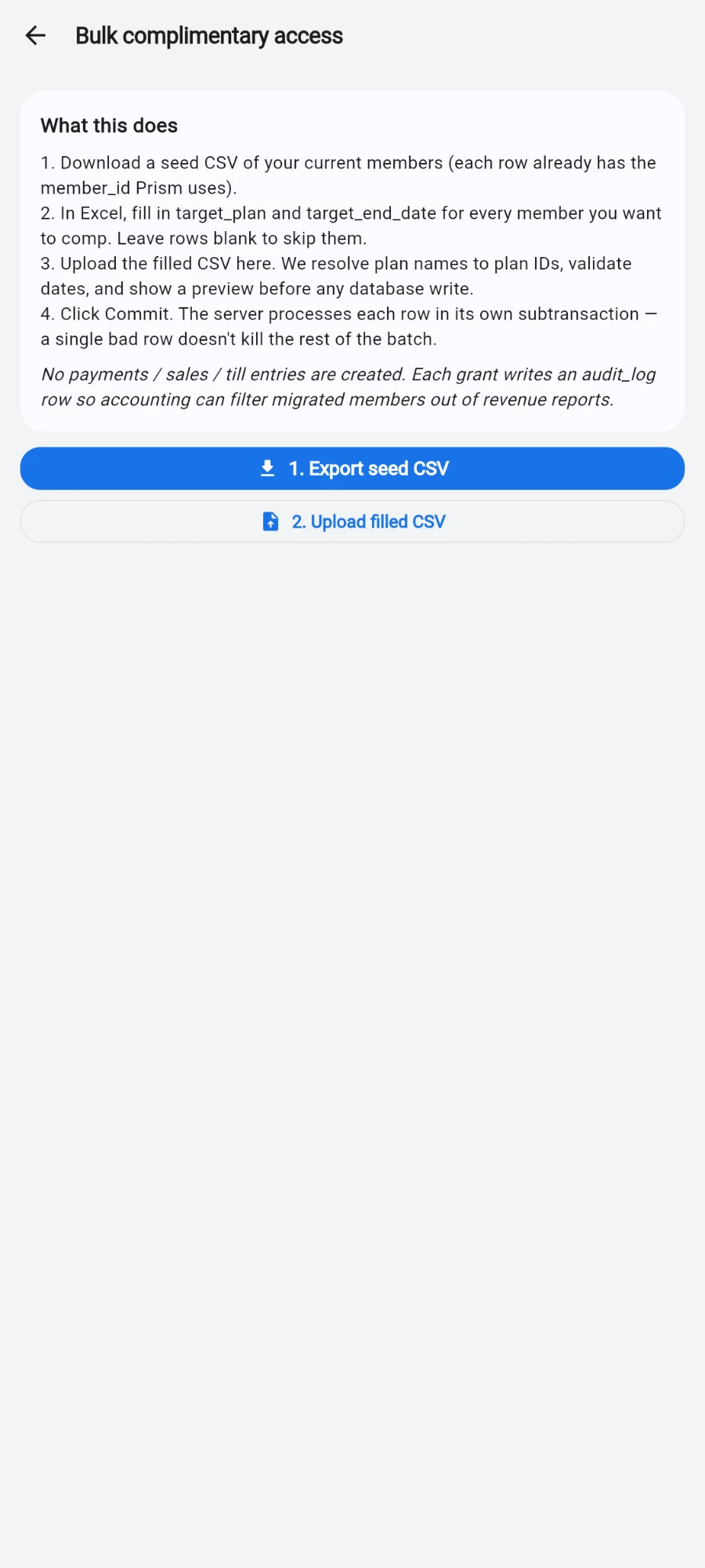
Tap 1. Export seed CSV — it downloads every current member with their ID, name, phone, current plan and end date, plus two empty columns (target plan and target end date) placed at the end so you aren't scrolling past every column to fill them.
-
Fill the two columns in a spreadsheet using each member's data from the old system. Plan names match case-insensitively; leave rows blank for members you aren't migrating — they're skipped silently.
-
Tap 2. Upload filled CSV. The preview table shows every row with its resolved plan and date and a ready-or-error status. What you see here is exactly what will happen.
-
Tap the commit button (it shows the count of ready grants). Each row processes independently — one bad row can't roll back the rest — and the Result summary reports per-row outcomes.
What you should see
The roster fills with your members — thousands display in full — and after the bulk grant each migrated member shows active with their carried-over end date. The revenue report stays untouched: migration day is not a fake best-sales day.
If something goes wrong
- "Make sure the first row contains column names" — the file starts with a title or blank row. Delete the extra rows so headers come first.
- A whole batch of rows failed — the result names the affected row range and the reason; fix those rows in the source and re-import with Skip duplicates on, so the already-imported rows aren't doubled.
- Bulk upload complains about missing columns — the filled CSV must keep the seed's member ID and the two target columns. Re-export the seed and paste your values in rather than rebuilding the file by hand.
- A grant row errors with an unknown plan — the typed plan name doesn't exist in this gym. Create the plan (or fix the spelling; matching ignores case) and re-upload.
Still stuck? Email hello@prismgym.com — include your gym name, the device, and a photo of what you see.