Sell a session pack
Session packs are pre-paid bundles — ten PT sessions, twelve group classes — that members draw down as they train. Every pack sale is pinned to a coach: PT credits drain that coach's session pool, and class credits drive that coach's class commission, so attribution is mandatory, not polite. The sale flow has guards worth knowing: a quantity multiplier so ten packs are one transaction, a duplicate-sale guard that catches accidental double-taps, and honest currency conversion for packs priced in a non-base currency.
What you'll do
Create a pack in the catalogue (owners), then sell it to a member with coach, quantity, discount and payment method.
You'll need: catalogue permission to create packs; at least one active coach; and the member's profile open to sell. Wallet payment needs sufficient balance.
Steps
-
Owner setup: open Session packs from the drawer and tap New pack. In the New session pack form set the Pack name, Sessions included, Price and Expires after (days), and choose whether it is for Classes or Personal training.
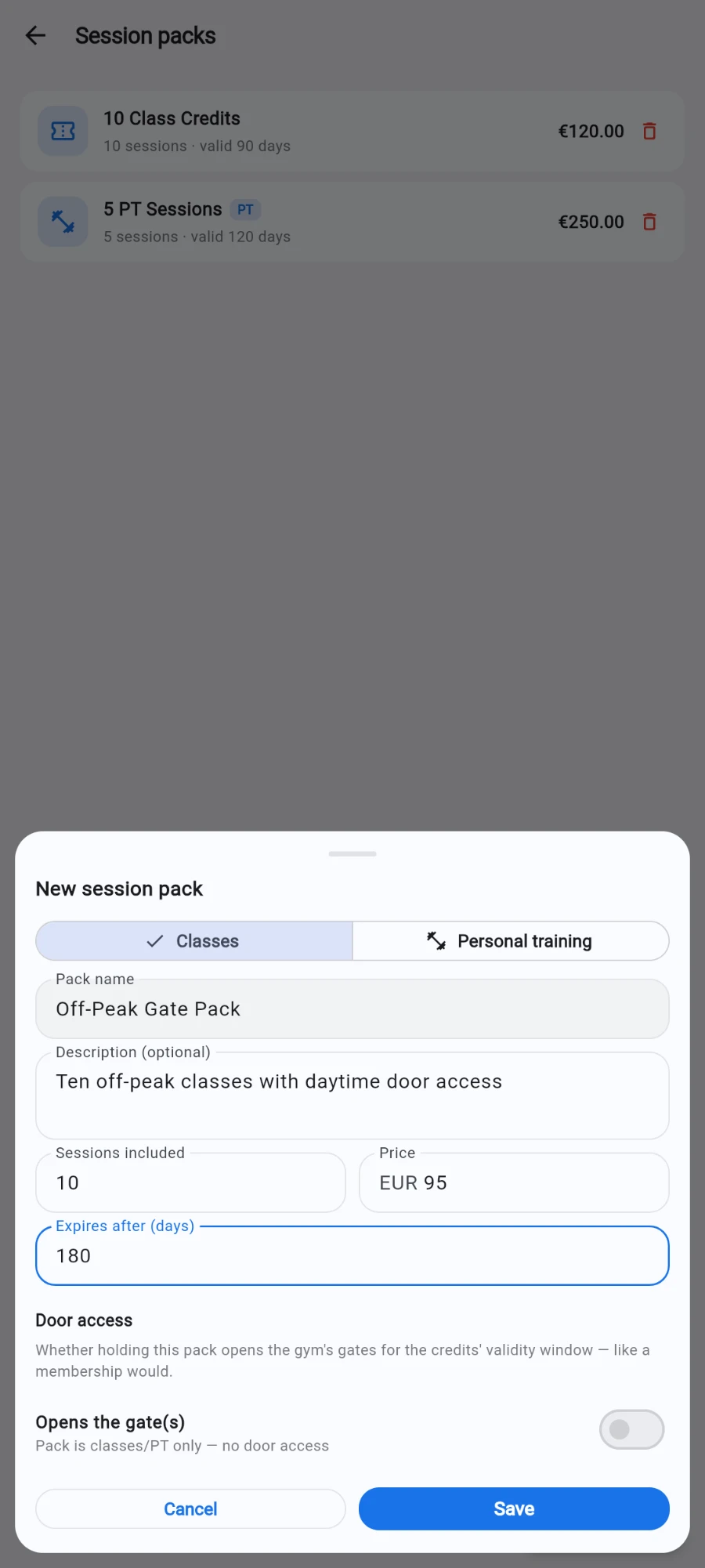
The New session pack form — sessions, price and type. -
Decide the pack's Door access: a pack can open the gym gates for its holder while sessions remain — pick the allowed gates and, optionally, allowed times (an off-peak pack, for example). Leave it off for packs that are classes or PT only. Tap Save.
-
To sell: open the member's profile and tap Sell…, then choose Session pack.
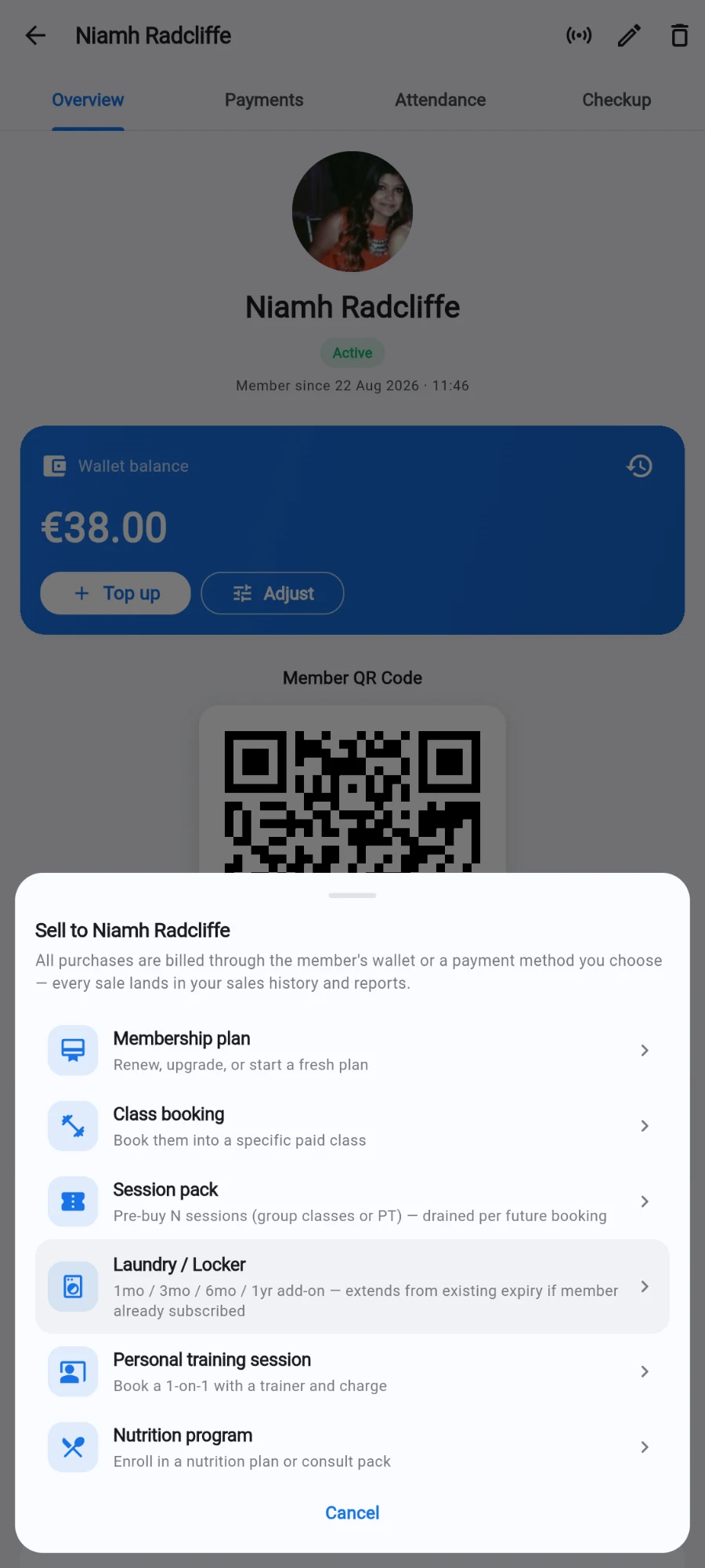
Sell… on a member profile — Session pack is the third option. -
In the Sell session pack sheet, pick the pack, then the coach under COACH — it is required, and the sheet refuses to submit without one. For PT packs this is the coach whose session pool the credits draw down; for class packs it is the coach whose class commission the sale drives.
-
Use Quantity to sell several packs in one transaction — the stepper shows the arithmetic ("10 sessions in one sale" and the multiplied price). One sale, one credit balance, one payment.
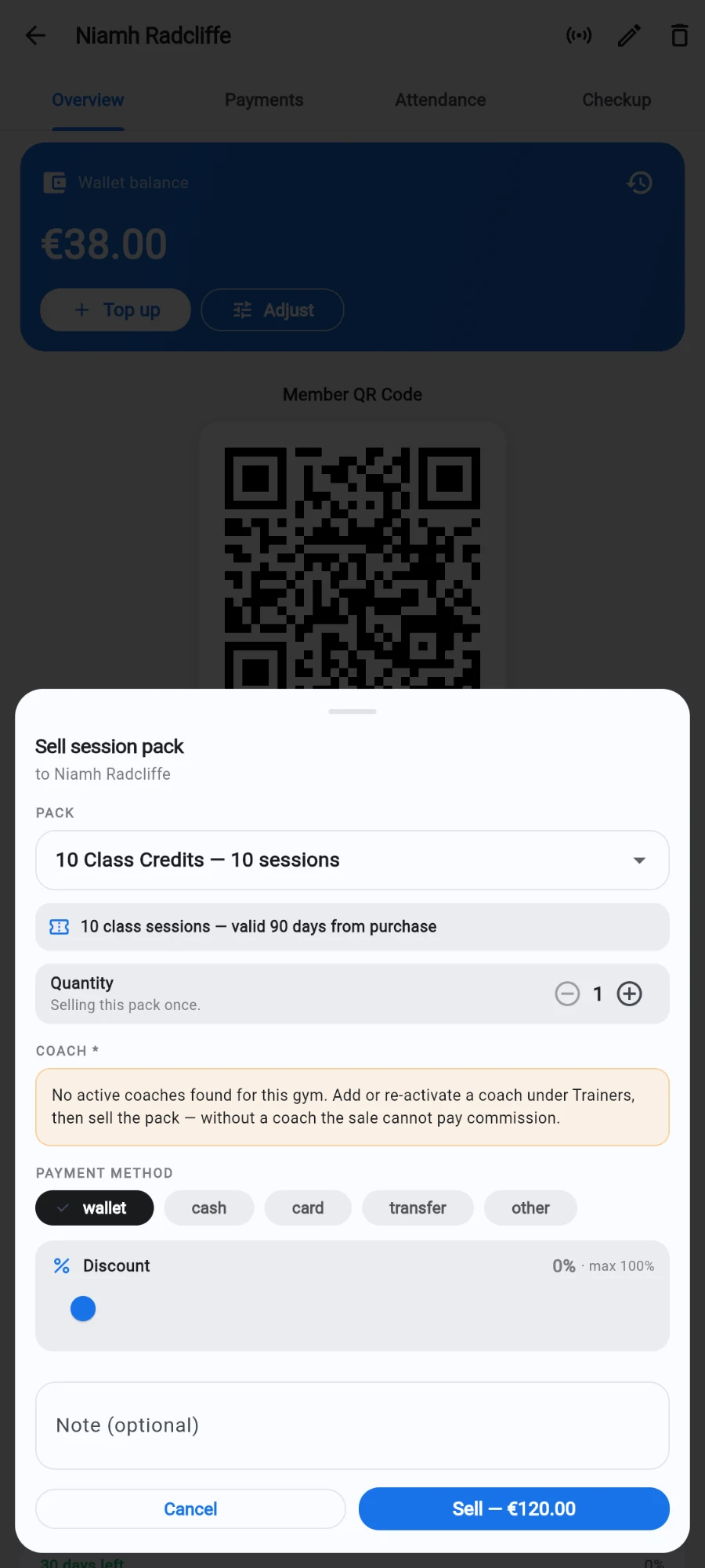
Sell session pack — pack, quantity, coach and method. -
Apply a Discount with the slider if agreed — it is capped at your personal discount limit, and every discounted pack sale is written to the audit log.
-
Pick the PAYMENT METHOD. Wallet checks the balance, debits it and writes the wallet ledger row; cash and the other methods book like any sale. Packs priced in another currency convert at the live rate, with the original price stamped for the receipt.
-
Add a note if useful, then tap Sell — the button shows the final amount. The member's credit balance updates instantly, and if the pack grants door access, the gates sync on their own.
What you should see
The sheet confirms the sale with the session count and amount; the member's profile shows the credit with its expiry; and the coach's commission and session-pool figures pick the sale up on the same numbers payroll uses.
If something goes wrong
- The sheet says there are no active session packs — create one first: it points at the Session packs catalogue.
- "No active coaches found for this gym." — add or activate a coach under Trainers, then reopen the sheet.
- A non-base-currency pack refuses to sell — no active exchange rate is configured for its currency; set one in the currency settings.
- You double-sold a pack anyway (outside the guard window) — refund the duplicate from the sales history; a full refund also zeroes that credit's remaining sessions.
Still stuck? Email hello@prismgym.com — include your gym name, the device, and a photo of what you see.