Set up the member kiosk
The member kiosk turns an ordinary Android tablet or touchscreen all-in-one into a self-service station: members sign in, book classes, take checkups and order from the bar, and prospects can join on the spot. Setup is a one-time job — install, pair, lock down, set a PIN.
What you'll do
Install the kiosk app, pair the tablet to your gym from the admin app, then walk through the staff panel so you know how to get back in later.
You'll need: an Android tablet on your gym's Wi-Fi, the kiosk app installer (APK), and the admin app signed in with the device-management permission.
Steps
-
Install the kiosk APK on the tablet and open the app. A fresh install shows the pairing screen: PAIR THIS KIOSK above a large 6-digit code, an Expires in countdown, and the same code as a QR under OR SCAN.
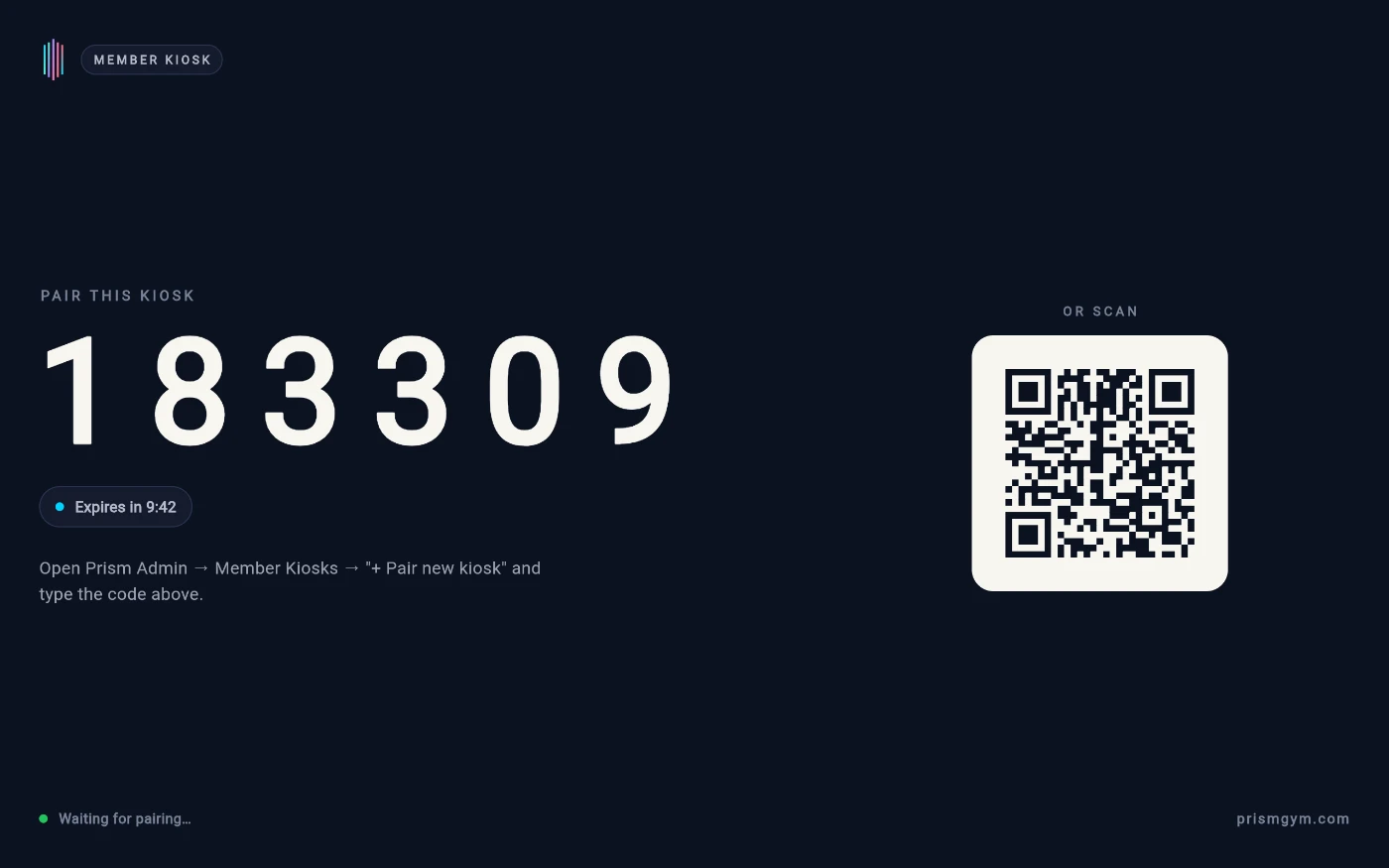
A fresh kiosk shows its claim code and waits. -
The screen itself tells you where to go: open the admin app's drawer, then Member Kiosks. You land on the Devices tab.
-
Tap Pair new kiosk (on an empty list the button reads Pair your first kiosk).
-
Type the code from the tablet into PAIRING CODE — or tap Scan QR instead and point your phone's camera at the kiosk. If the code expired while you walked over, just read the fresh one; it re-mints automatically.
-
Tap Next, then give the kiosk a name under NAME (the hint says Name this kiosk), optionally assign it to a studio under STUDIO (OPTIONAL) — the default is Whole gym — and optionally pick a signage screen to mirror when idle under IDLE MODE — LINKED SIGNAGE (OPTIONAL); the default is Brand splash only.
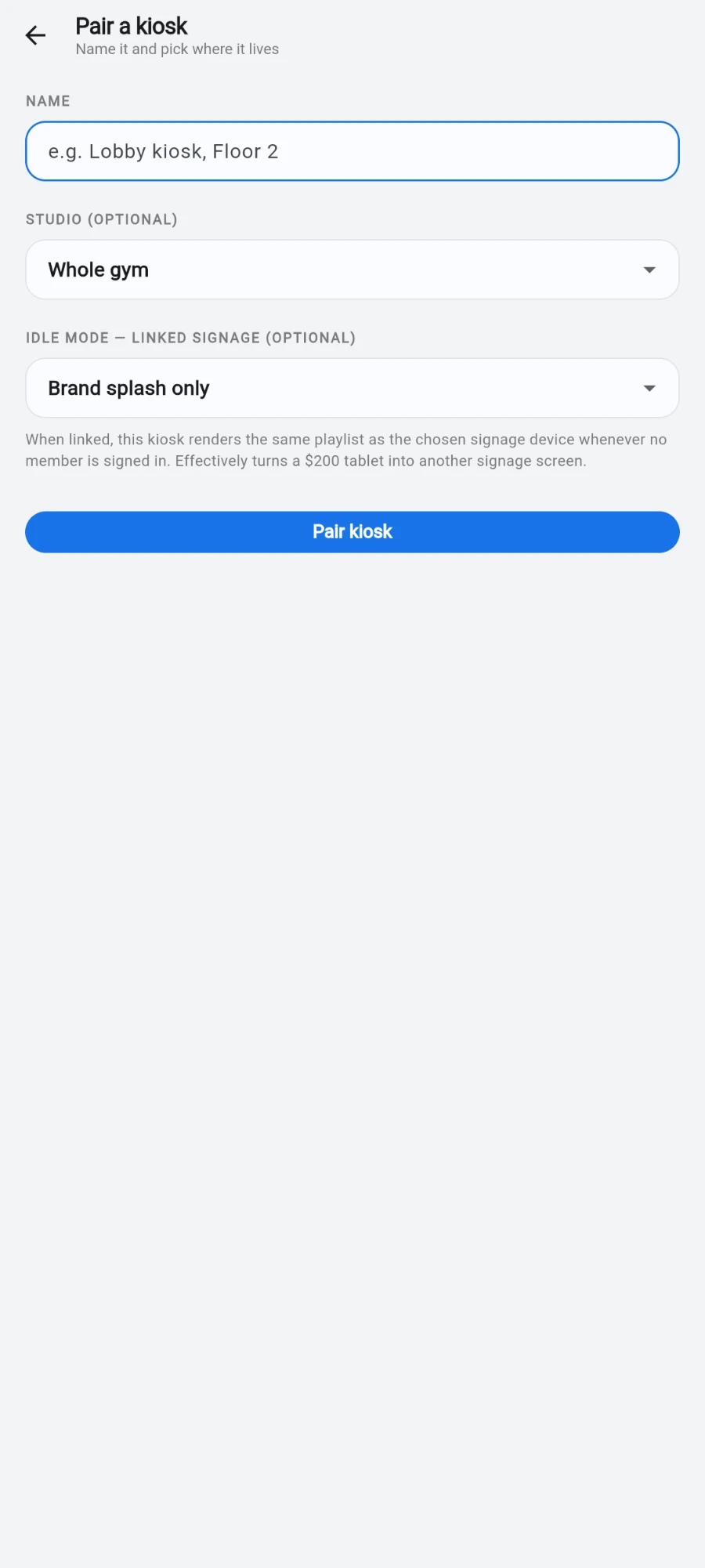
Name it, place it, and decide what it shows when nobody is using it. -
Tap Pair kiosk. The tablet notices within seconds and flips to the member welcome screen by itself — no restart needed.
-
Now open the staff panel: press and hold anywhere on the welcome screen for a few seconds. The Enter kiosk PIN gate appears — the factory PIN is 0000.
-
The kiosk refuses to open the panel on the factory PIN: it forces you to set a real 4-8 digit PIN first. Pick one and continue into Kiosk admin.
-
Tour the panel: Change PIN, a Device ID row for support, a Sounds switch, device pairing rows for the Grip dynamometer and Heart-rate strap, then Force re-sync, WiFi settings, Android settings, Reader test, Exit kiosk mode and Factory reset.
-
If you'll use a cheap USB NFC card reader for sign-in, plug it in now and open Reader test. Tap a member card on the reader — every key event streams in with its timing, and a recognised card appears under LAST UID CANDIDATE.
-
Close the panel. The kiosk pins itself to the screen, hides the system bars and blocks the back gesture — members can't leave the app.
What you should see
The tablet sits on the member welcome screen with your gym's logo. In the admin app, Member Kiosks → Devices lists the kiosk with a green Online dot, its location, and chips showing which sign-in modes are on.
If something goes wrong
- The code keeps expiring — that's normal; it rotates for security. Read the current code right before you type it, or use Scan QR instead.
- The kiosk never leaves the pairing screen after pairing — it isn't reaching the internet. The footer of the pairing screen shows the tablet's local IP; confirm it's on the right Wi-Fi.
- The admin app shows Never connected or Offline — the kiosk checks in every minute when healthy; give it a minute, then check the tablet's network.
- You're locked out of the staff panel — wait out the cooldown shown on screen, or reset the PIN from the admin app with Reset admin PIN….
- A tapped card shows nothing in Reader test — only keyboard-style (HID wedge) USB readers are supported; smart-card (CCID) readers are not. Try a different reader model.
Still stuck? Email hello@prismgym.com — include your gym name, the device, and a photo of what you see.