Enroll a Prism door reader
Prism door readers scan member cards, wristbands and phones at your doors and gates. They come in several models — a touchscreen gate reader that shows the member's photo on entry, a compact display reader for doors and turnstiles, and a small headless unit with just a status light — but they all run the same software and are set up the same way. Nothing gym-specific is built into the hardware: the reader learns your Wi-Fi and its identity during this pairing flow.
What you'll do
Register the reader from the admin app, join the reader's own setup Wi-Fi with your phone, confirm the pairing code, and watch it come online.
You'll need: the reader, its setup card (the sticker with the setup Wi-Fi password), your gym Wi-Fi name and password, and a staff account with the device-management permission.
Steps
-
In Prism, open Settings → Devices & access → Access readers, then tap Add reader.
-
Choose Set up a new reader — the recommended auto-pair path. (Add manually exists for the rare case where you already have a device ID and API key from support.)
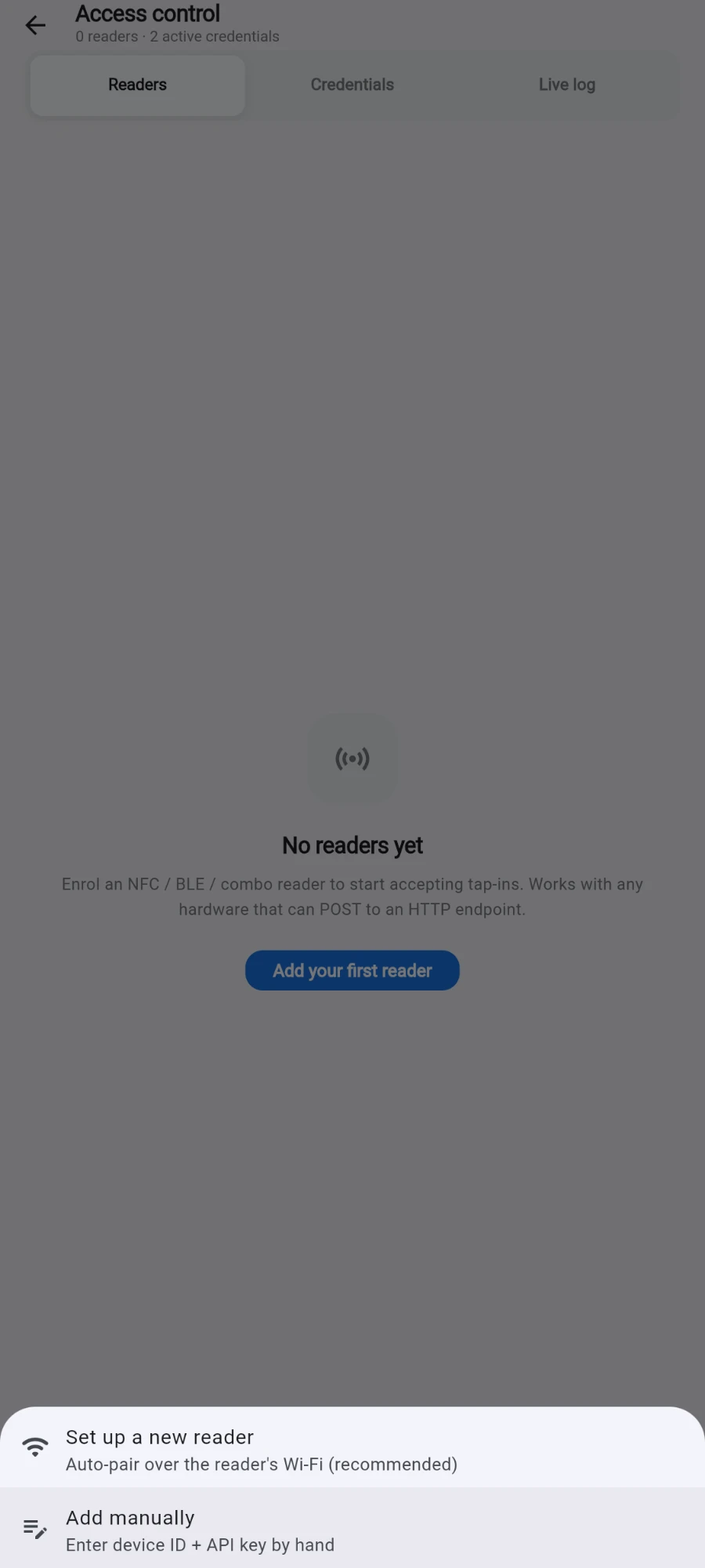
Two ways in — the auto-pair path is the one to take. -
Under Identify this reader, enter a Reader name (for example Front Door) and, if you like, a Location (optional).
-
Under Gym Wi-Fi for the reader to join, enter your Wi-Fi name (SSID) and Wi-Fi password. The reader will live on this network.
-
If your unit shipped from Prism with a QR sticker on the box, tap Scan box QR (factory reader) — it claims the unit for your gym and skips the manual identity steps. Otherwise tap Continue without QR.
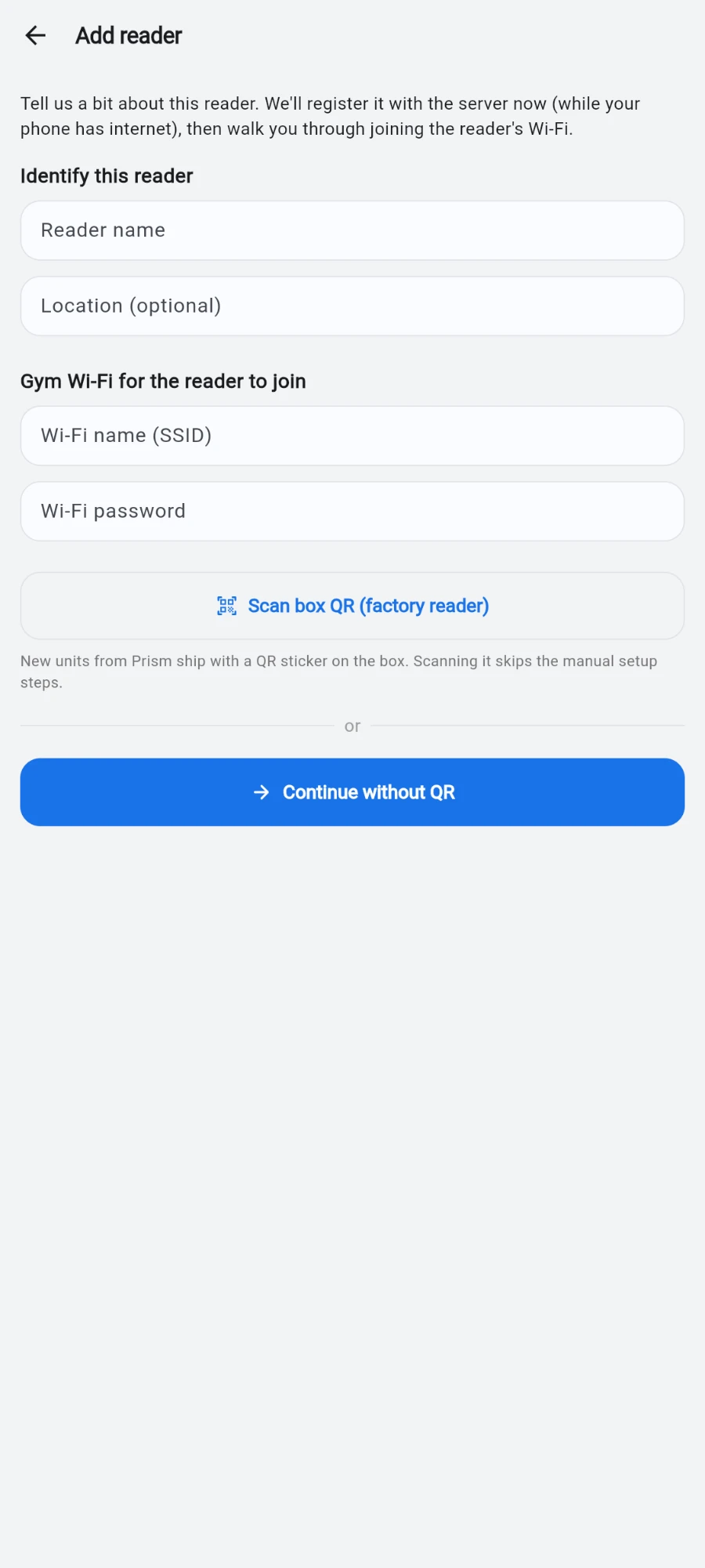
Everything the reader needs to know, collected before you walk to it. -
Follow the on-screen steps: Power on the reader (it enters setup mode within a few seconds), then Join its Wi-Fi network — open your phone's Wi-Fi settings and connect to the network named Prism-Setup-XXXXXX using the password printed on the setup card.
-
Back in Prism, tap Continue — I've joined the reader Wi-Fi. The app finds the reader automatically.
-
When Found a reader appears, compare the big 6-digit code on your phone with the code on the reader's screen. If they match, tap Codes match — continue. If not, tap No — this is the wrong reader — you are probably next to a different unit.
-
The app sends the configuration and the reader reboots. When prompted, switch your phone's Wi-Fi back to the gym network — the screen says Switch your phone back to the gym Wi-Fi and waits.
-
Wait for the success screen: the reader's name with is online, its hardware address and last-seen time. Tap Done.
What you should see
The reader appears on the Readers tab with an online status pill and a recent last-seen time. Its idle screen shows your gym name and a live clock, and a test tap shows up instantly on the Live log tab.
If something goes wrong
- The app can't find the reader — make sure your phone is still on the Prism-Setup-XXXXXX network. Some phones jump back to known Wi-Fi automatically; turn off auto-switch for a minute.
- The reader never comes online after setup — it is rebooting onto your gym Wi-Fi; give it a minute. If it stays offline, the Wi-Fi password was probably mistyped: power-cycle the reader, and if it returns to setup mode, run the wizard again.
- Setup failed appears — tap Start over. The wizard restarts cleanly; nothing partial is left behind.
- The setup card is lost — without the setup-network password the reader can't be provisioned over Wi-Fi. Contact support; the reader can be re-provisioned over USB.
Still stuck? Email hello@prismgym.com — include your gym name, the device, and a photo of what you see.