Session packs for classes and PT
A session pack pre-sells a bundle of sessions — "10 group classes" or "5 PT sessions" — that the member then spends one booking at a time. One catalog serves both kinds, and a pack can even grant door access on its own, so a pack-only customer gets into the gym without a membership.
What you'll do
Create a pack in the catalog, then sell it to a member. Class credits are spent when the member books a class; PT credits are spent when a PT session is booked against them.
You'll need: permission to manage the sales catalog (for creating packs) and a member to sell to.
Steps
-
Open the main menu and tap Session packs.
-
Tap New pack.
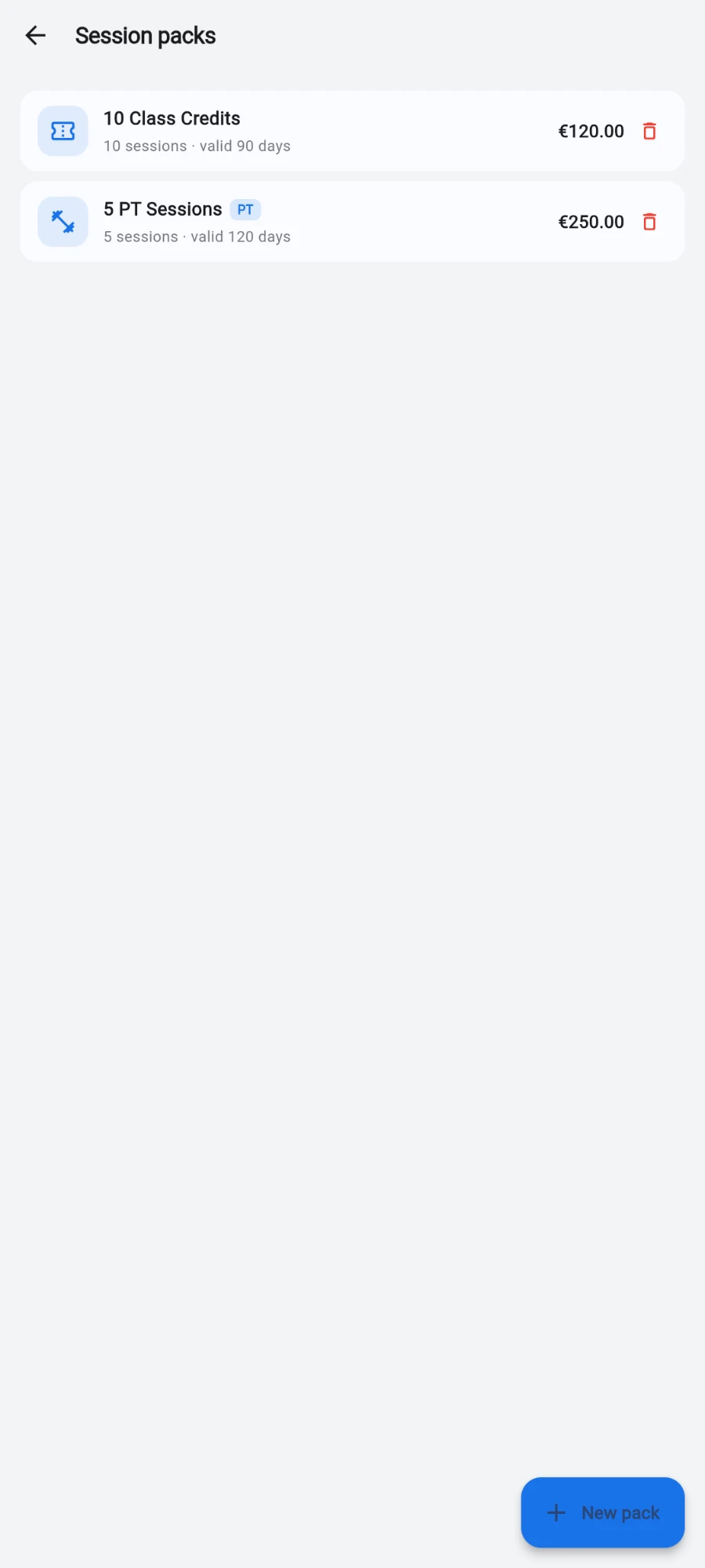
The catalog — class packs and PT packs side by side. -
Pick the pack type: Classes or Personal training. Class credits drain against group-class bookings; PT credits drain against trainer sessions.
-
Fill in Pack name, Sessions included, Expires after (days) — leave it blank for credits that never expire — and Price.
-
If you charge in a second currency, set Price anchored in. The price stays fixed in that currency and the till converts to your books currency at the live rate on sale.
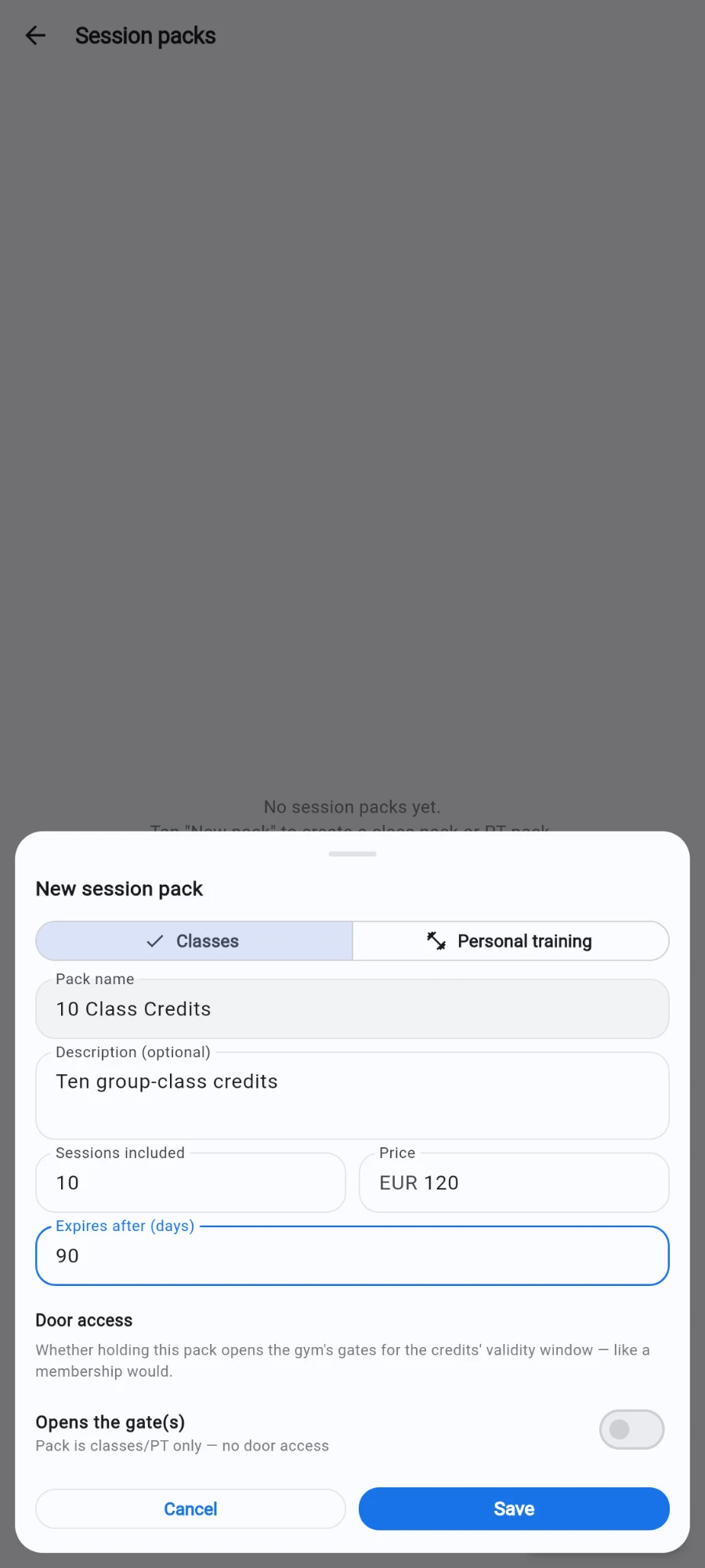
The pack form — type, name, sessions, expiry and price. -
Decide on Door access. Flip Opens the gate(s) on if holding this pack should open the gym's entrances while credits remain.
-
If door access is on, choose All gates or Selected gates with a checklist — useful for gender-segregated entrances or a studio-only pack.
-
Optionally restrict entry times under OPEN GATE — ALLOWED TIMES: a Start and End time plus allowed days (All days, Weekdays, Weekend or individual days). Leave it blank for round-the-clock access.
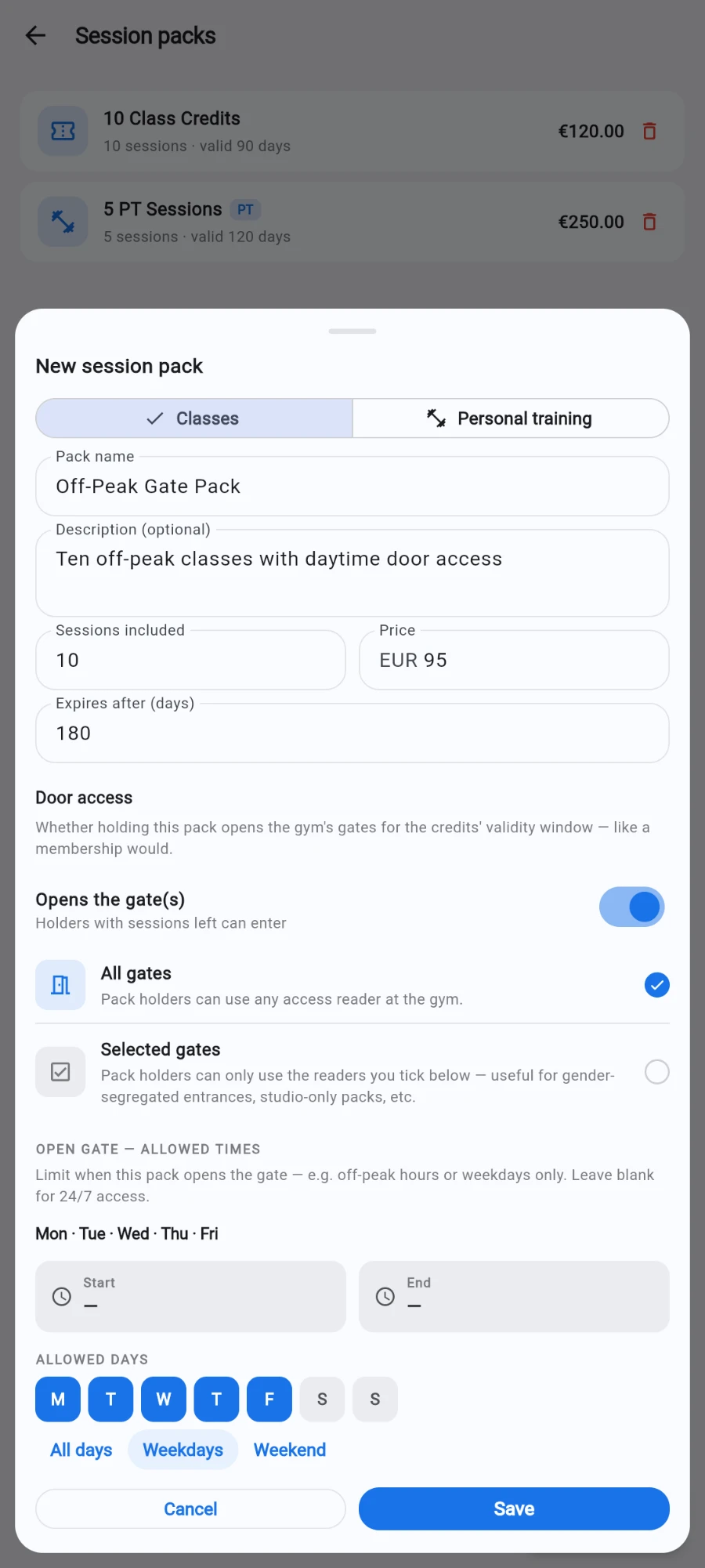
Door access — gate scope and allowed times on a pack. -
Tap Save. The pack now appears in the catalog and in the selling flow.
-
To sell one: open the member's profile, tap Sell…, then choose Session pack.
-
Pick the PACK, choose the coach if the form asks for one, set the PAYMENT METHOD and Quantity, add a Note (optional), and tap Sell.
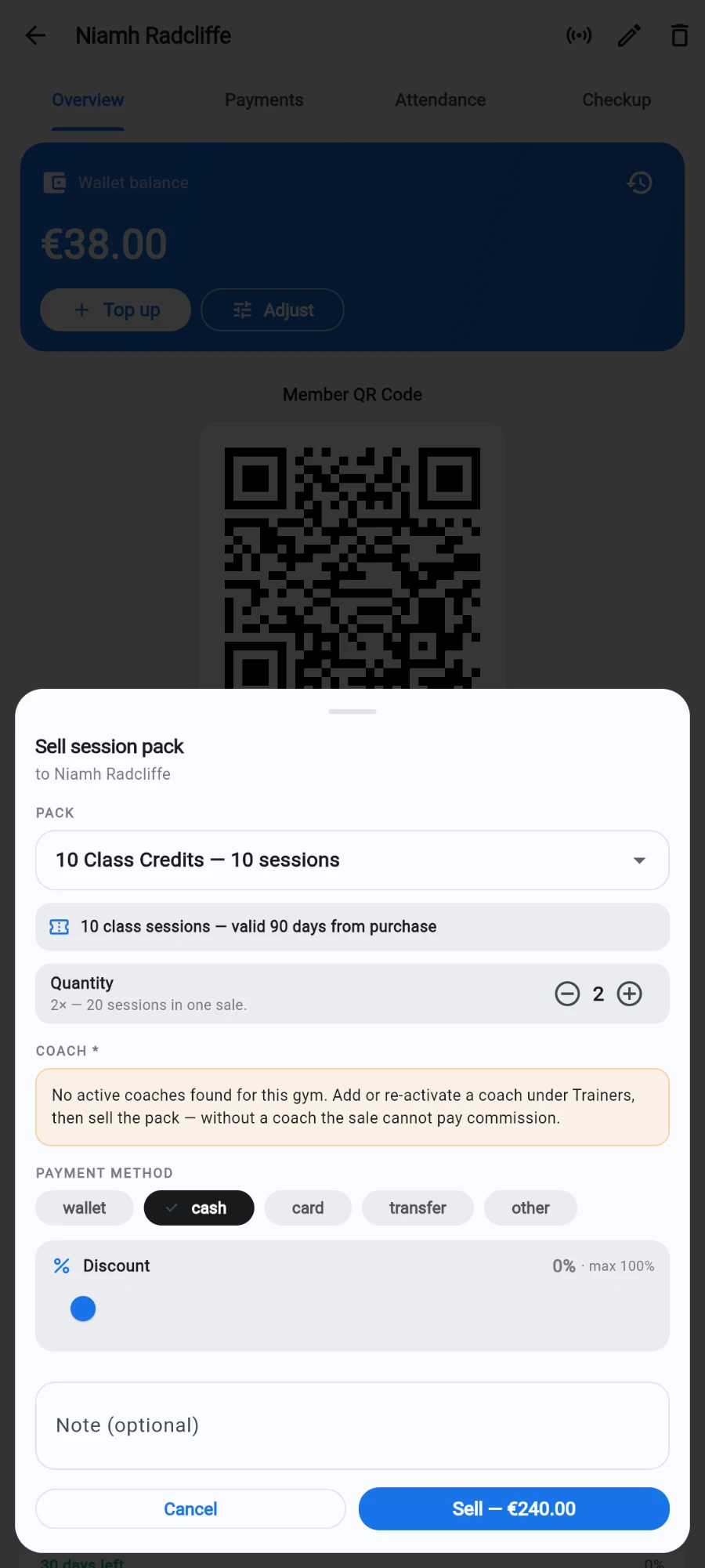
Two packs on one sale — the button totals as you go.
What you should see
The sale confirms with the pack size and amount charged. The member's remaining credits show on their profile, and when staff book them into a paid class the booking sheet offers Book (use credit) so the seat draws down a credit instead of charging the wallet.
If something goes wrong
- The catalog is empty in the sell sheet — no active packs exist yet. Create one under Session packs first; the sheet tells you where.
- Deactivating a pack — use Deactivate on the pack card. Existing member credits are kept and stay usable; only new sales are blocked.
- A pack-holder can't get in the door — check the pack's allowed times and gate list, confirm credits haven't expired, and make sure the member isn't frozen.
- No gates to pick from — the gate checklist is empty until access readers are set up under your access-control settings; add readers first, then edit the pack.
Still stuck? Email hello@prismgym.com — include your gym name, the device, and a photo of what you see.