Order food and drinks
If your gym runs a café or juice bar, the kiosk takes orders straight from the floor. Members order from their session; guests can browse the menu from the welcome screen and sign in only at the moment of payment — the cart waits for them.
What you'll do
Build an order, pay, and collect it.
You'll need: a kiosk with ordering enabled. Wallet payment needs a signed-in member with balance; guests can pay via the app or at the desk.
Steps
-
Start from either door: the Order drinks & snacks band on the welcome screen (no sign-in needed — the header pill notes Sign in at checkout), or the Order food & drinks tile on your Featured home when signed in.
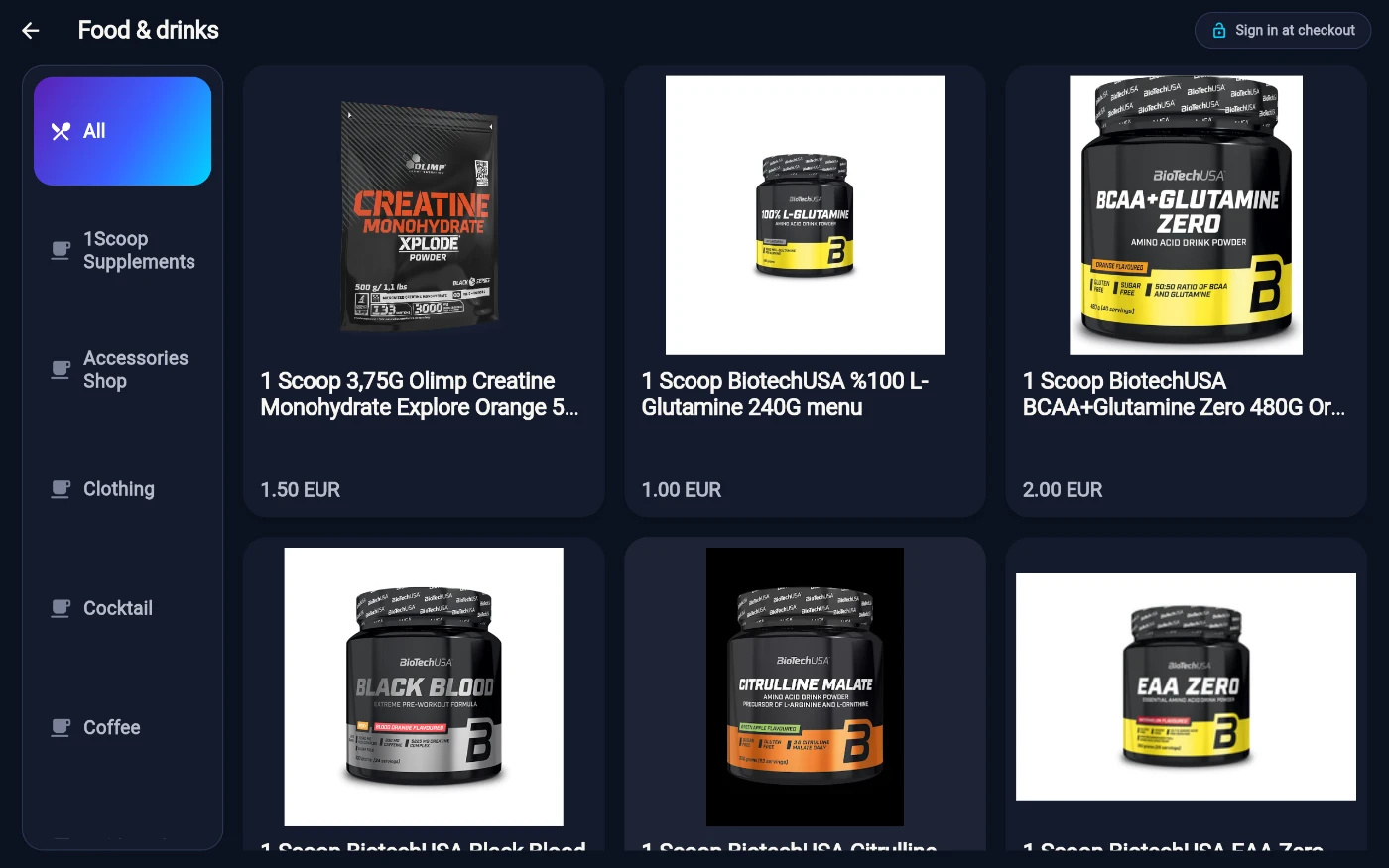
The kiosk cafe menu. -
Browse the Food & drinks menu — category chips across the top (All shows everything), image cards for each item, and a Sold out badge on anything unavailable.
-
Tap an item, pick a quantity, and add a note for the bar if you like (the field suggests e.g. no ice). Tap Add to order. The cart bar along the bottom keeps a running total.
-
Tap Checkout (guests tap View order). A guest is asked to sign in here — the screen promises what's true: Your order is saved and waiting. Scan your QR or tap your card and you land straight back in checkout with the cart intact.
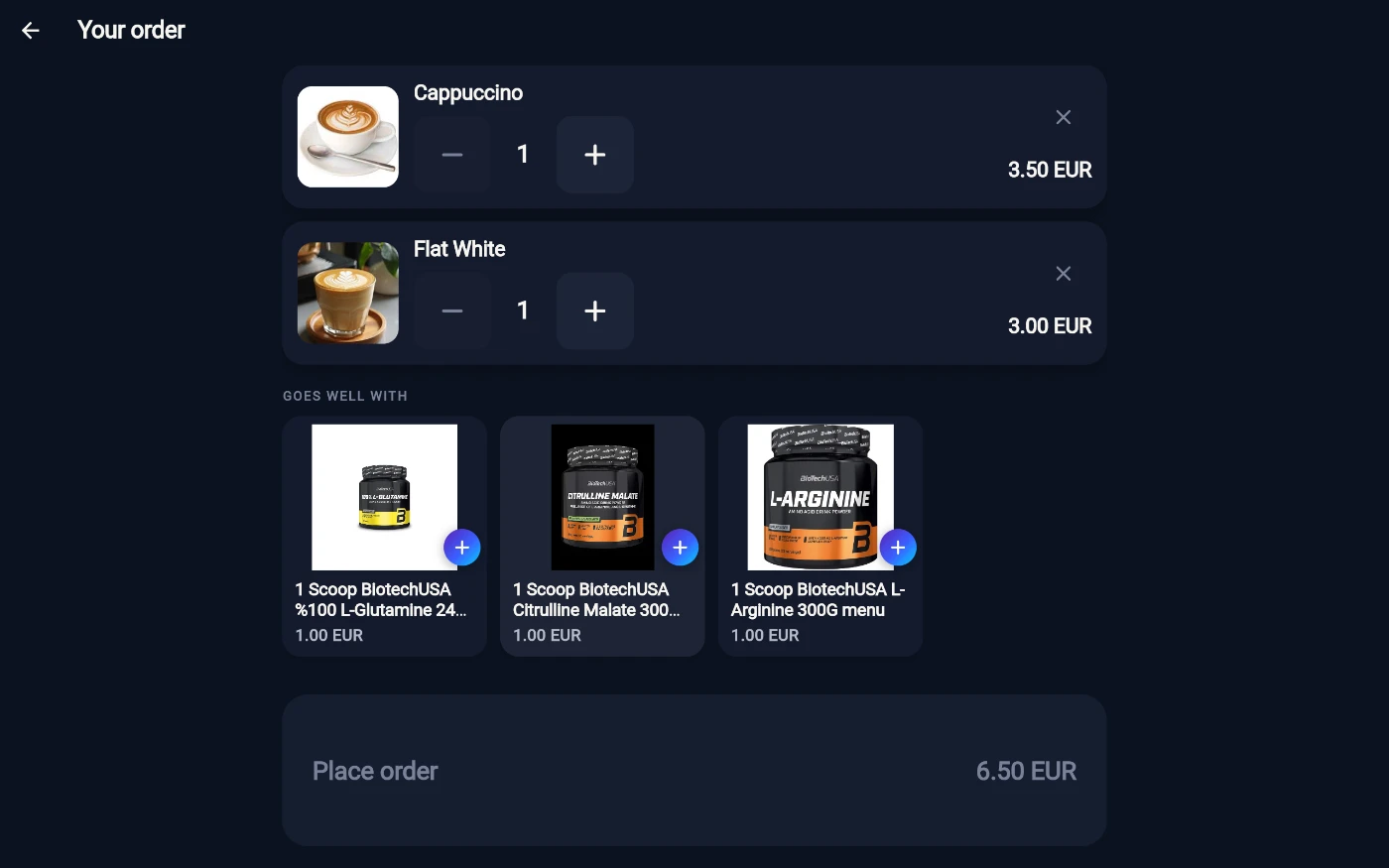
Your order — steppers, suggestions and the running total. -
Review Your order — adjust quantities in place, maybe grab something from the single Goes well with suggestion strip, and check the Total. Prices come from the server and re-quote on every change.
-
Answer How would you like to pay? — Gym wallet (shows your balance, and tells you if it's short), Prism member app (scan a QR with your phone to pay), or Pay at the desk (settle at reception when you collect).
-
Tap Place order.
-
The confirmation shows Order placed! with a big order number — show it when you collect — and the live status: Sent to the bar, Accepted, Being prepared, then Ready — come and collect! Wallet payments confirm your new balance; app payments show Waiting for payment… until your phone completes it.
What you should see
The order lands at the bar's screen immediately, the status steps advance as they work, and Ready — come and collect! is your cue. Pay-at-desk orders show a note that the order is on your tab.
If something goes wrong
- "Your wallet balance isn't enough for this order." — pick another payment method, or top up in the member app or at reception first.
- "An item in your order just sold out — please review your order." — the bar ran out mid-order; remove that line and place it again.
- "We couldn't place your order. Nothing was charged — please try again." — a network blip; your cart is preserved, so just tap Place order again.
- The status shows "Couldn't be accepted" — the bar rejected the order (the reason shows beneath); nothing to collect, and see reception about any app payment already made.
- The menu is empty or won't load — the gym hasn't put items on the kiosk menu yet, or it's a connection blip; check back in a moment.
Still stuck? Email hello@prismgym.com — include your gym name, the device, and a photo of what you see.