Laundry subscriptions
Laundry is sold as a timed subscription: a plan with a duration and a price, sold to a member, valid until its end date. It lives as a tab inside the Lockers screen because the two pair naturally — a laundry sale can bundle a locker that's held for the life of the subscription.
What you'll do
Create a laundry plan, sell it, and monitor active subscribers.
You'll need: the lockers permission and your plan pricing (a common shape is one month of unlimited service).
Steps
-
Open the main menu, tap Lockers, then switch to the Laundry tab.
-
Under Plans, tap New plan.
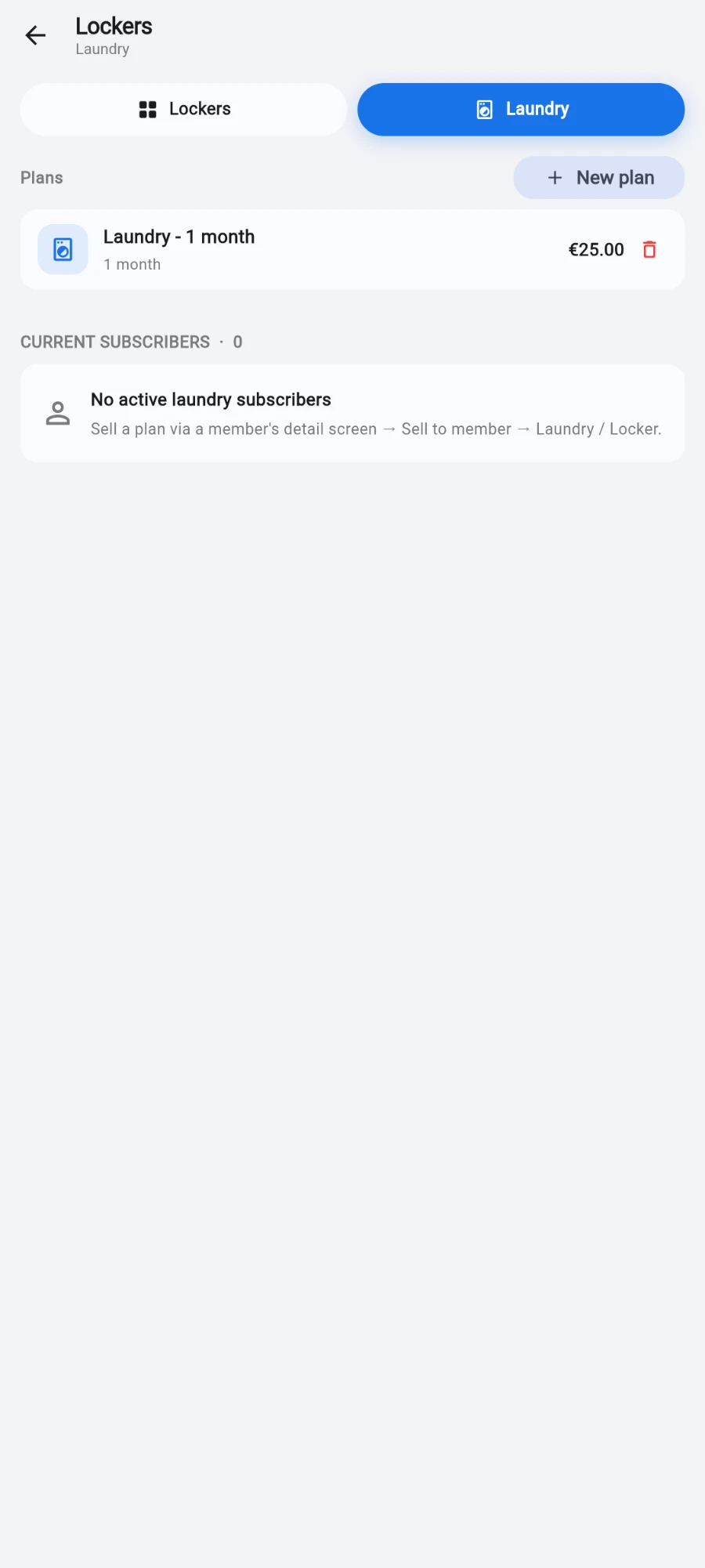
The Laundry tab — plans on top, current subscribers below. -
Enter the Plan name, the Duration in days, and the Price. If you charge in a second currency, set Price anchored in — the till converts at the live rate on sale.
-
Tap Save. The plan is now sellable.
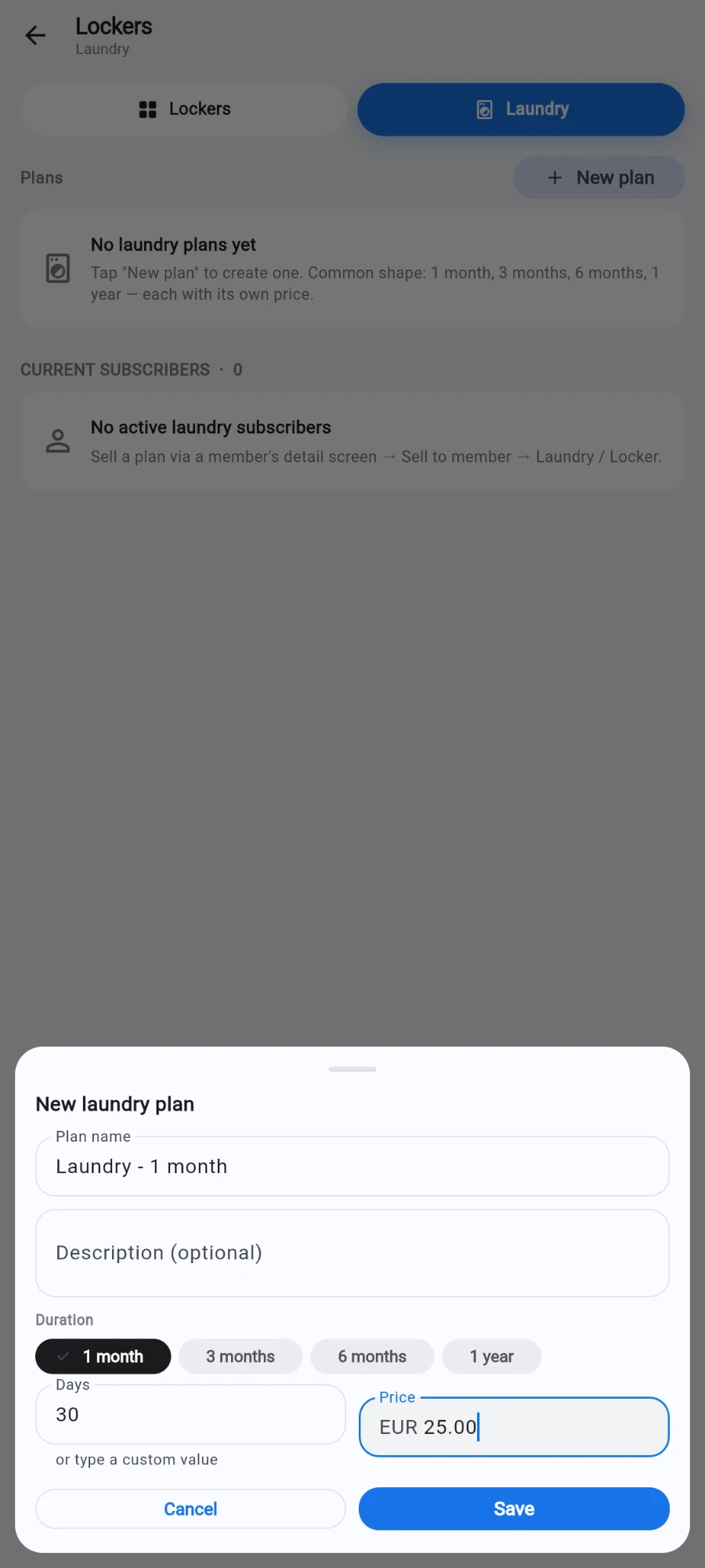
New laundry plan — name, duration in days and price. -
To sell: open the member's profile, tap Sell…, and choose Laundry / Locker.
-
Pick the PLAN, optionally enter a Locker number (optional) to bundle a locker, choose the PAYMENT METHOD, and tap Sell.
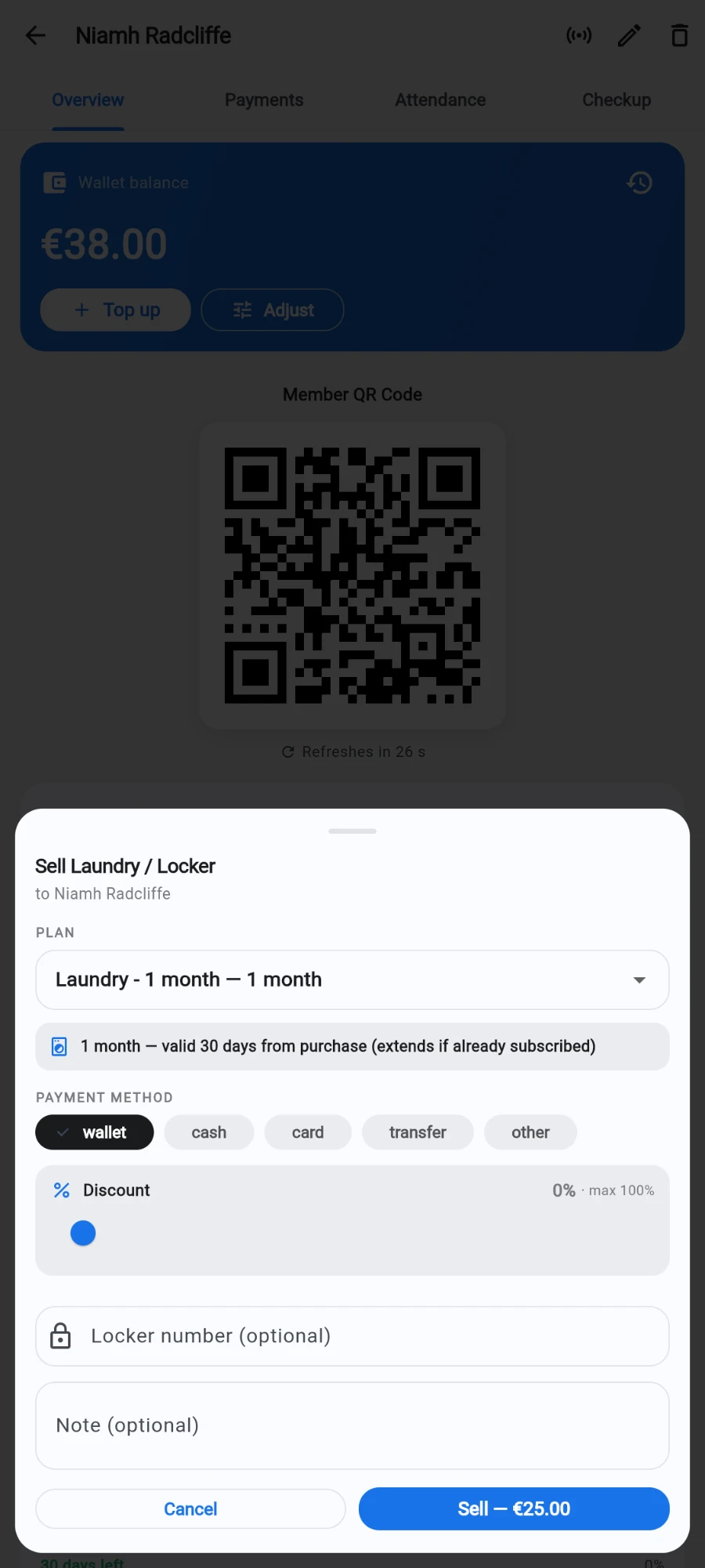
Selling laundry — pick the plan, add a locker number if it is bundled. -
Back on the Laundry tab, check the current subscribers list — everyone active right now, sorted by expiry, so renewals are easy to spot.
What you should see
The sale confirms with the subscription's end date. The subscriber appears in the Laundry tab list; lapsed subscriptions grey out on their own once the end date passes — there's no job to run.
If something goes wrong
- The sell sheet says there are no plans — none are active yet. Create one under Lockers → Laundry → New plan; the sheet points you there.
- The bundled locker number was rejected — that locker is already occupied. Pick a free one, or sell without a locker and assign one later from the Lockers tab.
- A member disputes their end date — check the subscribers list: an extension is dated from the previous end date, not from the day of sale.
Still stuck? Email hello@prismgym.com — include your gym name, the device, and a photo of what you see.