Discounts and staff purchases
Three kinds of discount can land on a register sale: a manual discount the cashier types (limited by their personal cap), an automatic loyalty-tier discount for members whose tier carries one, and the staff-purchase scheme, which applies your per-category staff rates when a team member buys something. They do not stack — a staff purchase replaces the others — and every figure is re-checked by the server, so the preview on screen is always the discount that actually books.
What you'll do
Give a manual discount, read the loyalty line, and flag a sale as a staff purchase.
You'll need: a discount cap granted on your account for manual discounts (owners are uncapped), and the staff-discount permission for staff purchases. Owners set per-category staff rates on the product catalogue.
Steps
-
Build the cart as usual. In the totals, find the Discount row and tap the pencil beside it.
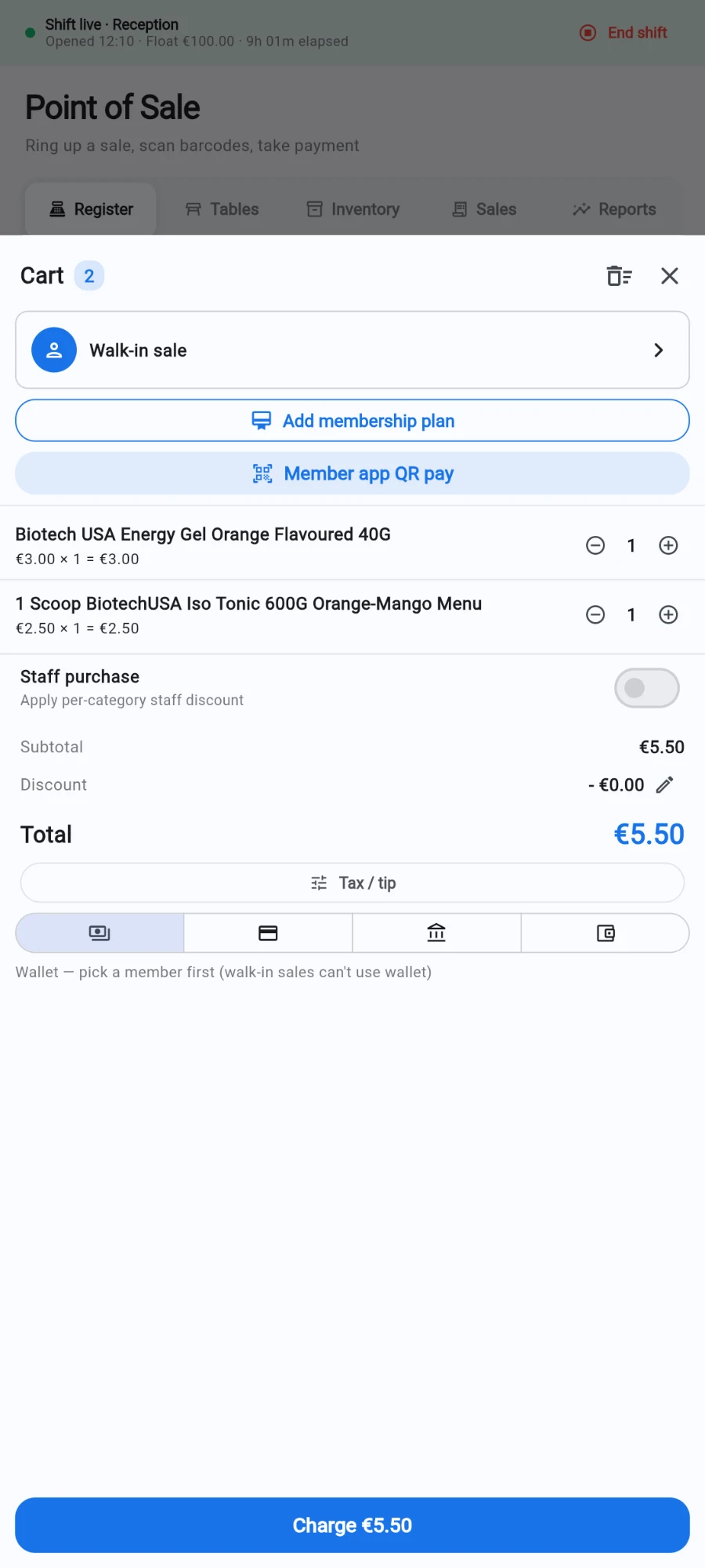
The Discount row sits under the subtotal — the pencil opens it. -
In the Discount dialog, enter the Amount. The line under the field shows your personal limit — your percentage cap and the maximum amount that means on this cart. Tap Apply.
-
If you type more than your cap allows, the register clamps it and tells you — "Capped at your limit" with the exact maximum. The server enforces the same cap independently, so a bigger number can never book.
-
Members with a loyalty tier that carries a discount get it automatically when attached to the sale: a separate line appears in the totals naming the tier and its percentage. Nothing to tap — and the rate shown is read from the same place the server charges from.
-
For a colleague buying something, flip the Staff purchase switch in the cart (visible only with the staff-discount permission), then pick which staff member it is for in the Staff purchase for… sheet.
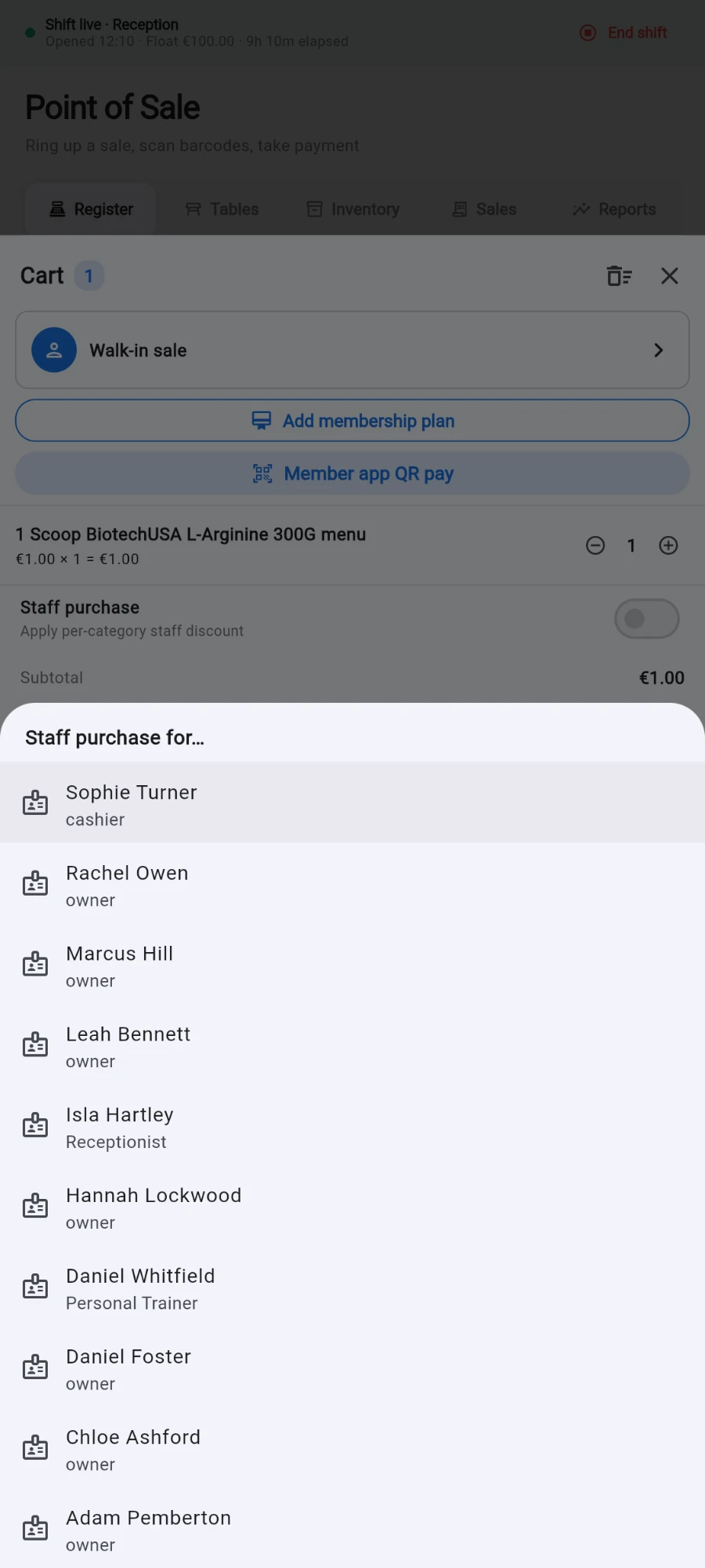
Flipping Staff purchase asks who the purchase is for. -
The totals now show a Staff discount line computed from your per-category staff rates — a product-level Staff discount % override wins over its category's rate. Manual, coupon and loyalty discounts are replaced while the switch is on, and membership plans are never staff-discounted.
-
Charge as normal. The sale records which staff member it was for, so staff purchases are reportable later.
What you should see
The totals always itemise what happened: a Discount line for manual amounts, a tier-named line for loyalty, or a Staff discount line naming the staff member. The printed receipt matches the screen to the cent.
If something goes wrong
- The discount you typed shrank — it was clamped to your cap. The snackbar shows your limit; ask an owner to raise it if this is routine.
- The Staff purchase switch is missing — your account lacks the staff-discount permission; a manager must ring the purchase.
- The staff discount shows zero — the items' categories have no staff rate set (or are set to 0), and no product-level override exists. An owner sets rates on the category in the catalogue.
- A member's tier discount is not appearing — the loyalty scheme may be switched off gym-wide, or the member is attached after items were expected to re-price; re-attach the member and the totals refresh from their live tier.
Still stuck? Email hello@prismgym.com — include your gym name, the device, and a photo of what you see.