Access rules on plans — hours, gates and locations
Who gets in, where, and when is a property of the membership plan. An off-peak plan can allow weekday mornings only; a ladies-gym plan can open one entrance and not another; a premium plan can work across your whole chain. You set all of it on the plan — and the rules are pushed into the face terminals themselves, so they keep being enforced even with no internet and no app anywhere near the door.
What you'll do
Set access hours, allowed gates and location scope on a plan, and understand how doors decide.
You'll need: an owner or manager account with the plan-management permission.
Steps
-
Open Settings → Membership plans and open the plan (or create one).
-
Scroll to Access hours. Set a Start and End time and tick the ALLOWED DAYS — the All days, Weekdays and Weekend shortcuts fill the row for you. Leave both times empty with all days on for Unrestricted — 24/7 access.
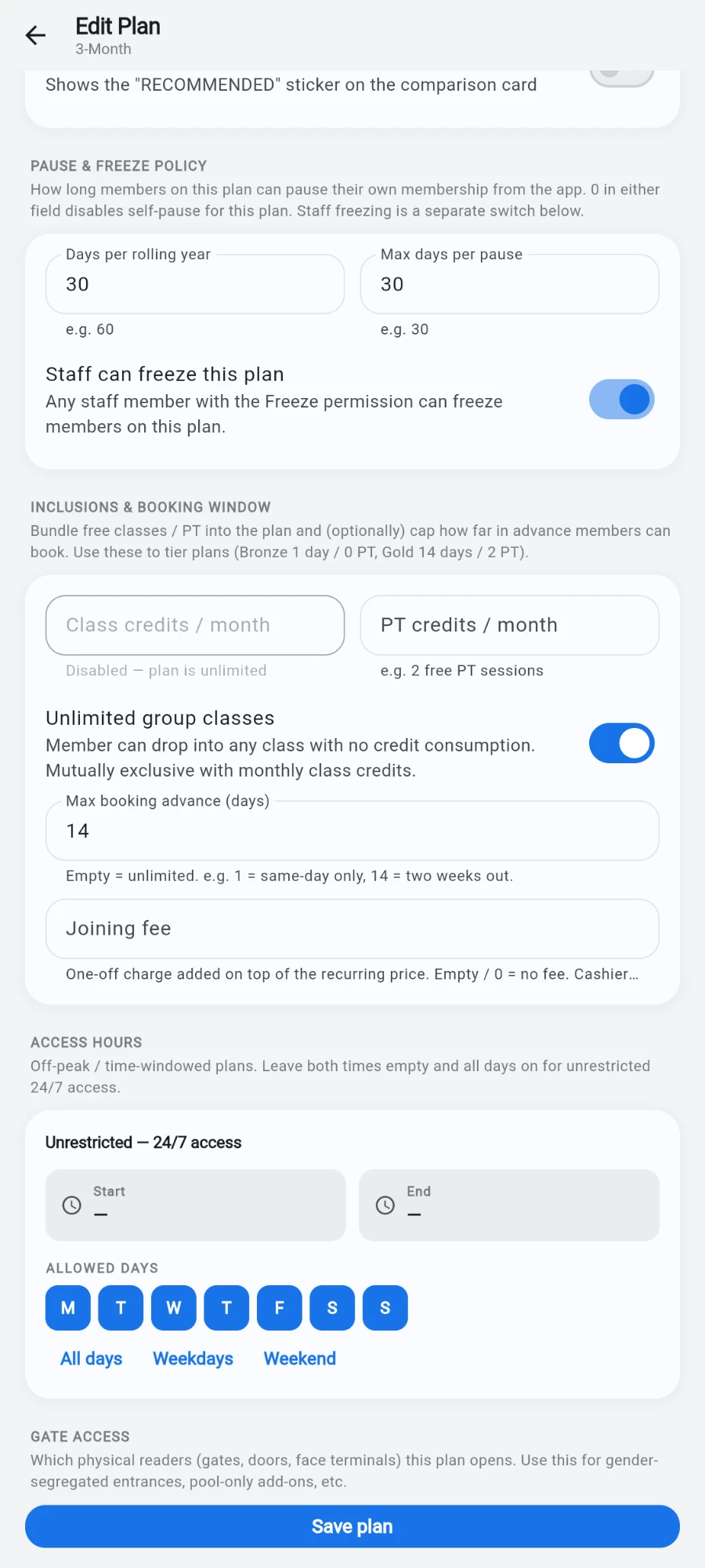
Access hours on the plan: start, end, allowed days, and the 24/7 hint. -
Scroll to Gate access and choose All gates or Selected gates. With Selected gates, tick exactly the readers and terminals this plan should open — this is how you do gender-segregated entrances or pool-only add-ons.
-
In multi-location organisations, set Location access: Home location only, All locations or Selected locations. With All locations you can also cap the plan with Max tier — a mid-tier plan opens mid-tier branches and below, never the flagship.
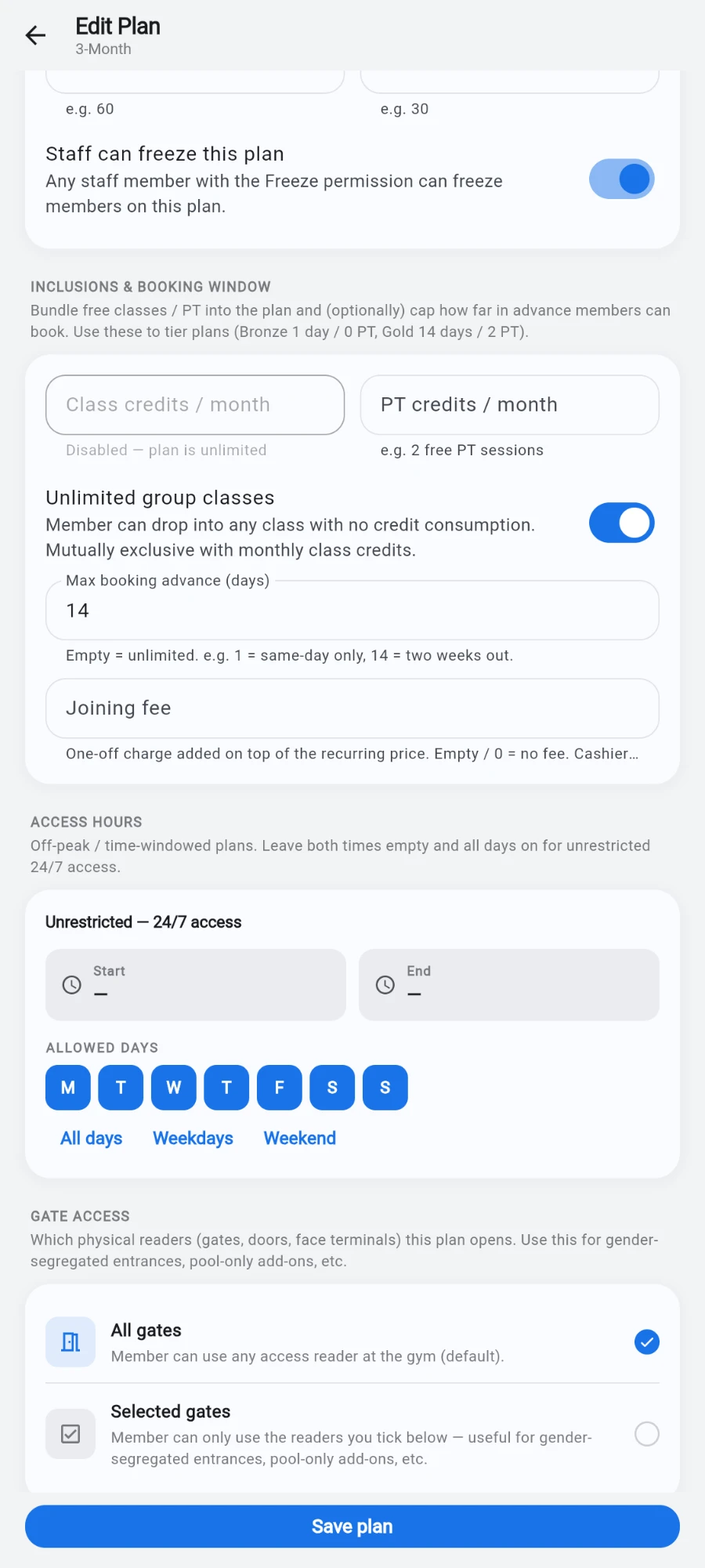
Gate access: every reader, or only the ones you tick. -
Tap Save plan. The schedule is compiled and pushed to every face terminal automatically — members on the plan are re-bound to the new hours without any manual sync.
-
Watch it work from the Live log (Settings → Devices & access → Access readers): denied attempts show the exact reason — out of hours, wrong door, expired, frozen, unknown card — so the front desk never has to guess.
What you should see
Members on the plan pass every allowed door during allowed hours as usual. Outside the window — or at a door the plan doesn't include — the terminal or reader refuses, and the Live log records the precise reason.
If something goes wrong
- An off-peak member got in out of hours — the schedule may not have reached that terminal yet; syncing needs a signed-in staff device on the gym network. Open the admin app on-site, give it a minute, then test again.
- A member is refused at a door they should be allowed through — check Gate access on their plan: with Selected gates, a door you forgot to tick refuses them with a device-not-allowed reason in the Live log.
- You picked Selected gates but ticked nothing — the form stops you: an empty allowlist would mean nobody on the plan can enter anywhere.
- A visiting member from another branch is refused — that's Location access doing its job. Check the plan's scope and tier cap before assuming a fault.
Still stuck? Email hello@prismgym.com — include your gym name, the device, and a photo of what you see.