Plan access rules
Access control in Prism is a plan attribute, not a customisation. "Women's off-peak, women's entrance only, weekdays, home branch" is just a plan you configure — the doors, the kiosk and the member app all enforce it, and the server re-checks every rule so a tampered app can't bypass them.
What you'll do
Set the four access rule groups on a plan: who can buy it, when it works, which physical gates it opens, and which branches honour it.
You'll need: the plan-management permission, a plan open in Settings → Membership plans, and — for gate rules — your door readers already added under device settings.
Steps
-
In the plan form's Basics card, set Who can buy this plan: Mixed, Women or Men. Restricted plans are blocked at checkout for the other gender — the account owner can still override at reception.
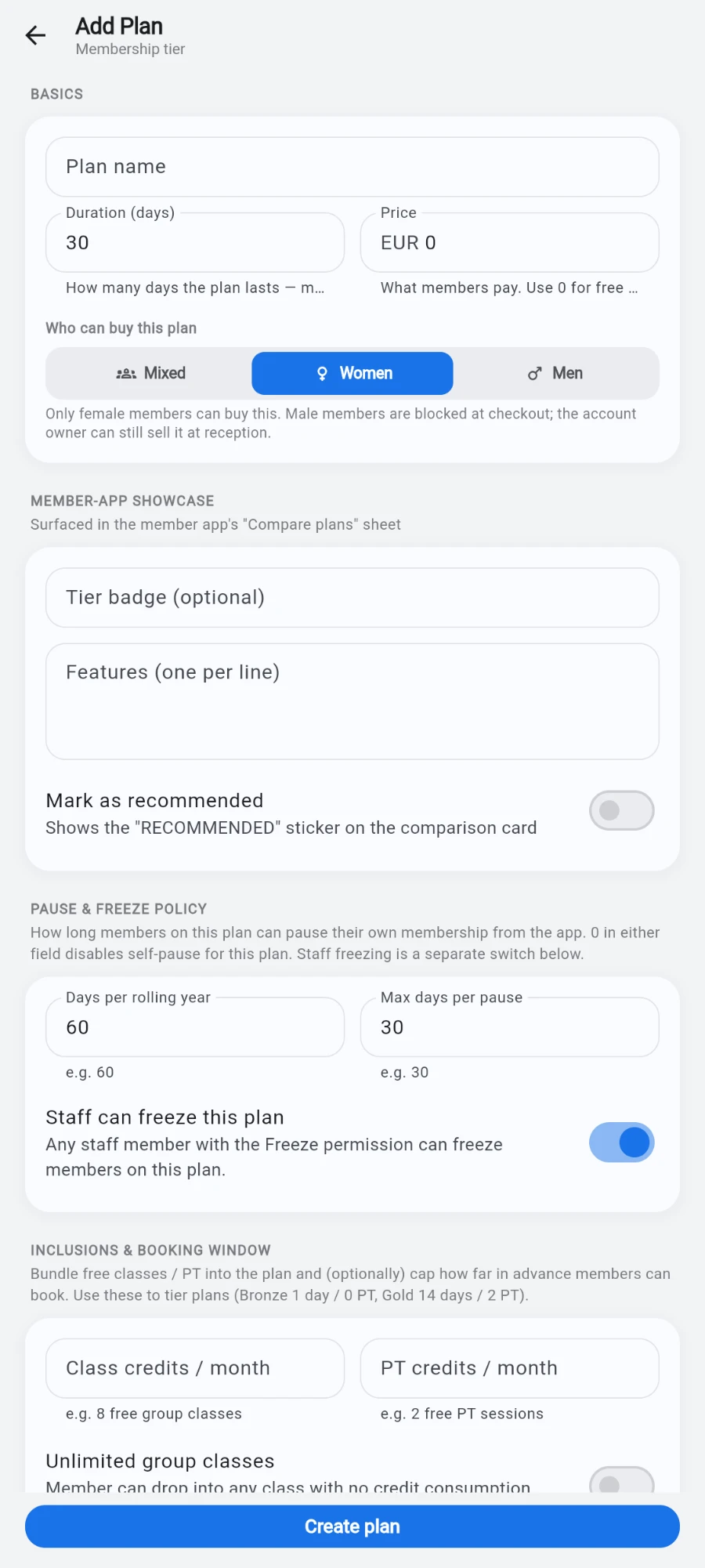
Who can buy this plan — the line underneath spells out what the choice actually does. -
Scroll to Access hours. Set a Start and End time for time-windowed plans — an off-peak window can wrap past midnight. Leave both empty for round-the-clock access.
-
In the same card, set the allowed days: tap individual day chips, or use the All days, Weekdays and Weekend shortcuts.
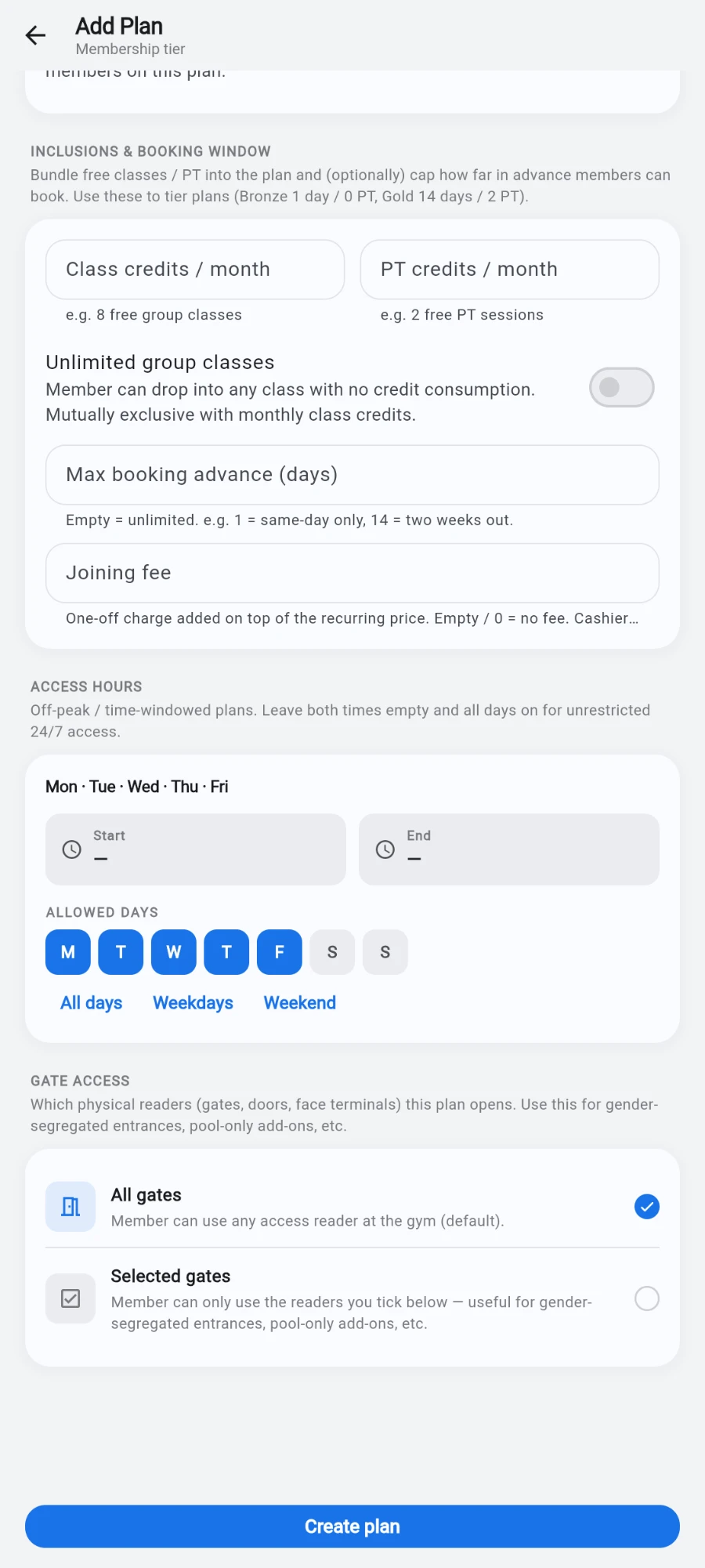
Leave the times empty for all-day access; the day chips and the three shortcuts set the days. -
Scroll to Gate access and choose All gates (default) or Selected gates. With Selected gates, tick the specific readers in the Allowed gates list — face terminals, NFC pads and phone-key readers all appear here.
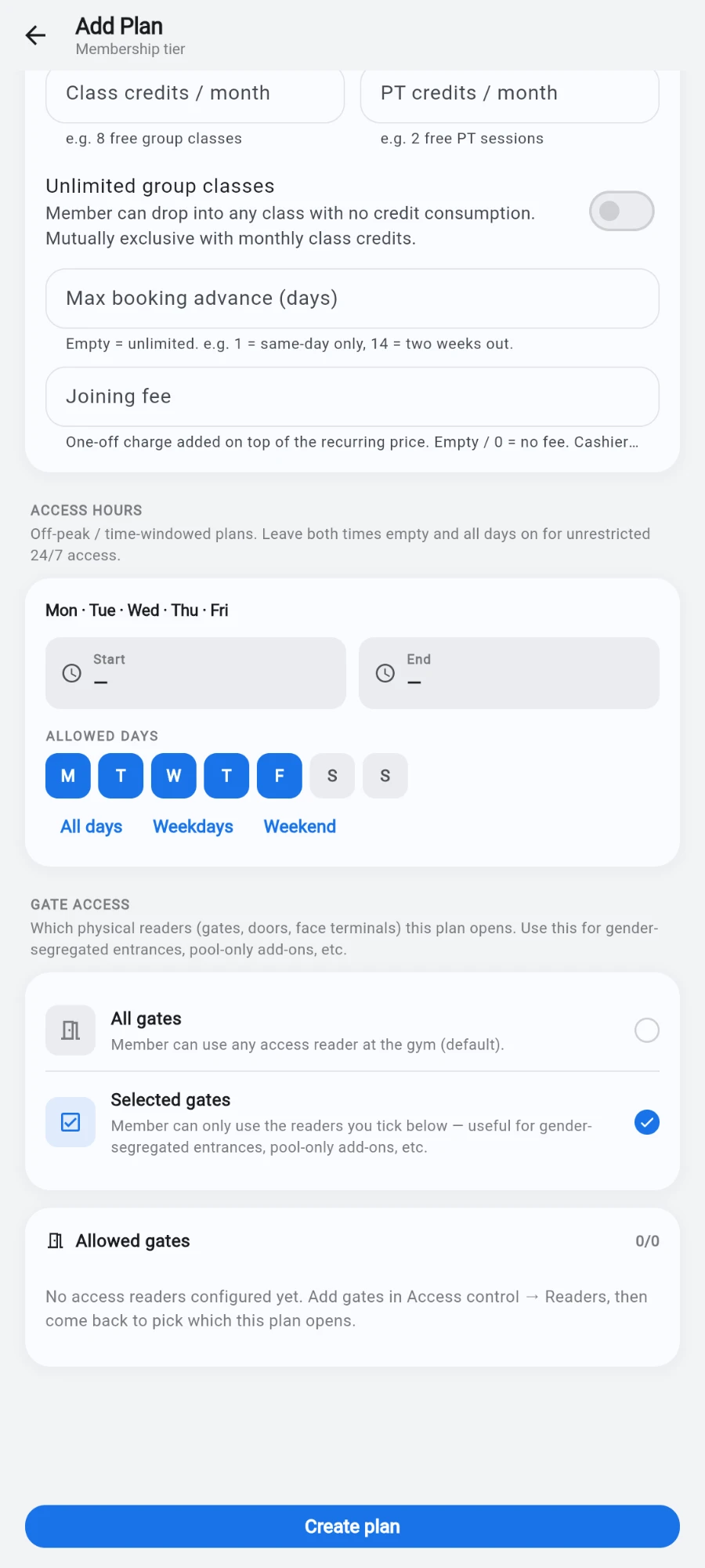
Selected gates reveals the Allowed gates checklist — empty until you have readers on file. -
On multi-location organisations, set Location access: Home location only, All locations, or Selected locations with a branch checklist.
-
If you chose All locations and your organisation defines access tiers, pick the Max tier the plan unlocks — a mid-tier plan opens lower and equal tiers, never higher ones.
-
Tap Save plan.
What you should see
Members on the plan pass the doors only inside the configured window, days, gates and branches. Outside them, the reader denies entry and the check-in records the reason, so the desk can explain "your plan is weekdays only" with confidence.
If something goes wrong
- A member is refused at a gate they should have — check the plan's gate list includes that specific reader; a renamed or re-added device gets a new entry that old plans don't tick automatically.
- An off-peak member gets in at peak time through a staffed door — manual check-ins by staff can bypass window rules; the automatic readers enforce them.
- The Location access section is missing — it only appears on multi-location organisations; single-site gyms have nothing to scope.
- A men's plan appeared for a female member in the member app — the app hides ineligible plans, but if the member's gender was set after browsing, refresh; the server still blocks the purchase either way.
Still stuck? Email hello@prismgym.com — include your gym name, the device, and a photo of what you see.