Win-back campaigns
Every gym has a list of members who quietly stopped coming. Win-back turns that list into a worked pipeline. It has two speeds: the Members tab is manual — you pick a lapsed member, the app prepares a personal WhatsApp message and opens WhatsApp on your device to send it. The Campaigns tab is automatic — approved message templates sent for you on a schedule, with delivery and revenue tracking. Campaigns are a paid add-on; the manual tab is included for everyone.
What you'll do
Work the manual list, record outcomes, and (if the add-on is enabled) create an automated campaign.
You'll need: member access for the manual tab; the WhatsApp campaigns add-on, enabled by Prism, for the Campaigns tab.
Steps
-
Open the drawer → Win-back. The Members tab groups expired members into three buckets by how long they've lapsed: 30 days or less (your best odds — start here), 31 to 90 days, and over 90 days. The funnel header counts candidates and outcomes: Contacted, Replied, Reactivated, Opted out.
-
Tap WhatsApp on a member's card. A sheet titled Win back plus their name opens: pick their language (English, Arabic or Kurdish message templates), and adjust the Offer — it's Remembered per language for next time. The Message preview fills in their name, your gym and the offer automatically.
-
Tap Open WhatsApp. WhatsApp opens with the message ready — press send there. Back in Prism, the contact is logged only after the handoff succeeded.
-
When they answer (or don't), use Record outcome on the card: Mark replied, Mark booked, Mark reactivated, Opted out or No response. This keeps the funnel numbers honest and stops teammates double-messaging the same person.
-
For automation, open the Campaigns tab and tap New campaign. The guided form asks for a Name, the Audience buckets, whether to Require opt-in (Only members who agreed to WhatsApp offers), the Template, the Offer text, and the Schedule — Start now or pick a date and time — plus an optional Daily cap.
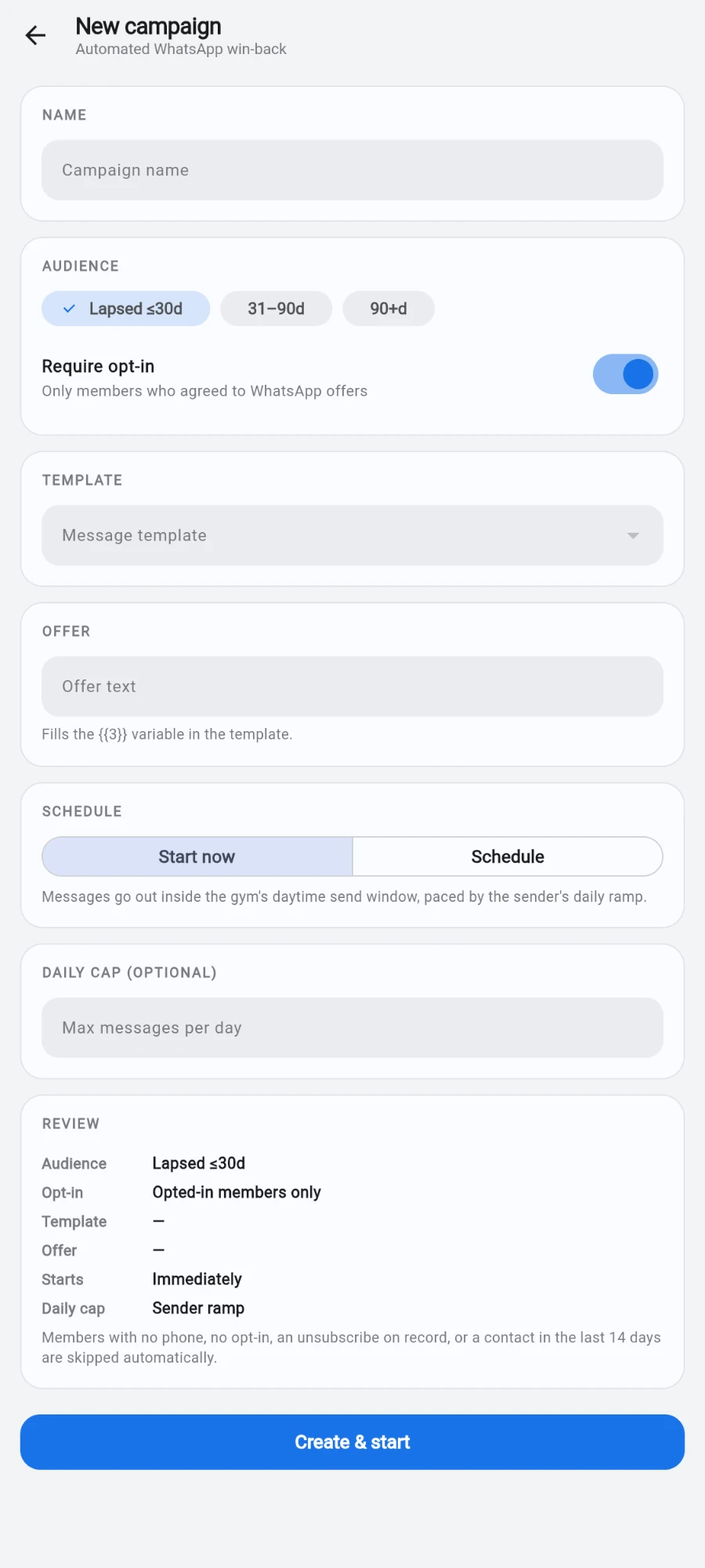
The whole campaign on one form, with a Review block before you commit. -
Review the summary and tap Create campaign. You immediately see how many members were queued and how many were skipped — with the reason for every skip (no phone, no opt-in, an unsubscribe on record, messaged too recently).
-
Watch the campaign's detail screen fill in: Sent, Delivered, Read, Replied, reactivated — and the revenue recovered when someone comes back and pays. Pause, Resume or Cancel campaign any time; cancelling skips everyone still queued and can't be undone.
What you should see
Manual: the funnel counters climbing as you work the fresh-lapse bucket. Campaigns: a queued count at creation, delivery numbers within minutes of starting, and — the number that matters — reactivations and recovered revenue on the campaign card.
If something goes wrong
- A member card shows NO PHONE — no valid number on file, so neither track can reach them. Fix the profile first.
- Open WhatsApp does nothing — WhatsApp isn't installed on this device, or the number is malformed. The app normalises common formats, but a junk number stays junk.
- Campaigns tab asks you to contact Prism — the add-on isn't enabled on your subscription.
- Campaign created but nothing sends — check the sender banner (a new sender may still be registering), the template's approval status, and whether the schedule is set for later.
- Lots of skipped recipients — read the per-member skip reasons on the campaign; usually missing opt-ins when Require opt-in is on.
Still stuck? Email hello@prismgym.com — include your gym name, the device, and a photo of what you see.