Freeze your membership
Going away? Freeze your membership yourself, straight from the app. The freeze pushes your expiry date back by the same number of days, so you lose nothing — within the allowance your gym sets.
What you'll do
Pause your membership for a date range, read your freeze history, and update your personal details while you're in the neighbourhood.
You'll need: an active membership at a gym that allows self-pausing (the screen checks the policy for you).
Steps
-
Open Me and tap Pause membership. The screen loads your gym's policy and shows YOUR ALLOWANCE — the maximum days per freeze, how many freezes per year, and what you've already used.
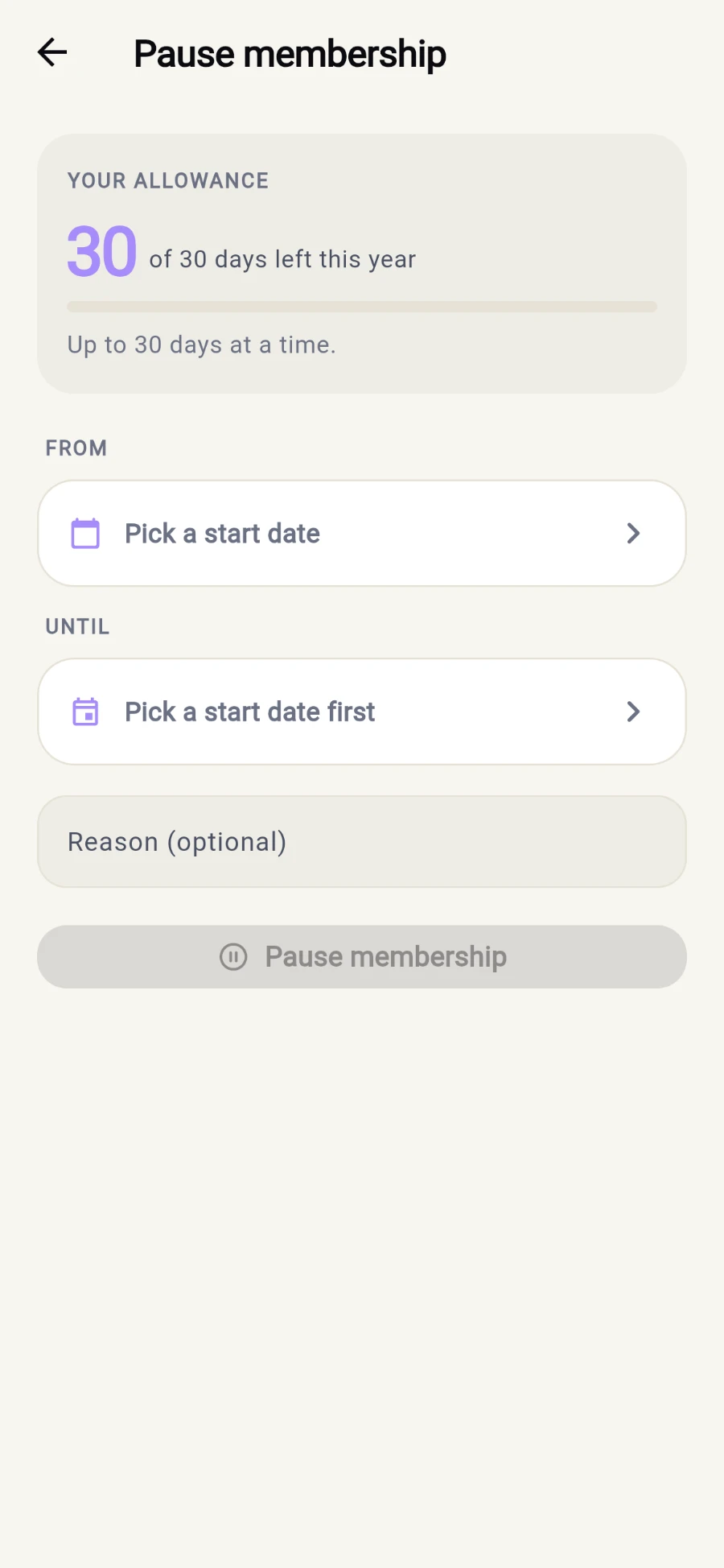
Your allowance first, then the dates. -
Set the dates: FROM — Pick a start date — and UNTIL — Pick an end date. The picker caps the range at your allowed length.
-
Optionally add a Reason (optional) — Holiday, injury, work…
-
Tap Pause membership and confirm. The toast reads Membership paused. End date pushed back automatically.
-
While frozen, the screen shows CURRENTLY PAUSED with the dates, and your Me tab status pill reads FROZEN. Past pauses live under FREEZE HISTORY, each marked Self-paused or Paused by reception.
What you should see
CURRENTLY PAUSED with your dates, a FROZEN status pill, and — once the freeze ends — an expiry date that moved back by exactly the days you paused.
Keep your details up to date
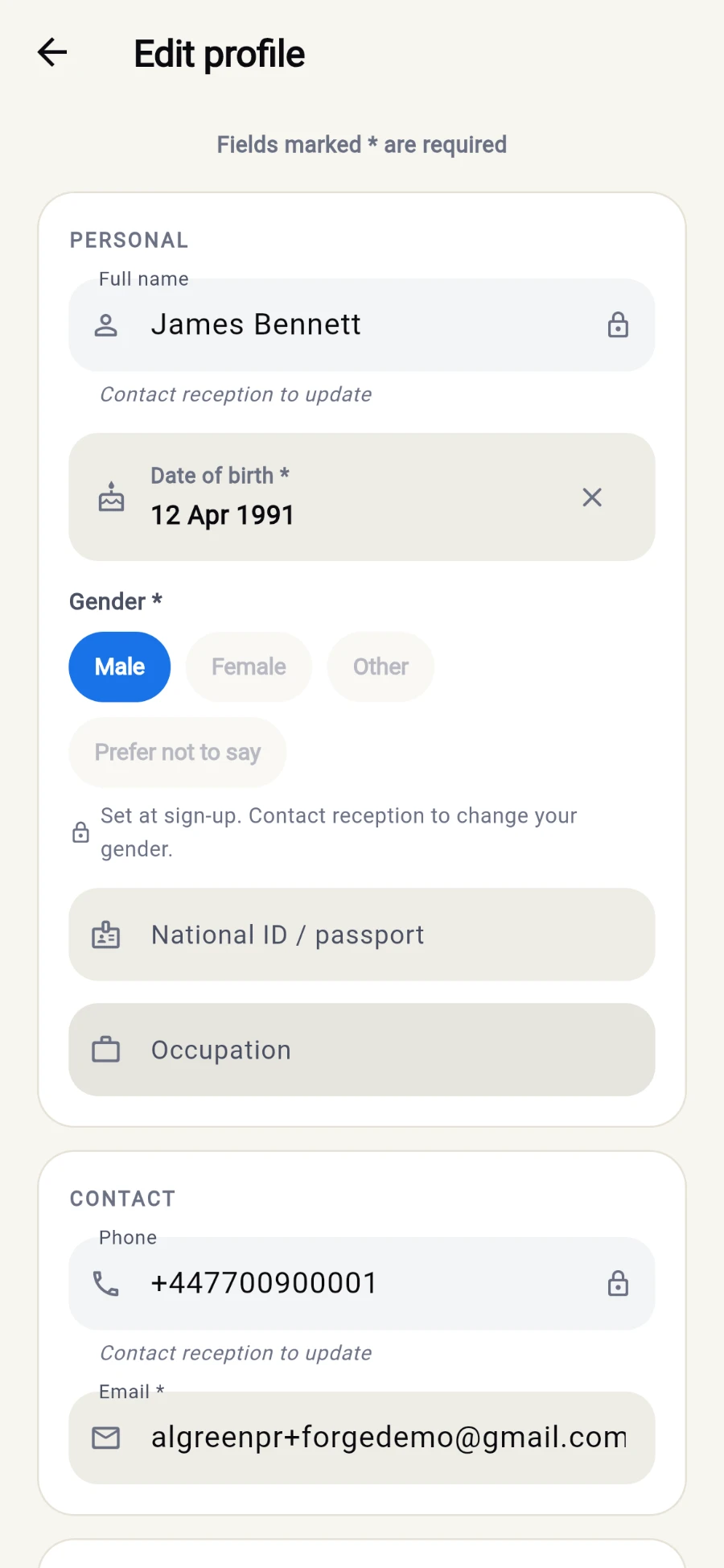
From Me, tap Edit profile to change your email, address, emergency contact, health notes and marketing preferences, then Save changes. Two things are locked on purpose: your name and phone are managed by staff (Contact reception to update), and gender is set once at sign-up — Set at sign-up. Contact reception to change your gender.
If something goes wrong
- "Self-pause not available" — your gym handles freezes at the desk; Speak to reception about pausing your membership.
- The date picker won't stretch far enough — you've hit the per-freeze maximum or your remaining allowance; the YOUR ALLOWANCE card shows the numbers.
- Save changes fails on the profile — check required fields and your connection; the error names the field that needs attention.
Still stuck? Email hello@prismgym.com — include your gym name, the device, and a photo of what you see.