Member credentials — cards, wristbands and phones
A member can carry any mix of credentials: an NFC card or wristband, their phone over Bluetooth, and the rotating QR code in their member app. You issue cards right from the member's profile using your own phone as the scanner — no separate encoder station — and every credential in the gym is manageable from one place.
What you'll do
Bind an NFC card to a member, understand the Bluetooth and QR credentials, and use the gym-wide credentials list and live door log.
You'll need: a staff account with the device-management permission, a phone with NFC for card scanning, and the member's card or wristband in hand.
Steps
-
Open the member's profile and find the Access credentials card.
-
Tap the add button. The Issue credential sheet opens — Bind an NFC card or phone to this member.
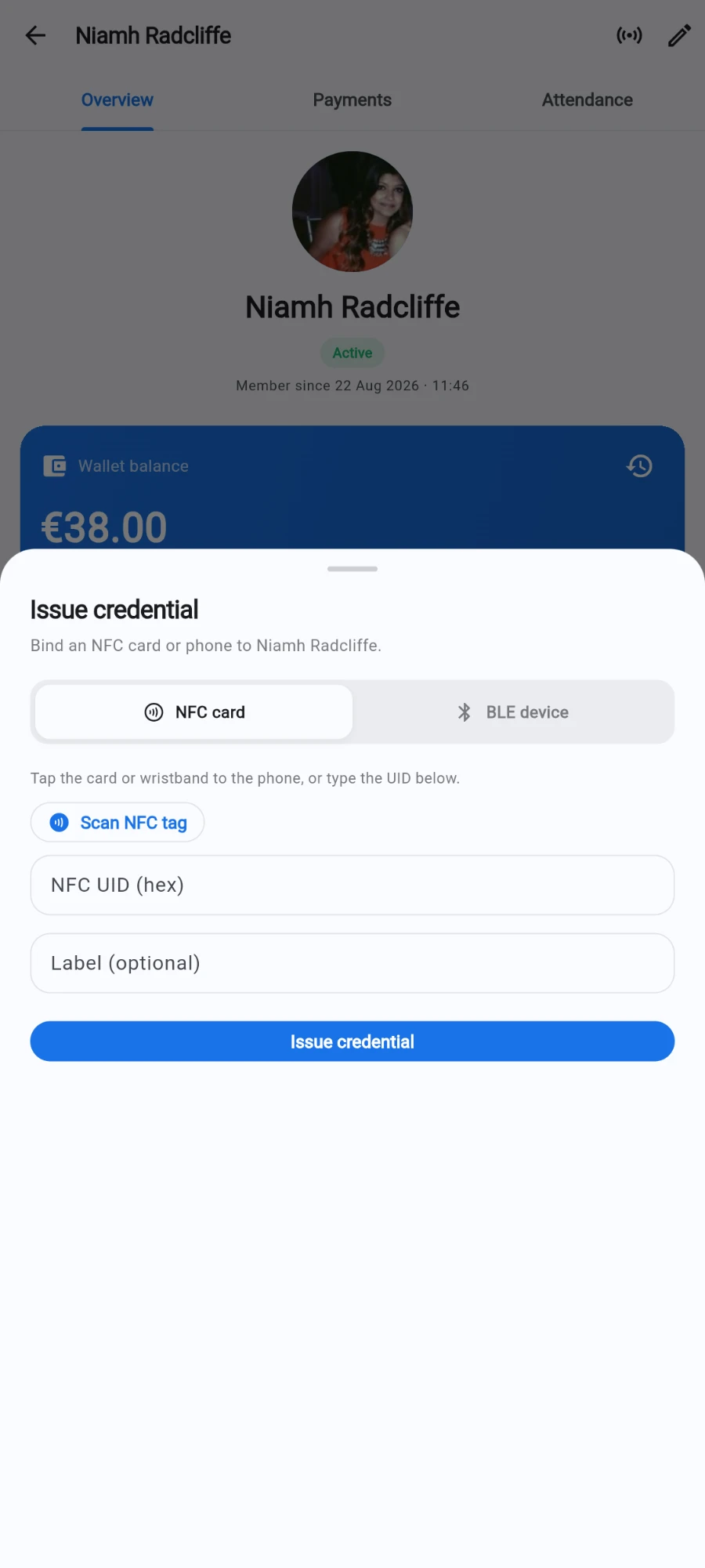
Scan the tag, or type the UID your supplier printed on it. -
For a card or wristband, choose NFC card, tap Scan NFC tag, and hold the card flat against the back of your phone until it reads (Hold tag to phone… shows while it scans). If your phone has no NFC you can type the NFC UID (hex) printed by your card supplier instead.
-
Add a Label (optional) — "blue wristband" beats guessing later — and tap Issue.
-
For a phone credential, choose BLE device. The credential is bound to the member's identity; once they sign in to the member app on their phone, walking up to a reader with Bluetooth on opens the door.
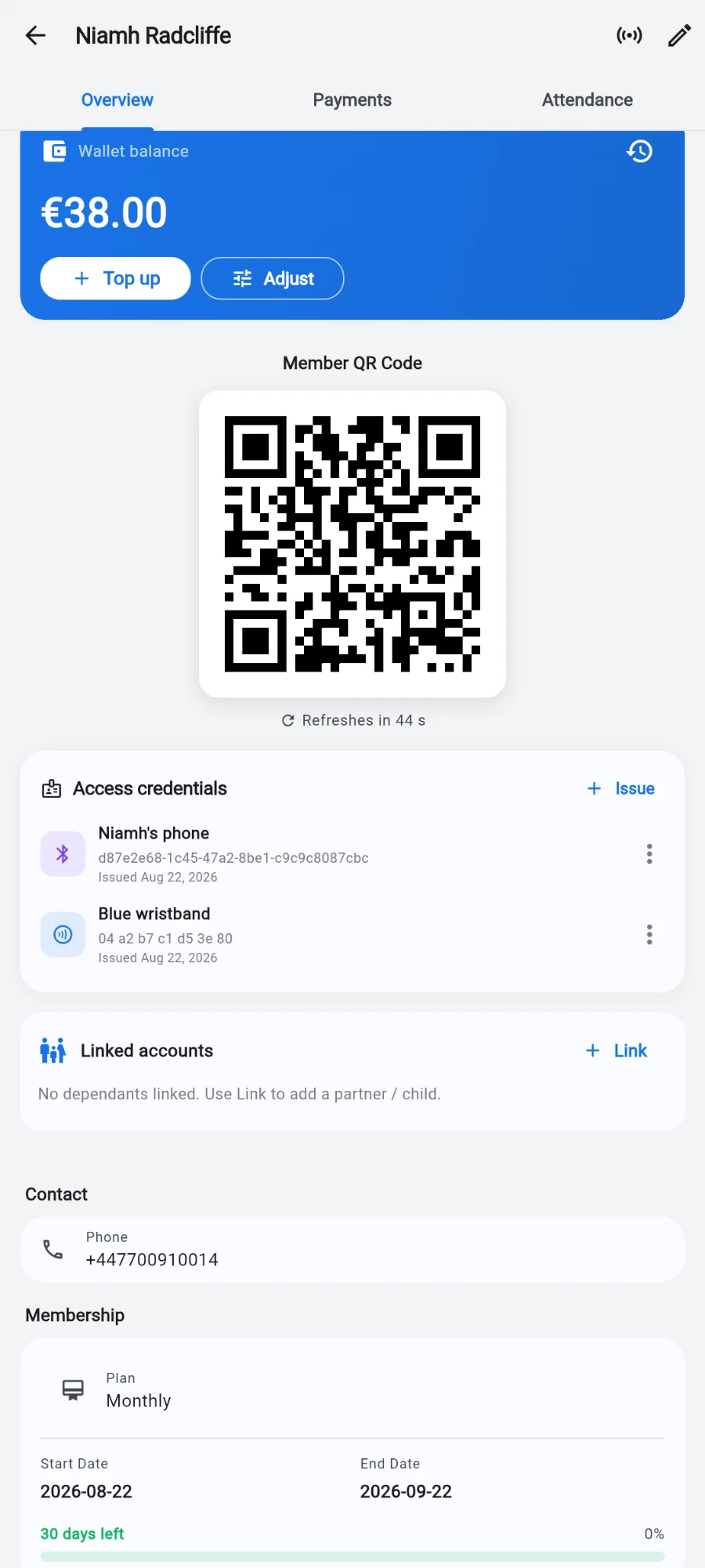
Card, wristband, phone and QR — all listed in one place. -
To manage credentials across the whole gym, open Settings → Devices & access → Access readers and switch to the Credentials tab. Filter by type and by Active only or Include revoked, and use Revoke, Reinstate or Delete on any credential.
-
Watch entries as they happen on the Live log tab — every tap shows the door, the member, the credential type and the decision, in real time.
What you should see
The member's Access credentials card lists each credential with its label, issue date and last use. A revoked credential is refused at every reader within seconds, and each attempt appears in the Live log with the reason.
If something goes wrong
- The card won't scan on your phone — hold it still against the NFC antenna (usually the upper back of the phone) for a full second. Metal cases and card stacks block reads.
- The card scans but the door says no — check the Live log reason: an expired or frozen plan, a door the member's plan doesn't include, or a revoked credential each show distinctly.
- Bluetooth entry is flaky for one member — make sure they're signed in to the member app and Bluetooth is on; the phone credential travels with their account, not the handset, so a new phone just needs a fresh sign-in.
- A credential you deleted was actually still needed — deletion is permanent; scan the card again to re-issue it. Next time, revoke instead.
Still stuck? Email hello@prismgym.com — include your gym name, the device, and a photo of what you see.