Payment methods and card fees
Every sale in Prism is taken against a payment method — cash, card, bank transfer, wallet balance or other — and every method can carry its own processing-fee rule, so the 2-3% the card networks take doesn't silently eat your margin. This chapter covers the fee settings and how card payments fit together.
What you'll do
Set per-method processing fees and decide who bears them: you, or the customer as a surcharge.
You'll need: an owner account.
Steps
-
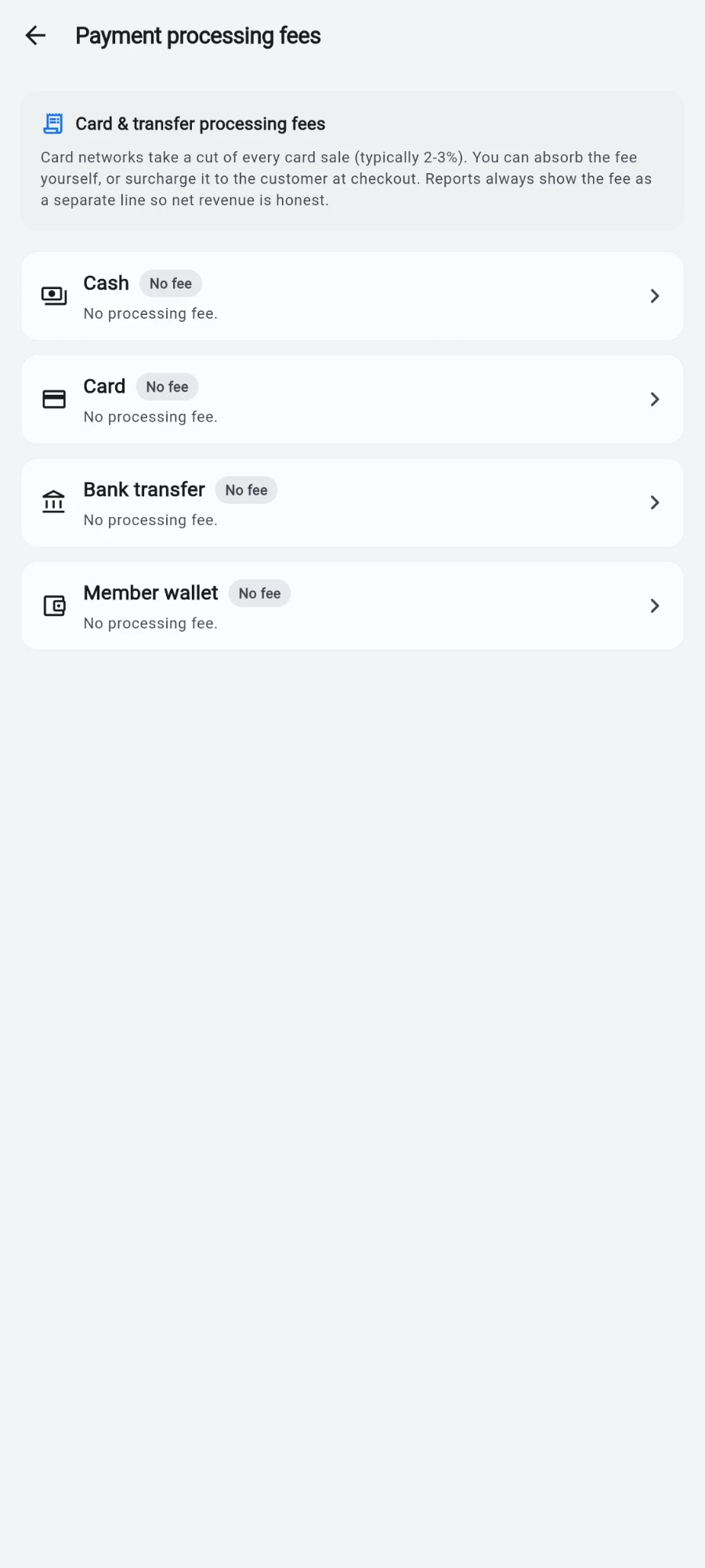
Open Settings and tap Payment processing fees.
-
Review the method list — cash, card, bank transfer and member wallet each show their current rule as a pill: Customer pays, You absorb, or No fee.
-
Tap a method — card is the usual one — and set the Fee % (for example 2.50) and an optional fixed fee per transaction.
-
Under Who pays the fee?, pick You absorb to eat the cost yourself, or Customer to surcharge it onto the sale total.
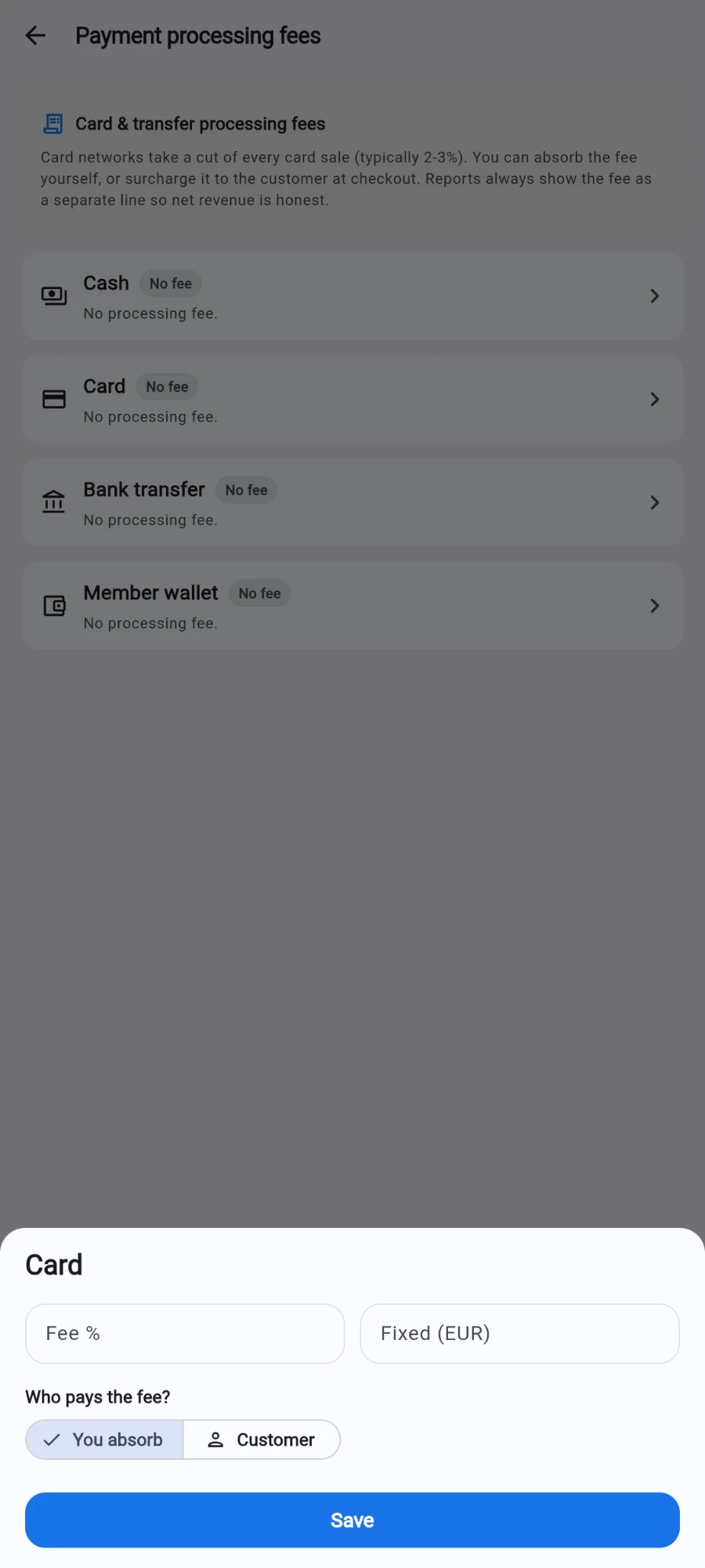
- Tap Save. The rule applies from the next sale.
What you should see
Fee rules showing as pills on the method list, and — where a fee is surcharged — sale totals that include it. Absorbed fees appear in your accounting as cost rather than inflating the sale.
If something goes wrong
- Fee refuses to save — the percentage must be between 0 and 99.99 and the fixed fee can't be negative.
- Customers dispute the surcharge — the receipt shows the surcharge line; if that's a poor fit for your market, switch the rule to You absorb.
- Card totals don't match the bank payout — the acquirer's fee came out before settlement. Configure the fee here as absorbed so the books expect the net figure.
- Wallet shows a fee option — you can set one, but wallet balance was already collected as cash or card at top-up time; most gyms leave wallet at No fee.
Still stuck? Email hello@prismgym.com — include your gym name, the device, and a photo of what you see.