Join at the kiosk
Self-signup lets a walk-in join your gym at the kiosk from start to finish — plan, details, health questions, waiver, photo and payment. The flow only appears when your gym has switched it on; gyms that haven't never show the tile. This chapter walks through the flow as the member sees it.
What you'll do
Complete a kiosk signup — including the couple option, which creates two members with one payment.
You'll need: a kiosk with self-signup enabled, and (for the new member) a phone number and an email address they can check on the spot.
Steps
-
On the welcome screen, tap Join now — the tile reads Become a member today.
-
Who's joining? Pick Male, Female or Couple. The choice filters which plans appear next.
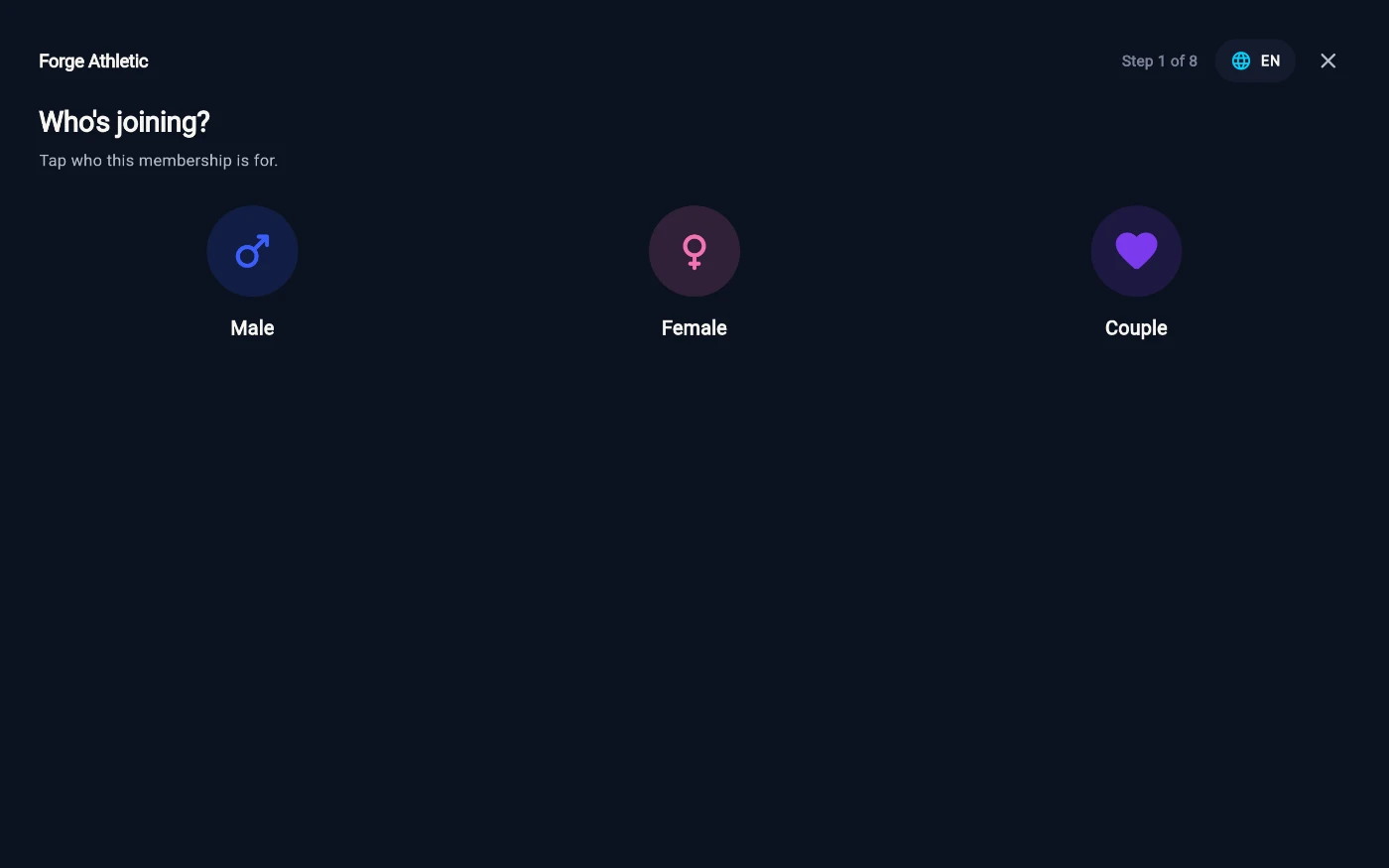
Step 1 — who the membership is for. -
Choose your membership. Each plan tile shows the duration, the price (with the local amount beneath where the gym displays two currencies), an approximate per-week price, and any joining fee. Look for the Most popular badge; plans restricted by gender carry a Women only or Men only badge. Couples see a single Couple membership card — both memberships combined into one total, sold as one payment.
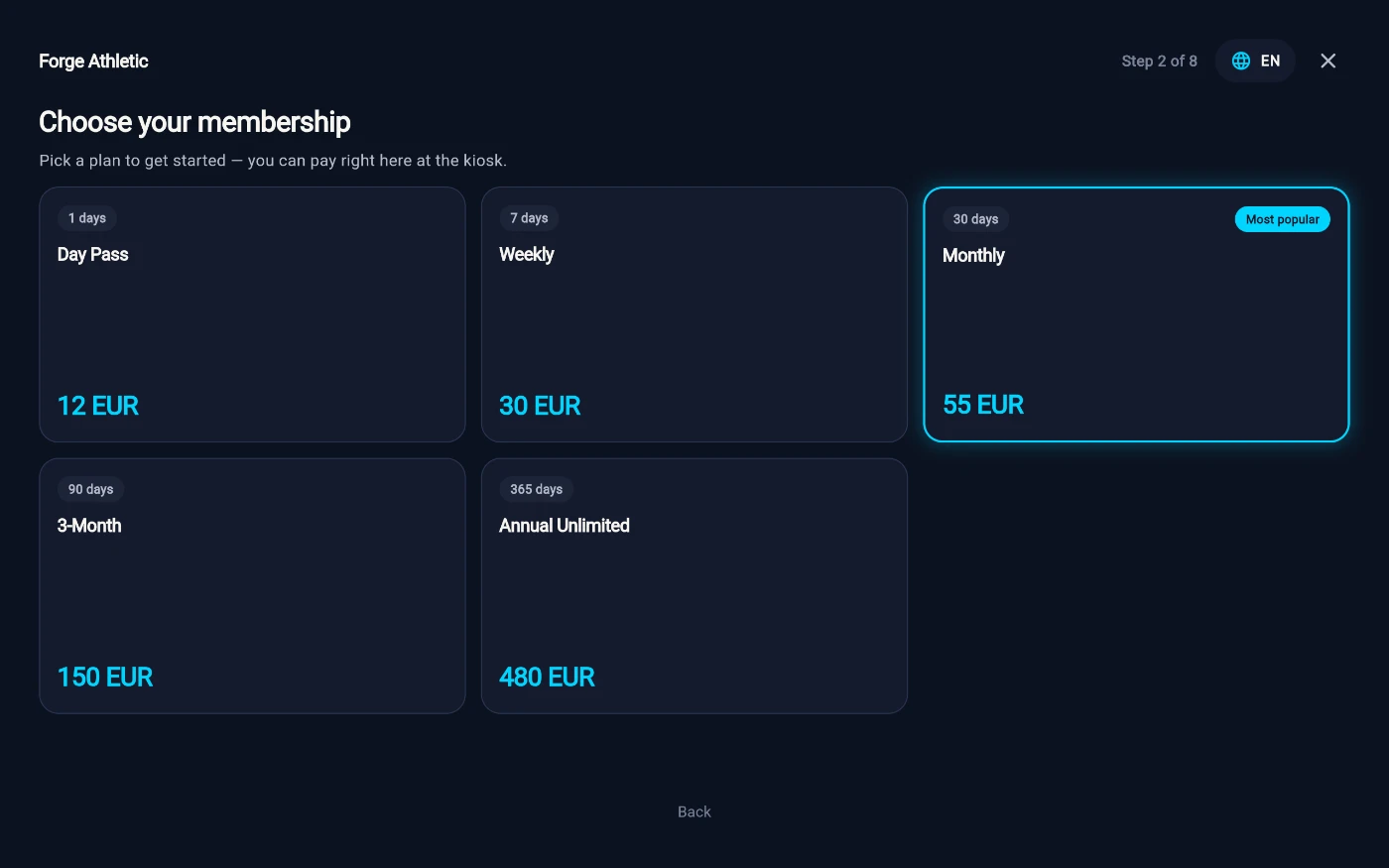
Server-quoted plan tiles, with Most popular flagged. -
Your details. Enter the full name, phone number (with the country-code picker), date of birth, email and an Emergency contact name and phone. For couples, Person 1 and Person 2 each enter a name and date of birth, then share one contact under Shared contact.
-
If the gym verifies email, the Check your email step sends a 6-digit code. Type it and tap Verify. Gyms that skip verification go straight to the health check.
-
Quick health check. Seven yes/no questions about heart, chest pain, dizziness, chronic conditions, medication, joint problems and supervised exercise. As the screen says, a yes never stops anyone joining — a coach simply checks in before the first session.
-
Membership agreement. Scroll the gym's terms, then sign on the glass where it says Sign here with your finger — there's a Clear button for a messy signature — and tap I agree — continue.
-
Take your member photo. Line your face up inside the oval; the kiosk waits for one well-lit, centred face, counts down 3-2-1 and takes the shot. Tap Use this photo or retake it. Couples take one photo each.
-
Pay. The Scan to pay screen shows a payment QR — Scan this code with your FIB or FastPay app to pay now. — with the amount, a payment reference and a live Waiting for payment… indicator. To pay cash instead, tap Finish — I'll pay at the desk.
-
Done. A paid signup lands on Welcome aboard!; a pay-at-desk signup lands on Almost there! with the membership held until reception takes payment. Either way the screen shows a QR to Get the member app, then returns to the start on its own.
What you should see
A new member record appears in the admin app immediately — two linked records for a couple — with the plan attached and the photo set. Paid signups are active; pay-at-desk signups wait for reception. If the gym requires an induction, the done screen says so; if the health check was flagged, a coach is prompted to follow up.
If something goes wrong
- "You already have an account here." — the phone number matches an existing member. Sign in instead, or see the front desk to sort out the old record.
- "You must be at least … to join at the kiosk" — under-age signups are blocked at the kiosk; the front desk can sign them up with a guardian.
- The verification code never arrives — check the spam folder; the screen's help line says to ask at the front desk, who can finish the signup from the admin app.
- The payment QR sits on "Waiting for payment…" — the member's banking app may be slow; the payment step allows several minutes. If it genuinely failed, finish with pay-at-desk and settle at reception.
- The member walked away mid-flow — after a few minutes of inactivity the kiosk quietly returns to the welcome screen. Nothing is saved until submission, so they simply start again. Tapping Back out of the flow asks Leave sign-up? first — details aren't saved on leaving.
Still stuck? Email hello@prismgym.com — include your gym name, the device, and a photo of what you see.