Barcodes and scan-to-pay
The register listens for scans everywhere. A USB or Bluetooth barcode scanner works no matter which field has focus — the register recognises the rapid keystroke burst a scanner produces and routes it to the right handler, while normal typing falls through untouched. Phones and tablets can scan with the camera instead. The same machinery reads member QR codes from the Prism member app, so a member can pay from their wallet by showing their phone.
What you'll do
Scan product barcodes into the cart three different ways, and charge a sale to a member's wallet by scanning their app QR.
You'll need: products with barcodes saved on them, and either a keyboard-wedge scanner (USB or Bluetooth) or a device with a camera. For scan-to-pay, the member needs the Prism member app.
Steps
-
With a USB or Bluetooth scanner: just pull the trigger, from any screen state on the register. The scanned product lands in the cart with an "Added" confirmation — no field to click first.
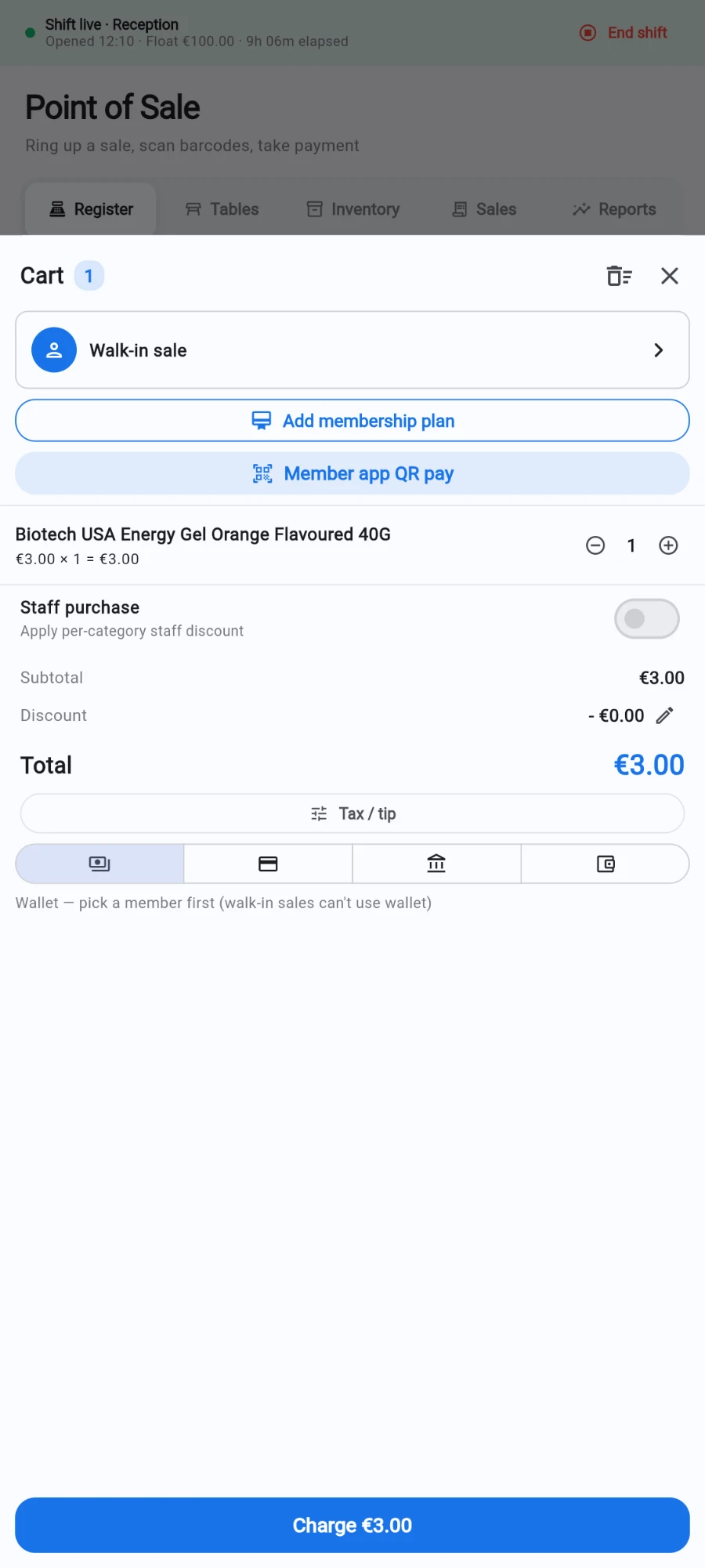
A scan drops the product straight into the cart at its shelf price. -
Without a scanner, use the field at the top of the register — its hint reads Scan or type barcode. Type or paste a barcode and press enter.
-
On a phone or tablet, tap Scan camera beside that field. The scan sheet says Align barcode within the frame; hold the code steady and it reads automatically.
-
A scanned product that comes in sizes still asks for the size — a barcode never silently rings up the wrong price.
-
To take payment from a member's wallet, ask the member to open their app and show their QR code, then tap Scan member QR (camera) in the cart panel and scan it. The member is attached to the sale and you can charge to Wallet.
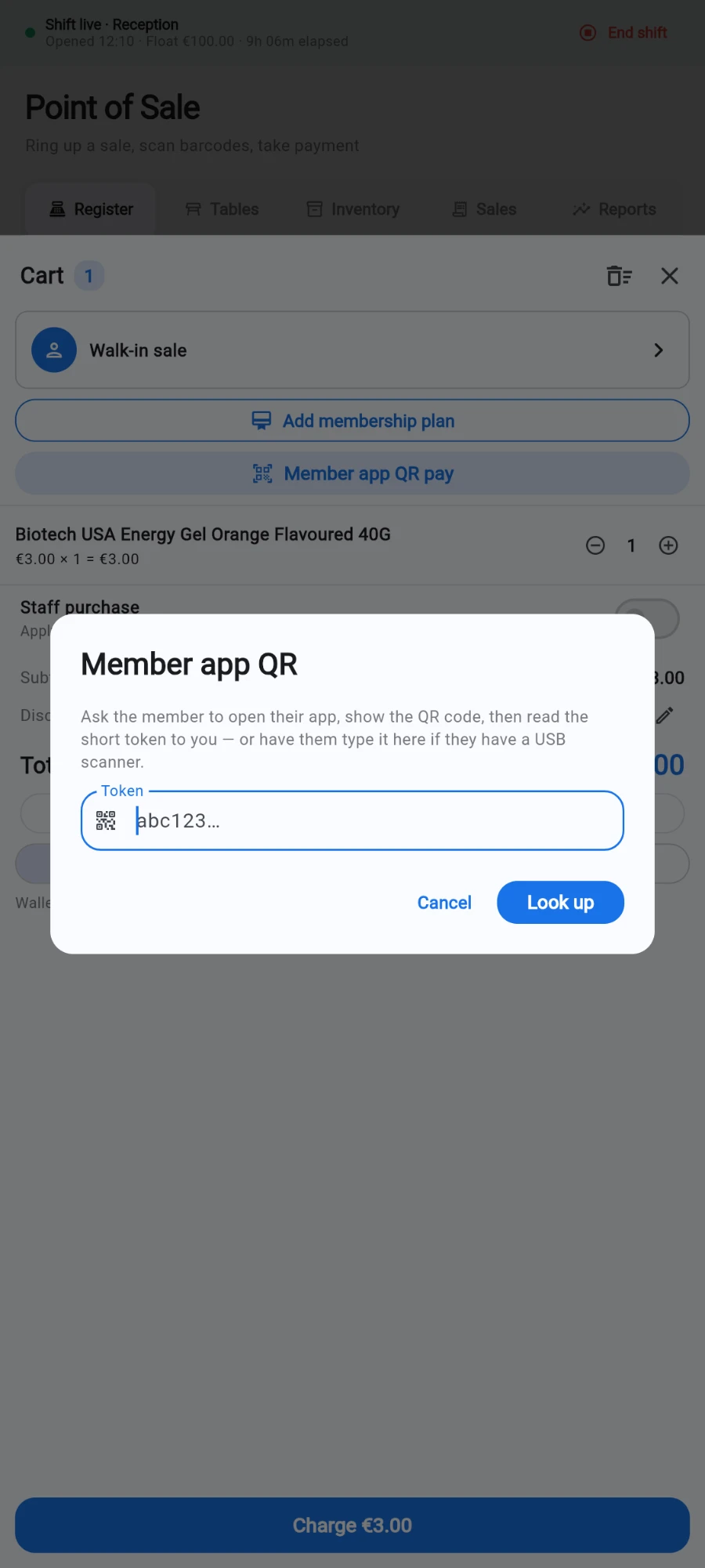
No camera? Read the short token off the member's QR and look it up. -
On a computer without a camera, the same button reads Member app QR pay and opens a small dialog instead — type or paste the code shown under the member's QR and tap Look up. A USB scanner pointed at the member's phone also works: it types the token into the register automatically.
-
Scanning is paused while a sale is mid-charge — a stray trigger pull cannot inject an item into a sale that is being committed. The register says Finish the current sale before scanning. and resumes listening as soon as the dialogs close.
What you should see
Each scan drops a line in the cart with a confirmation message, and a scanned member QR fills the customer row with the member's name and wallet balance, ready to charge to Wallet.
If something goes wrong
- "No product matches that barcode." — the code is not saved on any product. Open the product in POS → Inventory and fill in its barcode field (you can scan straight into the form).
- The scanner types into search boxes instead of adding items — the scanner is configured without an enter/tab suffix. Set the scanner to send an enter key after each scan (its manual has a setup barcode for this).
- The camera sheet never reads the code — clean the lens, add light, and hold the code flat. Camera scanning is unavailable in the web build; use the barcode field instead.
- A member's QR keeps getting refused — their app clock may be far off, which invalidates rotating codes. Have them sync the phone's time, or look the member up by name instead.
Still stuck? Email hello@prismgym.com — include your gym name, the device, and a photo of what you see.