Dashboard tour
Gym Admin has three layers of navigation: a header row of quick tools that follows you to every screen, a bottom tab bar for the everyday surfaces, and a drawer for everything else. In the middle sits the Dashboard — a live summary of today. This chapter is a tour of all of it, so the rest of the manual can say "open the drawer" without explaining it each time.
What you'll do
Walk the shell once: header, tabs, drawer, then each dashboard section top to bottom.
You'll need: any staff sign-in. What you see depends on your permissions — money tiles need payment or report access, member counts need member access. Hidden tiles and tabs are not missing features; they're your role.
Steps
-
Start at the header. Left to right: the location switcher (multi-location accounts only), the gradient sparkle button for the AI assistant, the chat bubble for Messages with its unread badge, a door icon for Open gate, a share icon listing your gym's social pages, the notifications bell, and a QR button that offers scan-a-code or redeem-a-guest-pass.
-
Tap the door icon when you need to buzz someone through: it asks which door, then confirms with a Gate opened message. Every manual gate open is logged with your name.
-
Look at the bottom bar: Dashboard, Members, Classes, Accounts, Attendance, Clock-in and POS. Tabs your role can't use are hidden entirely.
-
Open the drawer (the menu icon, top-left). It shows your gym's logo, the signed-in staff member's name and role, then three groups: OPERATIONS (Security for cameras, Classes, Lockers, Members, POS, Signage, Member Kiosks, Social inbox, Win-back, Staff, Studios, Studio rentals, Trainers, To confirm, Courses and Nutrition, Session packs, HR straps), INSIGHTS (Accounts, Attendance, Clock-in, Reports) and ACCOUNT (Help & support, Settings, Sign Out).
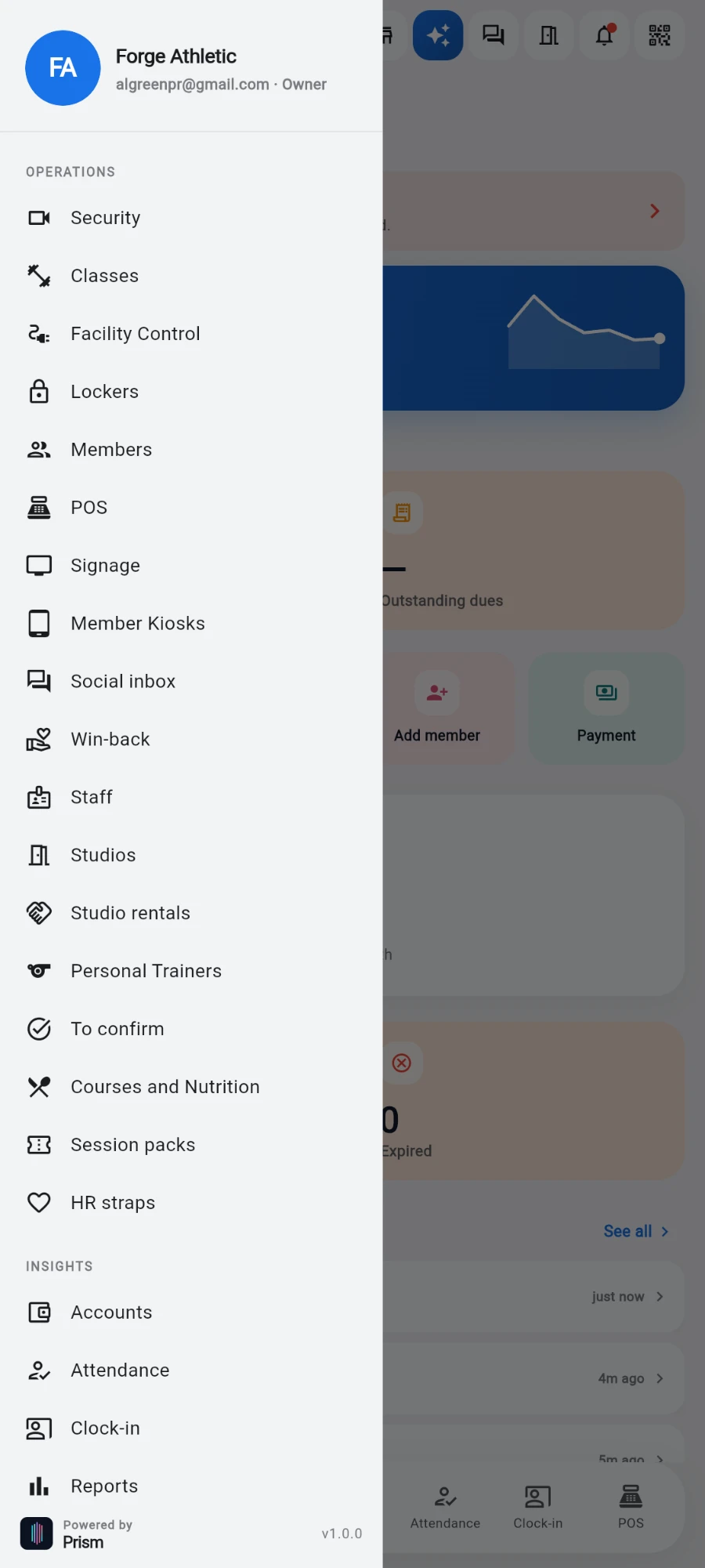
The drawer — every operations surface one tap away. -
Back on the Dashboard tab, read it top to bottom. The revenue hero shows TODAY'S REVENUE with a 7-day sparkline. It counts completed sales, dues payments and wallet top-ups once each — wallet-paid purchases aren't double-counted, and refunds are excluded.
-
Next to it: today's check-ins. The tile counts distinct members, not door swipes — someone who re-enters three times counts once, and staff swiping through doors are filtered out. Depending on a setting it reads Entered (last 2h) (who is in the gym right now) or Checked in today.
-
Outstanding dues totals pending payments — tap it to see who owes what.
-
The quick-action row gives the front desk its four everyday moves: Scan, New sale, Add member and Payment.
-
The member ring shows your total roster split into Active, Frozen and Expired — the same counts as the Members tab chips, so the two screens never disagree. Below it, Expiring Soon lists members whose plans end soonest; tap any row to open their profile.
-
Recent activity shows the last five events with See all opening the full activity feed. Today's classes scroll horizontally at the bottom.
What you should see
After a normal day: revenue matching your till close-outs, a check-in count that matches Reports, and a short expiring-soon list you've already called through.
If something goes wrong
- A tab or tile someone expects is missing — their role doesn't include it. An owner can change it under Settings → Role permissions or Users & permissions; the change reaches signed-in staff within a couple of minutes, no re-login needed.
- Dashboard revenue doesn't match your own tally — remember it excludes refunds and counts wallet top-ups on the day the cash came in, not the day the balance was spent.
- Check-ins look low — the tile counts unique members, and staff are excluded. Raw swipe events live in the Attendance tab.
- Numbers seem frozen — pull down to refresh; if it persists, the device is offline.
Still stuck? Email hello@prismgym.com — include your gym name, the device, and a photo of what you see.