Review incidents and take action
When a camera rule fires, the incident lands in the Security tab with evidence attached: a clip or full-resolution snapshot, how many people crossed versus how many scanned, and — when the crossing lines up with a door scan — who scanned. Your job is a quick review: real or not, and if real, act on it. Normal entries never reach the inbox at all; if three people cross on three scans, nothing fires.
What you'll do
Filter and read the incident inbox, review an incident, and use the four actions.
You'll need: a staff account with the camera permission (wallet fines additionally need the fine permission).
Steps
-
Open the Security tab. The incidents list is grouped by day, newest first, with an unreviewed badge on the tab itself.
-
Narrow the list with the filter chips — All, then one chip per incident type actually present (Tailgate, Wrong-way, Unscanned, Intrusion, Loitering and so on), and Reviewed at the end.
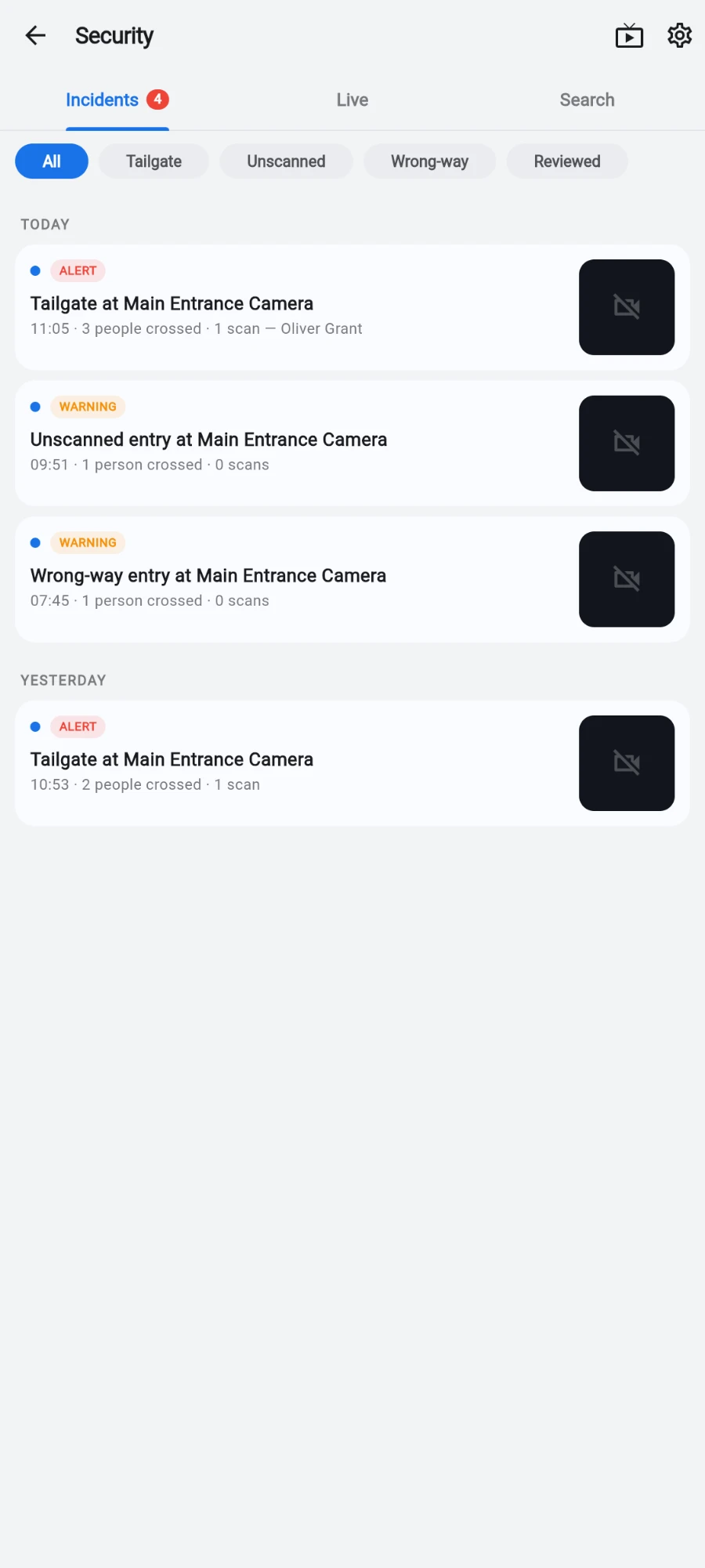
The incident inbox: grouped by day, filtered by type, unreviewed count on the tab. -
Open an incident. The detail screen shows the clip or snapshot, severity and review pills, the people-versus-scans breakdown (for example 3 people came through on 1 scan), and the MATCHED MEMBER card when a door scan identified someone.
-
Judge it: tap Confirm if it's a real incident, or Not an incident to dismiss. Either way it's stamped with your name and the time, and it stops counting as unreviewed.
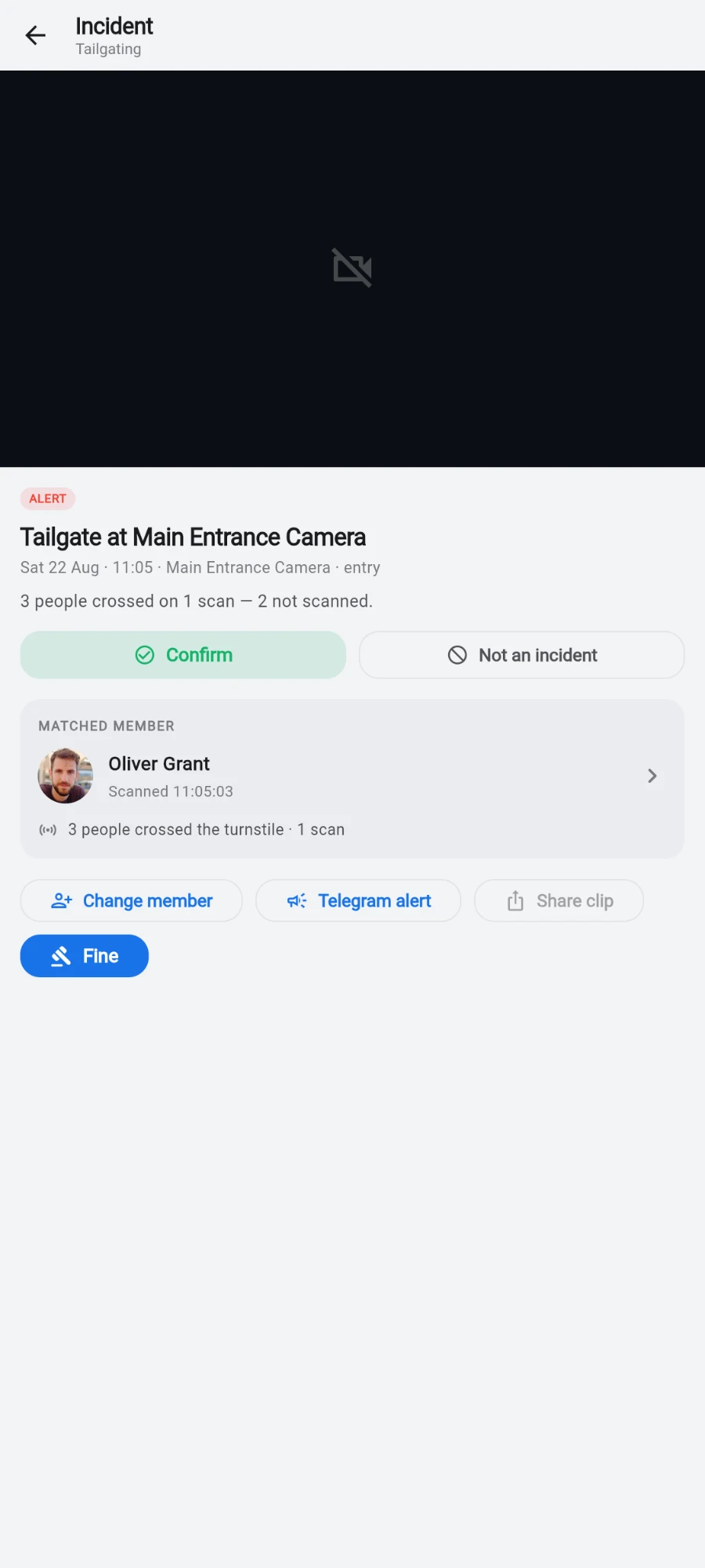
The detail screen: evidence, people-versus-scans, the matched member, and the actions. -
Tie it to a person with Attach to member — search, pick, done. Attachments build the member's strike history and are recorded in the audit log. Use Change member if the first pick was wrong.
-
Escalate or share when needed: Telegram alert pushes it to the owner channel and marks the incident confirmed; Share clip creates a short-lived link to the evidence you can forward.
-
For repeat offenders, tap Issue a fine: enter the amount and tap Apply fine. The member's wallet is debited first, and only then is the incident stamped FINED — a failed debit never fakes a fine.
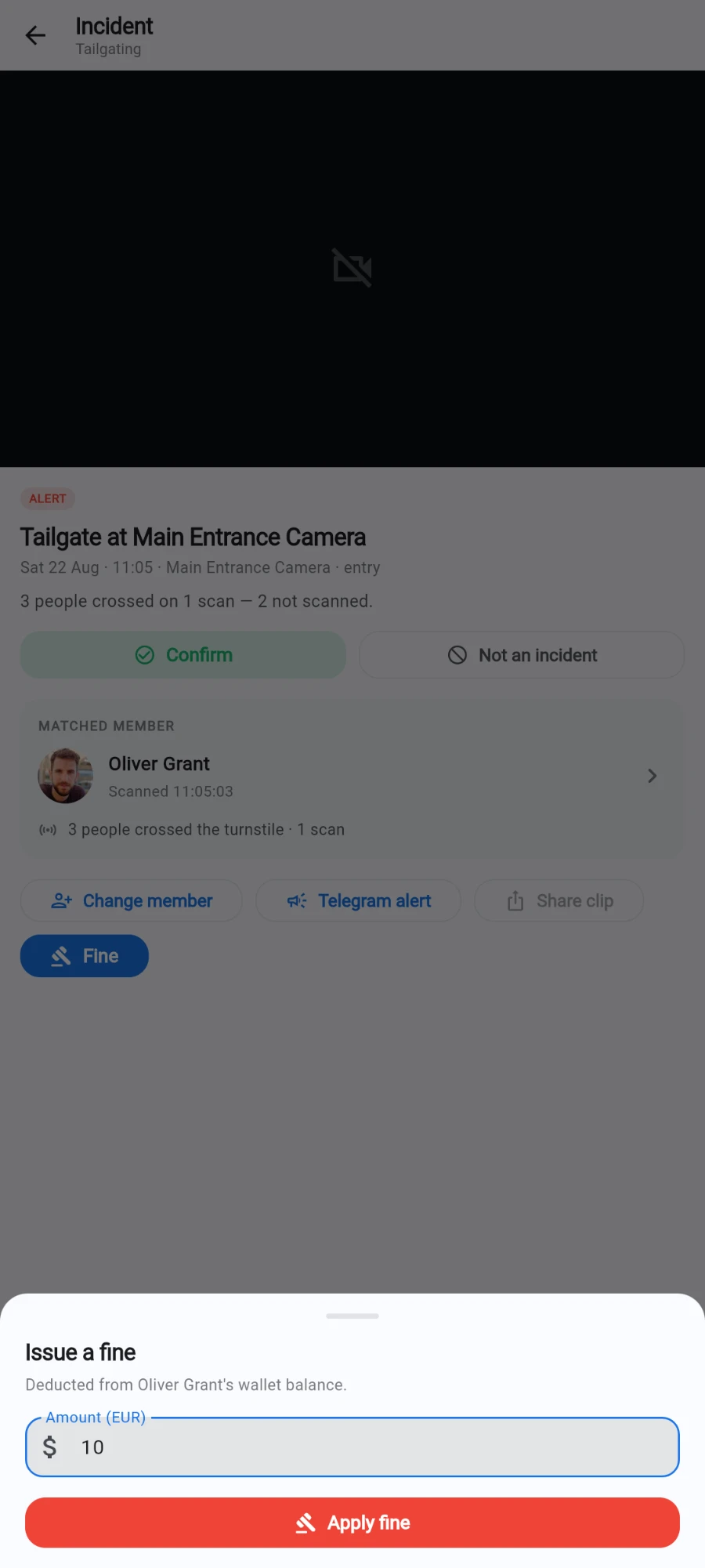
The fine sheet: amount in the gym's currency, debited from the member's wallet. -
Check anyone's history from the Search tab: pick a member to see every incident attached to them.
What you should see
The unreviewed badge falls as you work; confirmed and dismissed incidents keep their reviewer and timestamp; fined incidents show the FINED pill with the amount, and the deduction appears in the member's wallet history.
If something goes wrong
- No clip on an incident — clips are fetched from the box on demand; if the box is offline the snapshot still shows, and the clip loads when it reconnects.
- The matched member looks wrong — the match comes from the door scan nearest the crossing, and someone may have scanned for a friend. Attach the correct member; the original scan record stays intact.
- Too many alerts from one camera — the zone is bigger than the lane, or the direction rule is loose. Tighten both in the zones editor; every zone is its own rule.
- The fine failed — the wallet debit is checked first, so a permission gap or wallet problem stops the whole action. Nothing is stamped; fix the cause and retry.
Still stuck? Email hello@prismgym.com — include your gym name, the device, and a photo of what you see.