Your first sign-in
Gym Admin opens on a branded sign-in screen — a two-line greeting, Hello, / Sign in!, over a card with the form. If your gym has signed in on this device before, the screen already carries your gym's colours. The same screen serves two kinds of people: owners with an existing account, and staff whose manager has added their email and who still need to claim theirs.
What you'll do
Sign in with your email and password — or, if you're new staff, create your password first via Sign Up.
You'll need: the email address your account was created with (for staff: the exact email your manager entered), and a working internet connection.
Steps
-
Open Gym Admin on your tablet, phone, computer or in the browser. The sign-in screen appears.
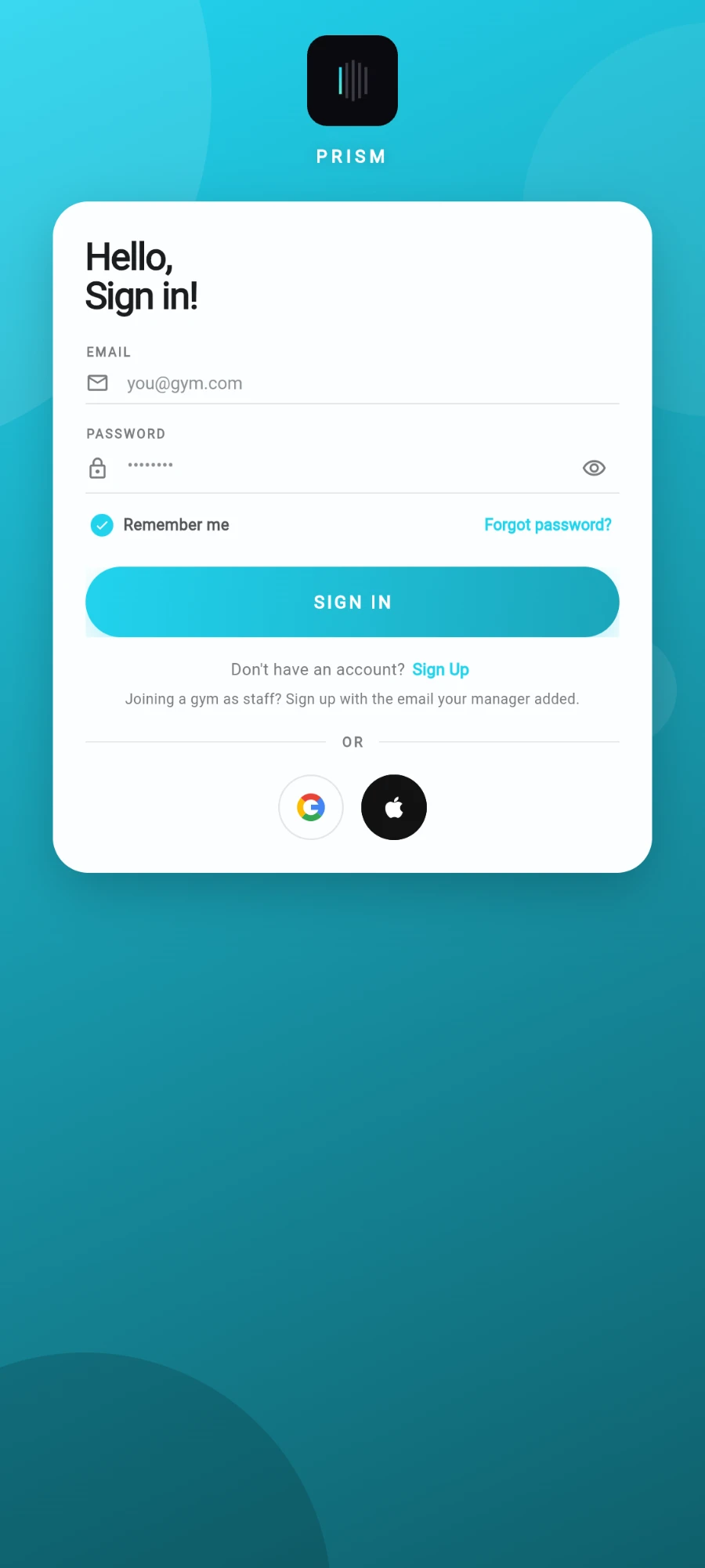
The same screen serves owners signing in and staff claiming an account. -
Enter your Email.
-
Enter your Password. The eye icon shows or hides what you're typing. Passwords are at least 8 characters — the field tells you if yours is too short.
-
Leave Remember me on if this is your own device, so you stay signed in between launches. On a shared front-desk device, that's fine too — the app signs the operator out automatically after long inactivity and whenever the app is fully closed on a till.
-
Tap Sign In.
-
If your account has two-factor authentication turned on, a Two-factor auth screen asks for the 6-digit code from your authenticator app. Type it and tap Verify.
-
New staff member with no password yet? Tap Sign Up instead — the note under the button says Joining a gym as staff? Sign up with the email your manager added. Use exactly that email; the app recognises the pending invitation and lands you in the right gym with the right role.
-
Forgot your password? Tap Forgot password?. The Reset password dialog emails you a 6-digit code and a backup link — tap Send code, then type the code and tap Verify code to set a new password.
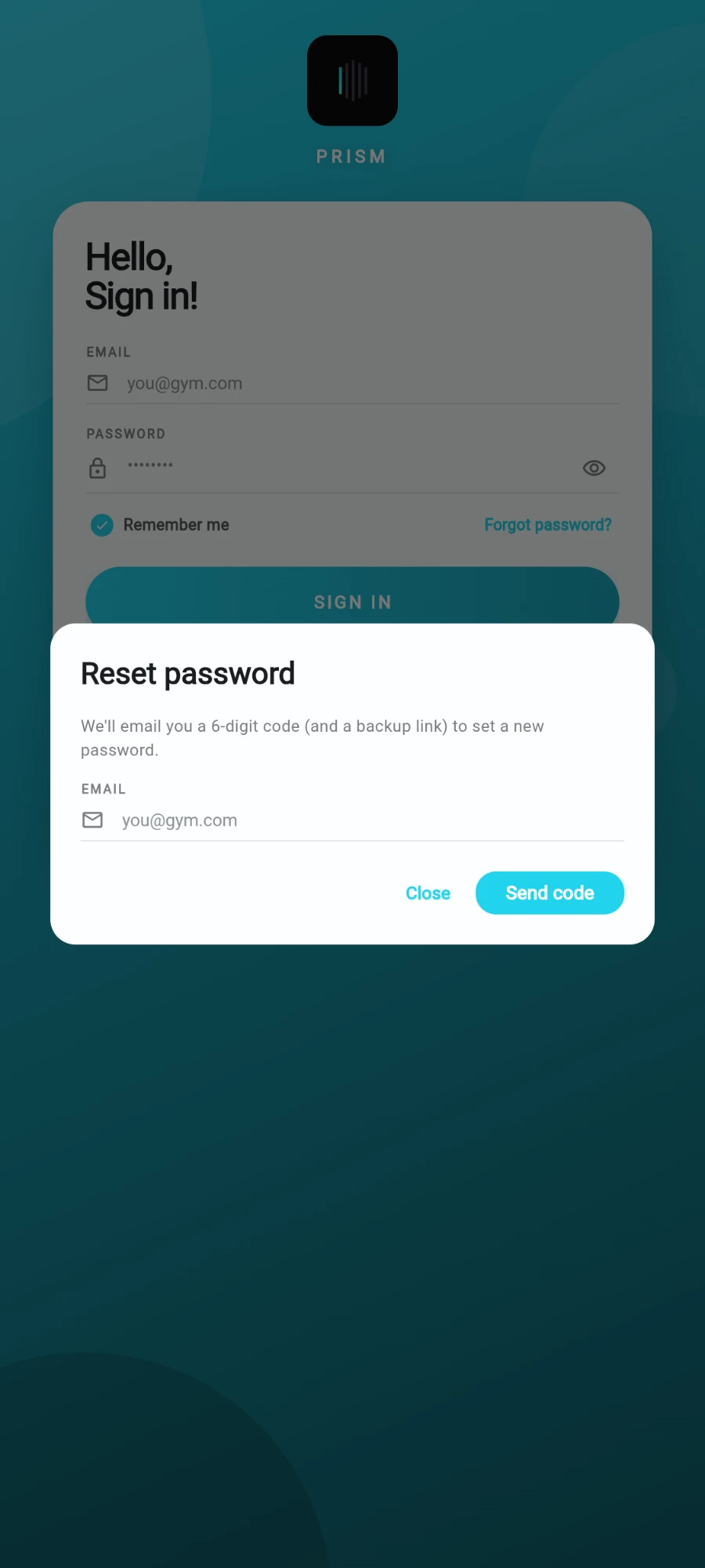
Forgot password? opens this — the code arrives by email.
What you should see
The Dashboard — your gym's name in the header, today's numbers below it. If you're a staff member with a narrower role, some tiles and tabs simply won't be there; that's your permissions at work, not a missing feature.
If something goes wrong
- Wrong email or password — the error banner says so. Use Forgot password? if you're not sure; the reset dialog tells you honestly when No staff account found for this email.
- "Connection timed out. Check your internet connection and try again." — the device is offline or the Wi-Fi is captive. Reconnect and retry.
- Signed in, but the app says your account isn't linked to a gym — your manager added a different spelling of your email, or hasn't added you yet. Ask them to check the staff list, then sign up again with the exact email they entered.
- The two-factor screen appears but you've lost your authenticator — another owner can't bypass it for you; contact platform support from a signed-in owner account via Help & support.
Still stuck? Email hello@prismgym.com — include your gym name, the device, and a photo of what you see.