Messages, broadcasts and support
The chat bubble in the header opens Messages — direct 1:1 conversations between staff, members and coaches. Members reply from their own app; staff see everything in one inbox with unread badges that follow you around the app. A broadcast tool sends one message to a whole audience, and a separate Help & support inbox connects you (the gym) to the Prism platform team.
What you'll do
Send a direct message, send a broadcast, and know where to raise a support thread.
You'll need: any staff sign-in for messaging; broadcast and support are typically owner/manager territory.
Steps
-
Tap the chat bubble in the header. The Messages inbox lists your conversations with avatars, previews and unread counts, live as messages arrive. Use Search name or message to find a thread.
-
Tap New message, pick a member, coach or staff member, and write. Every conversation is a private 1:1 thread — the other person answers from their own app.
-
To clean up, long-press a conversation: Select conversations mode lets you multi-select and Delete selected.
-
To message everyone, tap Broadcast. Pick the Audience — Active members (Only members with an active membership.), All members (Every member on file, any status.) or All staff (Every admin-app user in the gym.) — then write the Message.
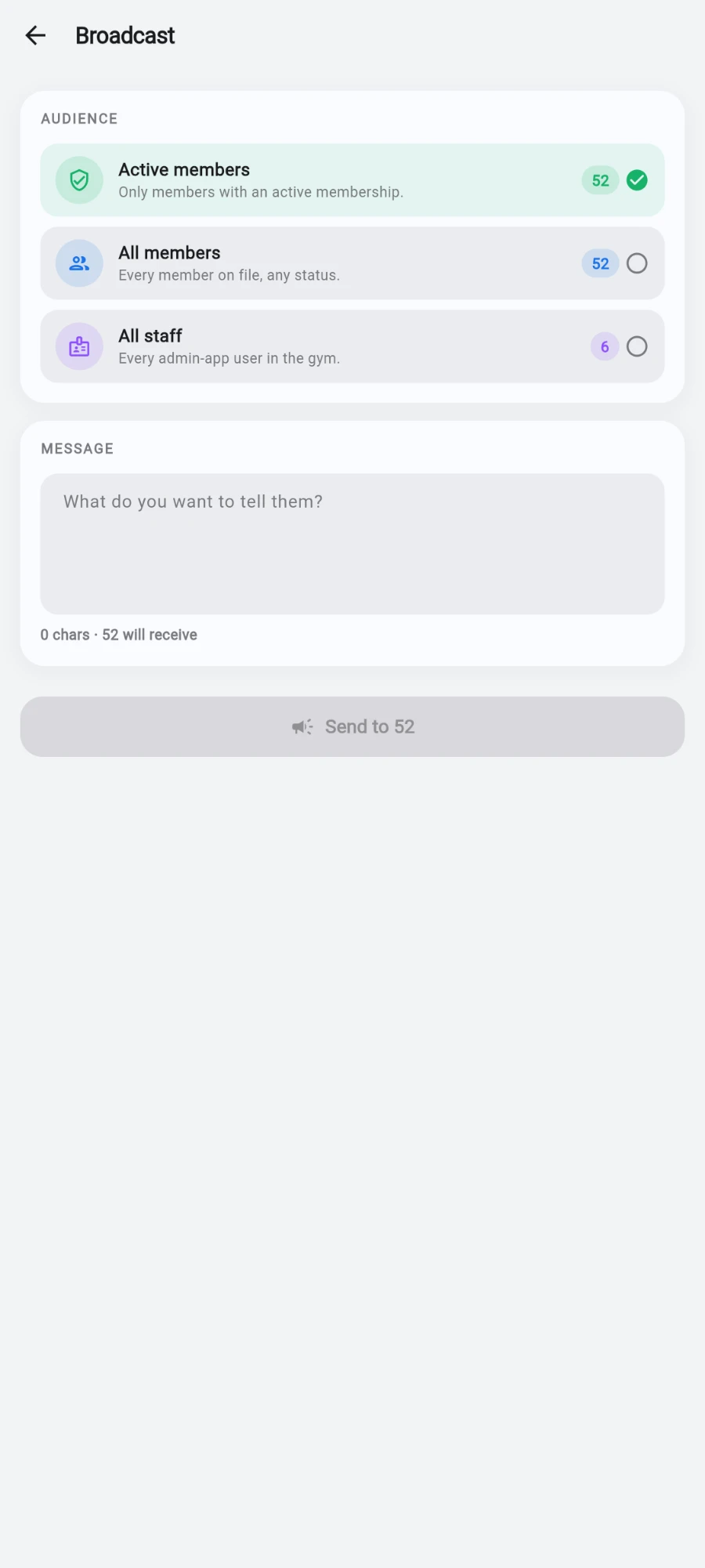
Pick the audience, write once — the counter tells you how many will get it. -
Tap send. A Send broadcast? dialog confirms the recipient count before anything goes out.
-
For help with Prism itself — billing, a bug, a how-do-I question — open the drawer and tap Help & support: Message the platform team — replies arrive in this inbox. Tap New thread, give it a Subject and describe the issue. You can Attach screenshot — one image per message, shown inline.
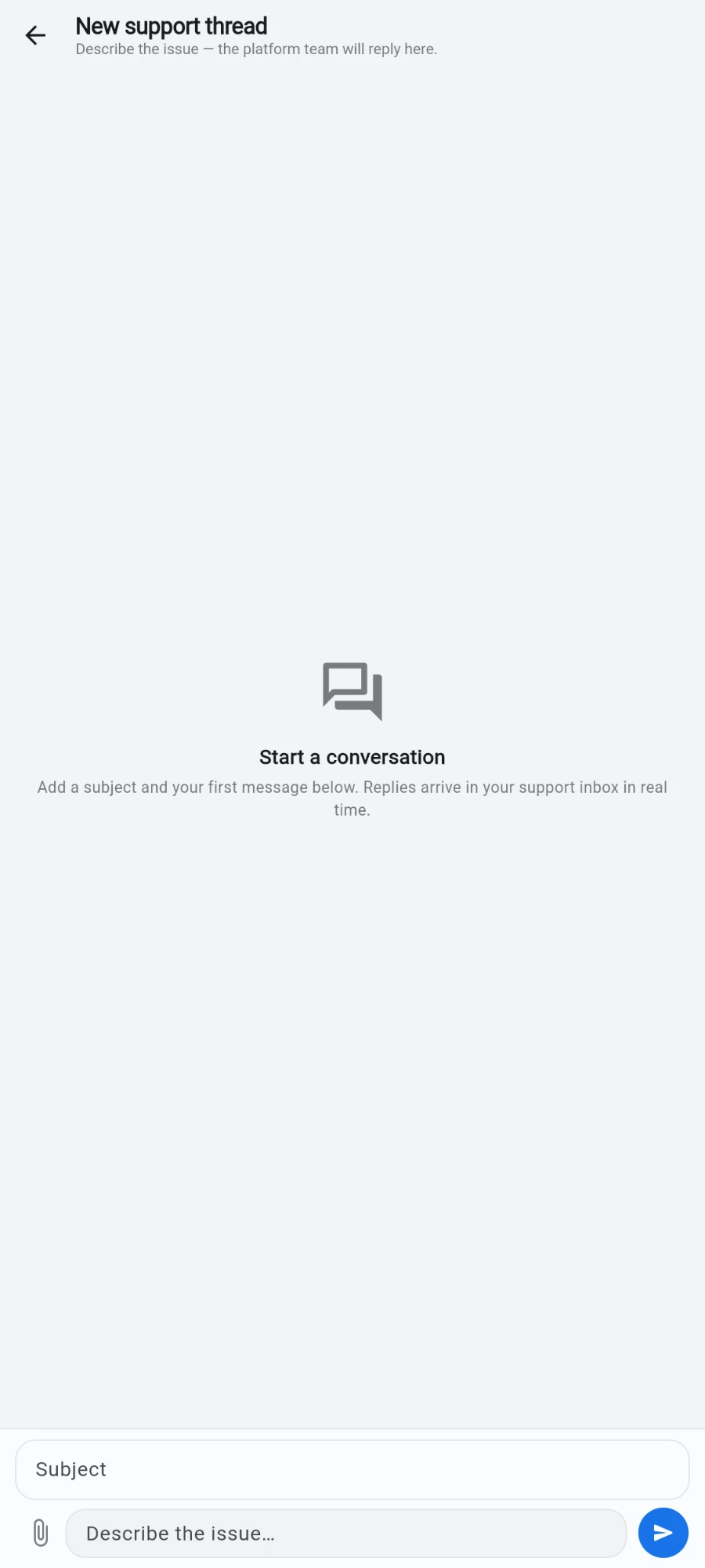
A subject, a description and one screenshot per message.
What you should see
Sent broadcasts report their result — how many delivered, how many failed. Support threads show the full back-and-forth with status; when the platform team resolves one, the thread says Support marked this thread resolved, and you can keep typing in it if the issue isn't actually fixed.
If something goes wrong
- A member doesn't receive your message — they haven't installed or signed in to the member app; messaging reaches app users only.
- The unread badge won't clear — open the thread itself; the badge counts per-thread unread messages, and refreshes within half a minute even if a live update was missed.
- Broadcast reports failures — usually recipients who have never opened the app. The count tells you how many actually got it.
- No reply in Help & support — replies land in that same inbox and as a push notification; check the thread rather than your email.
Still stuck? Email hello@prismgym.com — include your gym name, the device, and a photo of what you see.