Managing signage from the admin app
Your TVs — menu boards, offer walls, studio screens — are all driven from one place in Gym Admin: the Screens hub, opened from the drawer's Signage tile. It's screen-first: the home view is a card per TV showing what that screen is playing right now, with pairing, content, playlists, schedules and alerts one tap deeper. This chapter covers the admin side; the signage part of this manual covers each tool — content, menu walls, playlists, day-parting and alerts — in depth.
What you'll do
Open the hub, read the screen cards, pair a new TV, and find the tools sheet.
You'll need: a staff account with device-management permission, and for pairing: a TV with the Prism Signage app installed and showing its pairing code.
Steps
-
Open the drawer → Signage. The Screens hub loads — What's on every wall right now — with one card per paired screen: its name, whether it's online, and what it's currently playing.
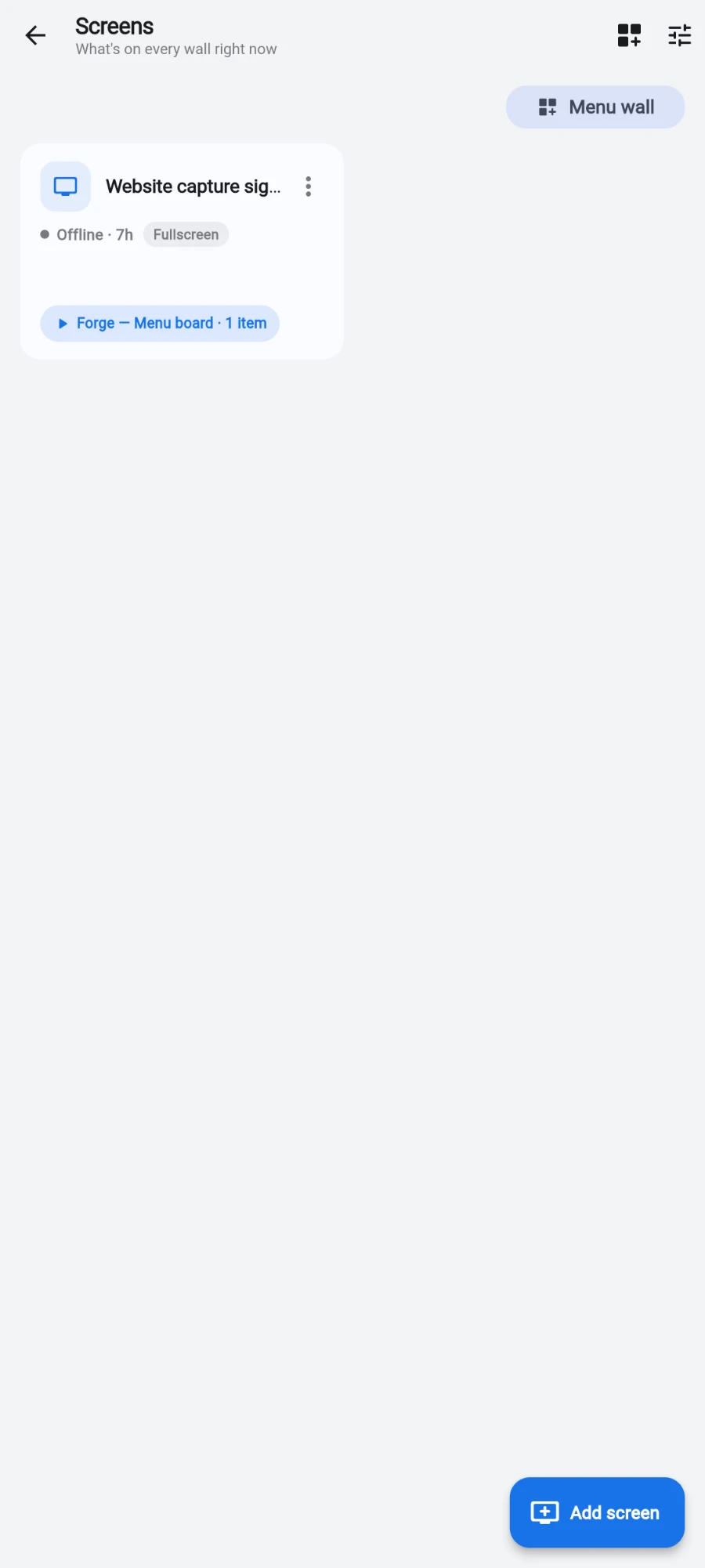
One card per TV: its name, whether it is online, and what it is playing. -
First time here you'll see No screens yet — pair your first TV with a Pair your first screen button. Install the Prism Signage app on the TV or TV box first; it displays a short claim code.
-
Tap Add screen (or that first-time button), give the screen a name — names must be unique within the gym, and a duplicate gets a friendly error — and enter the TV's code. The screen pairs within seconds.
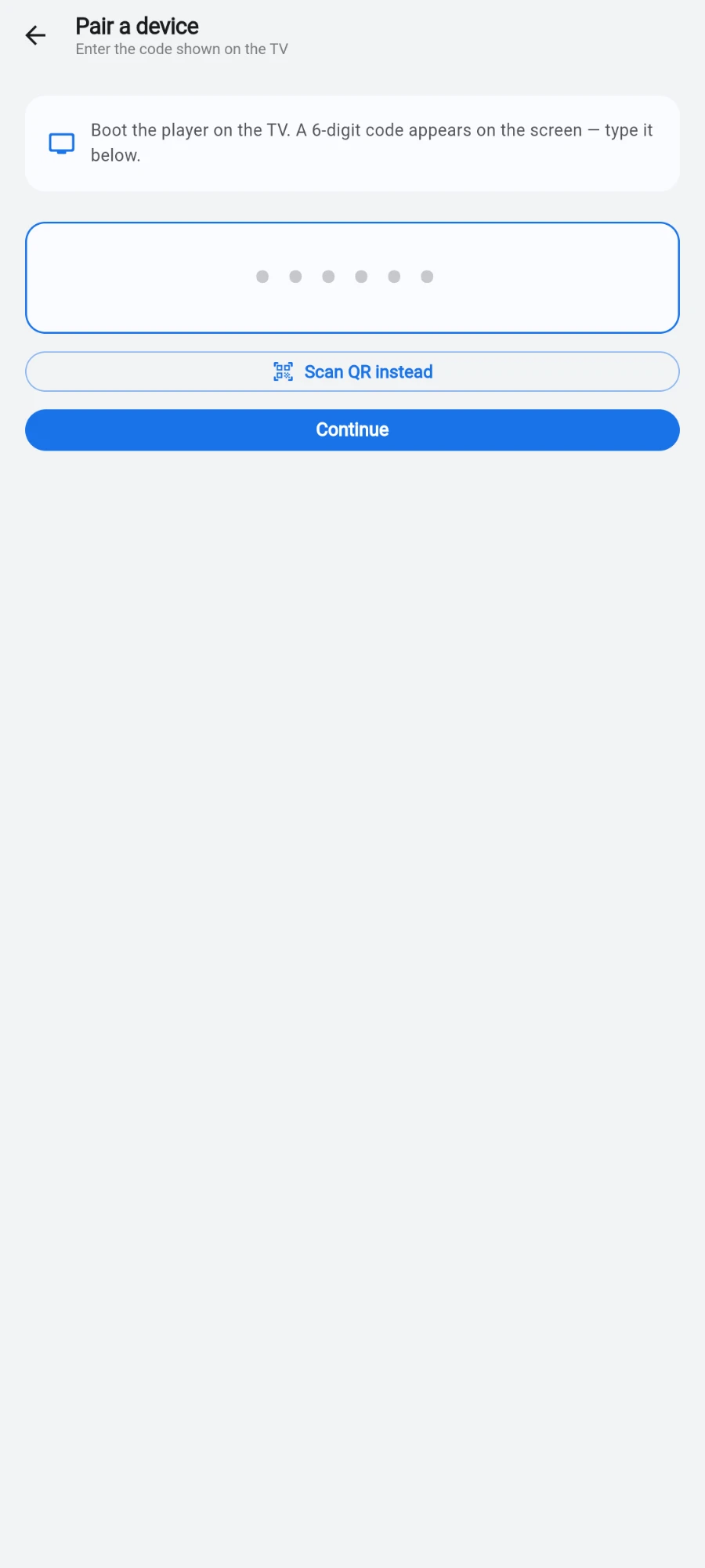
Pairing: type the 6-digit code the TV is showing. -
Straight after pairing, a guided setup wizard offers a template for the new screen — configure it, review, and publish, so the TV shows real content in under a minute instead of a blank panel. You can re-run the wizard any time from the screen's card.
-
Tap a screen's card for its detail: rename it, change what it plays, check its connection, or remove it.
-
Tap Tools in the top bar for the Signage tools sheet — Manage the content behind your screens.: All screens (Every TV — menu boards and studio screens), Images & boards (Pictures, videos, and menu boards), Time of day (Show different content at different times), Emergency alerts (Take over every screen with a message), and under advanced, TV matrix for video walls and Playlists (Group content into loops to assign).
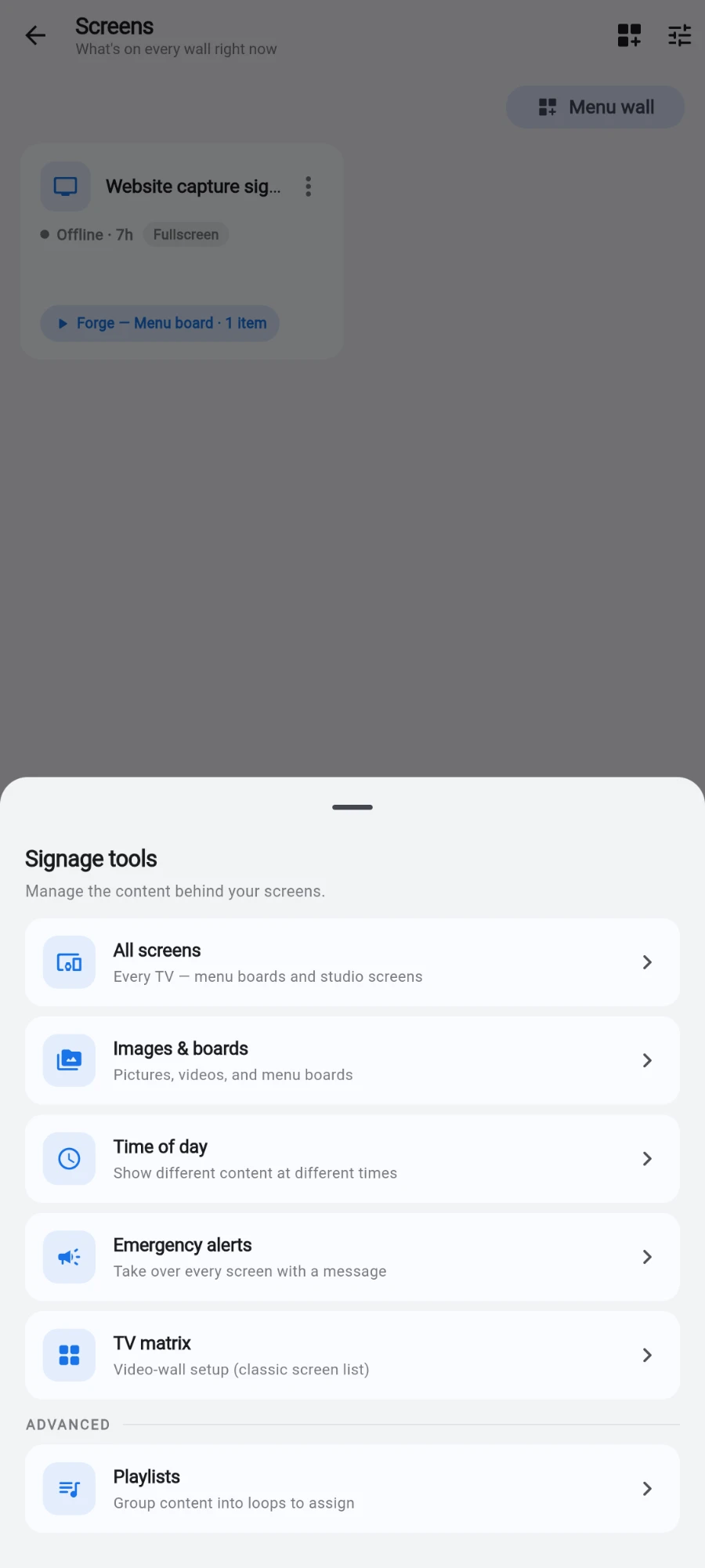
The Tools sheet and its six destinations. -
For a bank of TVs behind a counter, use Menu wall on the hub's top bar — a wizard that spreads one menu across several screens. The signage chapters cover it step by step.
What you should see
Every TV in the building as a card, each showing live what it's playing, and a newly paired screen showing real content within a minute of entering its code.
If something goes wrong
- The new TV shows a code but pairing fails — the code expires and regenerates; read the current one off the TV and try again.
- A screen's card shows it offline — the TV lost Wi-Fi or power. It reconnects and resumes its assigned content by itself once the network is back.
- "Couldn't load screens" — a connection problem on your admin device; Try again after checking the network.
- A name is rejected when pairing — another screen already uses it; screen names are unique per gym.
Still stuck? Email hello@prismgym.com — include your gym name, the device, and a photo of what you see.