The Settings hub
Everything configurable about your gym lives in one drill-down: drawer → Settings. It's grouped into seven sections — Gym, People, Programs, Member app, Devices, Integrations and Preferences — and it's searchable, so you rarely need to remember where something lives. Every row is permission-gated: staff only see the settings their role can touch.
What you'll do
Walk the seven groups once so you know what's where, and learn the search shortcut.
You'll need: an owner sign-in to see everything. Managers and other roles see a subset.
Steps
-
Open the drawer → Settings. Try search first: the field hints Search settings — try "exit" or "currency", and it matches more than titles — typing "rtsp" finds cameras, "forex" finds exchange rates.
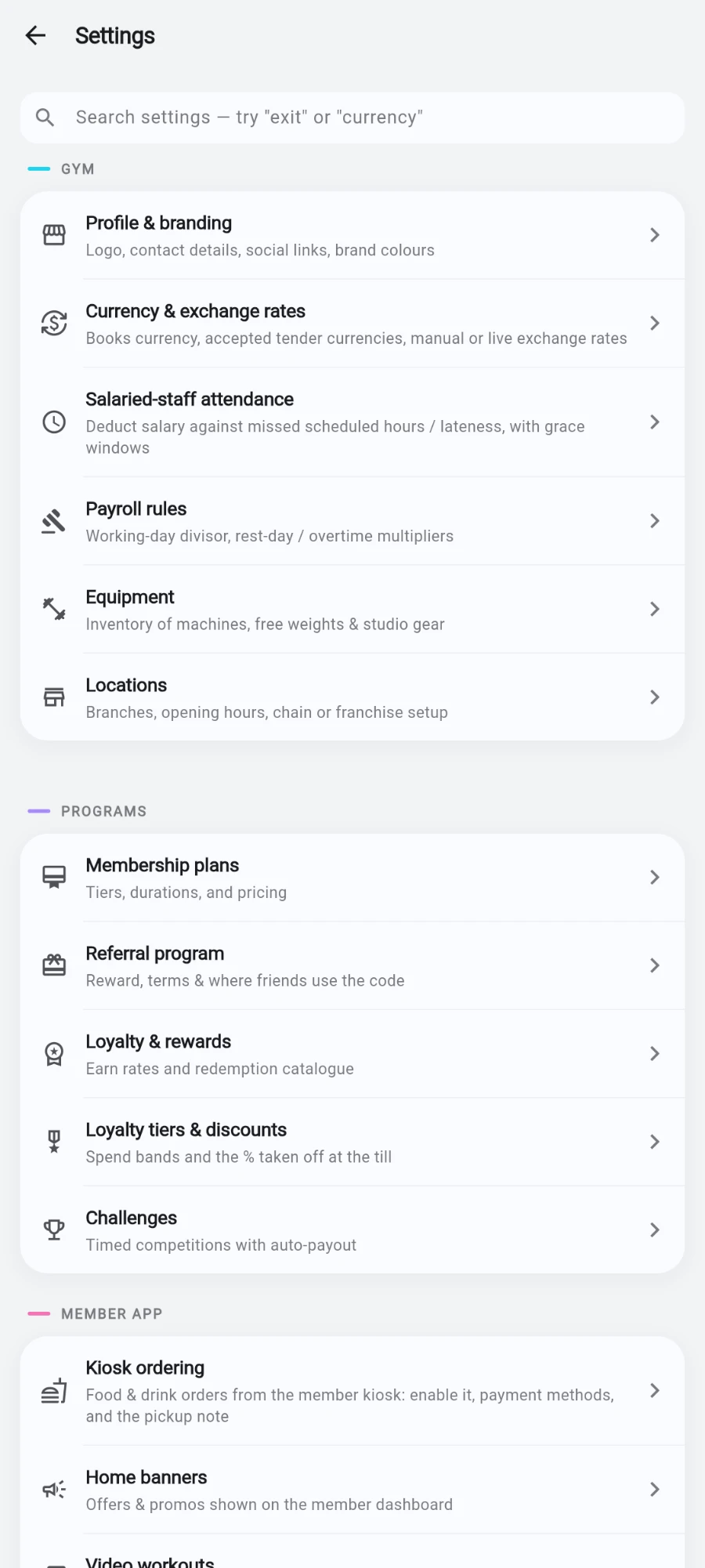
Settings opens on the search field, with the groups stacked below. -
Gym — your business facts. Profile & branding (Logo, contact details, social links, brand colours — the two brand colours restyle the whole app for your gym), Currency & exchange rates (your books currency, the tender currencies you accept, manual or live rates), Payment processing fees, Salaried-staff attendance, Payroll rules, Equipment, Locations, Billing & plan, Organisation, and the Terms & Conditions shown to every new member at signup.
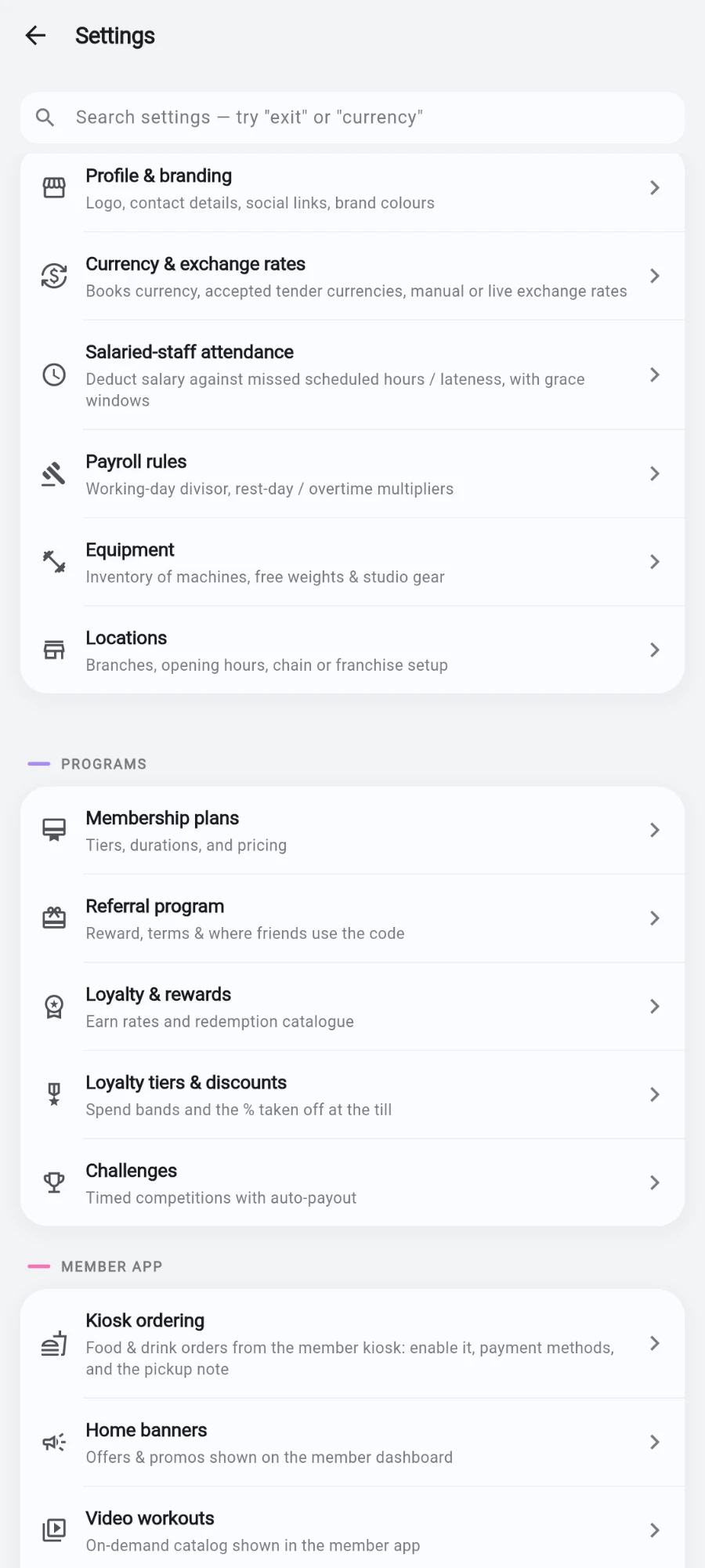
Every row says what it covers, so you rarely open the wrong one. -
People — access and accountability. Role permissions (the preset grid for Manager, Receptionist, Cashier, Coach, Accountant and Custom), Users & permissions (per-person overrides), Two-factor authentication, Audit log, Authorization rules (which destructive actions demand a staff selfie), Staff clock-in geofence (require staff to be on-site to clock in), and Member operations — bulk import from CSV or Excel, full-roster export, product catalog import, bulk complimentary grants, and copy-setup for opening a new location from a template.
-
Programs — what you sell and reward. Membership plans, Policies (self-pause allowance, guest passes, kg/lb units), Referral program, Loyalty & rewards, Loyalty tiers & discounts, and Challenges with automatic payouts.
-
Member app — what members see. Self-signup (kiosk self-join, email verification, minimum age), Kiosk ordering (food and drink from the kiosk), Home banners, Video workouts, and the Exercise library.
-
Devices — hardware. Devices & access (face terminals, NFC and phone readers, security cameras, receipt printers, and hardware policy toggles), Tills (Physical POS registers + printer routing), and Shift history (Closed shifts, variance, and cashier performance).
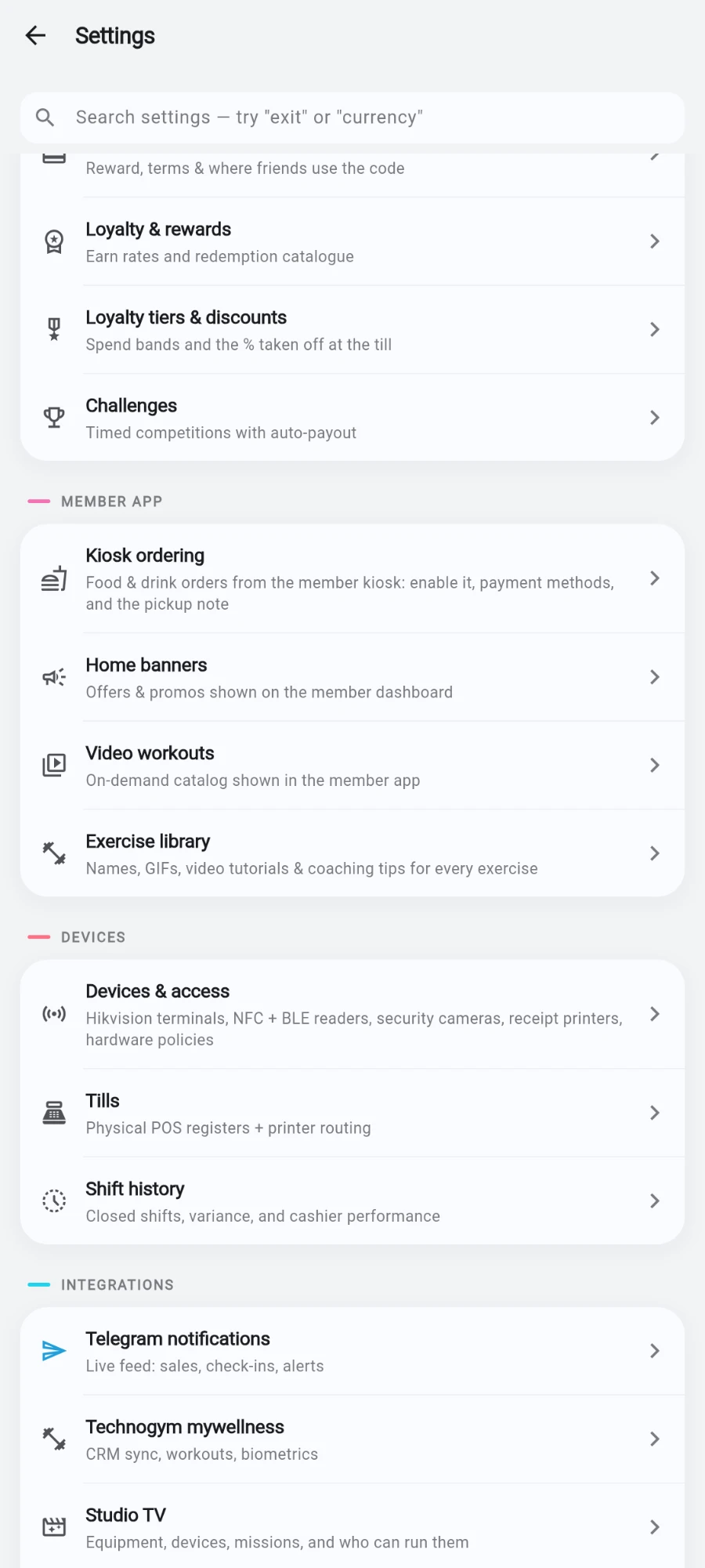
Three rows cover every piece of hardware in the building. -
Integrations — the outside world. Telegram notifications, Technogym mywellness, Studio TV, Wearables & fitness (Fitbit, Whoop, Oura, Strava, Apple Health, Samsung Health and more), and Social inbox & AI replies.
-
Preferences — this device only. Appearance (System, Light or Dark) and the app language, with 18 languages listed in their own script.
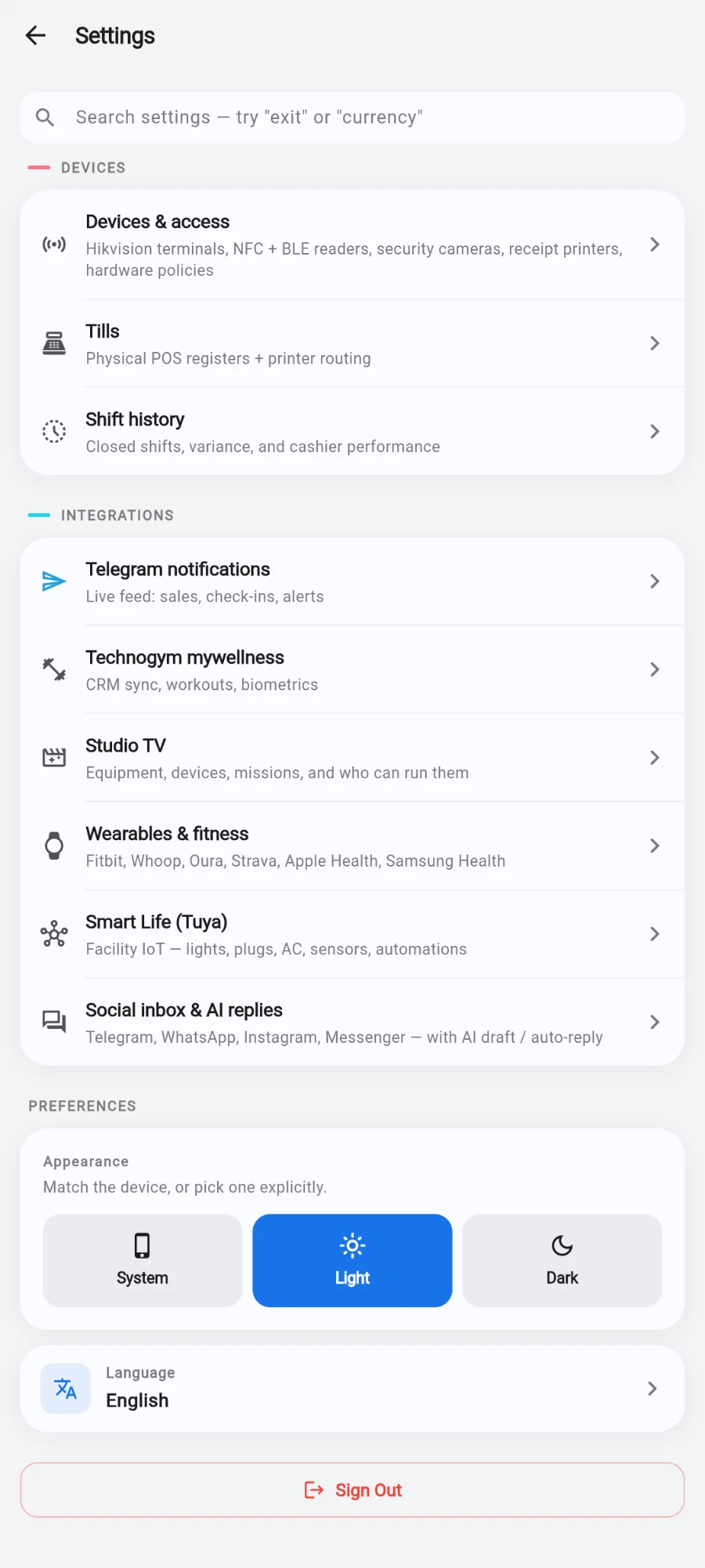
Preferences sit at the very bottom — and only apply to this device.
What you should see
Owners see all seven groups. If a staff member opens Settings and sees only a few rows, their role is working as intended — search results respect the same permissions, and each screen re-checks access when opened.
If something goes wrong
- A setting from this manual isn't in your list — your role lacks that permission, or the feature belongs to an add-on your subscription doesn't include.
- Search finds nothing — the hint suggests trying a feature name (cameras, telegram), a hardware term (reader, printer), or a setting (currency, units).
- "You don't have permission to open that setting" — the row was visible to you but the final gate disagreed; ask an owner to adjust your role.
- A change doesn't appear on other staff devices — most settings propagate within a couple of minutes; Preferences never do, because they're per-device.
Still stuck? Email hello@prismgym.com — include your gym name, the device, and a photo of what you see.