Import your product catalog
If your shop already lives in another POS, don't retype it. The product import reads a CSV or Excel file, matches the usual column names, creates categories as it finds them, and skips products that already exist — so re-running after you fix the sheet is always safe.
What you'll do
Upload a product file and commit the catalog. Only name and price are required; cost, category, barcode, SKU and stock come along when present.
You'll need: an owner or admin account and your old system's product export (.csv or Excel), with headers in the first row.
Steps
-
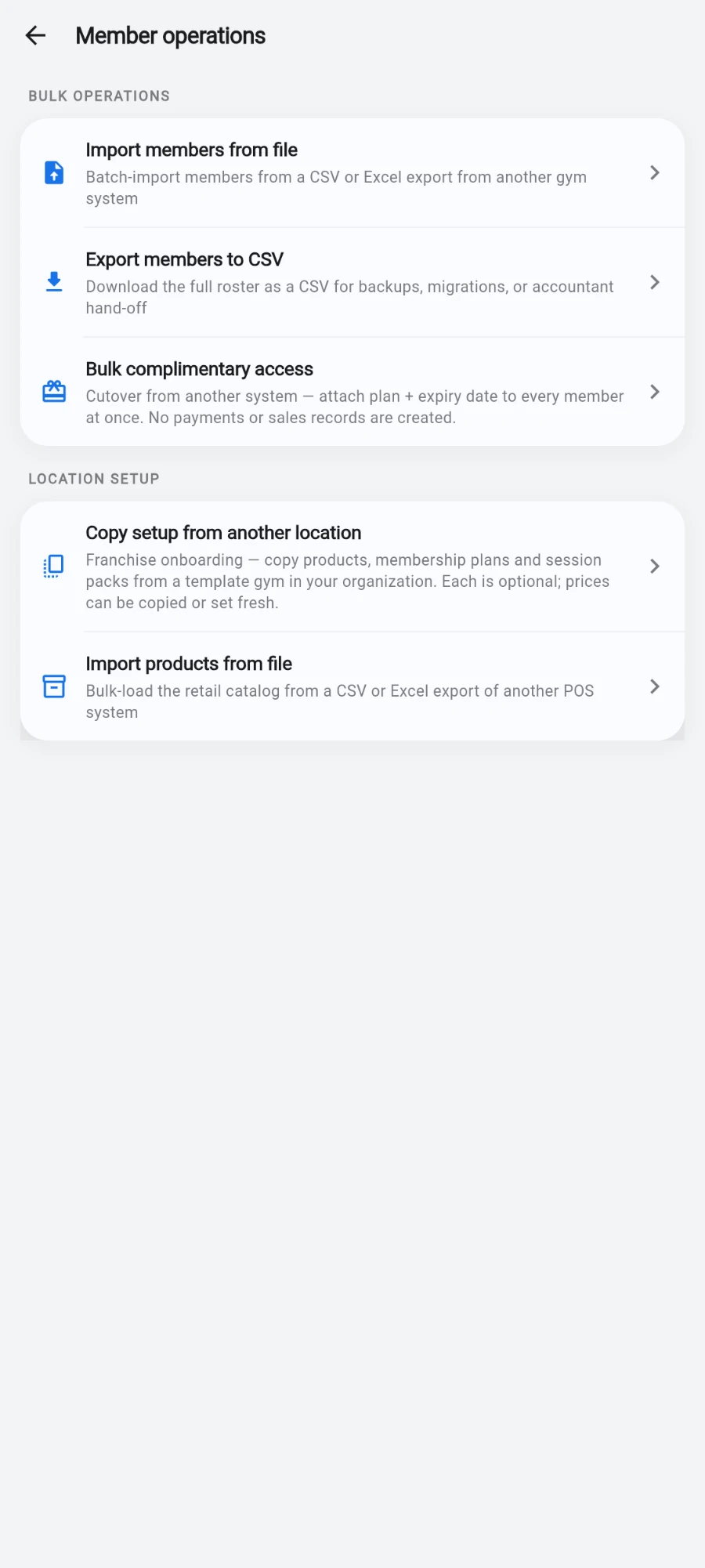
Open Settings → Member operations and tap Import products from file.
-
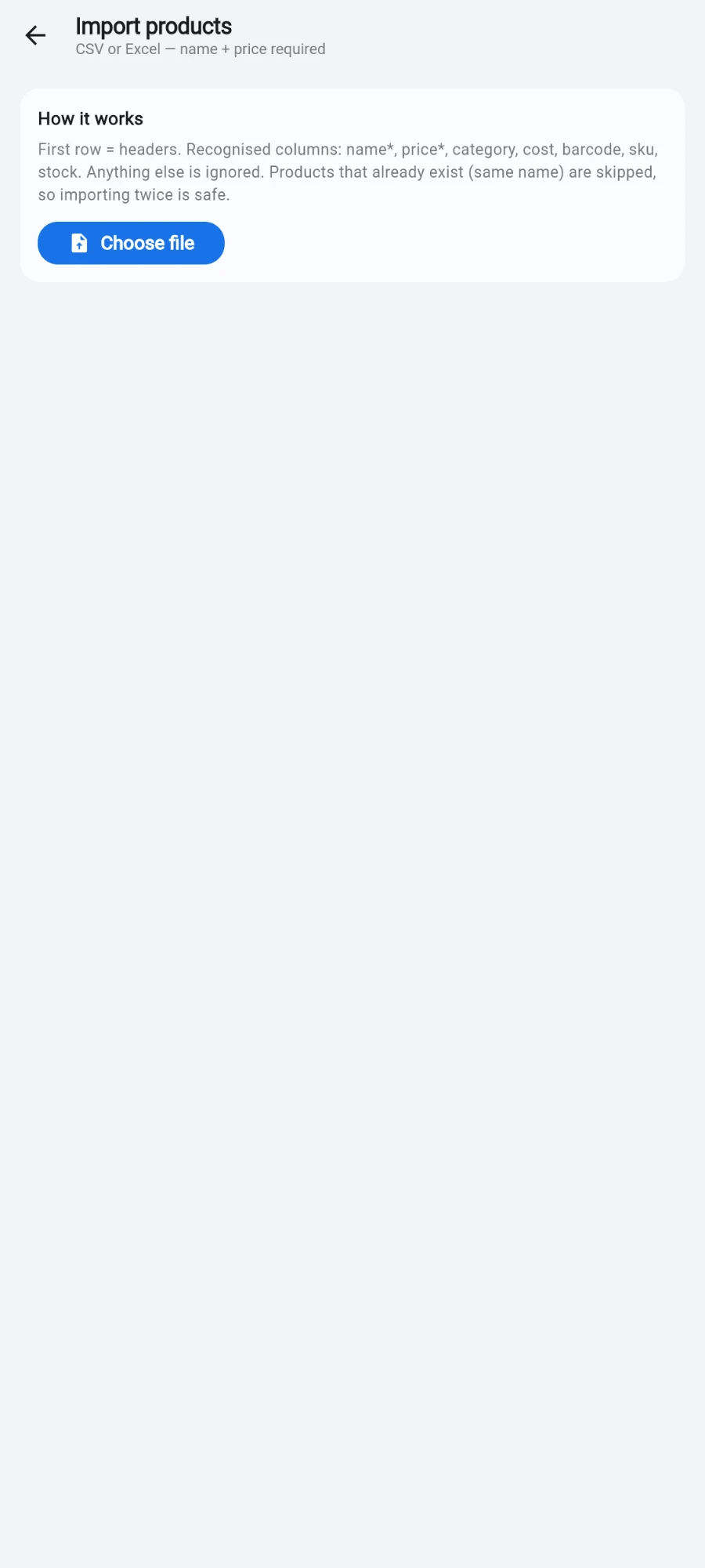
Read the How it works card — it lists the recognised columns. Name and price are required; category, cost, barcode, EAN/UPC, SKU and stock quantity are optional.
-
Tap Choose file and pick the export. Headers are matched loosely, so qty, on-hand and stock all mean the same thing.
-
Wait for the run to finish. Rows import in batches; blank lines are skipped and rows with unreadable prices are reported individually rather than sinking the file.
- Open your POS inventory and spot-check a few products — names, prices, categories and barcodes.
What you should see
The shop catalog populated, with categories created from the file's category names, ready to sell at the register. Imported stock figures land as the on-hand quantity where your file provided them.
If something goes wrong
- Rows rejected for price — the price column contains text or currency symbols the parser couldn't read. Clean the column to plain numbers and re-run; only the fixed rows import.
- Everything skipped on a re-run — that's the name-matching working: those products already exist. Rename genuinely different products that share a name.
- Categories came in messy — categories are created exactly as spelled in the file. Consolidate the spelling in the sheet before importing, or tidy categories in inventory after.
- Stock didn't import — the file had no recognisable stock column; set opening stock in the inventory screen instead.
Still stuck? Email hello@prismgym.com — include your gym name, the device, and a photo of what you see.