Reports, retention and the report builder
The Reports tab is the operational side of the numbers — attendance, utilisation, retention and staff performance. Money reporting deliberately lives in Accounts; what Reports adds is who is coming, when they come, who is about to leave, and one combined PDF that puts it all in an accountant's hands.
What you'll do
Read the hub's attendance analytics, work the retention screen and its at-risk list, and export a combined report pack for any date range.
You'll need: an account with the reports permission; the wages section of the report pack additionally needs the payroll reports permission.
Steps
-
Open Reports. The hub shows operational KPI tiles, an attendance chart, and busiest-period cards — your peak weekday and peak hour.
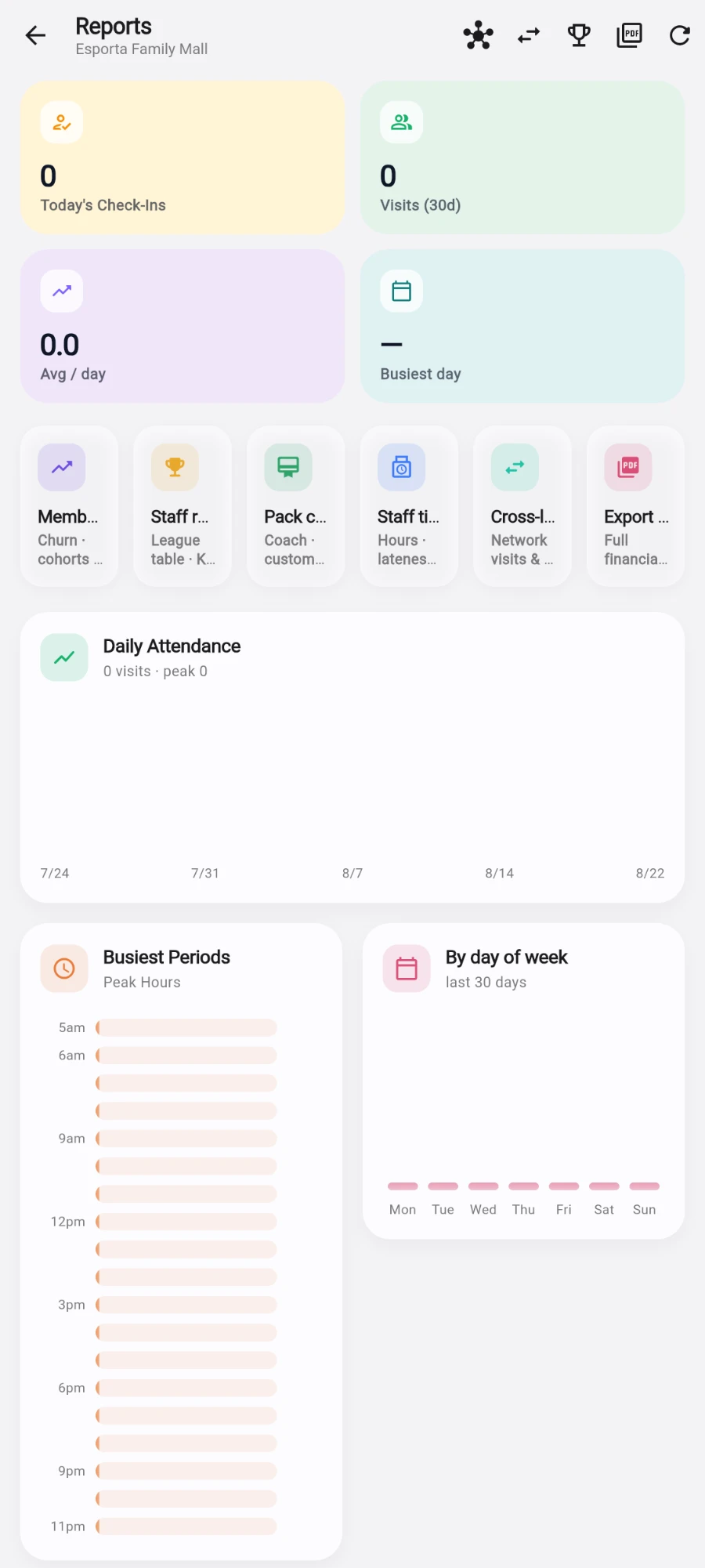
The Reports hub: KPI tiles, attendance chart, busiest periods and the quick-link tiles -
Use the quick-link tiles to reach the buried reports as first-class screens: Member retention, Staff rankings, Pack commission, Staff timesheets and Export PDF.
-
Tap Member retention. The KPI strip shows Active members, Churn this month (colour-banded against industry benchmarks), Avg member lifetime (averaged over members who have already ended, so open memberships don't flatter it) and At risk.
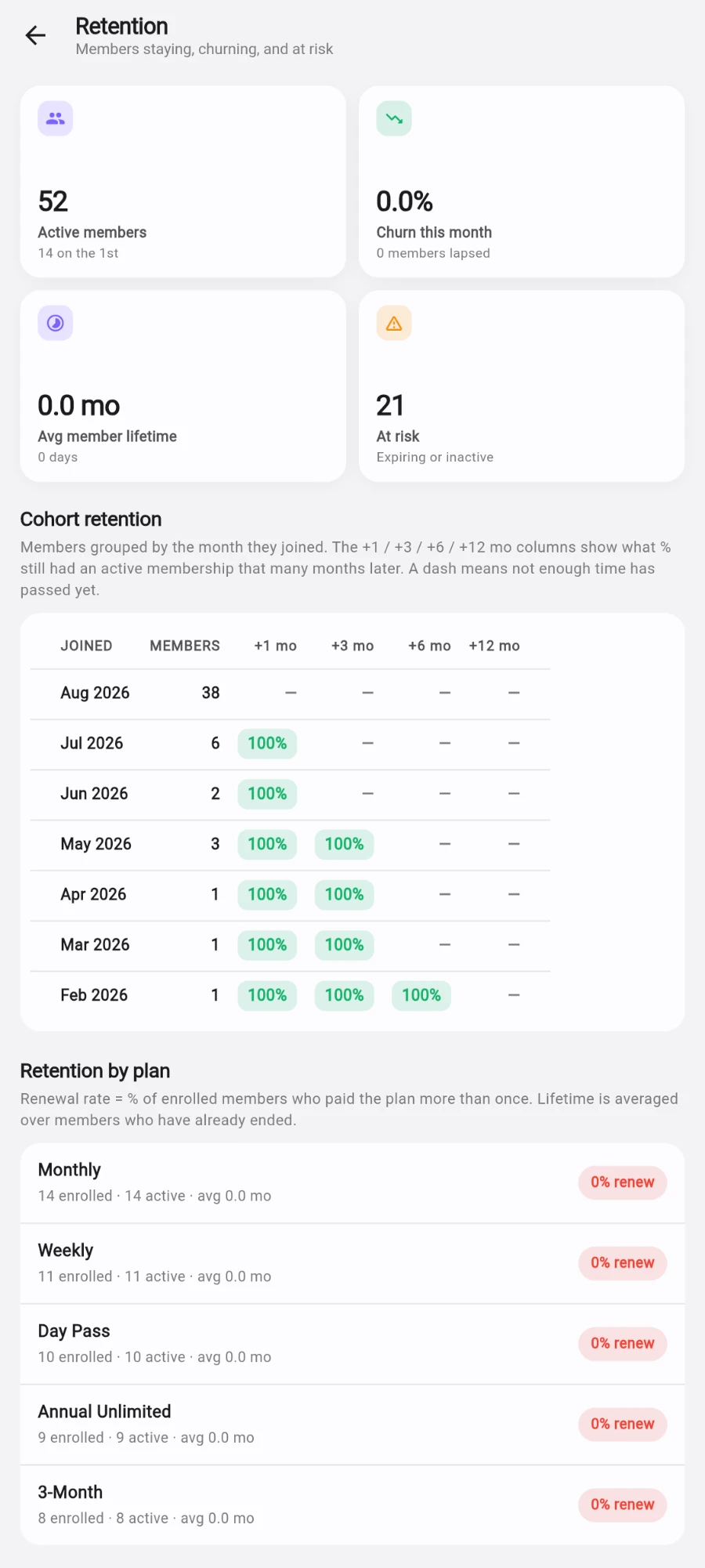
Cohorts, churn and at-risk members in one report. -
Read the Cohort retention grid — members grouped by the month they joined, with the percentage still active after 1, 3, 6 and 12 months as a heat map. A dash means not enough time has passed yet.
-
Check Retention by plan — renewal rate and average lifetime per plan, showing which plans keep people — and the Monthly churn trend chart.
-
Work the At-risk members list. Each member carries a 0-100 risk score with plain-English signal chips (days since last visit, expiry approaching, no app login) and a tier — High risk, Medium risk, Low risk or Healthy.
-
Tap Send nudge on a member: pick a channel — WhatsApp, SMS or Email — and review the pre-written message before it sends. A channel is only offered when the member has both the contact detail and the matching opt-in.
-
For the combined pack, tap the Export PDF tile to open the Report builder.
-
Pick one Date range for the whole pack — presets cover the common ranges.
-
Tick Sections to include: revenue, attendance, top spenders, top products, top services, Commissions, Wages / Payroll, Profit & Loss, Member retention, Noted transactions and AI business insights — or start from a preset under QUICK PACKS: Owner monthly, Accountant pack or Coach pack.
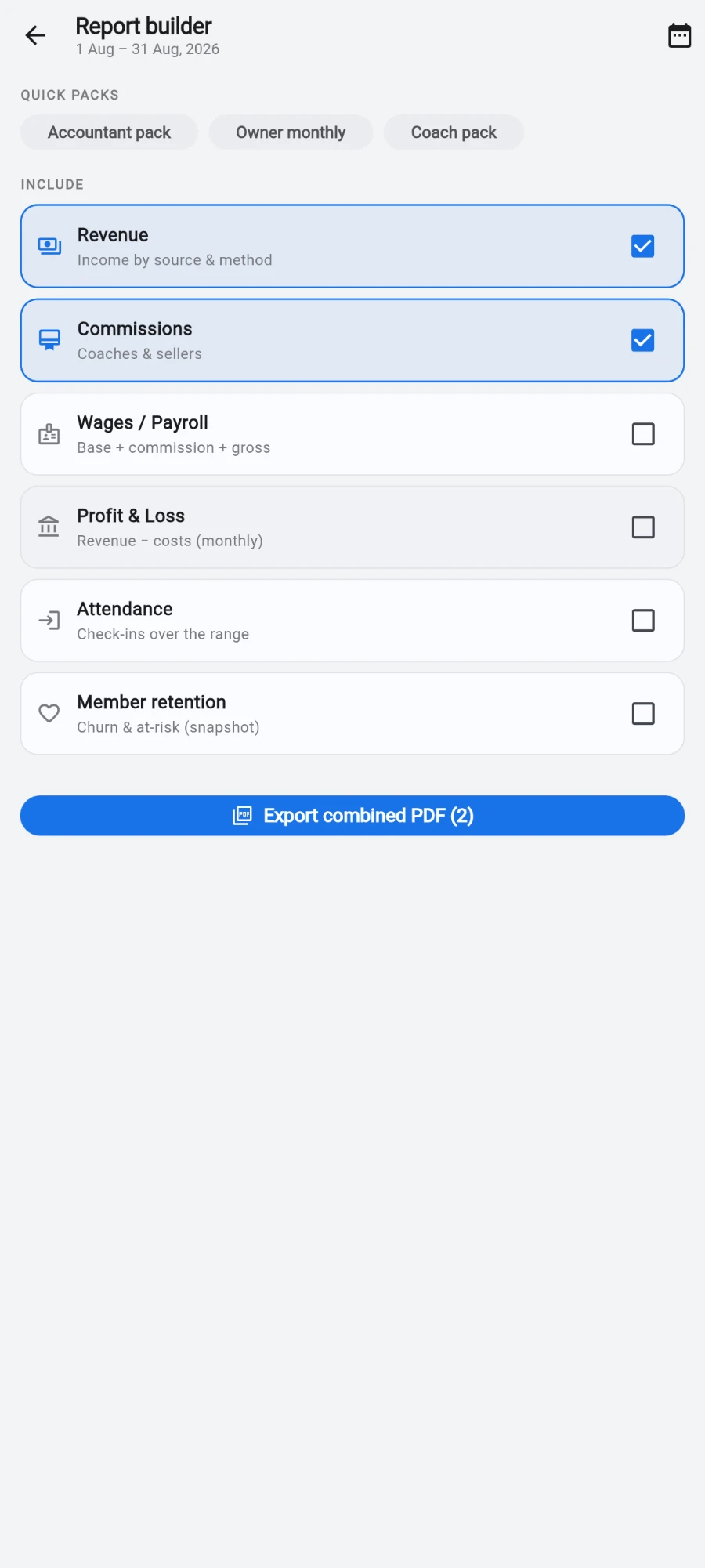
Pick the sections you want and export them as one PDF. -
Set the Top-N depth (per section) — top 5, 10, 20, 50 or all rows, mixable per section — and optionally Compare to prior period for deltas on the KPIs.
-
Tap Export combined PDF. You get one document with a cover page and a section per report.
What you should see
A hub whose attendance numbers match the door, a retention screen that names the members worth a phone call this week, and a combined PDF whose sections reconcile with the individual screens — they are built from the same figures.
If something goes wrong
- Churn shows red — the banding is benchmark-based, not an error. Start with the at-risk list; it is sorted by score so the highest-value saves are on top.
- A nudge channel is missing for a member — they lack that contact detail or opted out of that channel. The remaining channels still work.
- Cohort numbers look odd for bulk-imported members — cohorts date members by the earlier of signup and membership start, so imported members sit in their real joining month, not the import day. If a whole cohort looks identical, that is usually one big import batch.
- A section of the pack shows an error note — that one fetch failed. Re-run the export; the other sections were unaffected.
Still stuck? Email hello@prismgym.com — include your gym name, the device, and a photo of what you see.