Products, categories and stock
The inventory screen is the home of everything sellable: products with sizes, barcodes, costs and photos, organised into categories that carry staff-discount rates. Stock is never just a number you overtype — deliveries are booked as goods receipts with cost, supplier and invoice reference, and every movement (sale, refund, receipt, adjustment) lands in an append-only ledger you can audit and export. Near-expiry stock gets alerts, markdowns and a risk score before it becomes waste.
What you'll do
Create categories and products, receive a delivery properly, and use the stock tools: history, report, markdowns and expiry tracking.
You'll need: the POS inventory permission. Have supplier invoices at hand when receiving stock.
Steps
-
Open the POS tab and tap Inventory. The header pills flag Low stock and Out of stock counts, and the summary strip shows product count and total stock value.
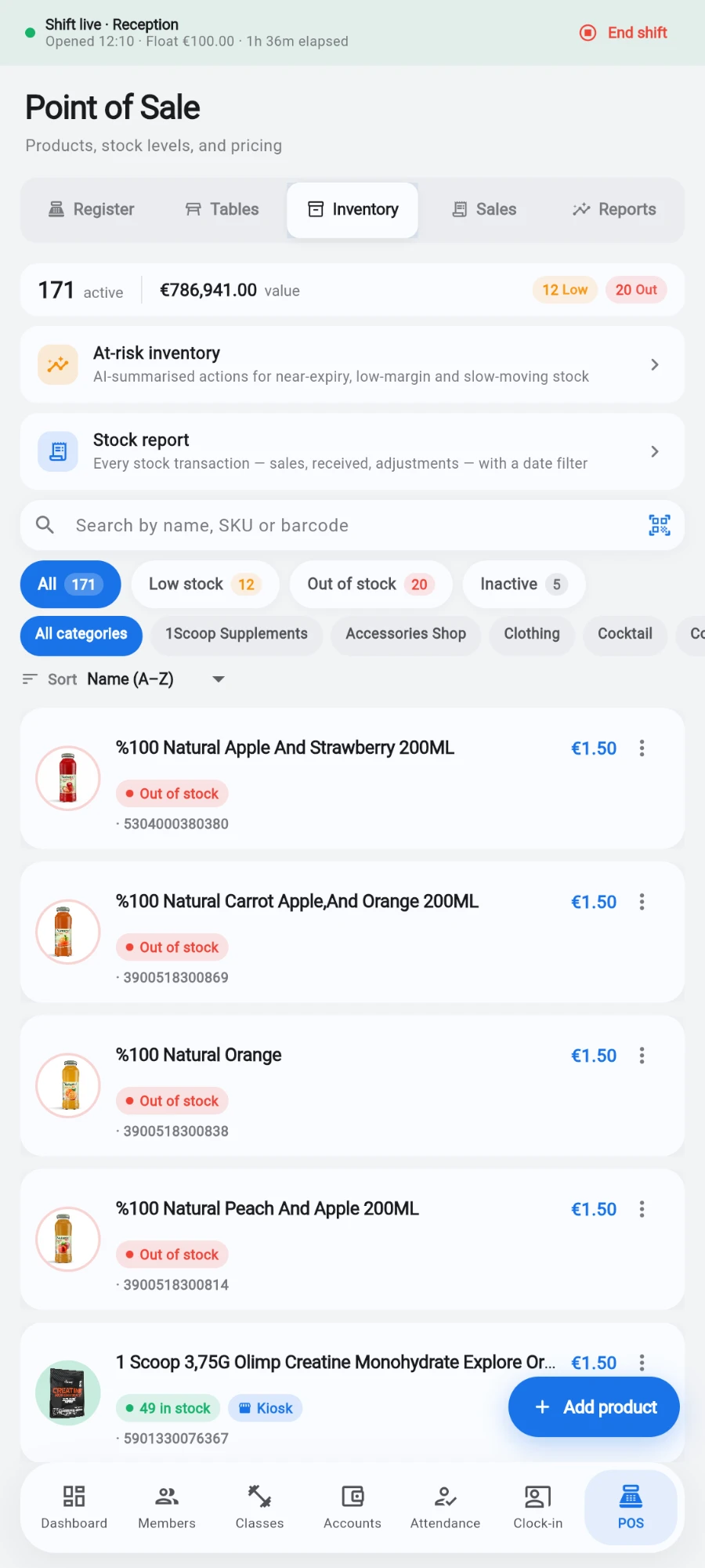
Inventory — stock counts and low-stock warnings per product. -
Tap Add product. Fill in Name, Price and Cost (cost powers margin reporting), and pick a Category — or tap Manage categories to create one with New category. Categories also carry the per-category staff discount and sort order.
-
Add identifiers: SKU and Barcode are optional but make scanning work — tap Scan barcode to fill the field straight from the camera.
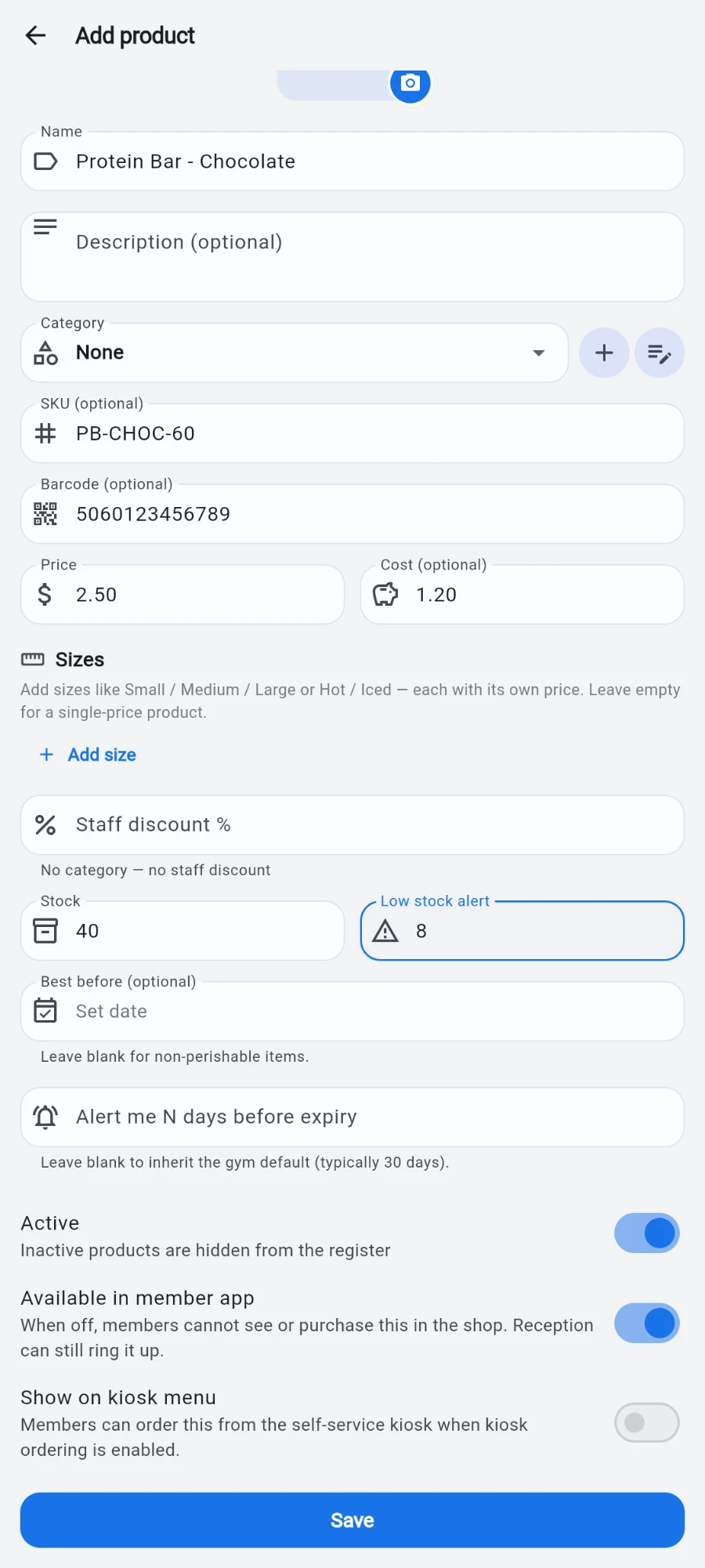
Add product — price and cost, identifiers, stock and where it shows. -
If the product comes in variants, use Sizes — Add size for entries like Small / Large or Hot / Iced, each with its own price. The main Price field is the default when no size is picked.
-
Set the Stock and Low stock alert threshold, and for perishables a Best before date — the alert window before expiry is configurable per product or inherited from the gym default.
-
Choose where it appears beyond the register: Show on kiosk menu for the self-service kiosk (with its own blurb, image and sort order, plus a Sold out on kiosk switch that greys the item without hiding it) and Available in member app for the in-app shop. Active controls the register itself. Tap Save.
-
When a delivery arrives, do not edit the Stock field — open the product's actions and tap Receive stock…. Enter Quantity received, Unit cost and its Cost currency, Supplier and Invoice reference, and an optional note. One save books the receipt, bumps the stock, writes the ledger row and updates the cost history.
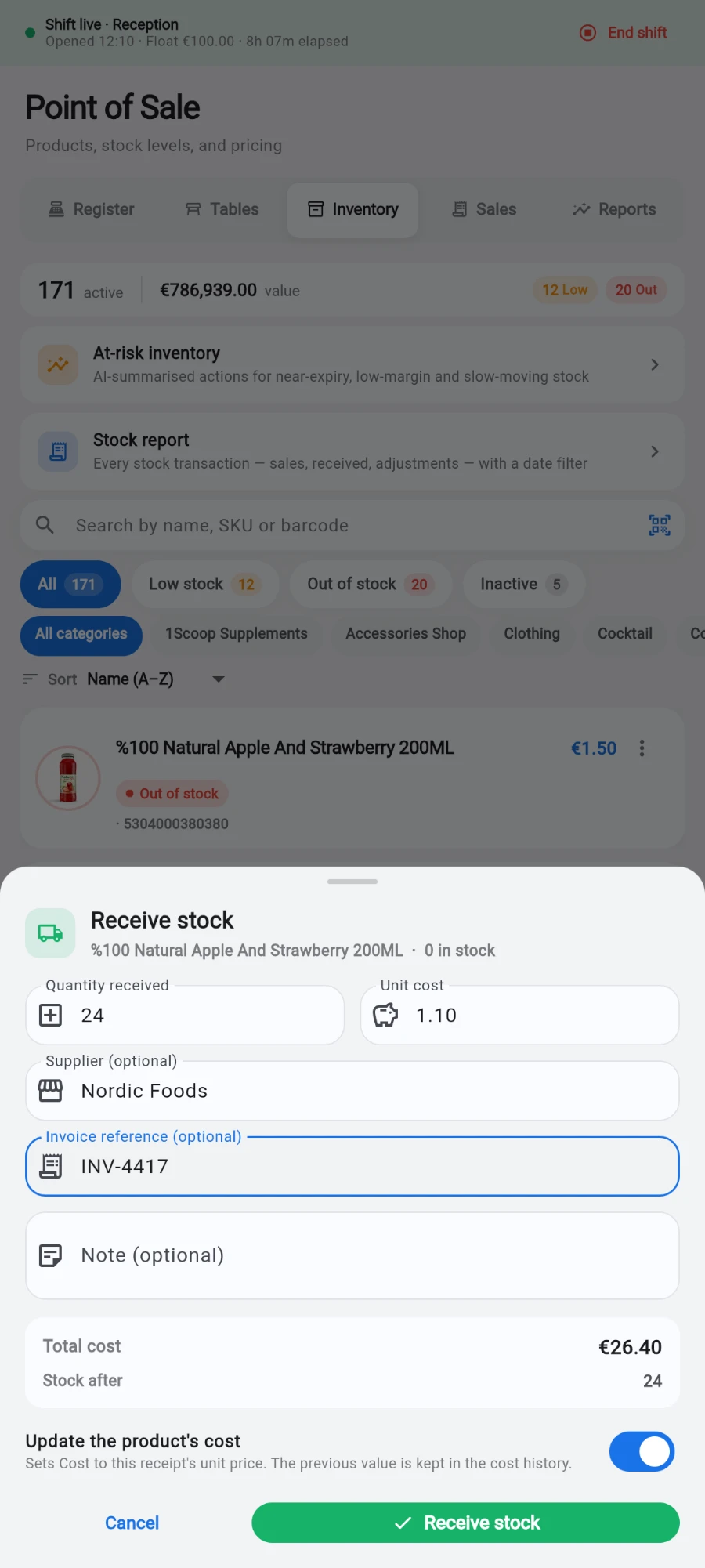
Receive stock — one save books the receipt and bumps the count. -
Audit any product from its form: Stock history shows every movement with who and when — goods receipts carry their cost, supplier and invoice — and View cost history lists every cost change.
-
For the whole gym, tap Stock report: the full movement trail over any date range, filterable by kind (sales, refunds, received, adjustments), with Export (PDF / CSV).
-
To move near-expiry stock, use the product actions' Mark down…: enter the New price (it must be lower) and a reason. The register, cart and receipt all charge the marked-down price, the tile shows a SALE flag with the original price struck through, and Clear markdown ends it.
-
Check At-risk inventory periodically: it scores products by expiry urgency, margin and sales velocity, suggests an action for each, and writes a short plain-language summary. Sorting the main list by Expiring soonest shows the same pressure chronologically.
What you should see
Products appearing on the register grid the moment they are saved and active; a received delivery raising stock with a ledger entry behind it; markdown prices matching on screen, in the cart and on the printed receipt.
If something goes wrong
- A product does not show on the register — it is inactive, or the register's category filter is narrowed; check Active on the product and reset the dropdown to All categories.
- Receiving in a foreign currency is refused — no exchange rate is configured for that currency; add one in the currency settings, since the app will not book a foreign cost it cannot convert.
- The markdown will not save — the new price must be lower than the current price; use the regular price field for increases.
- Stock numbers look wrong — read the product's Stock history before correcting anything; every sale, refund, receipt and manual adjustment is listed with its actor and resulting stock.
Still stuck? Email hello@prismgym.com — include your gym name, the device, and a photo of what you see.