Playlists and time-of-day schedules
A playlist is an ordered loop of content — cards, boards and videos playing one after the other, forever. Every screen has a default playlist, and time-of-day schedules can swap a different playlist in for chosen hours: a breakfast menu on weekday mornings, a promo loop after hours. Outside scheduled hours, the screen simply falls back to its default.
What you'll do
Create a playlist, order its items and set per-item durations, assign it to a screen, then add a day-parting schedule on top.
You'll need: items in the content library, and at least one paired screen.
Steps
-
Open Signage from the drawer, tap Tools, then under the advanced section choose Playlists ("Group content into loops to assign").
-
Tap New playlist, give it a Name, and tap Create.
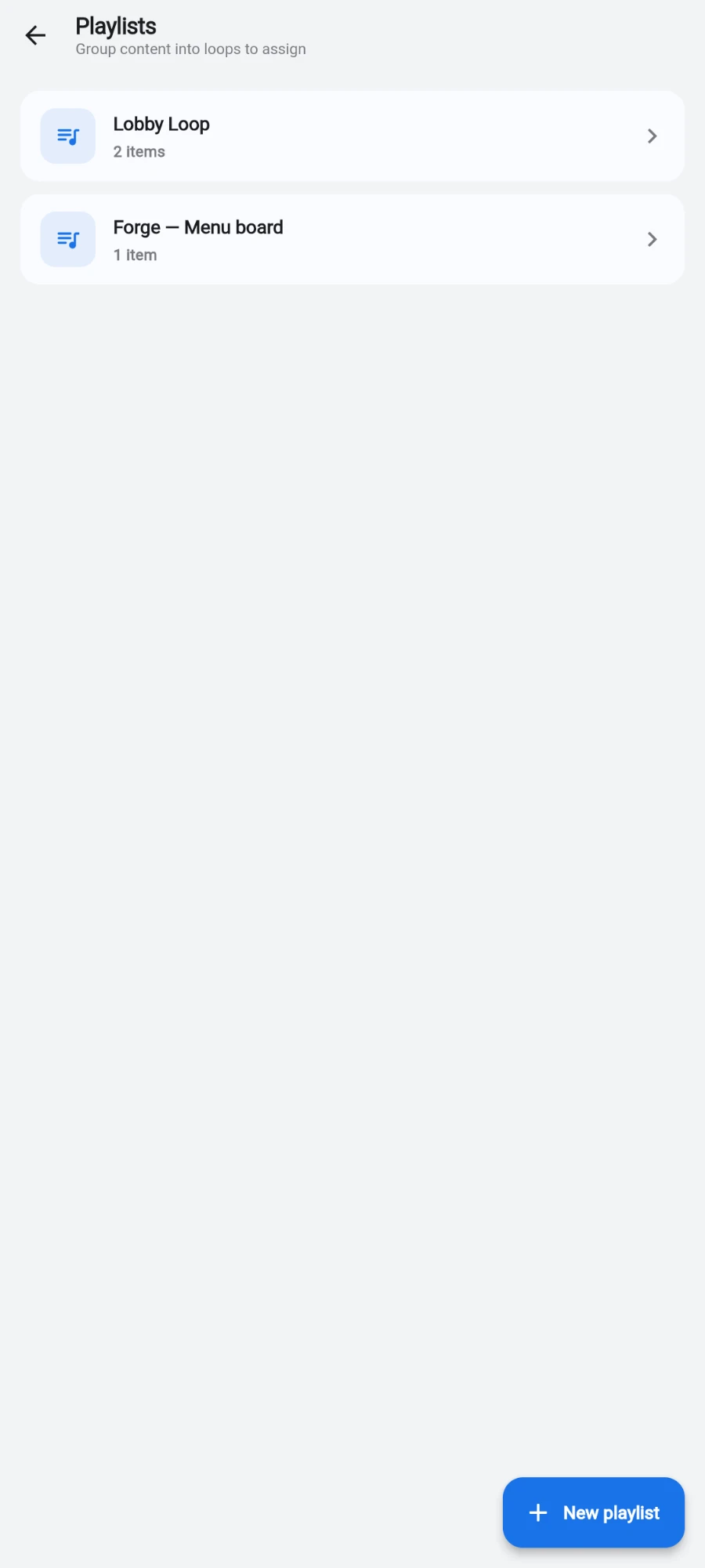
The Playlists screen with item counts and last-updated times -
In the editor — "Drag to reorder · tap to set duration" — tap Add from library, tap the items you want, then add them. The loop plays top to bottom and starts over automatically.
-
Drag items to reorder them. Tap an item to set its Duration, and for videos toggle Loop (restart the video if the set duration outlasts it) and Muted ("Recommended for lobbies with separate sound systems"), then tap Save. Items without a set duration get a sensible default for their kind — stills stay up briefly, boards and tickers longer.
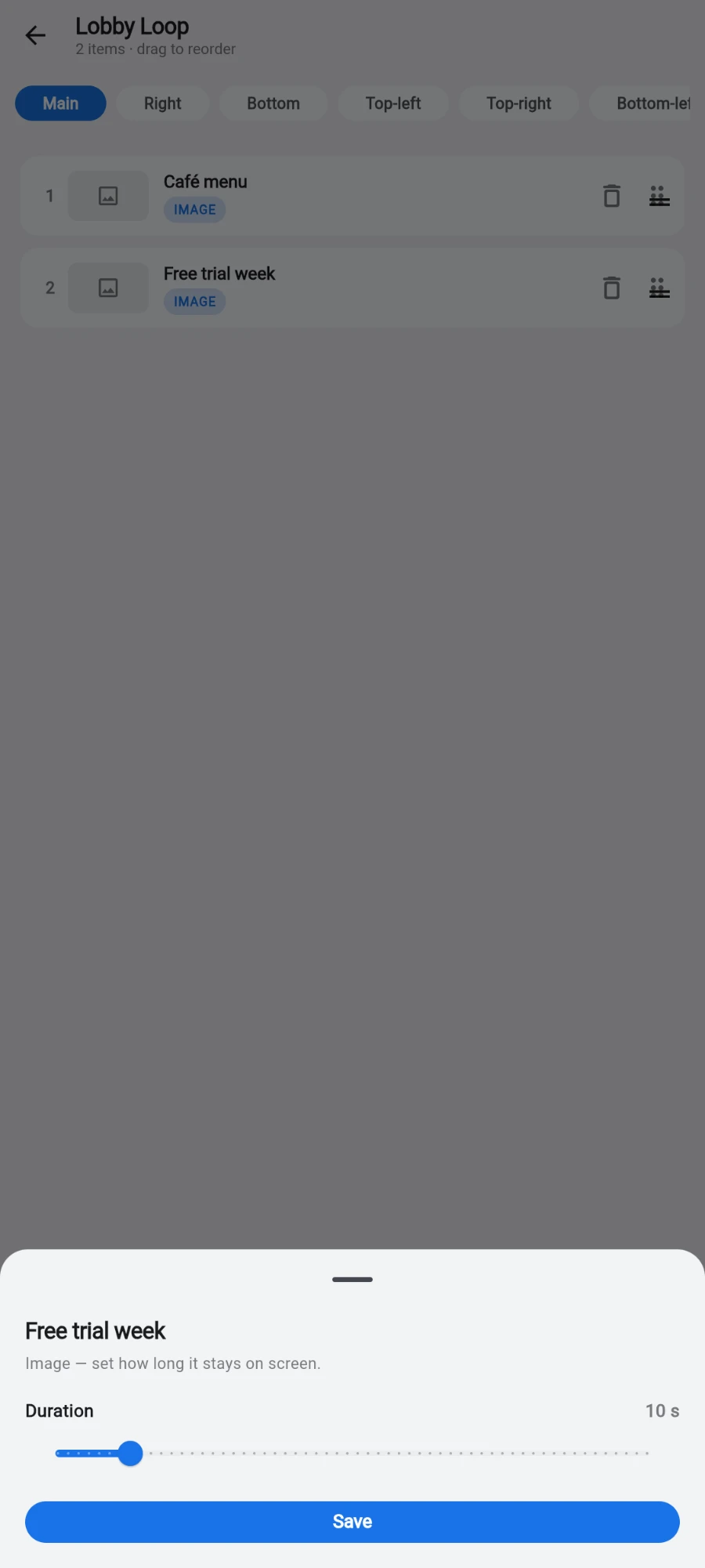
The playlist editor with drag handles and a per-item duration sheet -
Assign the playlist to a screen: on the Screens page, open a screen card's three-dot menu and choose Set playlist. The sheet is titled Default playlist — "Plays whenever no schedule is active." Pick the playlist, or Clear assignment to leave the screen idle. The same assignment also lives on the screen's detail page.
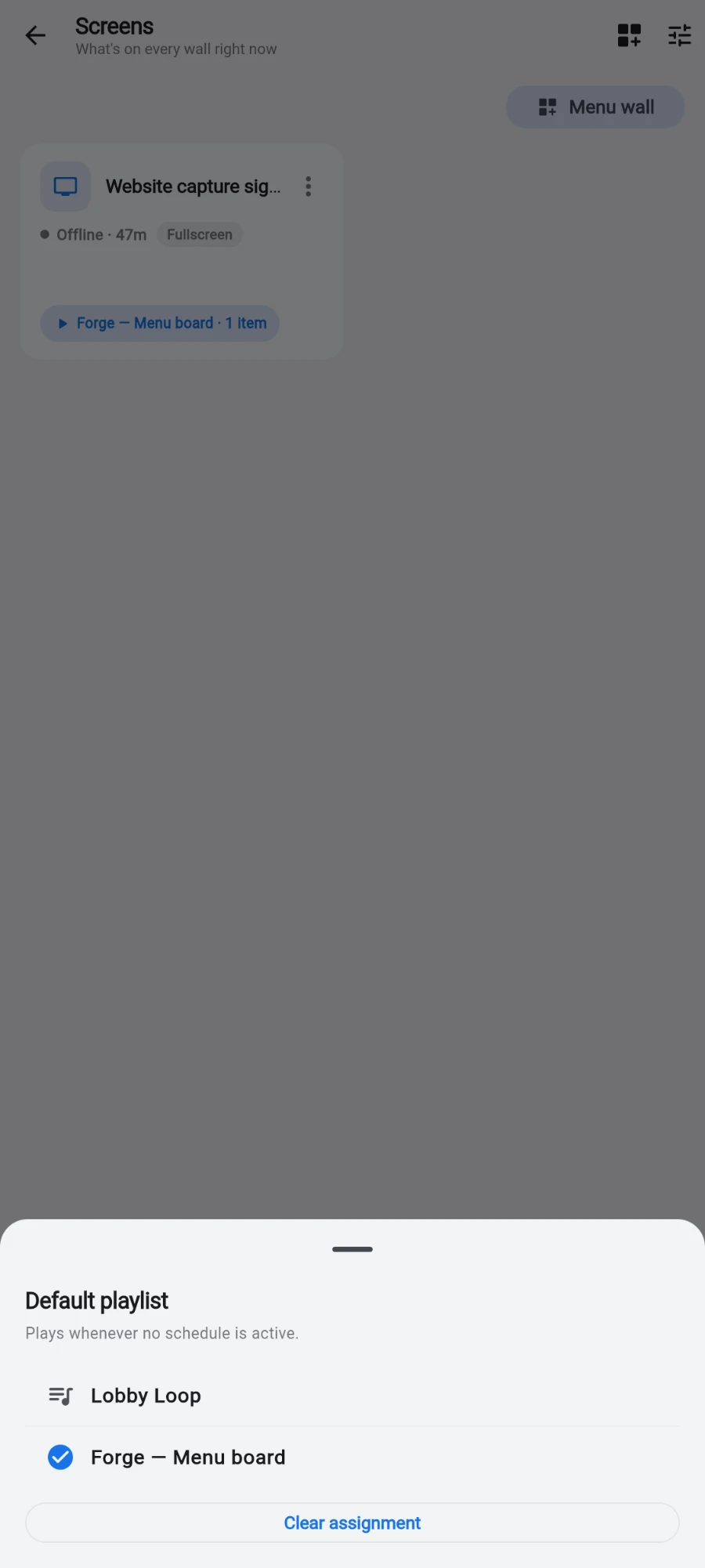
The Default playlist sheet on a screen card -
For day-parting, go back to Tools and choose Time of day ("Show different content at different times"), then tap New schedule.
-
Pick the Playlist the schedule should play, then choose When: All day, every day, Weekdays · 6am–11pm, Weekends only, After-hours · 10pm–midnight, or Custom — which opens per-day chips (Sun through Sat) plus Start and End time pickers.
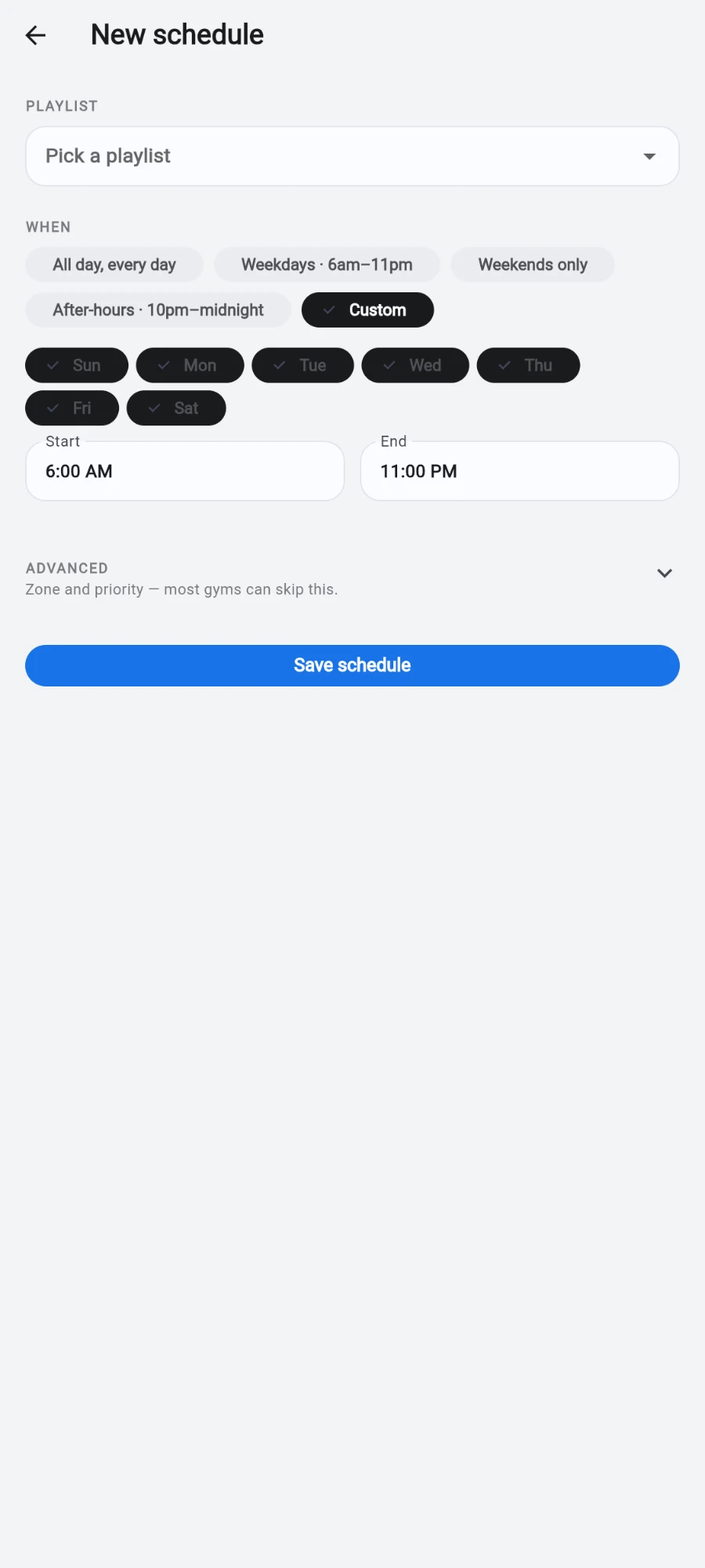
The New schedule sheet with cadence presets and custom day chips -
Most gyms can stop there — tap Save schedule. The Advanced tile ("Zone and priority — most gyms can skip this.") holds two extras: Zone, for aiming a schedule at one zone of a split layout, and Priority — "Higher wins when multiple schedules overlap."
-
Each schedule in the list shows a plain-language summary — Daily, Weekdays, Weekends or a per-day glyph — and a badge saying whether it applies to All screens or This screen. A schedule created here is gym-wide; a schedule created from one screen's detail page (its Schedule section, Add day-parting) applies to that screen only.
What you should see
The Playlists screen shows each loop with a live item count and last-updated time. Assigned screens show a "Playing now" pill with the playlist name on their card, and content changes land on the walls within seconds — no waiting for a refresh cycle.
If something goes wrong
- The screen ignores your new schedule — check the hours and days: outside the window, the default playlist plays by design. Also check the All screens / This screen badge — a per-screen schedule only affects its own screen.
- Two schedules fight over the same hours — the one with the higher Priority wins. Set priorities under Advanced, or adjust the time windows so they stop overlapping.
- You cleared a screen's assignment and it went dark — that is the idle state. Assign a playlist again via Set playlist.
- A video plays with sound in the wrong room — open the playlist item and toggle Muted.
Still stuck? Email hello@prismgym.com — include your gym name, the device, and a photo of what you see.