Kiosk troubleshooting
A kiosk is built to run unattended: it holds no staff login (it authenticates as a device), checks in with your gym every minute, keeps the screen awake, restarts itself after a power cut, refreshes your branding, updates its own app, and even repairs its own device registration when something server-side changes. When one does misbehave, work this ladder from the top — the first rung fixes almost everything, and re-pairing is deliberately last.
What you'll do
Diagnose a kiosk from the admin app, apply the one-tap remedy, and know the one case that genuinely needs a re-pair.
You'll need: the admin app with the device-management permission, and the kiosk's staff PIN.
Steps
-
Start in the admin app: open Member Kiosks → Devices and find the kiosk. The status dot tells you the class of problem — Online (healthy, seen within the last two minutes), Offline with how long ago it was seen, or Never connected.
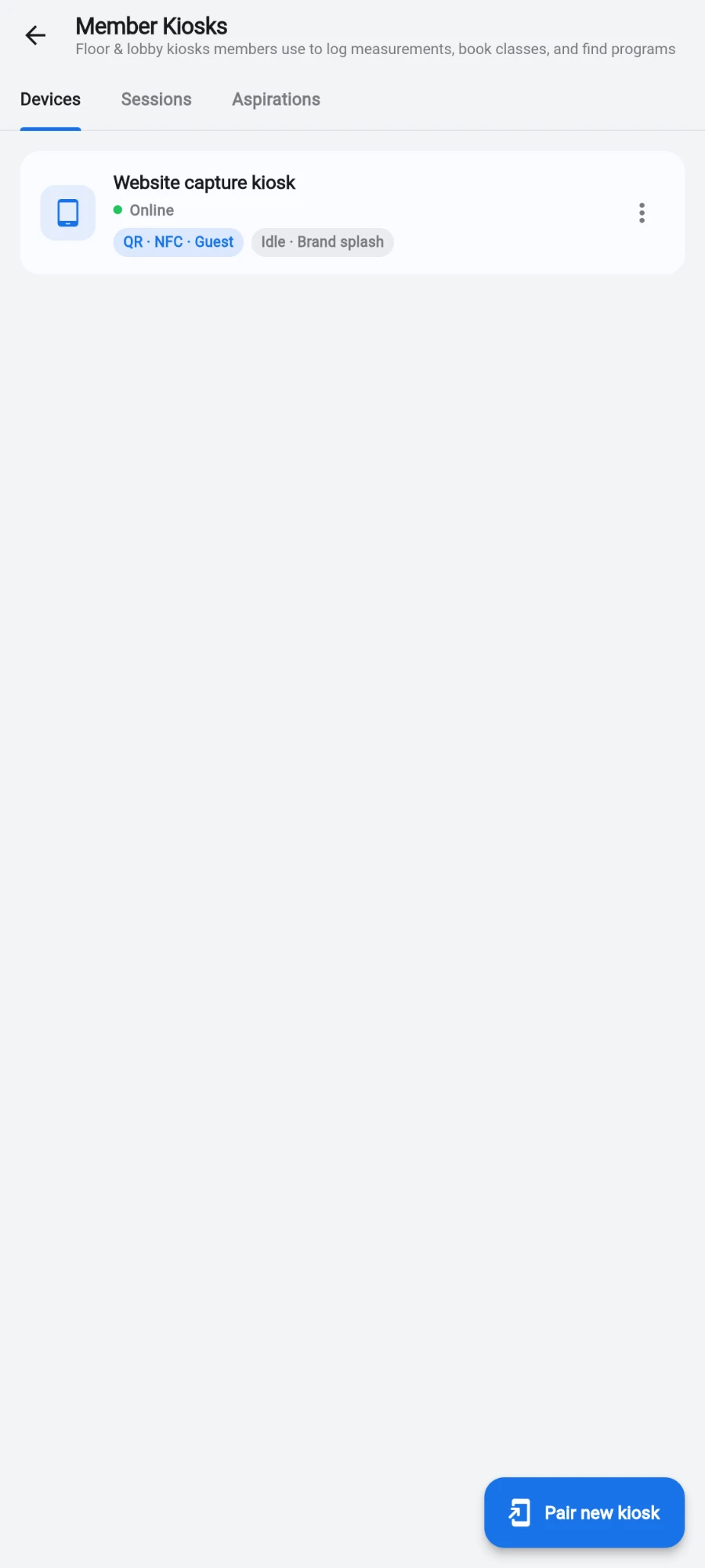
Each kiosk's status dot in Member Kiosks -> Devices. -
Offline? It's a network or power problem, not a Prism problem. At the tablet, open the staff panel (long-press the welcome screen, enter the PIN) and tap WiFi settings to check the connection — or check the tablet's power. The kiosk reports in within a minute of coming back.
-
Online but behaving oddly — wrong or missing logo, members failing to sign in, a This kiosk is not paired message, or a Device auth error note on the PIN screen? Open the staff panel and tap Force re-sync. It re-registers the kiosk's device credentials and re-fetches your gym branding in one tap. This is the field remedy — always try it before anything else.
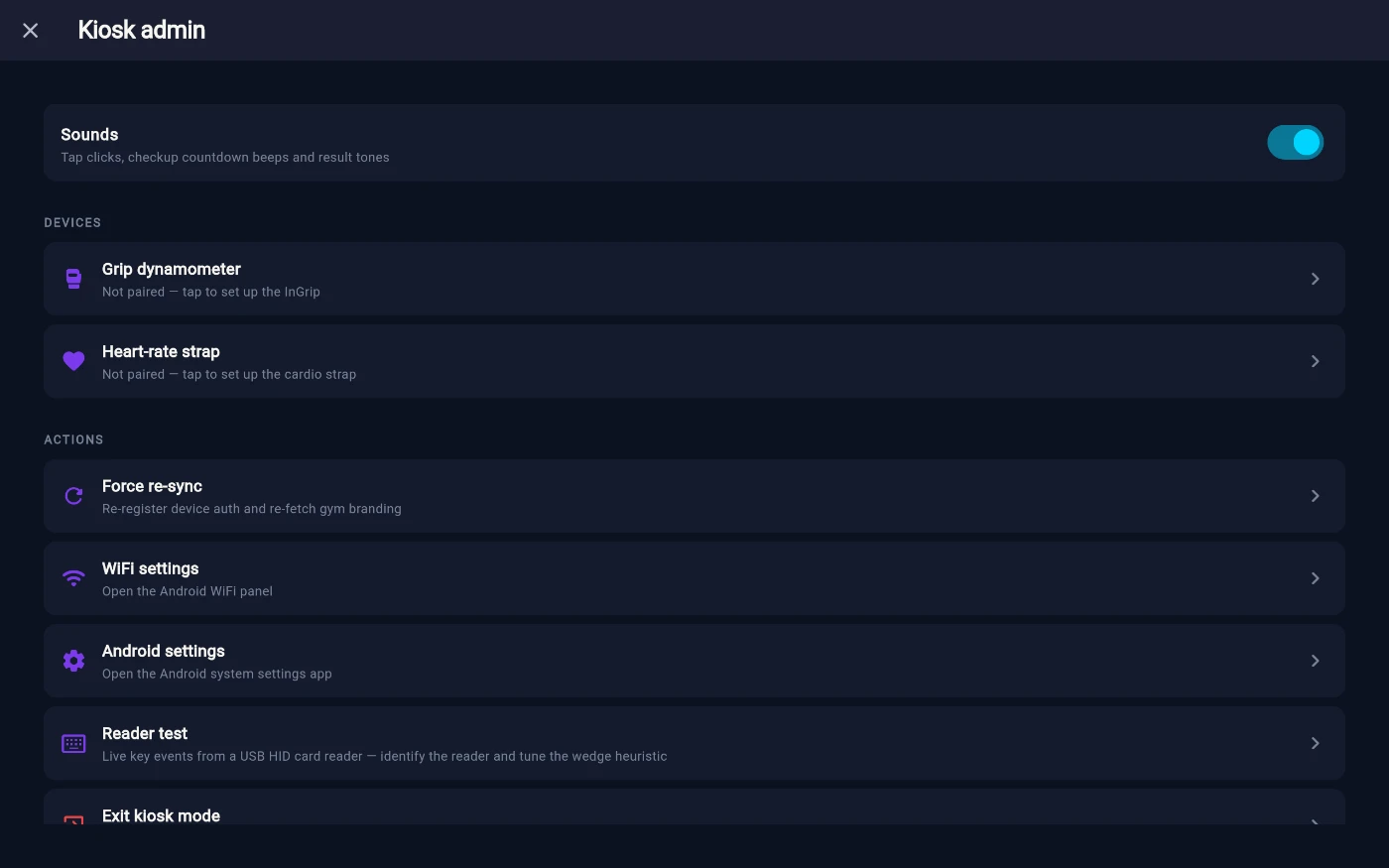
Force re-sync — the first thing to try on a misbehaving kiosk. -
Give it a minute and retest a member sign-in. The kiosk also self-heals in the background — when it detects an authentication failure it quietly re-registers on its own — so a problem that just appeared often fixes itself before you reach the tablet.
-
Staff PIN lost or locked out? From the kiosk's row menu in the admin app choose Reset admin PIN… — the PIN returns to 0000 and the kiosk forces a new one on the next unlock. No site visit needed.
-
Only if a re-sync doesn't restore it — which points to the one unfixable state, a credential mismatch with the server — re-pair: on the kiosk, staff panel → Factory reset (or Unpair… from the admin app, which sends the kiosk back to its pairing screen), then pair it again as in the setup chapter.
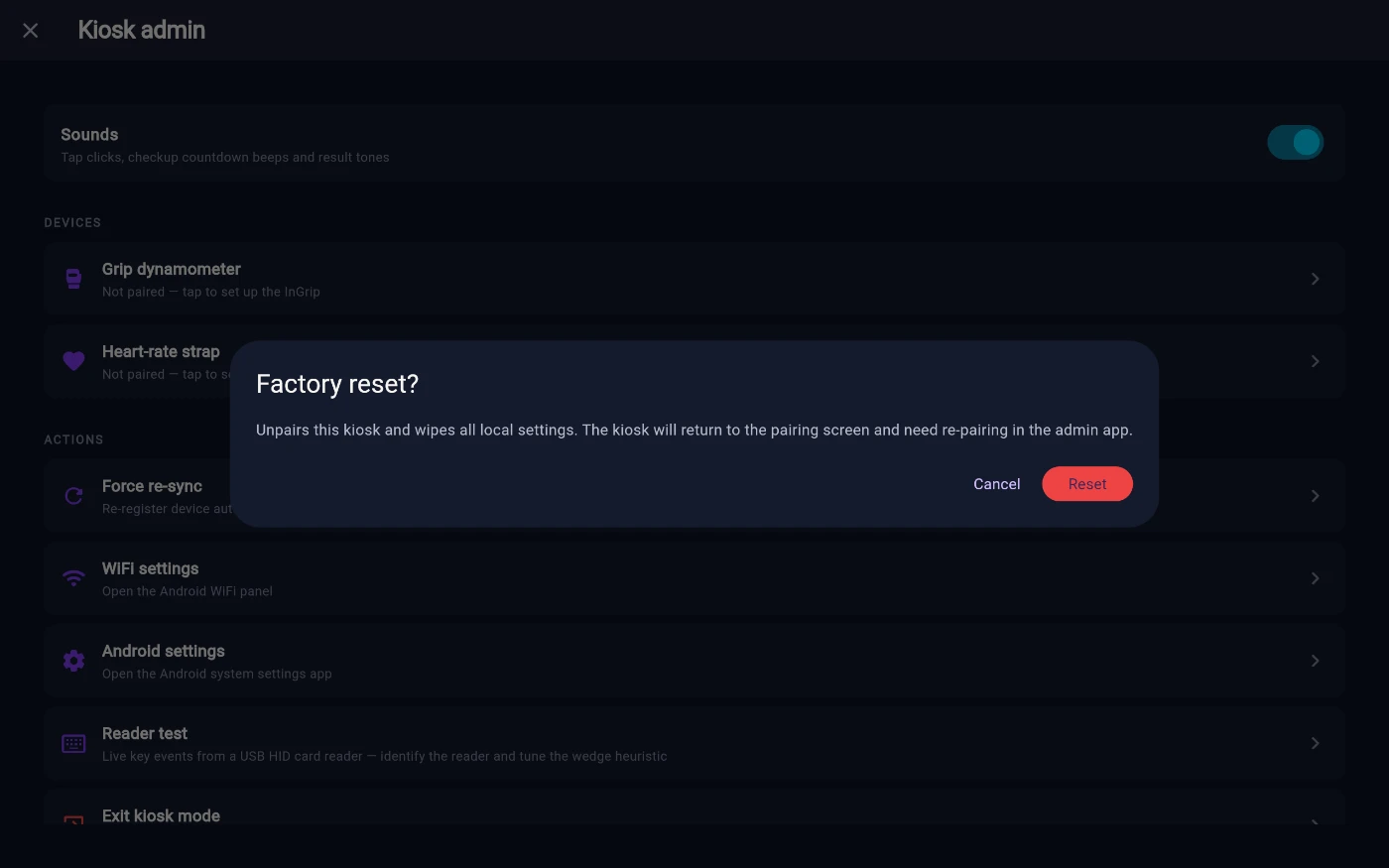
Factory reset asks before it unpairs anything.
What you should see
Back in Member Kiosks → Devices: a green Online dot, a recent last-seen time, and members signing in normally. After a re-pair, the kiosk behaves exactly like a fresh setup — including forcing a new staff PIN.
If something goes wrong
- Force re-sync doesn't help and the kiosk still won't authenticate — that's the credential-mismatch case; go to step 6 and re-pair.
- The kiosk shows Online but members see errors on one feature only (say, classes won't load) — that's a data issue for that feature, not the kiosk; check the same area in the admin app.
- The tablet is frozen entirely — hold the tablet's power button to restart it; the kiosk app relaunches into the welcome screen on its own.
- It came back from a power cut on the Android home screen — auto-start is blocked on some tablets' battery settings; open the kiosk app manually and ask support about whitelisting it.
Still stuck? Email hello@prismgym.com — include your gym name, the device, and a photo of what you see.