Who's on the till — cashier sign-in by PIN
A till tablet is usually signed into one account in the morning and then used by everyone on the desk all day. Without anything else, every sale — and every commission — would be credited to that one login. The register therefore asks who is on the till: a cashier taps their own name and types a short PIN, and from then on each sale is recorded under that person until someone else signs in. The PIN is checked on the server against a hashed copy, never stored in clear, and five wrong tries lock it for five minutes.
What you'll do
Sign in to the till with your PIN before your first sale, switch cashier when the desk changes hands, and (for managers) set a PIN for each staff member.
You'll need: a staff account with POS permission on the tablet, and a POS / till passcode set on your staff record by a manager (see the last section).
Steps
-
Open POS → Register. Left of the barcode box sits the cashier chip. While nobody is signed in it reads Sign in in amber — the register will not let a sale be charged in this state.
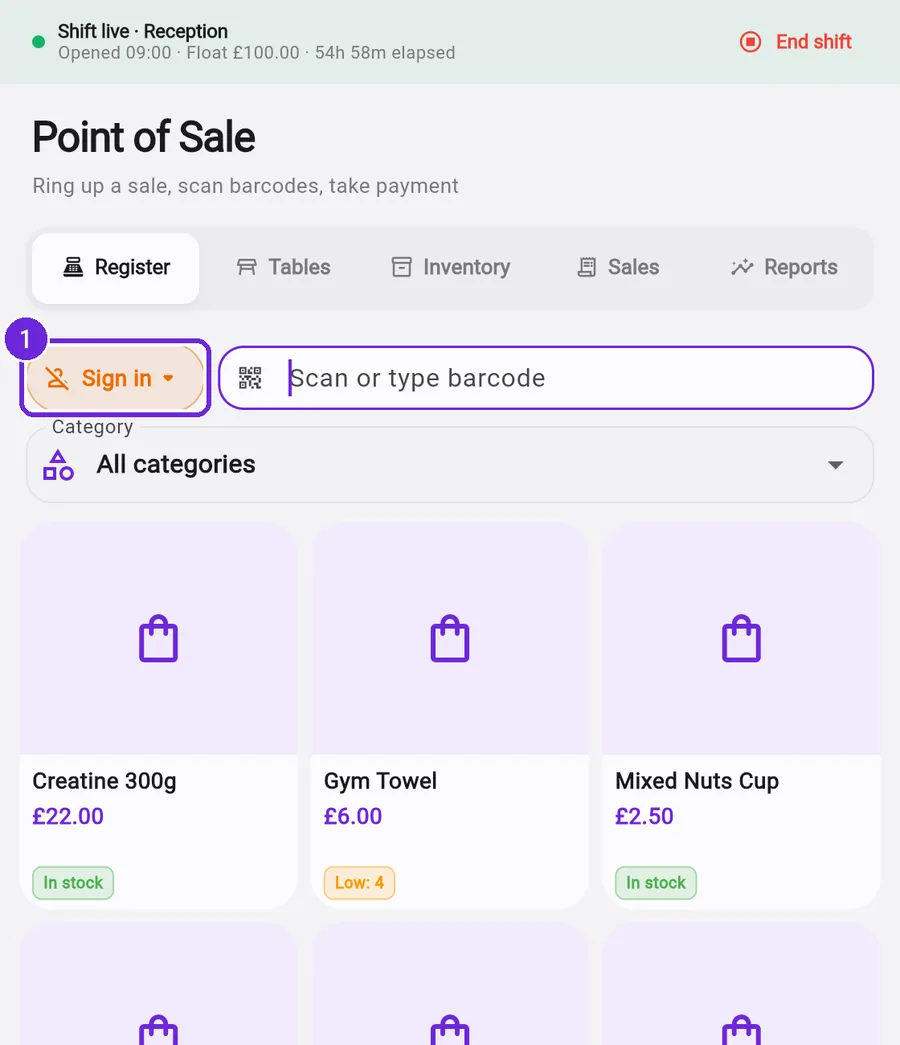
Nobody on the till yet — the chip is amber and Charge is blocked. -
Tap the chip. The Who's on the till? sheet lists your location's staff. People who are currently clocked in (see the clock-in chapter) appear first under Checked in now with a green pill; everyone else sits under Not checked in and can still be chosen — useful for a manager covering the desk. A name greyed with No PIN set cannot sign in until a manager gives them one.
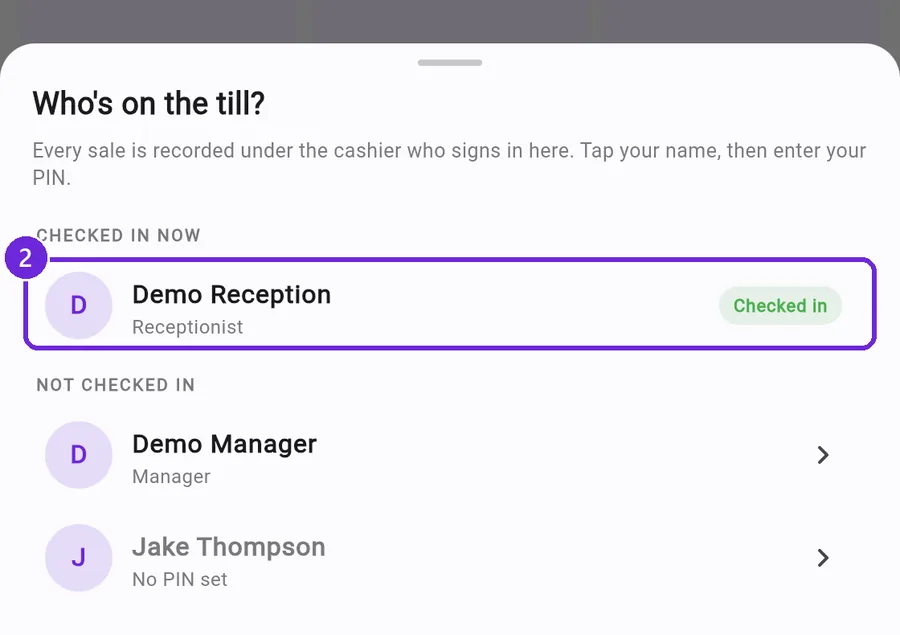
Checked-in staff at the top; tap your own name. -
Tap your name and enter your 4–6 digit PIN. A six-digit PIN signs in as soon as the last digit is typed; otherwise tap Sign in to till.
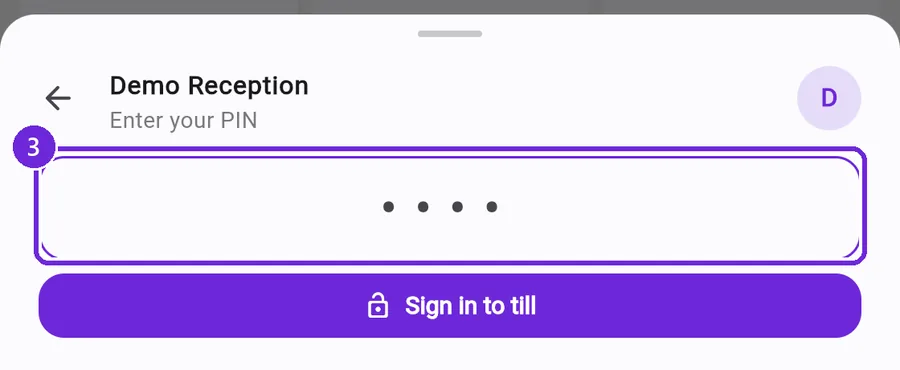
Your PIN is checked on the server — it is never shown or stored in clear. -
The chip now shows your first name and the register confirms "… is now on the till". Ring up sales as usual — each one carries your name as the seller, which is what the sales history, end-of-shift summary and commission reports use.
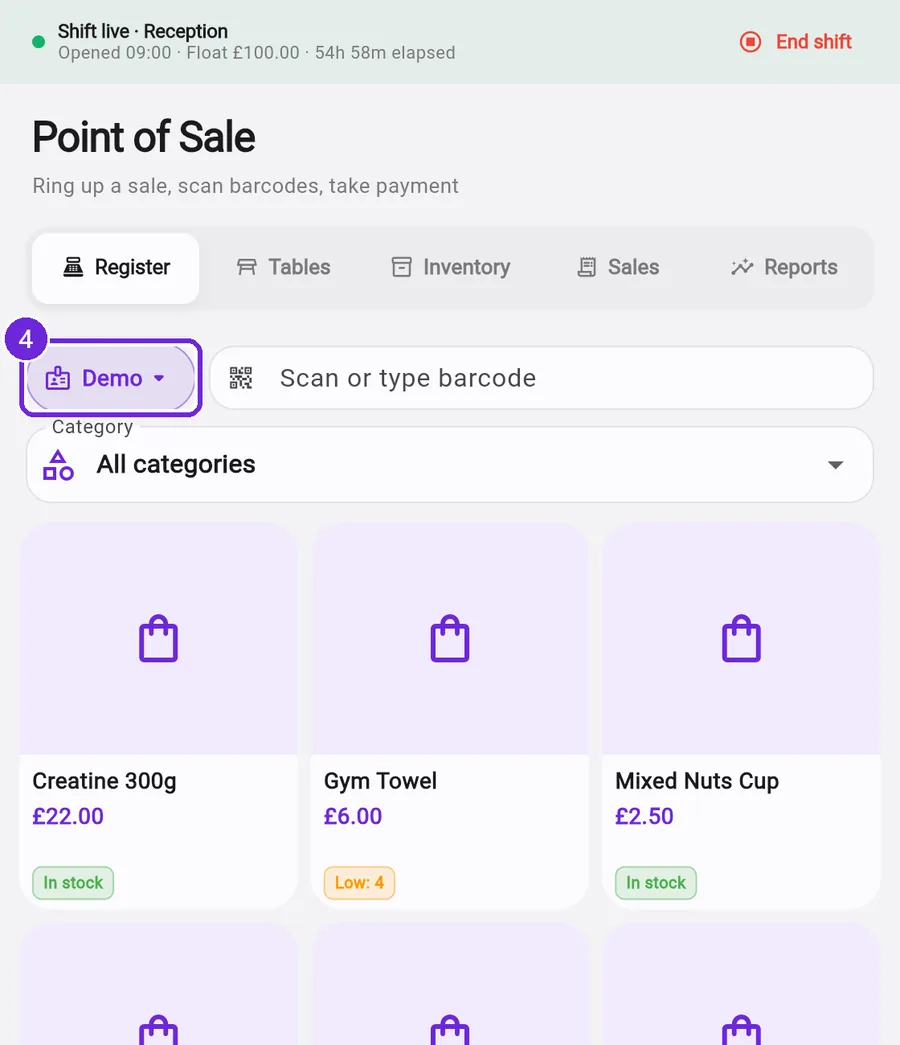
Signed in — the chip shows who the next sale will be recorded under. -
Handing over the desk: the next person simply taps the chip and signs in with their own PIN; no need to log the tablet out. Leaving the till with nobody on it: long-press the chip to sign out — the chip returns to amber and the next sale will ask again.
Setting a staff member's PIN (managers)
Open Staff, tap the person, scroll to Access and enter a 4–6 digit number in POS / till passcode, then Save. The number is hashed the moment it is saved — the field shows empty next time you open the record, which is normal; type a new number to change it. Staff can't set their own PIN.
What you should see
The chip shows the cashier's first name while they are signed in; the Sale complete dialog and the POS Sales history show that person as the seller; and the seller commission report credits the right people at month end.
If something goes wrong
- Charge does nothing and the sign-in sheet opens instead — that is the gate: nobody is signed in. Sign in and tap Charge again; the cart is untouched.
- "Wrong PIN" — try again; after five misses the record locks for five minutes (the message says how long). A manager can set a new PIN at any time.
- "No PIN set" — a manager must add a passcode on the staff record first.
- Your name shows under Not checked in — you have not clocked in today. You can still sign in to the till; clocking in is for timesheets, not a requirement here.
- Sales before this feature show the login account as the seller — expected: older sales keep the account that made them; the commission report falls back to that account when no cashier was recorded.
Still stuck? Email hello@prismgym.com — include your gym name, the device, and a photo of what you see.