The AI assistant
The gradient sparkle button in the header opens the Assistant — a chat that can actually read your gym's live data. Instead of tapping through three screens to answer "who's expiring this week?", you ask. It answers in your language, in your currency, and offers a button that takes you straight to the screen you need. It deliberately cannot delete, refund or change anything — it walks you to the screen where those actions live, with their normal safeguards.
What you'll do
Open the assistant, ask real questions, and use its navigation buttons.
You'll need: any staff sign-in. The assistant sees data through your permissions, so it can't tell a restricted cashier things their role can't see.
Steps
-
Tap the sparkle button in the header — it's on every screen. The Assistant sheet opens full-height: Ask anything about your gym.
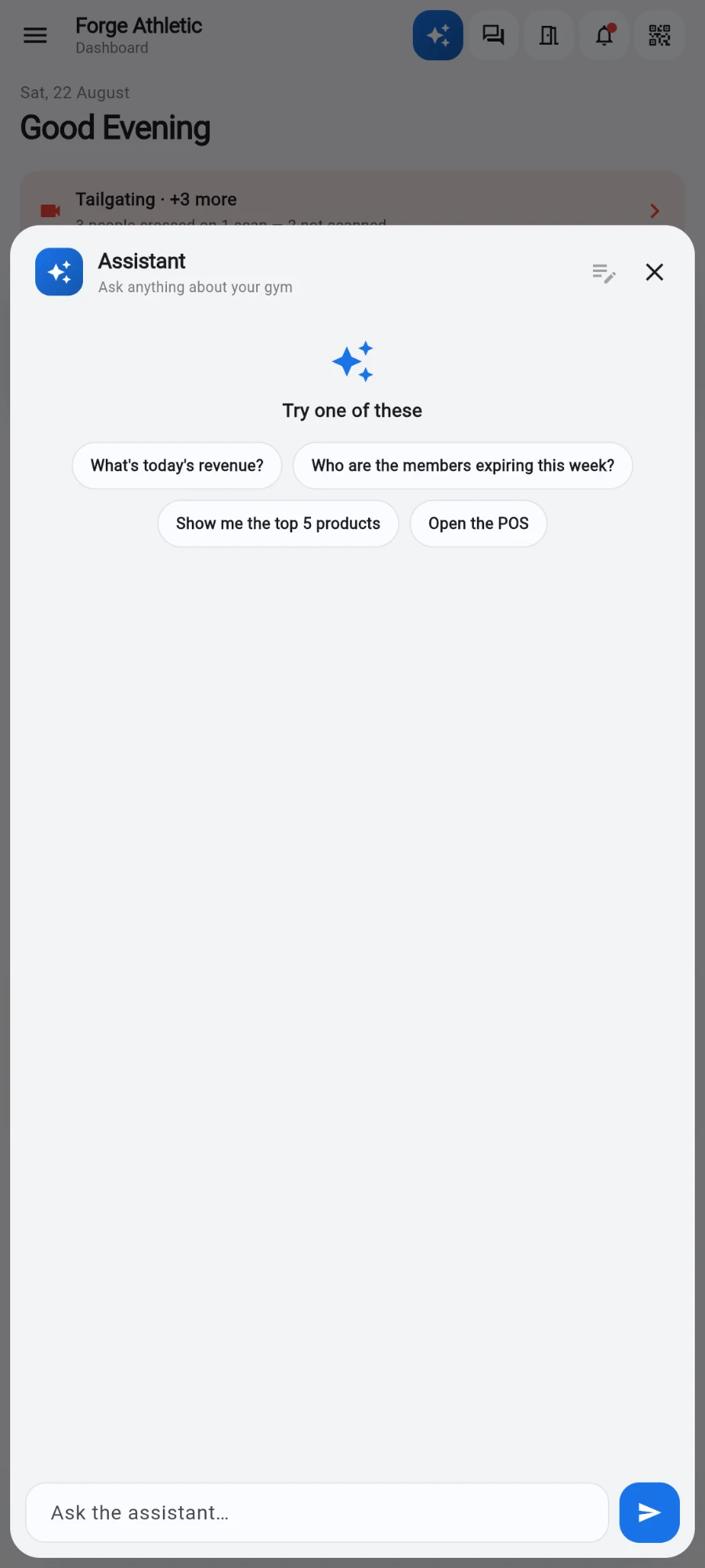
A fresh chat offers four starting points. -
First time, tap a suggestion under Try one of these — What's today's revenue?, Who are the members expiring this week?, Show me the top 5 products or Open the POS.
-
Or type into Ask the assistant…. Good questions it answers from live data: revenue for today, yesterday, this week, this month or the last 7 or 30 days; a member's status, balance or details by name or phone; members who are active, frozen, expired, expiring soon, or dormant (no check-in in two weeks or more); today's classes; top-selling products; products low on stock; and the dashboard numbers.
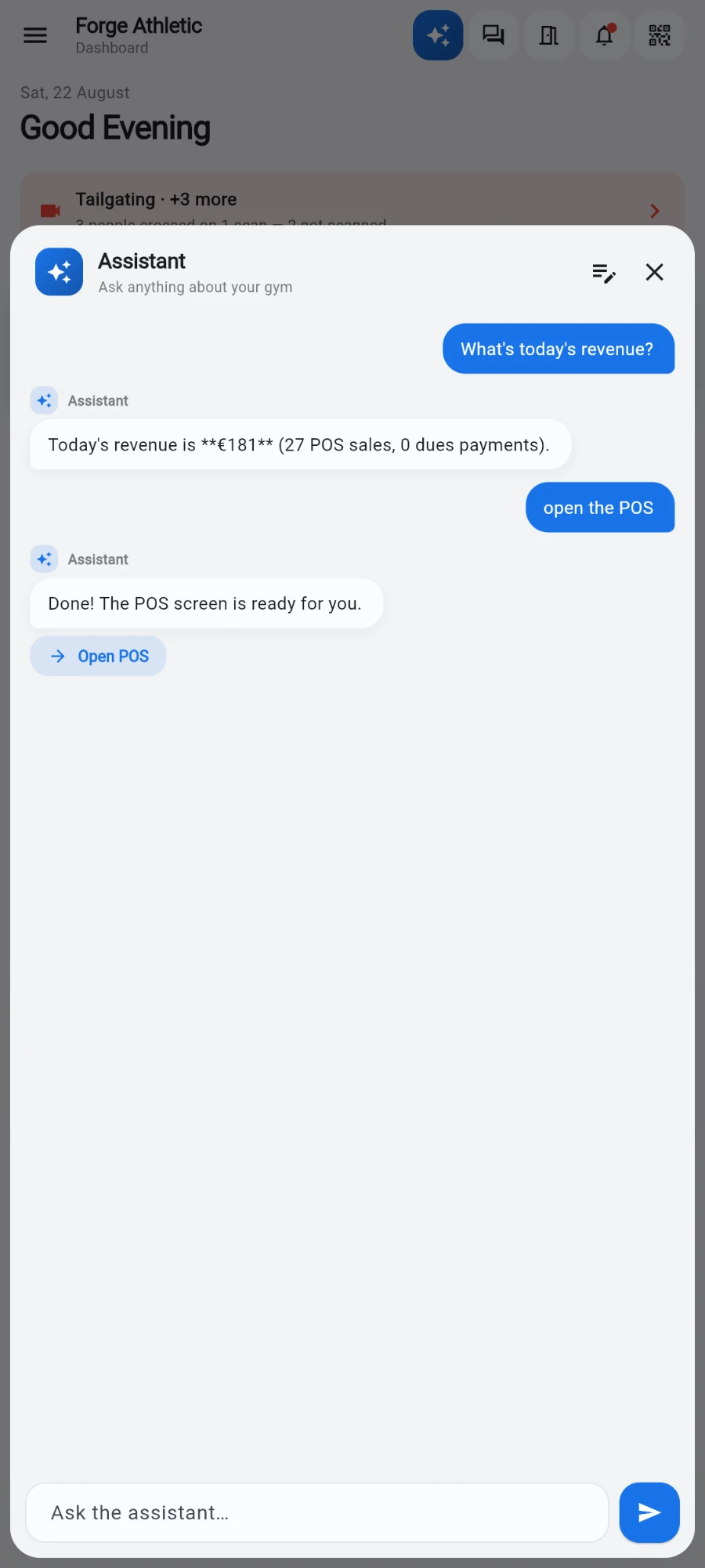
Live figures in your gym's currency — and a button that saves the navigation. -
When the answer has a natural destination, a button appears under it — tap it to jump to the member's profile, the POS, reports, the activity feed, the audit log and more.
-
Conversations persist: reopen the sheet and your history is there. Tap New chat to start clean.
What you should see
Concrete answers with real numbers, in seconds — and a button that saves you the navigation. If it doesn't know, it says so rather than inventing figures.
If something goes wrong
- "I can't see that" style answers — your role lacks the permission behind that data; the assistant enforces the same access rules as the screens.
- A member lookup finds the wrong person — add more detail: a phone number or full name beats a common first name.
- Slow or no reply — the assistant needs internet; check the connection and try again.
- It refuses to do something — it's read-only by design. Follow its navigation button and do the action on the screen itself.
Still stuck? Email hello@prismgym.com — include your gym name, the device, and a photo of what you see.