Start a class on the TV
Every studio TV rests on the Hub: the gym's logo and the studio name on the left, six big tiles on the right — Quick Start, Team Training, Virtual Experience, HR Wall, Members and History. It's built for a TV remote: the first tile is already focused when you pick up the remote, and the focused tile grows and glows so you can read it from across the room. This chapter covers the two ways to get a class on the wall — an instant session, or a scheduled class with its booked roster.
What you'll do
Launch a Quick Start session with a duration you pick, or start a scheduled class from Team Training, watch members appear as their straps come on air, and end the class from the wall.
You'll need: a paired studio TV assigned to the room, its remote, and heart-rate straps for the members training (see the strap chapter).
Steps
-
On the Hub, select Quick Start — its tile reads Live training · tile grid.
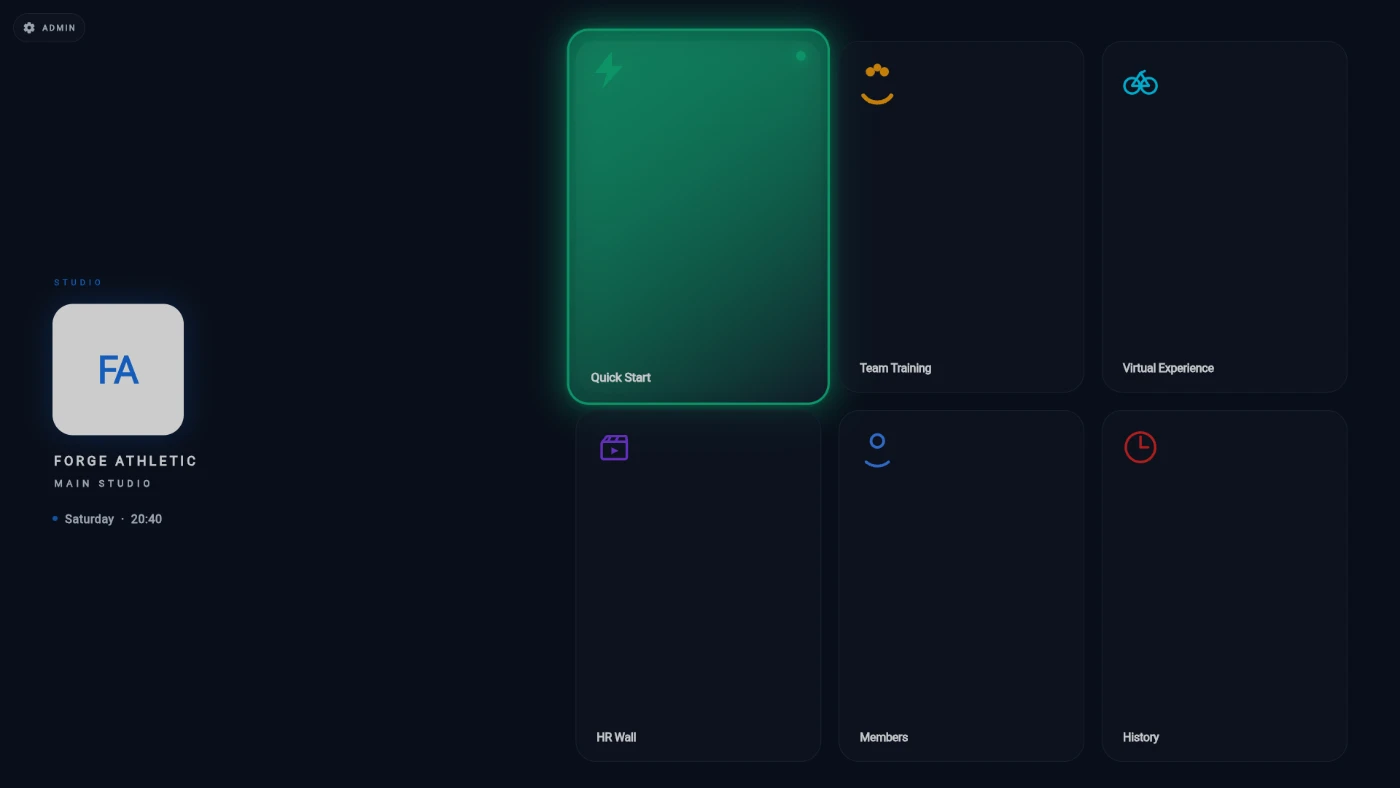
The Hub with Quick Start focused on the six-tile grid -
The CLASS DURATION dialog asks How long is the session? — pick 30, 45 or 60 minutes (45 is pre-focused). Cancel backs out without starting anything.
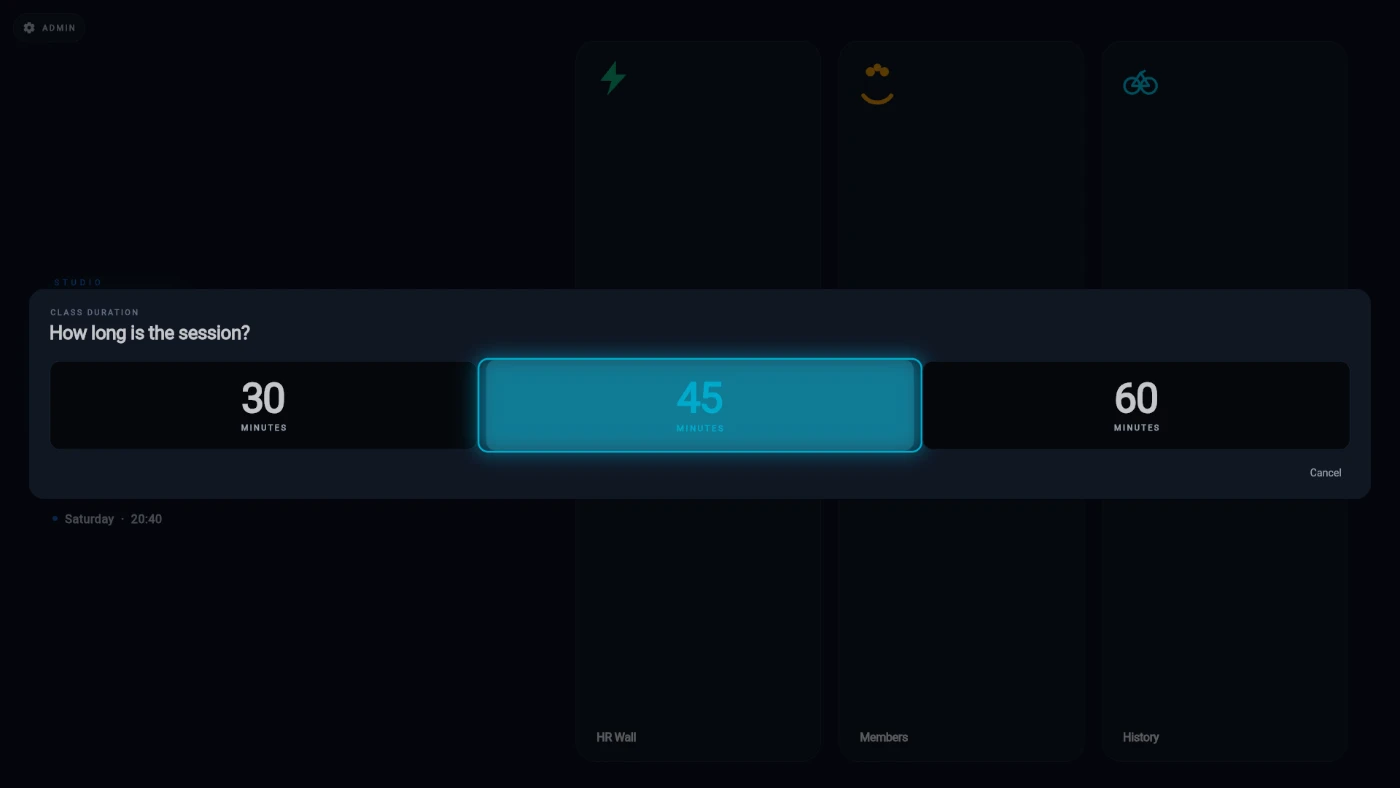
The CLASS DURATION dialog with the 30 / 45 / 60 minute presets -
The live wall opens as a grid of equal member tiles. Each tile shows the member's name and photo, a big heart-rate figure coloured by training zone, and a zone chip. The grid re-fits itself so tiles stay as large as possible whether 4 people or 40 are training.
-
A tile reads Waiting for strap… until that member's strap actually broadcasts — the wall never shows a fake zero. Walk-ins appear as GUEST · sign up to claim.
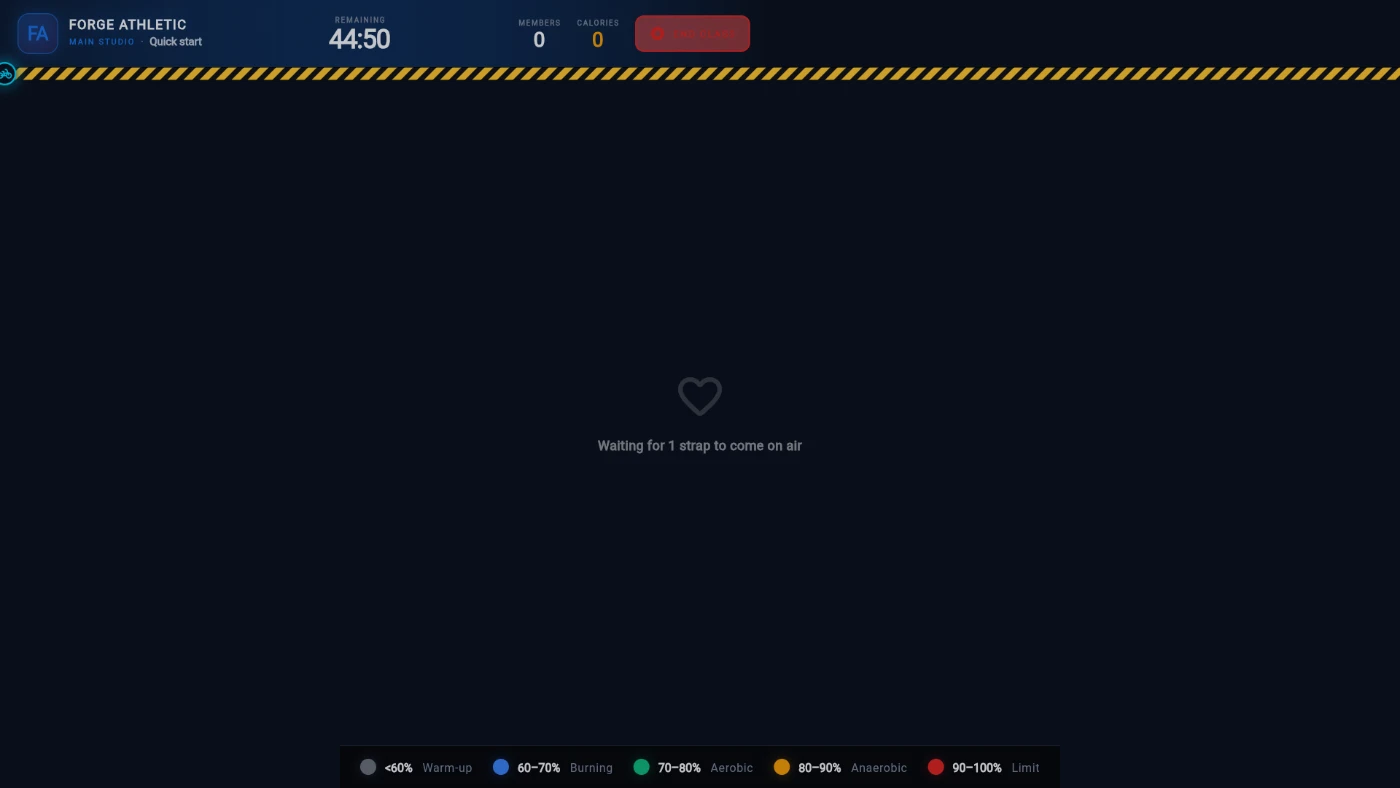
The live tile grid: zone-coloured tiles, one still Waiting for strap -
Read the top bar during class: the class name, a giant REMAINING countdown, live MEMBERS, AVG BPM and MAX BPM figures, and a striped progress bar tracking elapsed versus remaining time.
-
For a scheduled class, go back to the Hub and open Team Training instead. The sidebar lists every class scheduled for this studio in the next 14 days with a booked-headcount pill; type in Search classes… to filter by class or trainer name.
-
Select a class to see its roster: one disc per booked member, marked booked or checked in (green ring). Use Refresh to re-pull the roster, then Start to launch the wall for exactly that class and its scheduled length.
-
No timetable? Start now is always available — it runs an ad-hoc session with whoever's straps come on air, so a coach is never blocked by an empty schedule.
-
To finish, select END CLASS in the top bar. A guard dialog asks End class? — Keep going is the safe, pre-focused answer; choose End class to close every open session and roll the results up to the podium.
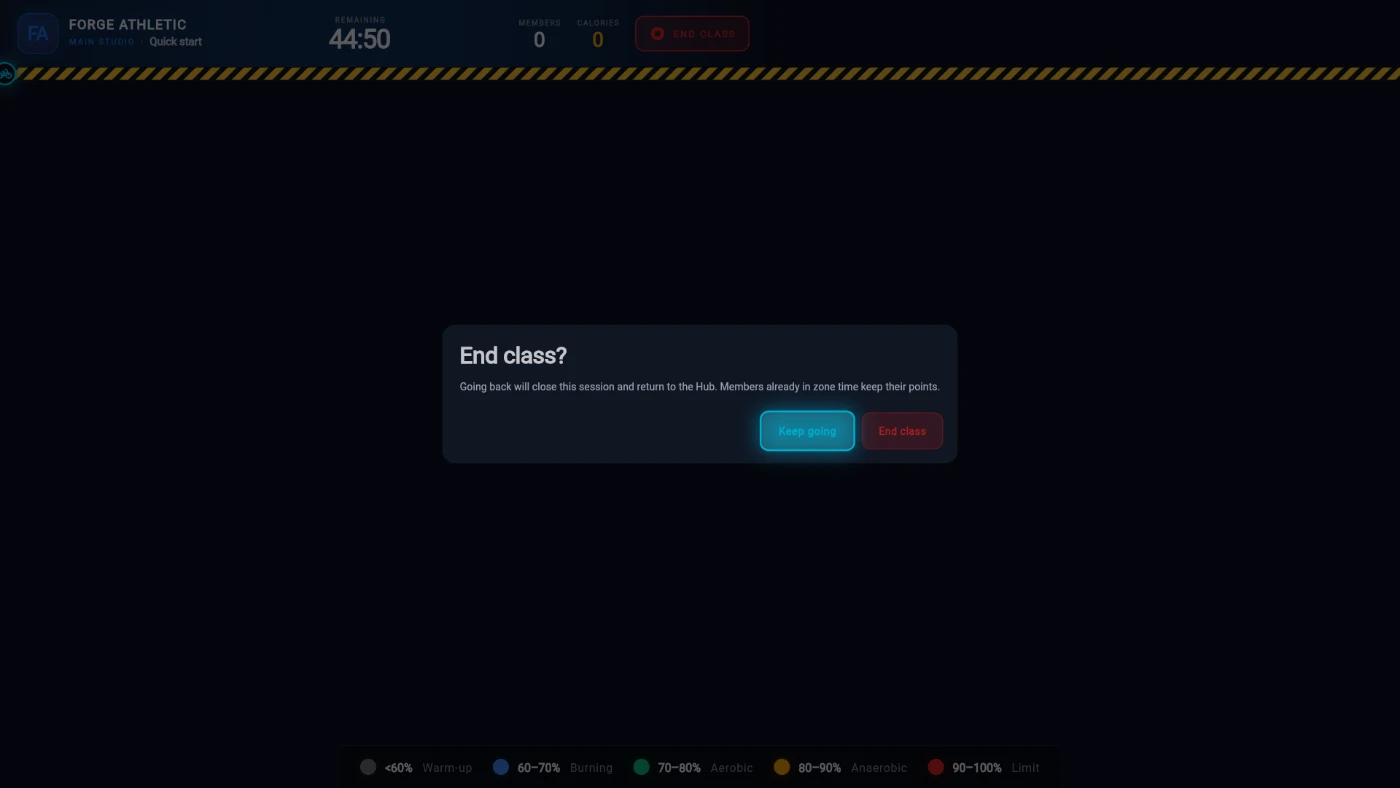
The End class? guard dialog with Keep going pre-focused
What you should see
Members pop onto the wall one by one as straps come on air, tiles shift colour as members change zone, and the countdown runs down. Ending the class takes the room straight to the podium celebration, then back to the Hub.
If something goes wrong
- A member's tile stays on "Waiting for strap…" — their strap isn't broadcasting or isn't linked to them. Have them tighten and wet the strap contacts, and check the strap is paired or loaned to them (see the strap chapter).
- Team Training says "No upcoming classes scheduled." — nothing is on this studio's timetable for the next 14 days. Schedule classes in the admin app, or run Start now.
- The class list won't load and the screen asks you to pair or pick a studio — the TV lost its pairing or its room assignment. Fix it from Settings → Studio TV → Screens in the admin app.
- You pressed back mid-class by accident — nothing is lost. The guard dialog appears with Keep going already selected; pressing OK returns to the wall.
Still stuck? Email hello@prismgym.com — include your gym name, the device, and a photo of what you see.