Plan merchandising
Members compare plans side by side in the member app and on the kiosk. This is where you control what that comparison looks like: the photo behind the card, the tier badge on its header, the bullet list of what's included, and which plan wears the recommended sticker.
What you'll do
Dress a plan for the member-facing comparison view.
You'll need: the plan-management permission, a plan open in Settings → Membership plans, and ideally a wide photo that suits a card backdrop.
Steps
-
At the top of the plan form, tap Upload photo under Photo (or Replace photo if one exists). The image becomes the card backdrop in the member Shop; plans without one get a branded gradient instead.
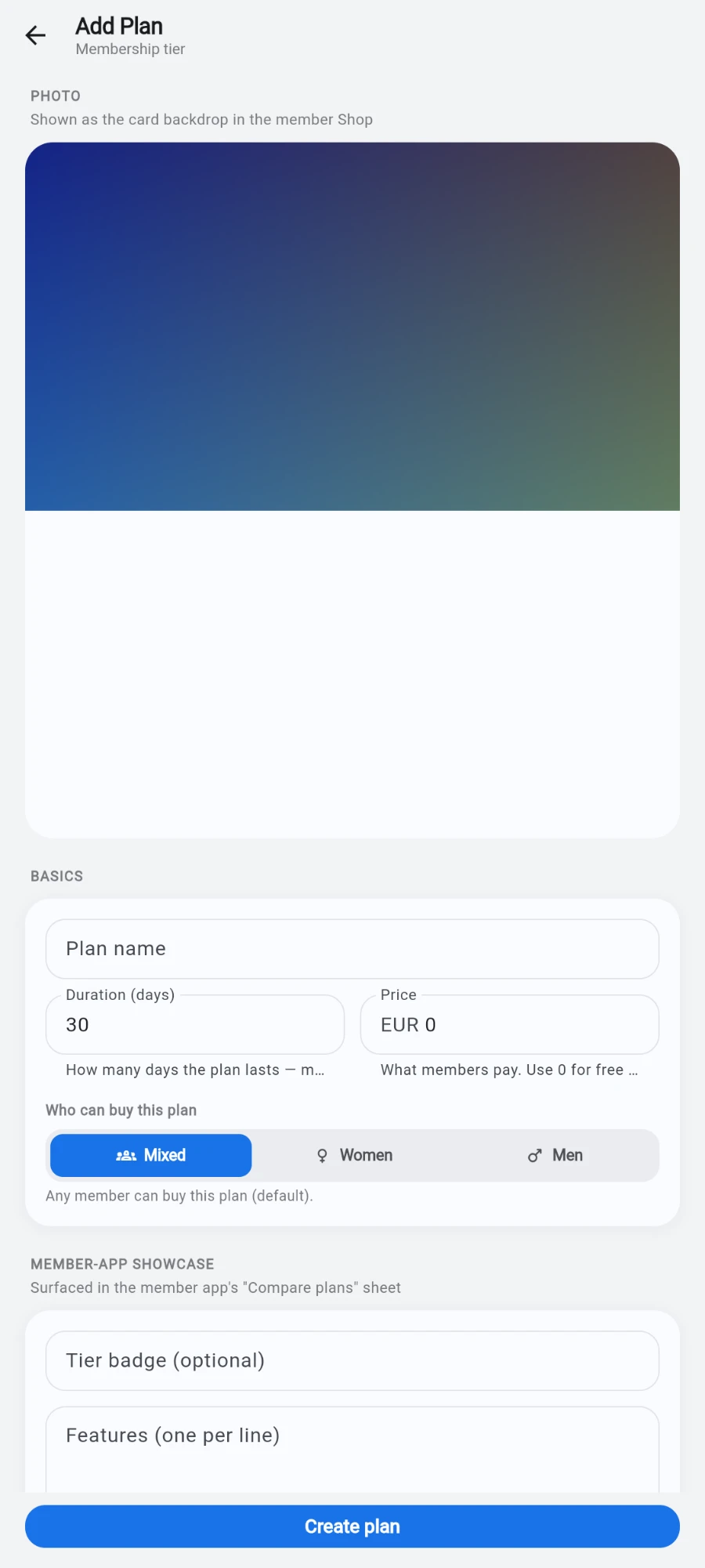
The plan photo card with Upload photo and Remove buttons -
Scroll to the Member-app showcase card.
-
Type a Tier badge (optional) — Bronze, Silver, Gold, Platinum, or your own word. It renders on the comparison card's header.
-
Fill Features (one per line) — each line becomes one bullet on the comparison view: Unlimited classes, Pool access, 2 PT sessions a month.
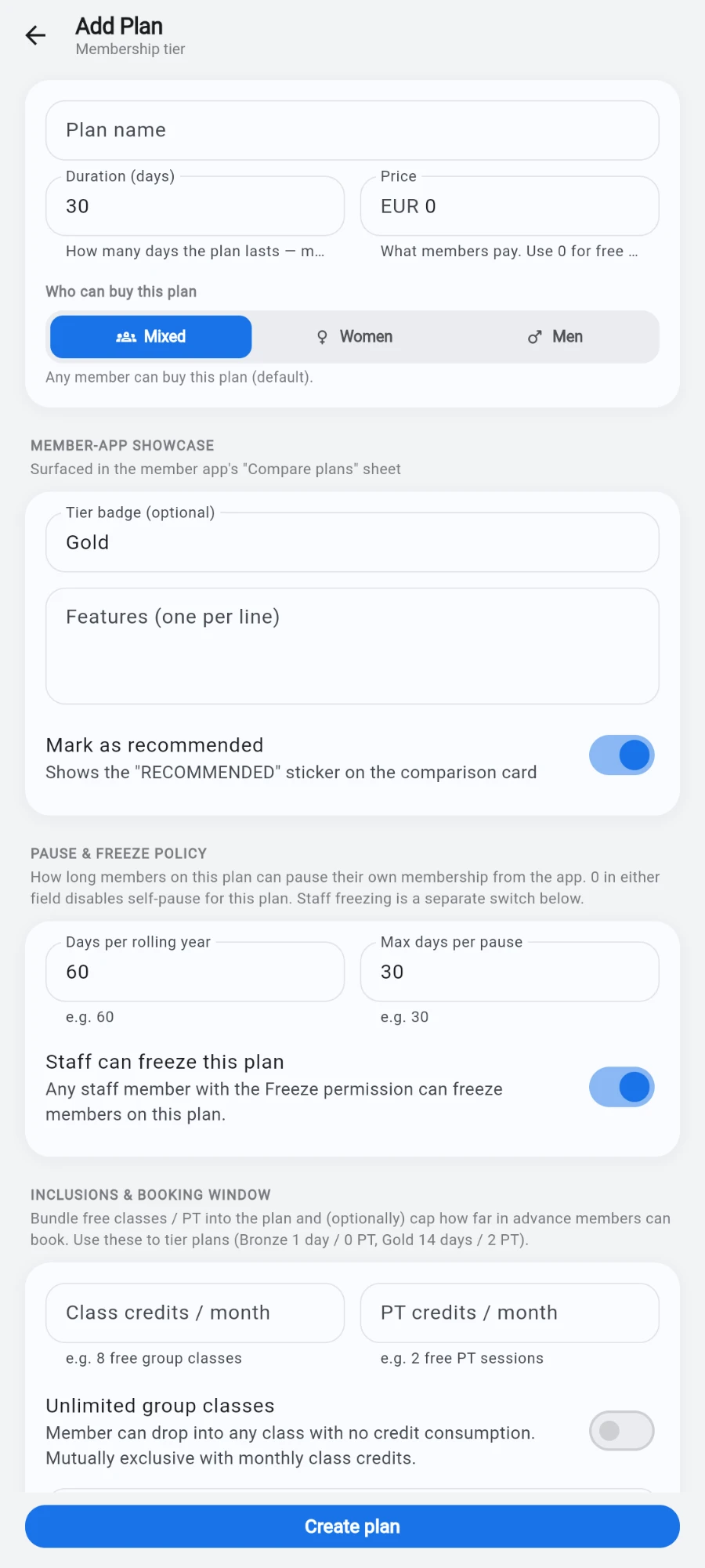
The Member-app showcase card: tier badge, features list and the recommended switch -
Flip Mark as recommended on the one plan you want to carry the "RECOMMENDED" sticker on the comparison card.
-
Tap Save plan.
-
Check the result in the member app's plan comparison view — badge, bullets, photo and sticker.
What you should see
The plan card in the member app shows your photo as the backdrop, the tier badge in the header, your bullets as the feature list, and the recommended sticker if you flagged it. Plans without a photo fall back to a clean branded gradient — never a broken image.
If something goes wrong
- The photo upload fails — the error names the reason; try a smaller image or check your connection. The form is still savable without a photo.
- An old photo still shows after replacing it — image caches refresh within a short while; the upload replaces the file in place, so the new one wins everywhere shortly.
- Two plans show the recommended sticker — the flag is per plan, and nothing stops you setting several; unflag the ones you don't want so the sticker keeps its meaning.
- A feature bullet renders as one long line — each bullet must be on its own line in the Features (one per line) box; split the text where you want separate bullets.
Still stuck? Email hello@prismgym.com — include your gym name, the device, and a photo of what you see.