Ring up your first sale
The register is where products and membership plans are sold from the same cart. The product grid adapts to your device — a list on a phone, a wide touch grid on a tablet or Windows till — and the cart keeps a running total with discounts, tax and tips. This chapter rings up a simple sale end to end; payment methods and currencies get their own chapter.
What you'll do
Open the register, add items to the cart, attach the member (or sell to a walk-in), and charge.
You'll need: a staff account with POS permission, at least one till registered by a manager (see the tills chapter), and products in your catalogue.
Steps
-
Open the POS tab, then tap Register.
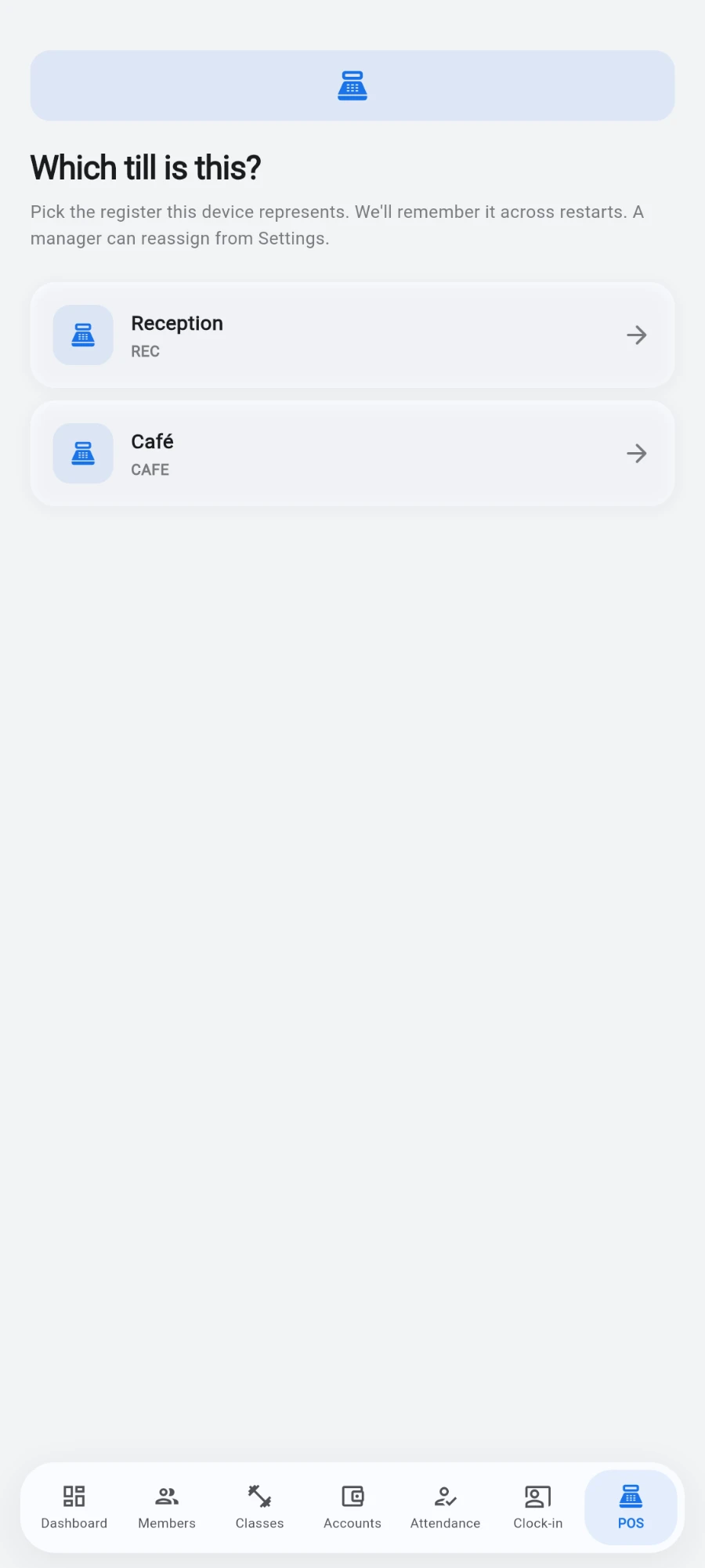
First open on a device: pick which register this is. -
The first time on a new device, the app asks Which till is this? — pick the register this device sits at. If no shift is open yet, count the drawer, enter the Opening float and tap Start shift. The register remembers the till from then on.
-
Tap products on the grid to add them to the cart. Use the category dropdown (it starts on All categories) to narrow the grid, or scan a barcode — the scan field sits at the top.
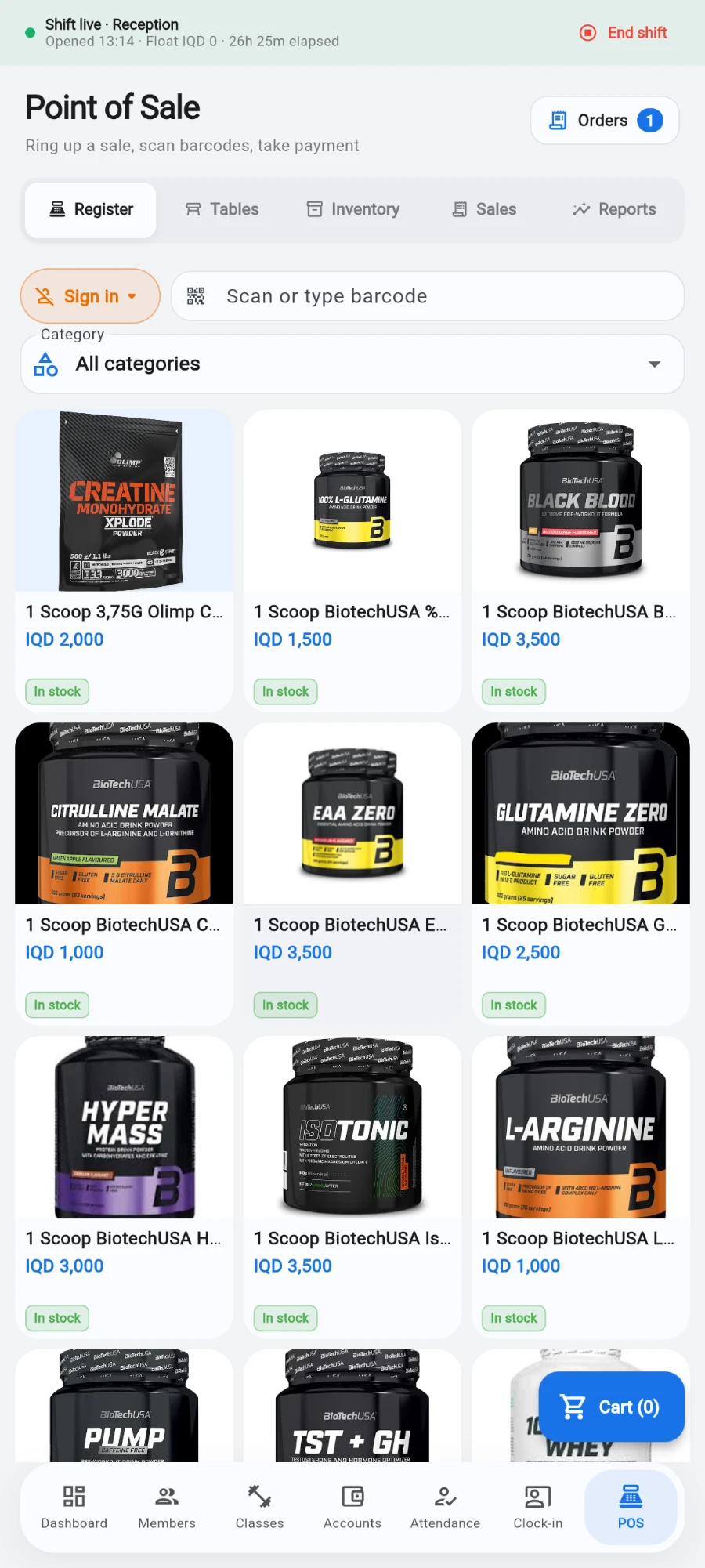
The register — shift banner up top, products below, cart bottom-right. -
If a product comes in sizes, a picker sheet opens — for example small or large — and each size keeps its own line in the cart. A size can lower the shelf price but never raise it.
-
In the cart, adjust quantities with the plus and minus controls, or remove a line. The cart header shows the live item count.
-
Attach the customer: tap the row that reads Walk-in sale to open Select member, search by name, phone or email, and tap Use as customer. Skip this for an anonymous walk-in — but wallet payment and plan sales need a member attached.
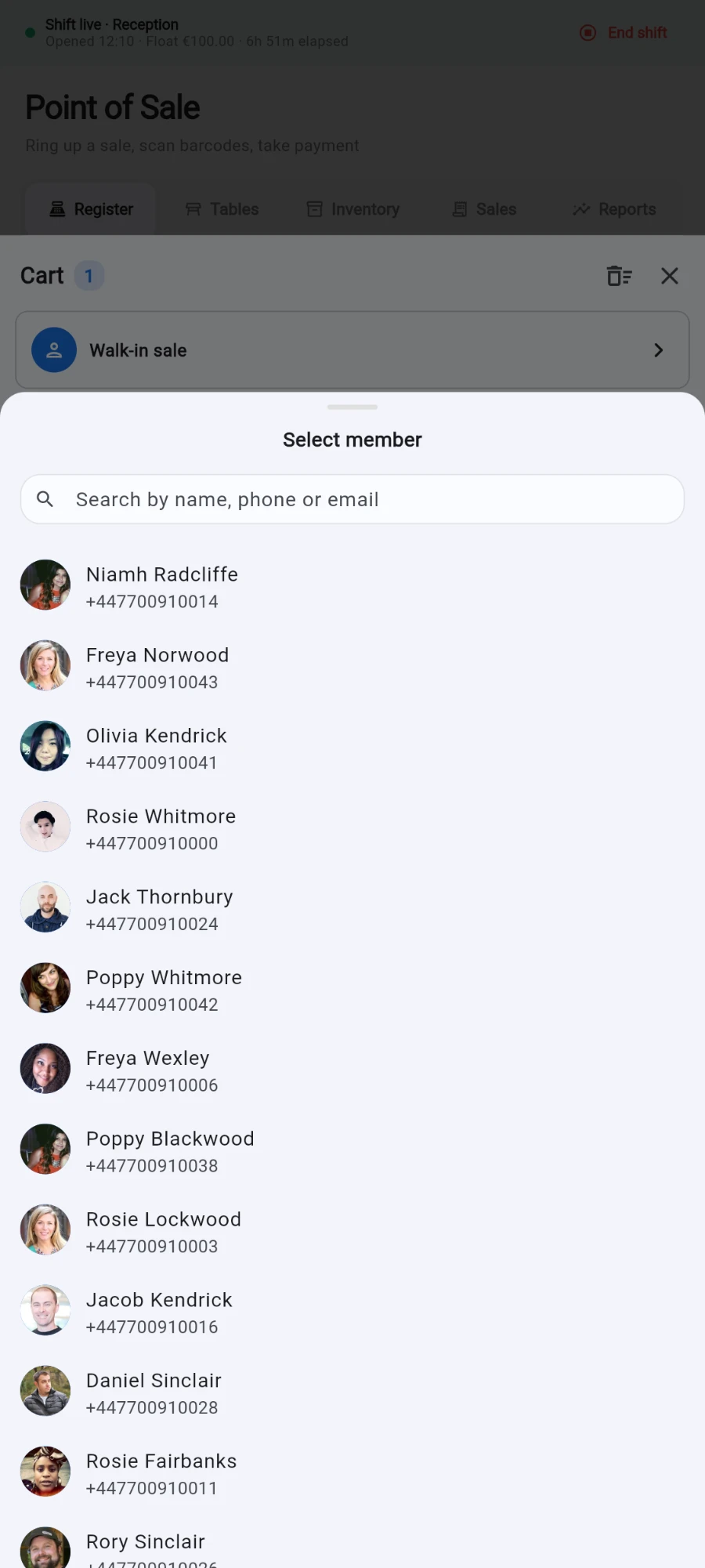
Select member — search, then tap the customer. -
To sell a membership plan in the same basket, tap Add membership plan and pick from Select a membership plan. A plan line requires a member — the cart shows Member required in red until you attach one. One plan per cart.
-
Review the totals: Subtotal, any discount, tax, service and tip, then Total. Tap Tax / tip to open the Tax, service & tip sheet if this sale needs a Tax rate (%), a Service charge (%) or a tip.
-
Tap the Charge button — it shows the exact amount being charged. Pick the payment method first if it is not cash; the payment chapter covers the options.
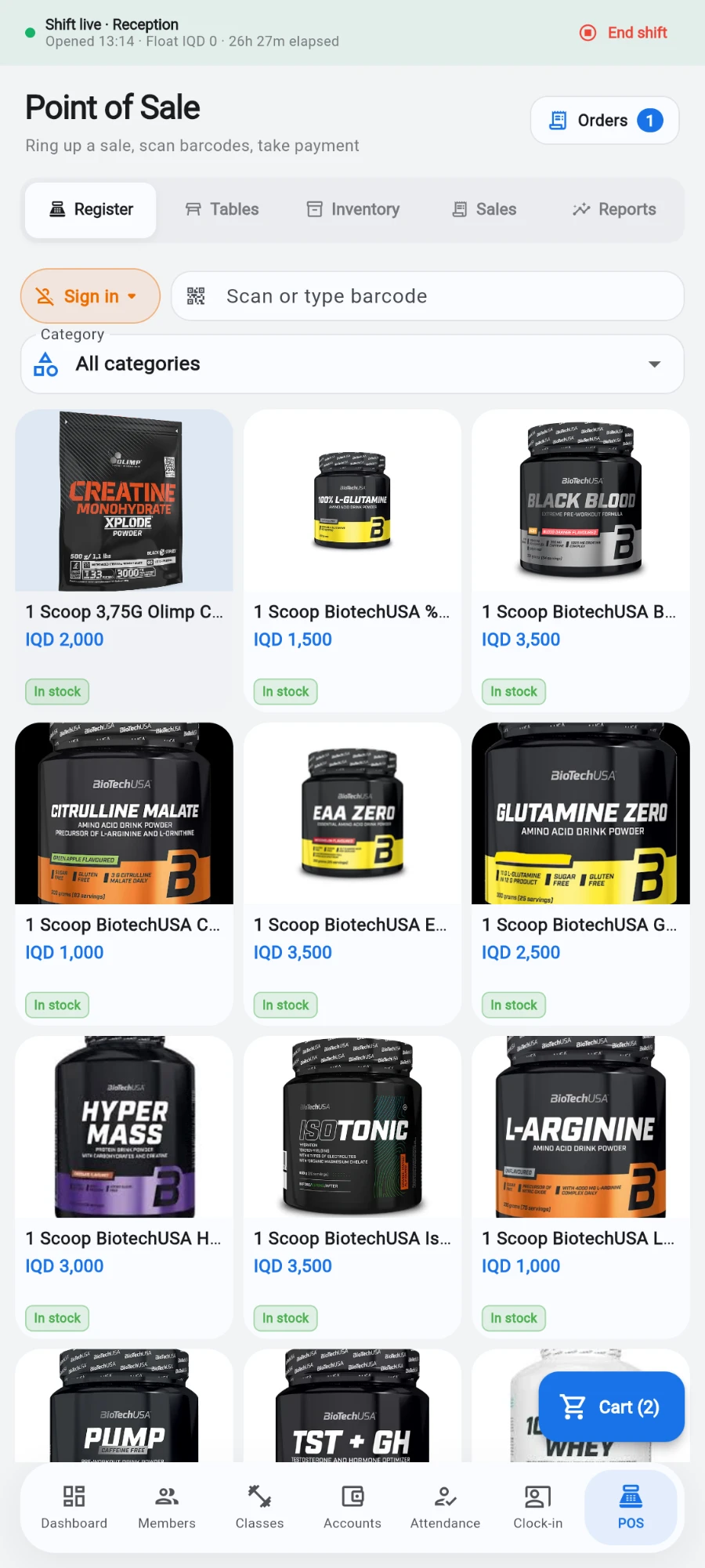
The cart — totals, tender row and the Charge button. -
The Sale complete dialog confirms the amount, the customer and every line. Tap Print receipt if receipts do not print automatically, then Close — the register is ready for the next sale.
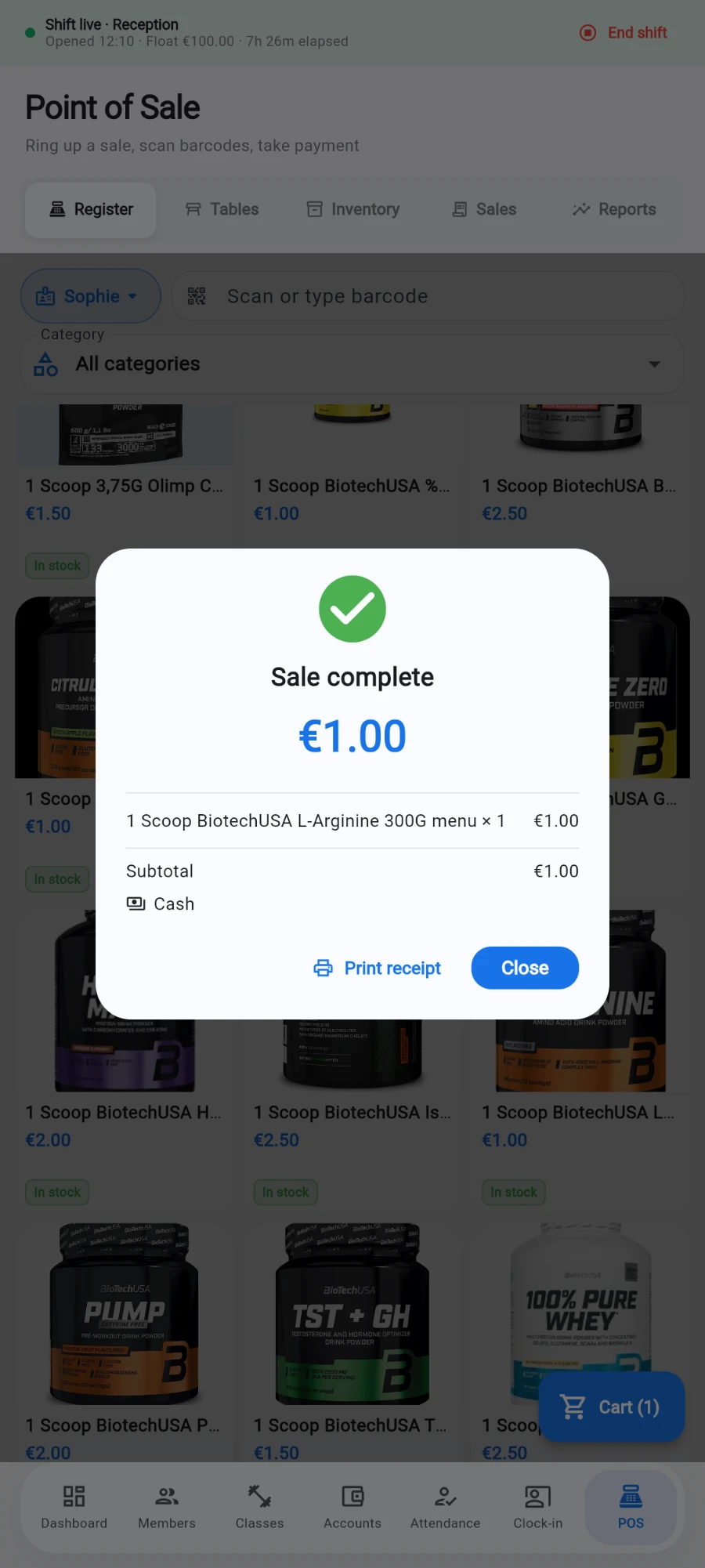
Sale complete — print the receipt or close for the next customer.
What you should see
The Sale complete dialog with a green tick, the correct total, and the member's name when one was attached. The sale appears instantly under the POS Sales history, stamped with your name, the till and the shift.
If something goes wrong
- The Charge button is greyed out — the cart is empty, or a plan line is waiting for a member (Member required shows in red on the customer row).
- A warning says the sale saved but shift details are missing — the sale went through, but it will not appear in your end-of-shift cash count. Tell your manager before closing the shift so the drawer count is explained.
- No products show on the grid — the category dropdown is filtering; set it back to All categories. If the catalogue is genuinely empty, add products under POS → Inventory.
- A product is missing from the grid — it is out of stock. The register only shows items that can actually be sold; receive stock under POS → Inventory and it reappears. Scanning an out-of-stock barcode says so instead of ringing it up.
- Charge opens a "Who's on the till?" sheet — nobody has signed in as cashier on this tablet; pick your name and enter your PIN (see Who's on the till).
- The register asks for a till but the list is empty — a manager needs to register a till first under Settings → Tills.
Still stuck? Email hello@prismgym.com — include your gym name, the device, and a photo of what you see.