Refunds, pending sales and order queues
Everything after the sale lives here: the sales history with per-line drill-down and export, full and partial refunds, the pending-sales queue for "pay at reception" holds and deposits, and the live queue of food and drink orders members place from the kiosk or their app. Refunds are careful with side effects — stock, loyalty points and session credits are all put back the way honesty demands.
What you'll do
Find a sale, refund it (fully or partially), settle a pending sale, and accept or reject incoming member orders.
You'll need: the sales-history permission to browse other cashiers' sales, the refund permission to refund, and the kiosk-orders permission for the order queue.
Steps
-
Open the POS tab and tap Sales — every transaction from every cashier, filterable by date range (Today, Last 7 days, or a custom range). The Refunds view collects negative rows.
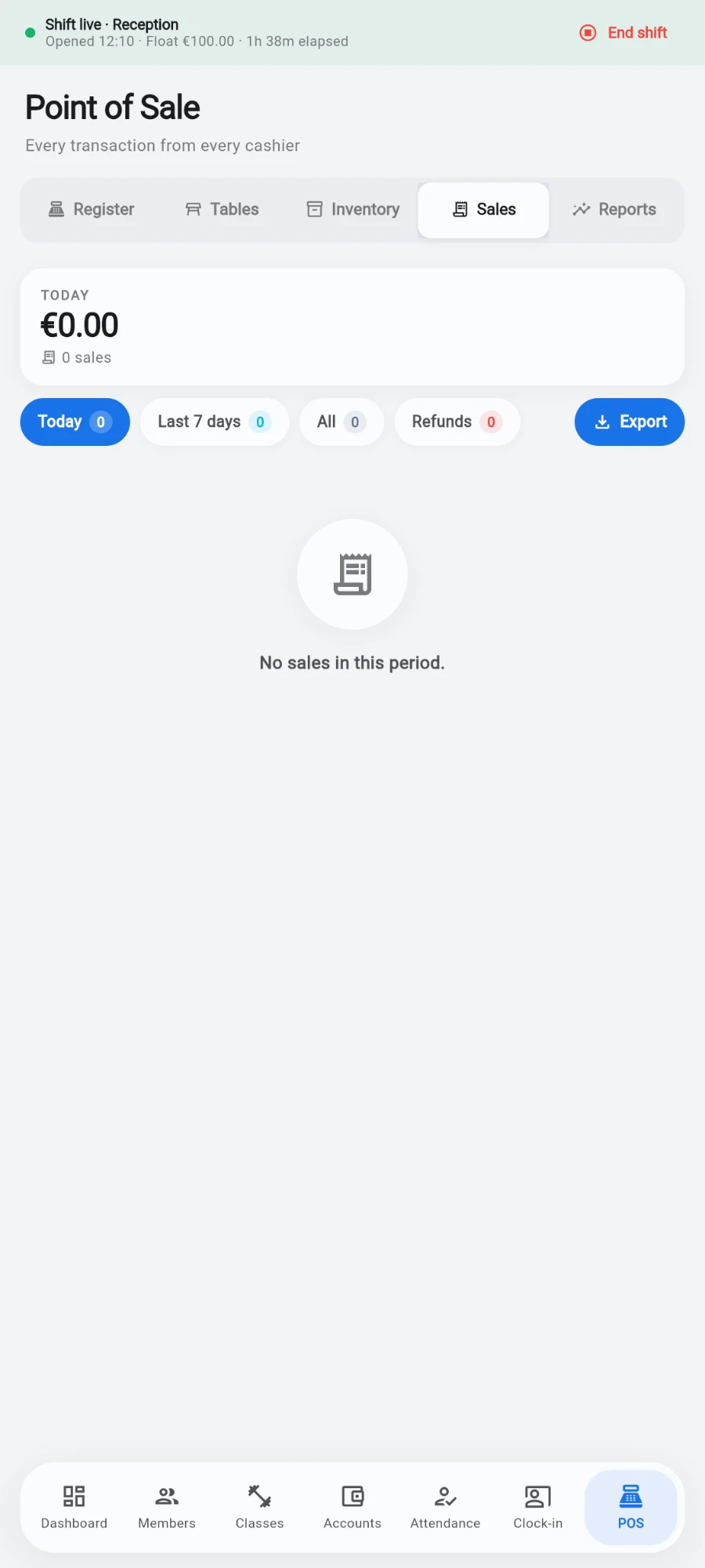
Every transaction from every cashier, filterable and exportable. -
Tap a sale to open Sale detail: line items, discount, tax, payment method, cashier, table and customer.
-
To refund, tap Refund. The Refund this sale? dialog pre-fills the full amount — leave it for a complete refund, or lower it for a partial one — and takes an optional reason.
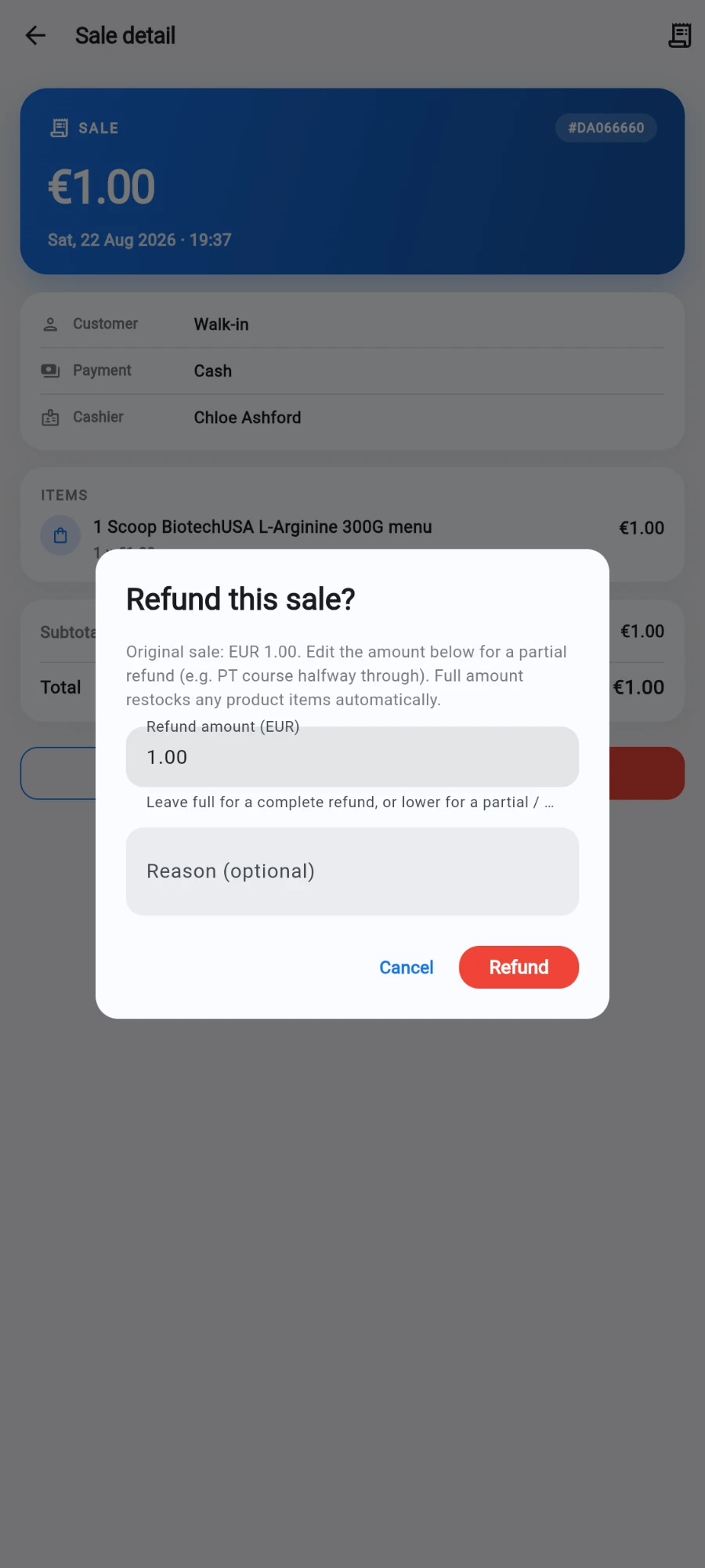
Refund this sale — full by default, editable for a partial. -
Know the difference before you confirm: a full refund returns product stock automatically and fully reverses loyalty points; a partial refund books a proportional negative sale, returns no stock, and reverses loyalty proportionally — built for settling part of a personal-training or class-pack arrangement mid-course.
-
To export the log, tap Export — Export complete sales produces an itemised file for any date range, however long, including every line item.
-
Pay-later sales (a plan sold as a hold or deposit, or a kiosk signup finishing at the desk) wait in Pending sales. When any are open, the Dashboard shows a banner counting sales awaiting payment — tap it, or open the queue from the kiosk area.
-
Tap Take payment on a pending sale: pick the Method (cash with a Cash received field that computes Change, card, transfer or wallet), enter the amount, and tap Record payment. Part-payments reduce the balance; the moment it clears, the sale completes — and a held membership activates on the spot.
-
Food and drink orders from the member kiosk and member app arrive live: a badge at the top of the POS screen counts them, with a sound and banner on arrival, and opens the Member orders queue. Orders move through New, Preparing, Ready and Collected.
-
To turn an order away, tap Reject order and pick a reason — Out of stock, Member left, Made by mistake or Other. A wallet-paid order is refunded to the member's wallet automatically, and the member sees the reason on their screen.
What you should see
A refunded sale shows a refund row pointing at the original; a settled pending sale disappears from the queue and the membership goes active; an accepted member order prints its dockets and settles into the sales history like any other sale.
If something goes wrong
- The Refund button is missing — your account lacks the refund permission; a manager must do it.
- A duplicate pack sale needs undoing — refund it; the refund also clears the duplicate-sale guard so the correct sale can be rung immediately.
- A pending sale expired before the member paid — expired holds drop out of the queue; ring the sale fresh when the member arrives.
- An order was rejected but the member says they paid — check the order card: wallet-paid rejections refund automatically and say so. Cash-on-collection orders never took money.
Still stuck? Email hello@prismgym.com — include your gym name, the device, and a photo of what you see.