Wallet and paying
Your wallet is a prepaid balance that pays for classes, renewals, the cafe and the shop — one balance, one credential. The same rotating QR that opens the door also pays at the till.
What you'll do
Check your balance and transaction ledger, pay at reception by QR, pay a bar or cafe order by scanning its code, and find any past receipt.
You'll need: a linked membership. Top-ups are handled at reception — hand over cash or card there and the balance appears instantly.
Steps
-
Open Me and tap Wallet. The CURRENT BALANCE card sits on top, with the TRANSACTIONS ledger below — every top-up, charge, refund, retail purchase, class booking and PT session, each labelled, dated and signed plus or minus.
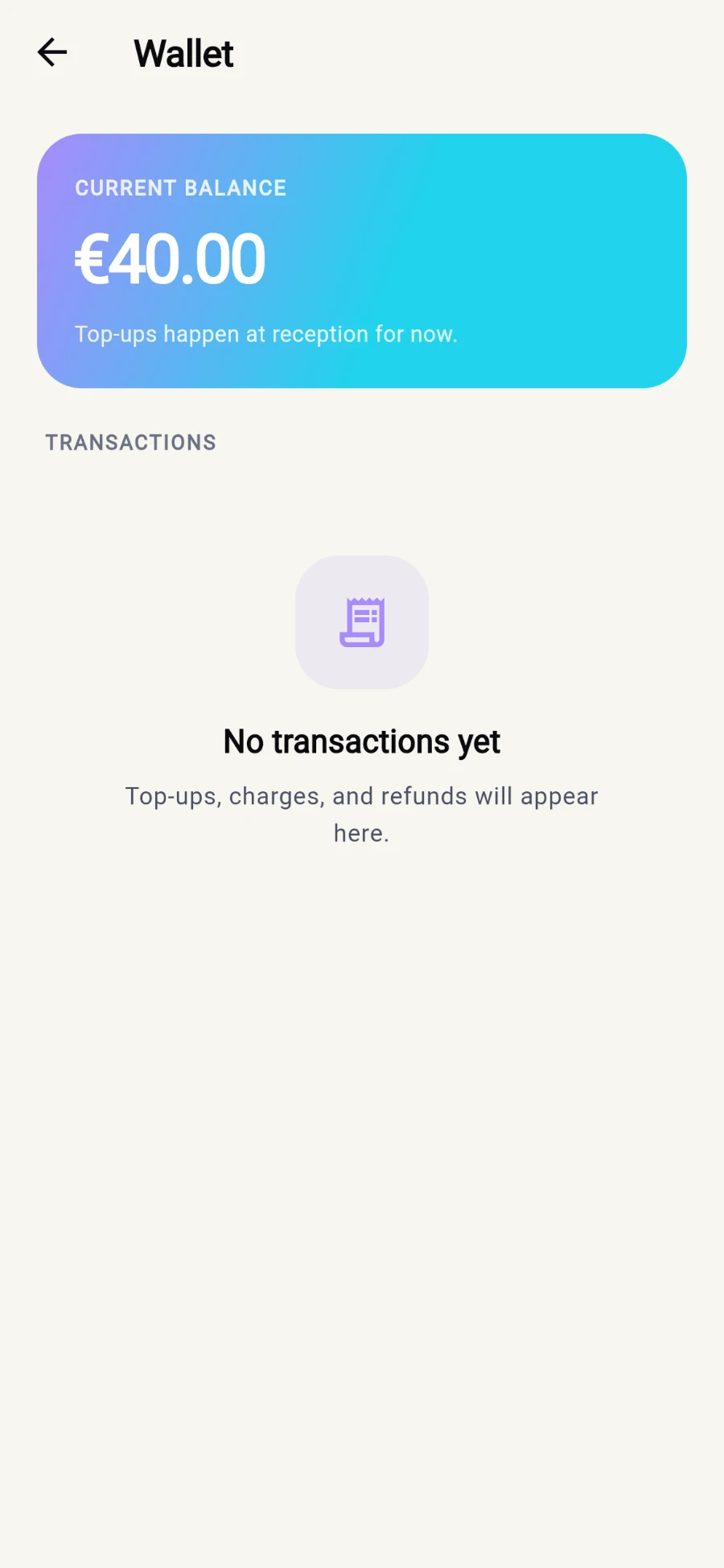
Balance on top, ledger below - this demo account has no transactions yet. -
To pay at reception or the POS, tap Check in and pick Pay — Show this code at reception to pay from your wallet. Staff scan it and the amount comes off your balance.
-
To pay a bar or cafe order yourself, tap Scan to pay on the Pay screen — Pay a bar or kiosk order by scanning its QR — and point your camera at the QR on the order slip or screen.
-
A preview appears with the order total and Wallet balance: so you can see the maths before committing. Tap Pay.
-
Wait for the confirmation — Paid — collect your order at the bar. Back on Today, a live tracker follows your order from pending to preparing to ready, then disappears once it's collected.
-
For older receipts, open Me and tap Payment history — membership renewals and purchases merged into one list, newest first, each showing how you paid.
What you should see
The charge appears at the top of TRANSACTIONS immediately, the balance updates, and for cafe orders the tracker on Today follows your drink to the counter.
If something goes wrong
- "Not enough wallet balance." — top up at reception first; the app never overdraws your wallet.
- "This pay code is invalid or expired" — ask the bar to bring the order's QR up again; codes are short-lived on purpose.
- The camera won't open — allow camera access when prompted, or use Open settings from the error screen to grant it.
- A transaction looks wrong — show the ledger entry to reception; refunds land back in the same wallet and appear in the ledger too.
Still stuck? Email hello@prismgym.com — include your gym name, the device, and a photo of what you see.