Cancel a membership and refund
Cancelling a membership is a money decision, so Prism treats it like one: the flow is gated behind a live staff selfie, the refund math is shown before you commit, and the result is written as a negative payment row so your cash-up and reports reconcile instead of quietly drifting.
What you'll do
Cancel a member's plan with one of three refund outcomes — pro-rated by days remaining, a custom agreed amount, or no refund — and pick how the money goes back.
You'll need: a staff account with the cancel permission, and your face — the app takes a live selfie before the dialog opens and stores it with the audit record.
Steps
-
Open the member's profile and tap Cancel membership… at the bottom of the action stack.
-
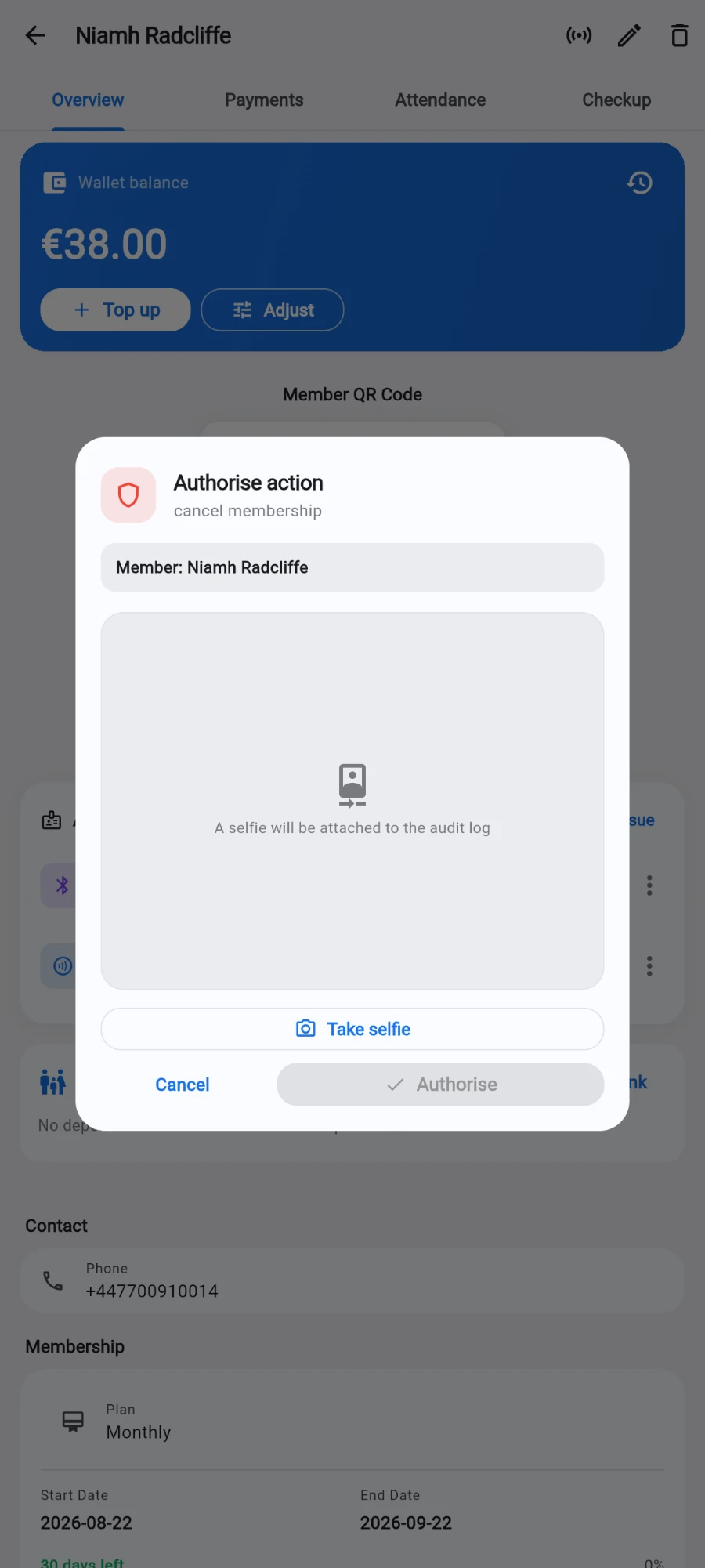
Complete the selfie authorization when prompted. The photo is attached to the audit record of the cancellation — the action does not proceed without it.
-
In the Cancel membership dialog, review the summary — it shows the days left on the plan and what was paid.
-
Under Refund, pick the outcome: Pro-rated by days remaining — the dialog computes a suggestion from the term dates and the last plan payment, and shows the arithmetic (for example 47 of 90 days). Custom amount — agree a figure with the member and type it. No refund — deactivate without returning money.
-
If money is going back, pick the Refund method — Cash, Card or Wallet credit.
-
Add a Reason (optional) — "member moving abroad" is the kind of note that helps months later.
-
Confirm. With no refund selected the button reads Cancel without refund; with a refund it shows the amount going back.
What you should see
The member's plan is removed and their status is no longer active. The refund (if any) appears as a negative row in the payments history and on the revenue report's refunds band, and a cash refund reduces the open drawer's expected count. Access is withdrawn from door hardware automatically.
If something goes wrong
- The dialog never opens — the selfie step was declined or failed. It is required; try again with the camera uncovered.
- Pro-rated is greyed out — no plan payment on file to pro-rate against. Pick Custom amount or No refund.
- Cash refund but no open shift — cash needs a drawer to come out of. Open a till shift first, or refund to Wallet credit instead.
- Cancelled the wrong member — there is no undo for the cancellation itself; sell the plan again (the selling chapter) and, if you refunded, take the payment again. The audit log holds the full trail of both actions.
Still stuck? Email hello@prismgym.com — include your gym name, the device, and a photo of what you see.