Around the kiosk
Once you're signed in, the kiosk is organised around a left rail of five tabs — Featured, Train, Checkup, Measures and Me — plus Settings. This chapter tours the Featured home, the offer banners, your membership card, and the language picker.
What you'll do
Find your way around a kiosk session and know which few things intentionally live on your phone instead.
You'll need: a signed-in kiosk session.
Steps
-
You land on Featured: a rotating banner carousel of your gym's offers, your next booked class (or You're free today with a nudge to browse), and stat tiles for your classes this week, aspirations and body measurements.
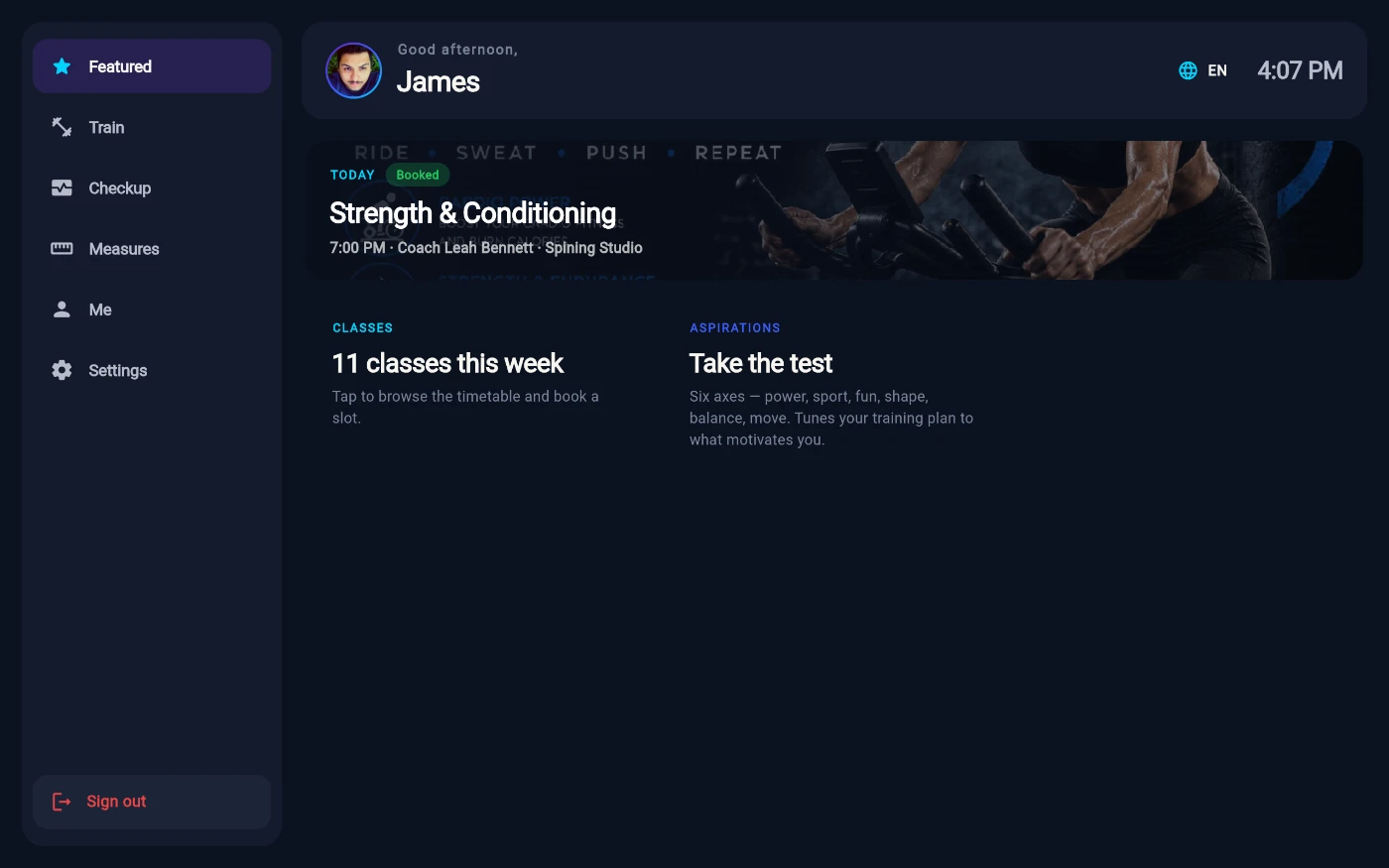
The Featured home of a kiosk session. -
Below those sit action tiles — Training programs, Today's classes, Book a PT, Order food & drinks, and a checkup tile showing your live wellness score. Every tile opens the real thing; none are decorative.
-
Interested in a banner? Tap it. Because a kiosk can't open websites, the offer opens as an in-place sheet with the full details and a Show this at reception instruction — tap Claim offer on banners that carry the pill, then mention it at the desk.
-
Open Me for your membership card: your name, plan, a status chip (Active, Frozen or Expired), the Valid until date, plus visits in the last 30 days, points and wallet balance, and a QR you can scan to carry on on your phone.
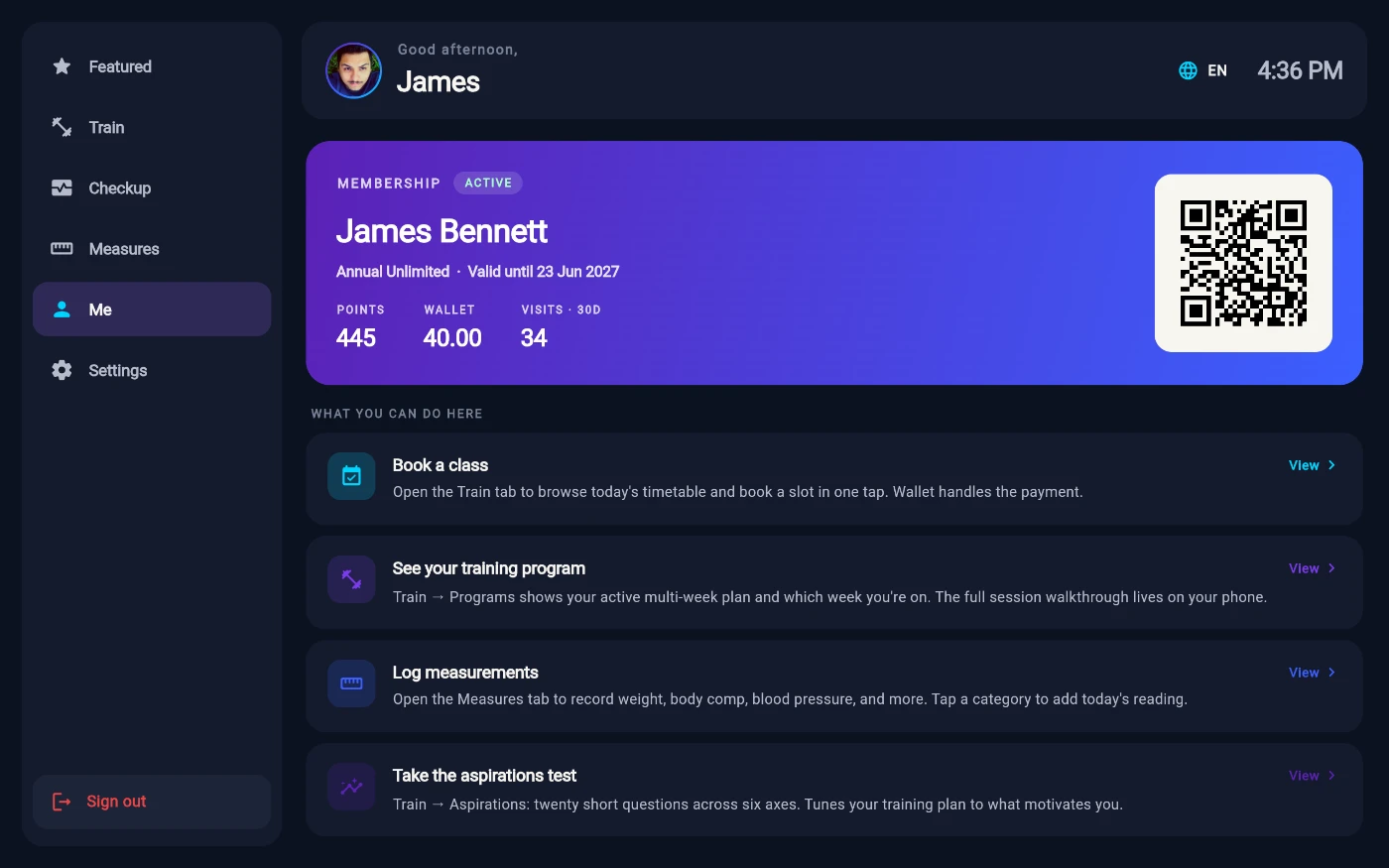
The membership card on the Me tab. -
Scroll the Me tab's guide cards — What you can do here links into booking, programs, measurements and the aspirations test, and On your phone says plainly what doesn't live on the kiosk: plan changes, pausing a membership, payments, referrals and family are all handled in the member app.
-
To use the kiosk in your own language, tap the language button — the kiosk ships with 19 languages including full right-to-left support. The picker's subtitle tells you the deal: Resets to the kiosk default when your session ends.
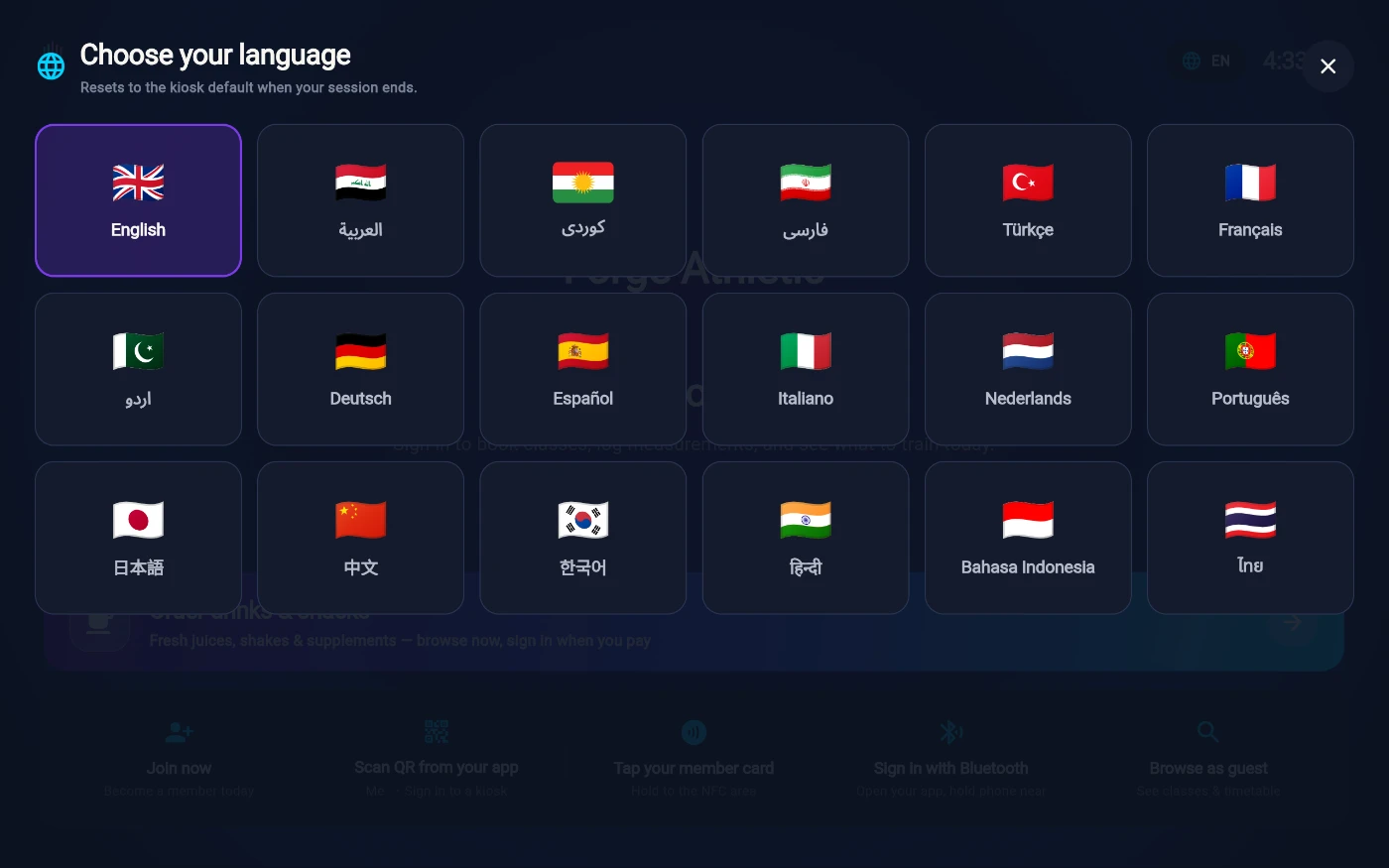
The session-only language picker. -
Settings explains the session rules — auto sign-out, privacy, and that preferences like dark mode and text size travel with your phone app, not the kiosk. Sign out returns the kiosk to the welcome screen.
What you should see
A personal home that reflects you: your booked class front and centre, your real stats on the tiles, your card on Me — and everything back in the default language after you sign out.
If something goes wrong
- A tile or card is empty — that one data source didn't load; it retries on its own, or tab away and back. Everything else keeps working.
- The membership card says No active membership — your plan has ended; see reception or renew from the member app.
- An offer banner has no claim button — not every banner is claimable; some are purely informational.
- The kiosk is in the wrong language — someone's session pick lingers only until sign-out; tap the language button and choose yours.
Still stuck? Email hello@prismgym.com — include your gym name, the device, and a photo of what you see.