Run monthly payroll
Payroll pulls staff and coaches into one monthly roster. Every figure — salary pro-rata, hourly wages, commissions, overtime and deductions — is computed on the server in your gym's timezone, so two people looking at the same month always see the same numbers.
What you'll do
Review a month's payroll, read each person's pay breakdown, configure the wage rules for your country, and export the payroll PDF.
You'll need: an account with the payroll reports permission; staff pay set up on each staff record and each trainer profile.
Steps
-
Open Accounts and switch to the Payroll tab.
-
Pick the month. The Payroll this month header and Total payroll group by pay currency — a receptionist paid in pounds and a coach paid in dollars each get their own headline line, and the two are never added together.
-
Read a staff row: gross pay is base plus commissions, shown as a plain breakdown — salary, plus commission, equals take-home.
-
Expand a coach row for the commission decomposition: Plan sales, PT pack sales, Nutrition programs, Class packs and Laundry subs, plus Per-session payouts for redeemed PT sessions and any Per-head payout for class attendance.
-
Check the deduction lines. Salaried staff with a weekly schedule can carry an Attendance deduction — with Days docked and Lateness / early-leave detail — and a coach who missed a contracted class count carries a Shortfall deduction. A coach can have both.
-
To configure the wage math, open Settings → Payroll rules.
-
Tap a Regional preset — Iraq (Art. 43/71), KSA, UAE or EU (30-day) — to fill the four fields with that jurisdiction's defaults, or set them yourself.
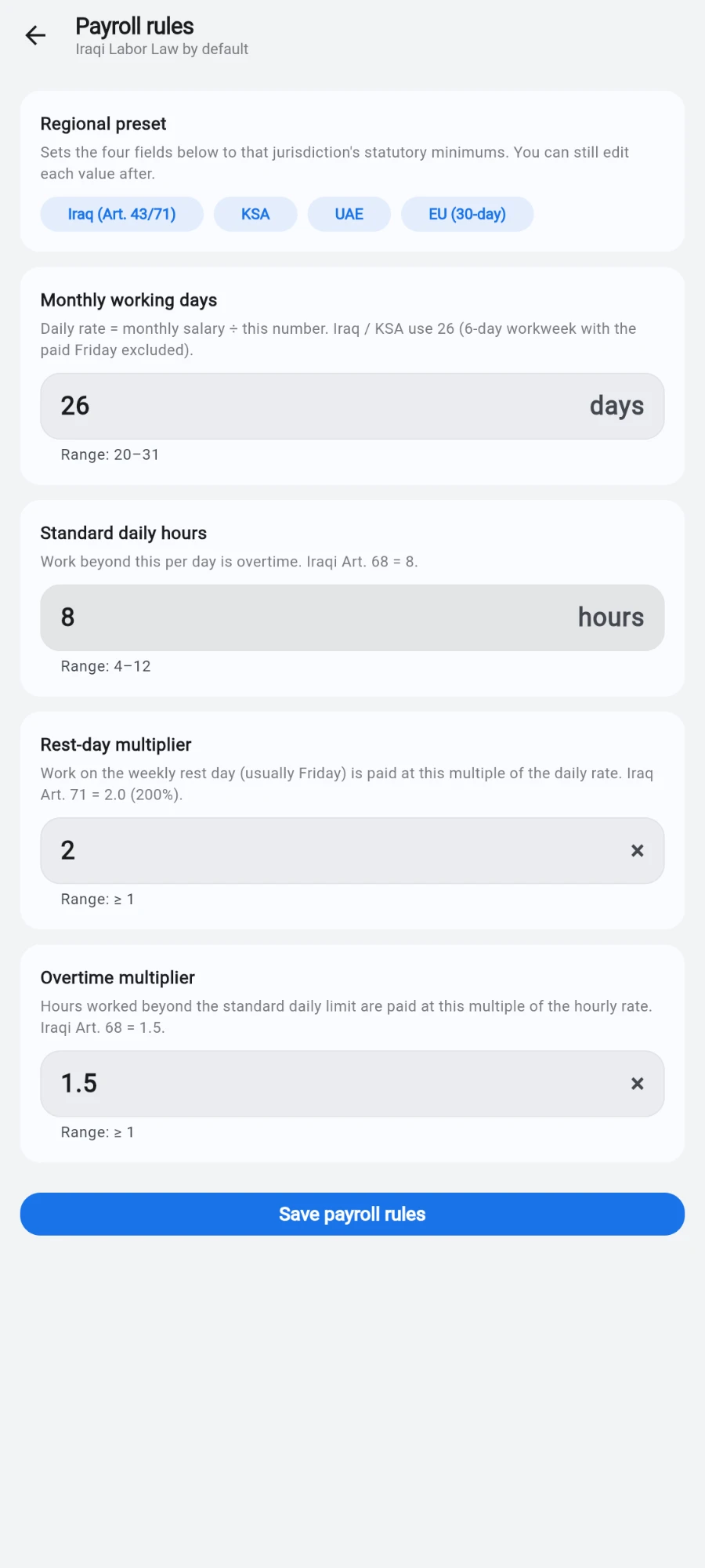
Regional presets fill the four wage rules; every value stays editable. -
Review the four rules — Monthly working days (the divisor that turns a monthly salary into a daily rate), Standard daily hours (work beyond this per day is overtime), Rest-day multiplier (pay rate for work on the weekly rest day) and Overtime multiplier — then tap Save payroll rules.
-
Back on the roster, tap Export payroll PDF. Export the current month or any custom range.
What you should see
A single roster covering everyone, per-currency totals at the top, and a per-person breakdown that a staff member could check themselves: base, each commission stream, premiums, deductions, take-home. The commission lines match the commission report for the same month exactly.
If something goes wrong
- Someone is missing from the roster — they are hourly with no logged shifts this month, or inactive with nothing to pay. A row can also show No pay configured when neither a salary nor an hourly rate is set on their record.
- A commission figure looks wrong — check the coach's rates and the seller's rules (see the commissions chapter), and remember refunded sales net out of commission.
- Two currency totals won't add up into one number — that is deliberate. Prism never sums across currencies; convert manually at your own rate if you need a single figure.
- A deduction looks too harsh — review Settings → Salaried-staff attendance (grace minutes and deduction mode) and the person's weekly schedule; the deduction is derived from scheduled-versus-worked time.
Still stuck? Email hello@prismgym.com — include your gym name, the device, and a photo of what you see.