Lockers
The lockers screen is your live map of every locker in the gym: who has which one, which are free, and which are down for maintenance. A nightly sweep flags lockers still held after closing so nothing quietly disappears into permanent personal storage.
What you'll do
Add lockers organised into zones, assign and release them, and handle overnight holds.
You'll need: the lockers permission, and your locker numbers (and zones, like "Men's changing" or "VIP") worked out.
Steps
-
Open the main menu and tap Lockers.
-
Tap Add Locker. Enter the Locker No. and pick a zone — or create one on the spot with Add zone and a Zone name. Zones become reusable options for every locker you add later.
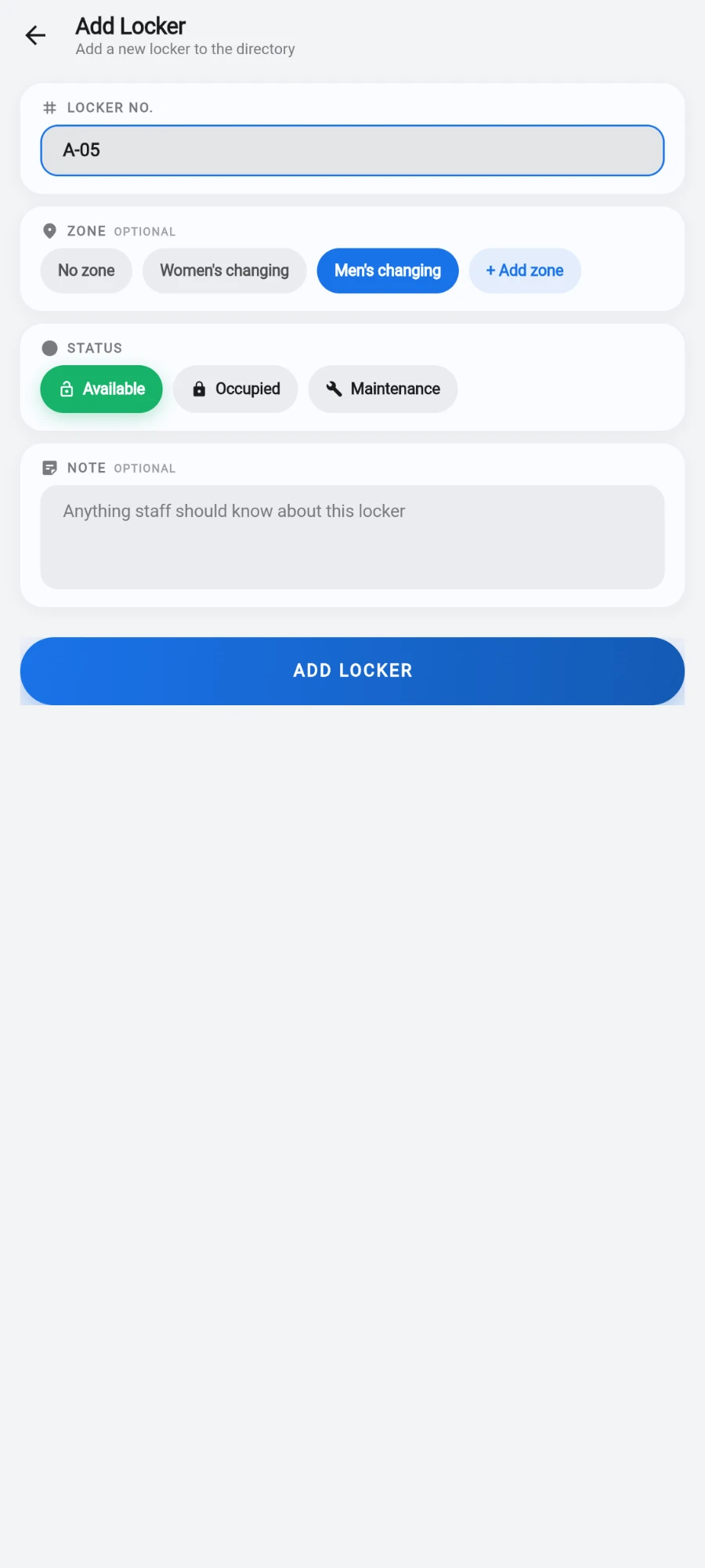
Adding a locker: a number, a zone, a status and an optional note. -
Add any staff notes, then save. Repeat — or batch your numbering scheme zone by zone.
-
Use the filter chips — All, Available, Occupied, Maintenance, Overnight — and the stat tiles at the top to read the floor at a glance.
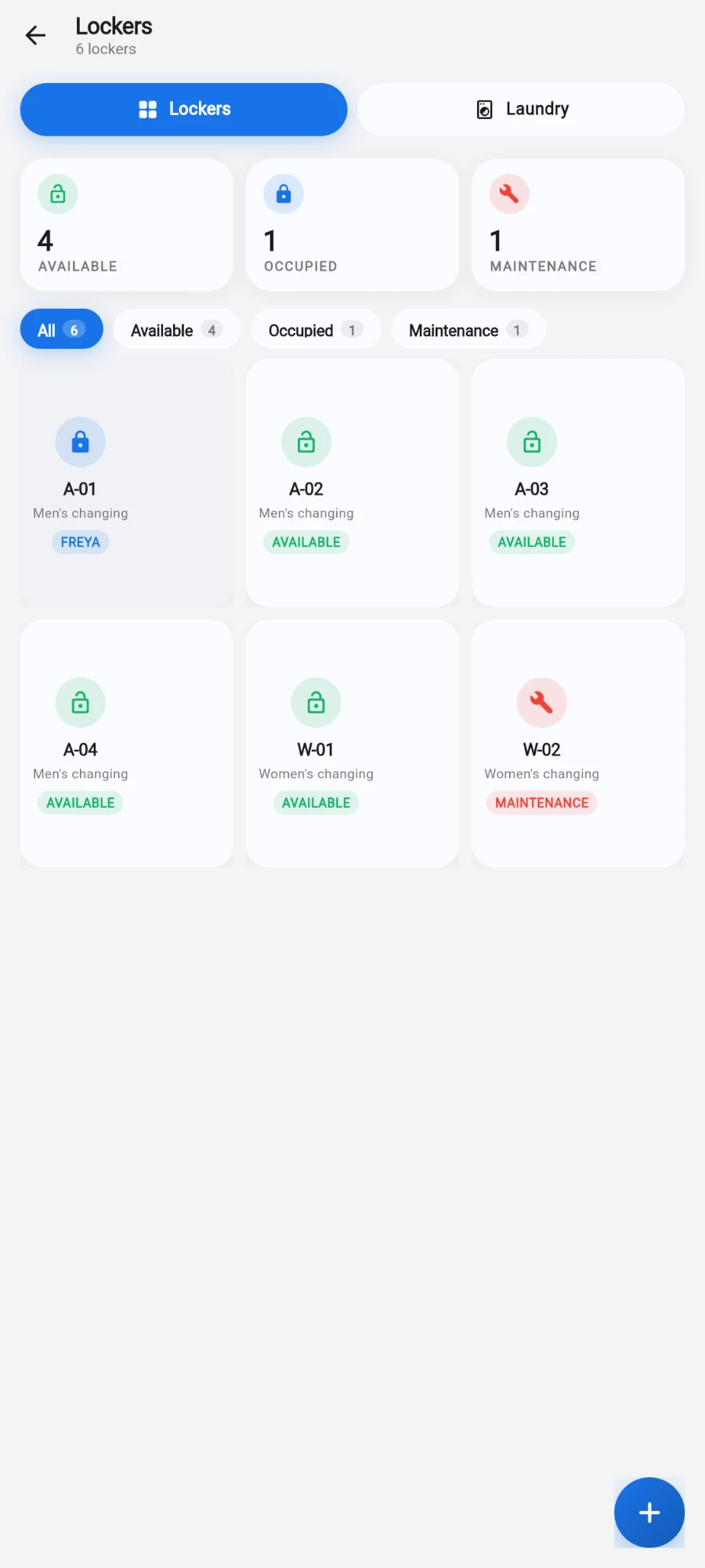
The locker map: stat tiles, filter chips and a card per locker. -
To give a member a locker, tap a free one — a Select Member sheet opens; pick the member. The rental is recorded with a start time, so you always have a who-held-what history.
-
When the member hands it back, tap the locker and choose Unassign Locker.
-
Check the Overnight filter each morning. Lockers still held past closing are flagged automatically and their holders notified — release them so the locker returns to the pool.
What you should see
A grid of lockers with live status colours, counts on each filter chip, and an Overnight tile that only appears when something is actually flagged. The screen also carries a Laundry tab — that's the next chapter.
If something goes wrong
- A locker is stuck as occupied — the member left without checking out. Use Unassign Locker; the rental history keeps the record.
- Zone names look wrong on old lockers — zones are never hard-deleted, so historical labels still resolve. Rename by creating a new zone and moving lockers to it.
- A locker is broken — set it to Maintenance so it stops being offered, and bring it back to Available after the repair.
Still stuck? Email hello@prismgym.com — include your gym name, the device, and a photo of what you see.