Build your content library
Everything a signage screen can show lives in one library: uploaded media, embedded video, live gym data that reads your existing records with zero setup, product boards, scrolling tickers and branded announcement cards — more than 25 kinds in all, grouped by purpose so the picker never reads as a wall of text. Items from the library are grouped into playlists and assigned to screens.
What you'll do
Open the content library, add items of different kinds, choose a theme for boards and cards, and set up the self-running cards — the member welcome wall and the crowd meter.
You'll need: a staff sign-in on the admin app, and at least one paired screen if you want to see results on a wall.
Steps
-
Open Signage from the drawer, tap the Tools action in the top bar, then choose Images & boards ("Pictures, videos, and menu boards").
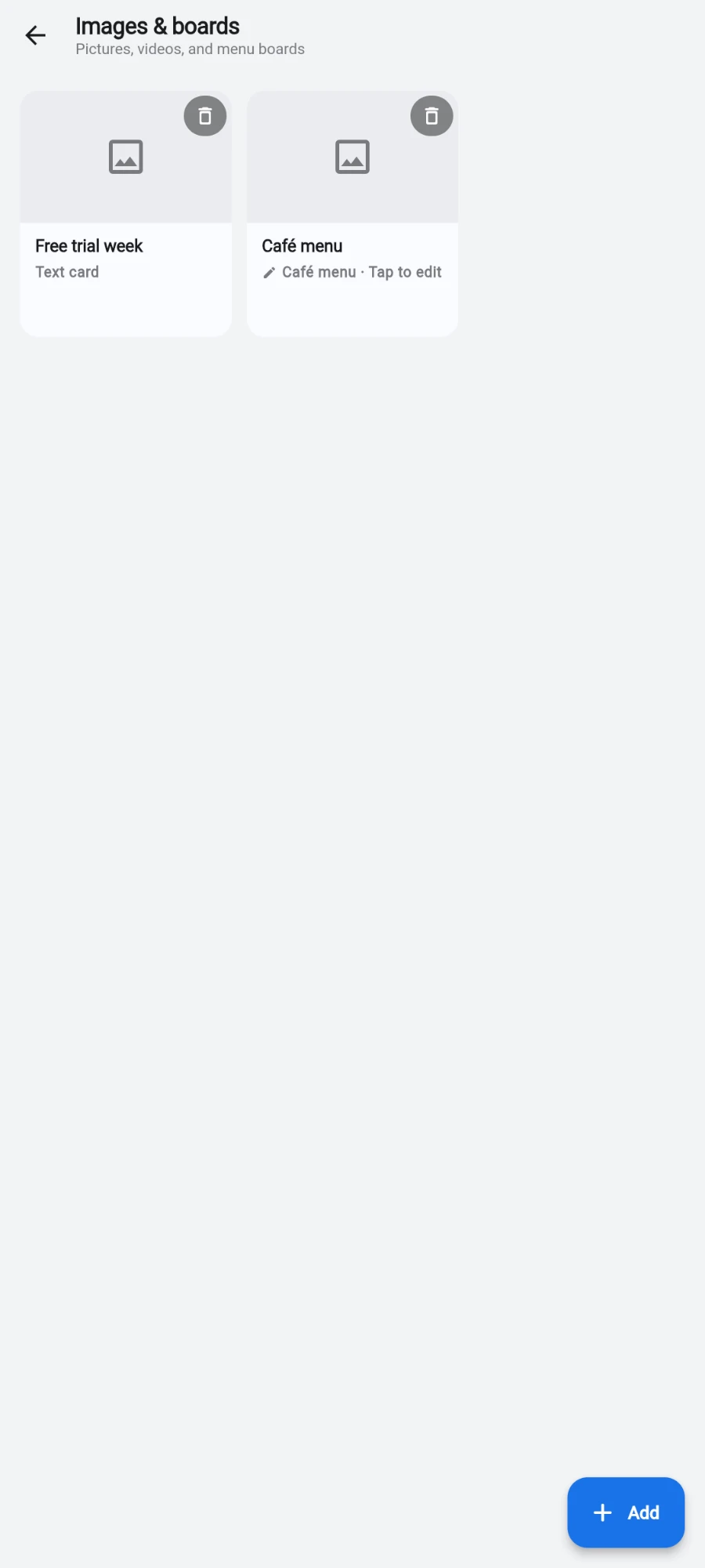
The Images and boards library with existing items -
Tap the add button. The Add to library sheet opens — "Pick what kind of card to add. Tap a section to expand." The everyday sections are already expanded.
-
To upload media, pick Upload under Media files — a small image or short video goes to cloud storage, up to 2 GB per file.
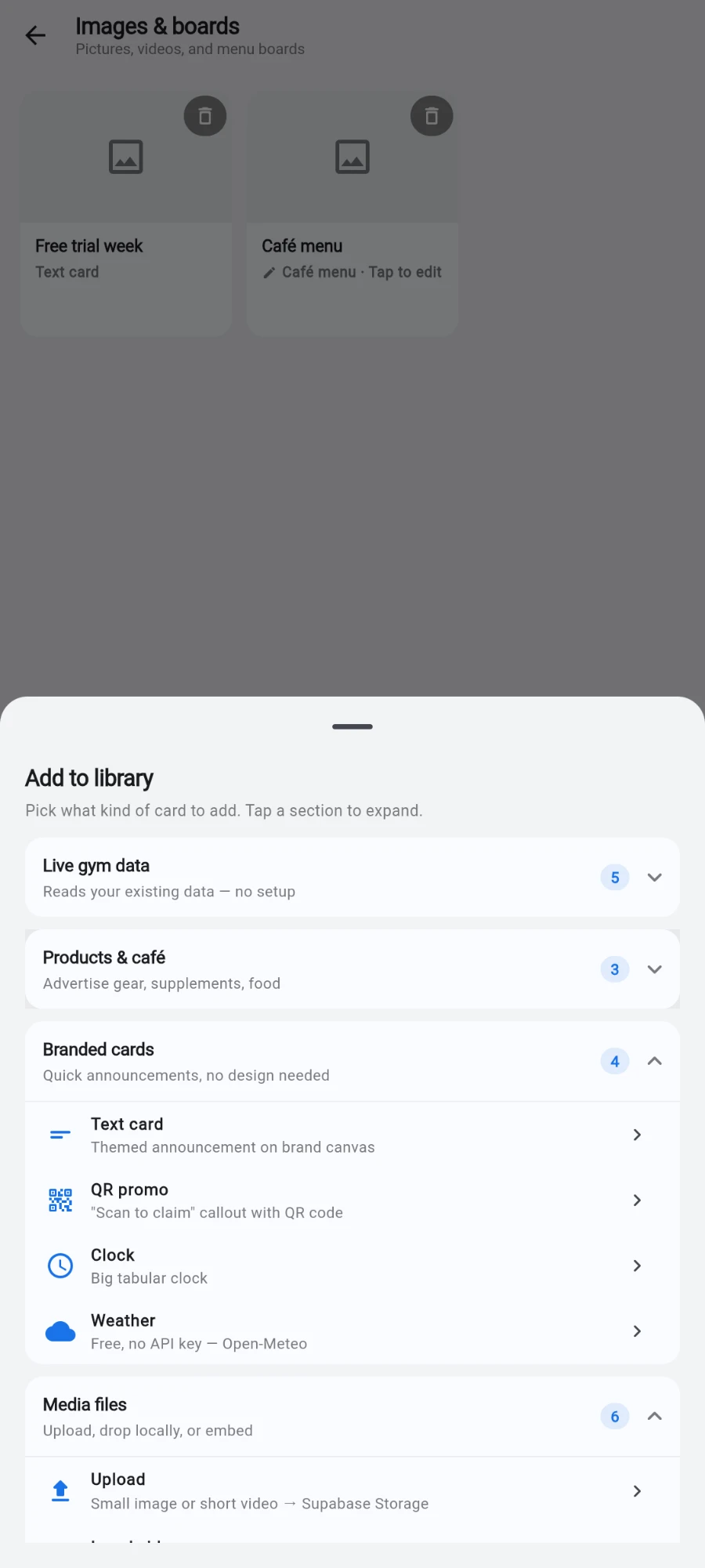
The Add to library sheet with its collapsible groups of card kinds -
For a big video with no upload at all, pick Local video — it references a file you drop straight onto the TV box with a USB stick, ADB, or any TV file manager. No file-size limit beyond device storage, and no bandwidth cost.
-
For embedded content, pick YouTube, Vimeo, Web page (any public URL in a sandboxed view), or Instagram embed (a single public post URL).
-
Under Live gym data ("Reads your existing data — no setup"), pick from Class now (a big hero for the next class with a live countdown), Class schedule (a live timetable of upcoming classes), Coaches / Trainers (an auto-rotating meet-the-team board with photos), Crowd meter, or Member shoutout.
-
Member shoutout is the welcome wall: it rotates a welcome to recent check-ins — a new face every few seconds, refreshed every couple of minutes. It anonymises members to first name and last initial by default, and it keeps showing the last good data if a refresh fails rather than blanking the wall.
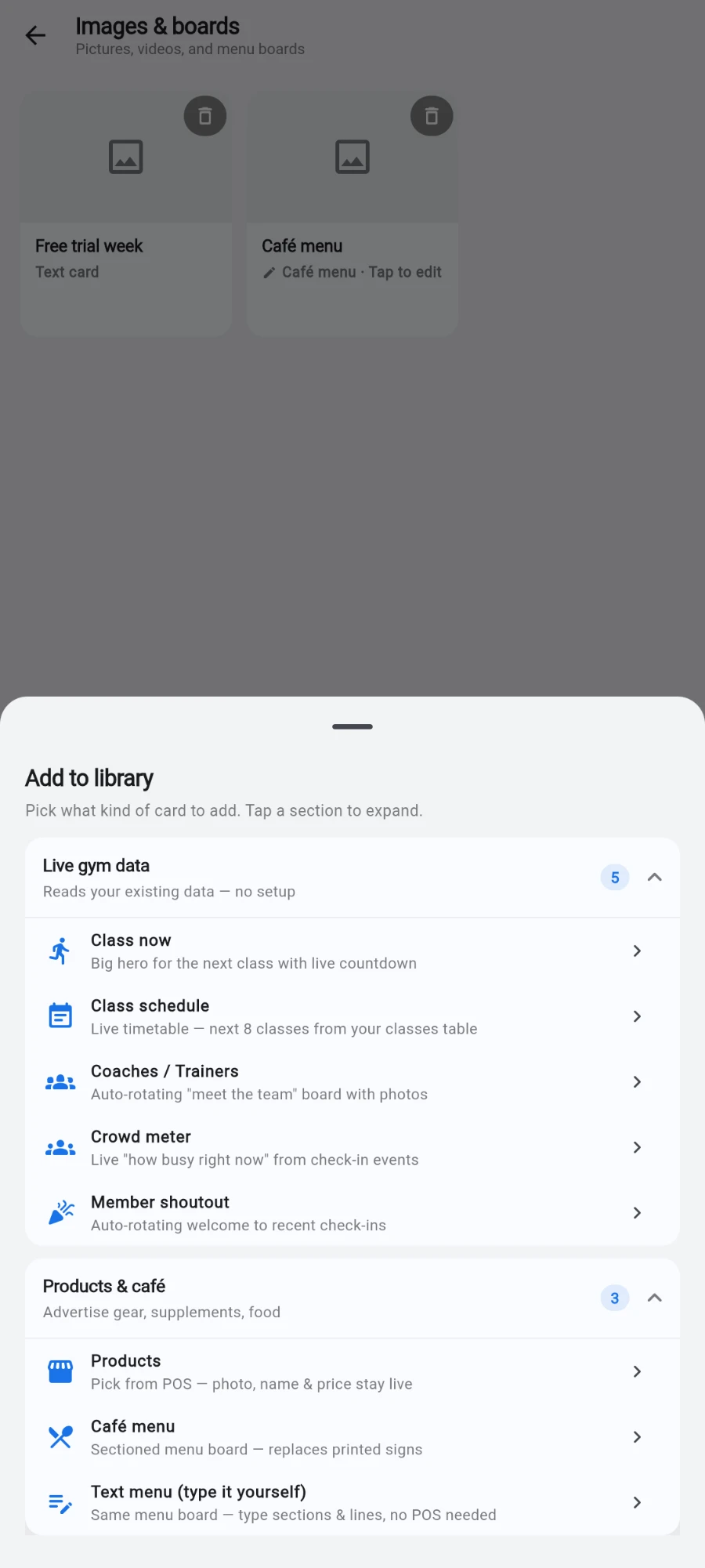
The Live gym data group: Class now, Class schedule, Coaches, Crowd meter, Member shoutout -
Crowd meter shows a live "how busy right now" head count from check-in events, with a colour band — green when quiet, amber when filling, red when busy. When the count is genuinely unavailable it shows a neutral dash, never a misleading zero.
-
Under Products & café, pick Products or Café menu (both driven by your POS — see the menu boards chapter), or Text menu (type it yourself) — the same board look with sections and lines you type by hand, no POS needed.
-
Under Branded cards, pick Text card (a themed announcement), QR promo (a scan-to-claim code), Clock, or Weather — weather is free and needs no API key.
-
Under Tickers, pick News (preset feeds — World, Business, Sports, Tech, Gym industry), Any RSS feed, Crypto, Forex, or Sports scores. Every ticker source works without an API key.
-
Give the item a Title (shown in your library only), fill in the kind's own fields, and pick its look under THEME & BRANDING where offered — then tap Save.
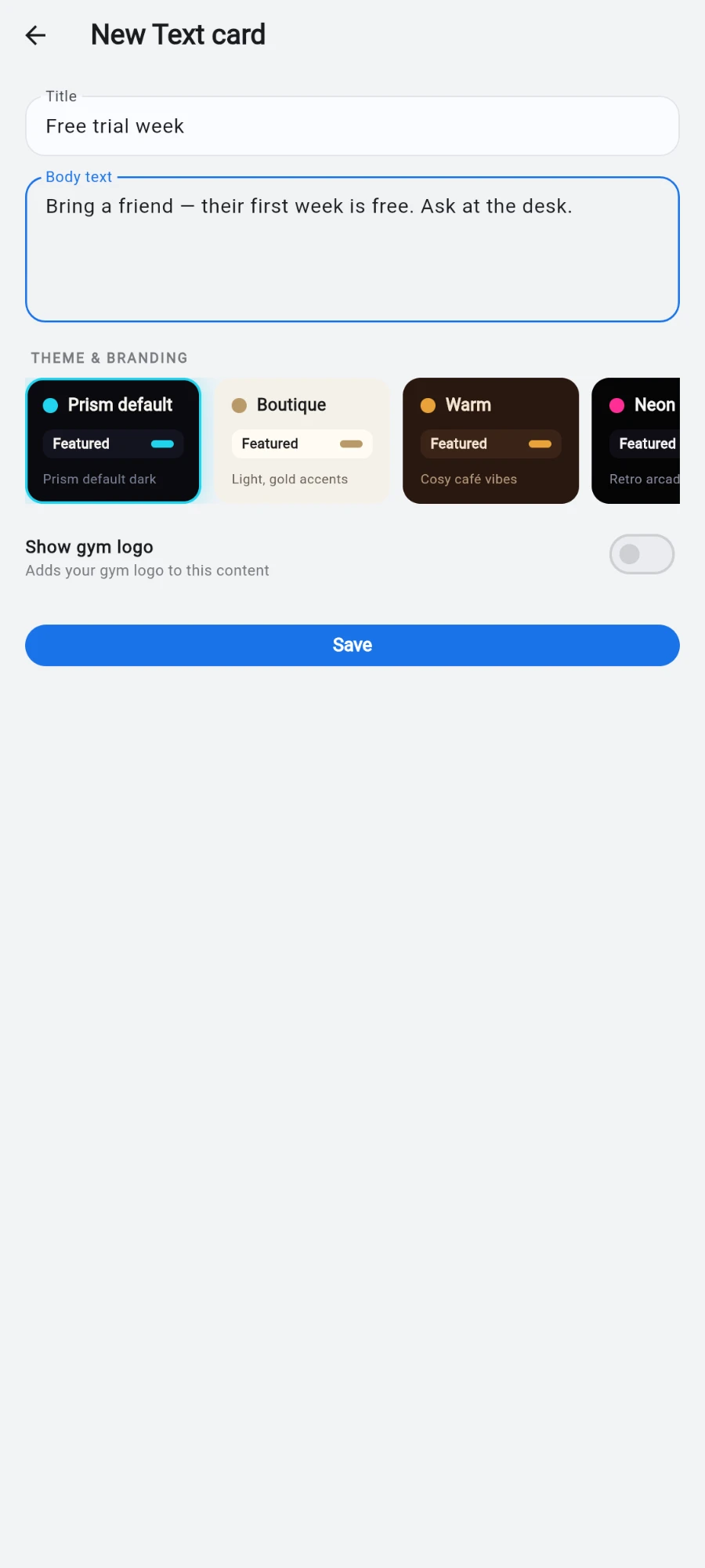
The theme picker on a card: Brand plus the built-in themes
What you should see
The library shows every item with its kind. Live-data cards need no further setup — a Member shoutout or Crowd meter card added to a playlist starts showing real check-in activity as soon as it reaches a screen.
If something goes wrong
- An uploaded video never reaches the TV — check the screen's detail page under Files on this device: it lists exactly which files the box has cached. Large files on slow Wi-Fi take a while; the box downloads them in the background.
- A YouTube or web-page card shows nothing — the URL must be public. Private or login-gated pages render blank.
- The welcome wall shows no names — it rotates recent check-ins; if nobody has checked in recently there is nothing to show. It fills as soon as members start scanning in.
- The crowd meter shows a dash — the live count is temporarily unavailable. It recovers on its own; the dash is deliberate, shown instead of a wrong "0".
Still stuck? Email hello@prismgym.com — include your gym name, the device, and a photo of what you see.