PT requests and session confirmation
Personal training runs on a simple lifecycle: a session is requested or booked, confirmed, delivered, and then confirmed as delivered — and only that last step releases the coach's per-session pay. This chapter covers the two queues that drive it: pending requests and the confirmation queue.
What you'll do
Handle member PT requests, book sessions from the front desk, and work through the confirmation queue after sessions and classes happen.
You'll need: a staff account with trainer permissions. Coaches see their own queue; owners and managers see everyone's.
Steps
-
Open the main menu and tap Personal Trainers to see the coach roster. Use the search field (Search name or speciality) to find a coach, and tap one for their profile and session board.
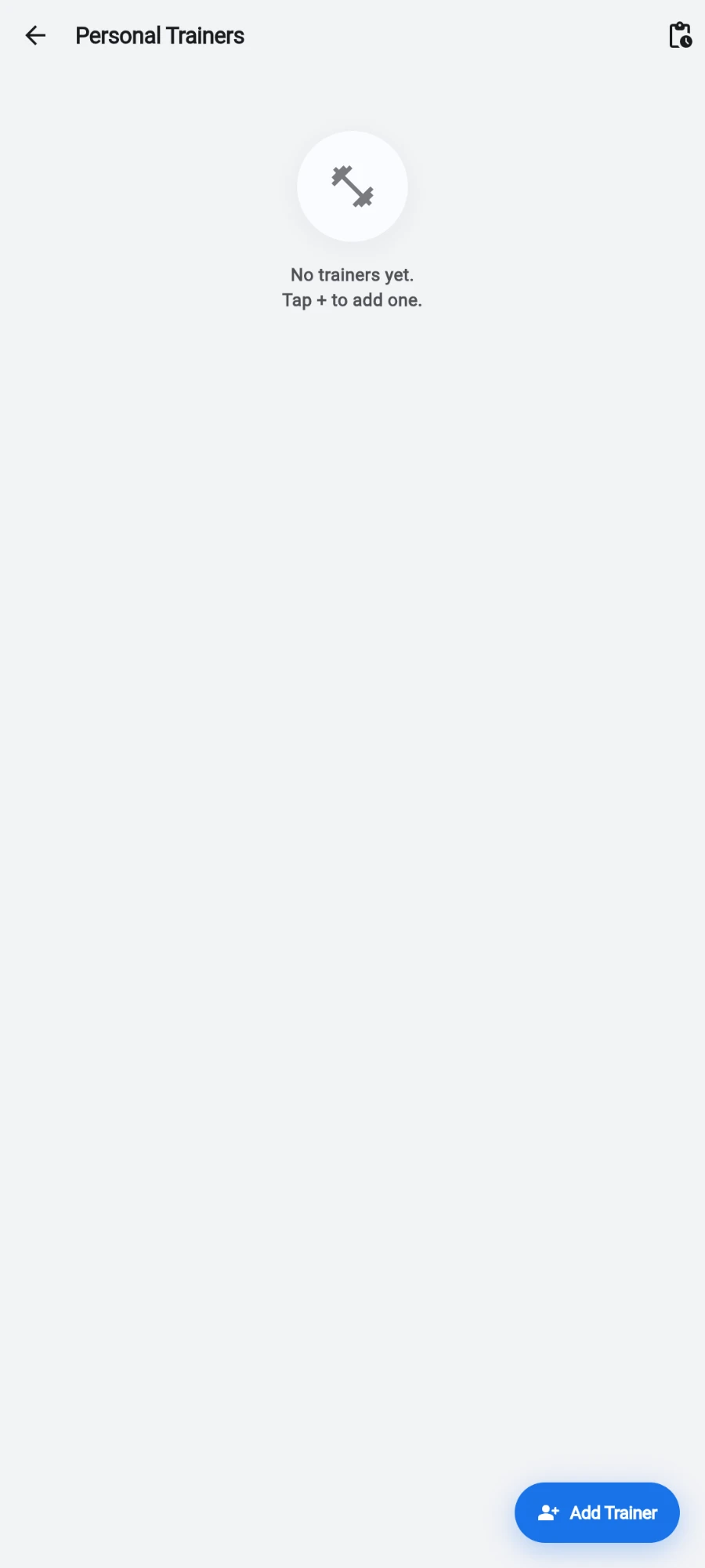
Your training team — specialties, experience and status. -
Tap Pending PT requests to open the approval queue. Members request sessions from their own app; each request waits here.
-
On a request, tap Accept to confirm it — the member's wallet is charged at that moment — or Decline with an optional reason.
-
To book a session yourself, open the member's profile, tap Sell…, and choose PT sessions to book a 1-on-1 with a trainer and charge for it. If the member holds a PT pack, the session draws down a pack credit instead.
-
After sessions happen, open To confirm from the main menu — the confirmation queue.
-
Switch between the PT sessions and Group classes tabs, and between My queue and All staff if you manage other coaches.
-
For a delivered PT session, tap Confirm delivered. You should see Session confirmed — pay is now unlocked.
-
For a delivered class, tap Confirm delivered + headcount and enter how many actually attended in the Attended field — walk-ins included.
-
If the member never showed, tap Mark no-show. No commission accrues on a no-show.
What you should see
An empty Pending PT requests queue (No PT bookings are waiting for approval.) and an empty confirmation queue at the end of the day. Confirmed sessions flow straight into the coach's payout figures.
If something goes wrong
- Accept fails on a request — the member's wallet balance may be too low; top it up or pick another payment method, then accept again.
- A booking won't save — the time slot clashes: either the trainer or the member already has a session then. Pick a different time or trainer.
- A session is missing from To confirm — check the tab (PT sessions vs Group classes) and the My queue / All staff switch; sessions only appear after their end time passes.
- Coach pay looks short — look for unconfirmed sessions and no-shows first; only confirmed work generates per-session payout.
Still stuck? Email hello@prismgym.com — include your gym name, the device, and a photo of what you see.