Group training and heart-rate walls
The heart-rate wall shows every member's live effort on the studio TV during class. On the admin side you look after three things: the strap pool (who wears which heart-rate strap), the screens (the TV boxes on the wall), and the connected equipment (bikes, treadmills, rowers that broadcast). Once those are set, running a class is mostly hand-out and go.
What you'll do
Register straps and hand them out, pair a studio TV screen, claim equipment the TV discovers, and use the coach console during a live class.
You'll need: heart-rate straps (chest straps, arm bands or watches with ANT+ or Bluetooth), an Android TV box running the studio TV app, and class permissions — the strap pool is open to coaches and reception, not just managers.
Steps
-
Open the main menu and tap HR straps.
-
Tap Add strap. Give it a Friendly name (like "Strap 03"), enter the ANT+ id — the 5-digit number on the strap — or use BLE scan to pick up its Bluetooth id, and set a Default bike number (spin only) if it lives on a bike.
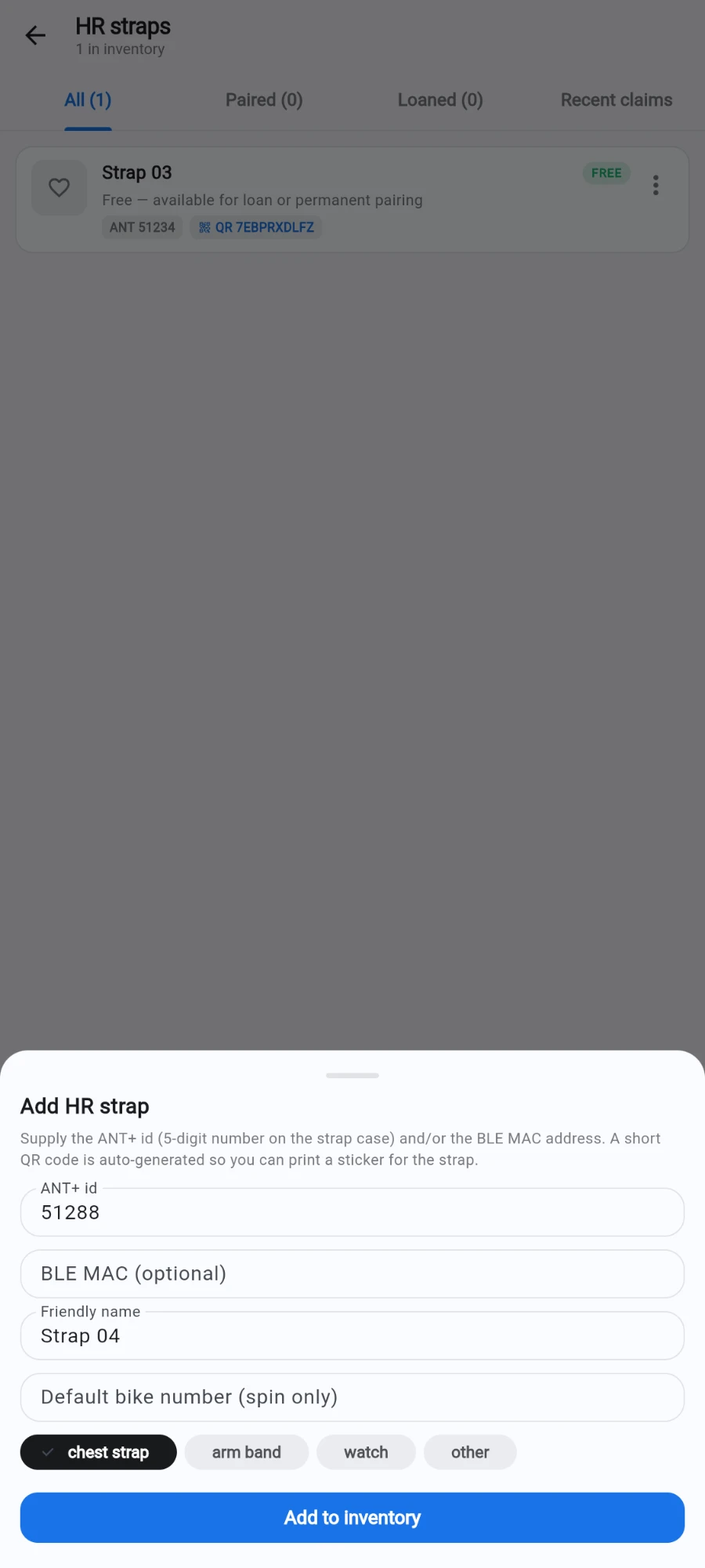
Registering a strap: its ANT+ id, a friendly name and the strap type. -
Tap Add to inventory. Print its QR sticker with Print and stick it on the strap — members and staff can scan it to identify the strap instantly.
-
To hand a strap out for one class, tap the strap and choose Lend to member. Pick the member, and bind the loan to a class under CLASS (OPTIONAL) so it returns automatically when the class's straps are reclaimed — or leave it as a quick loan you reclaim by hand.
-
To give a member their own strap permanently, use Pair permanently… — the strap becomes theirs until you Unpair. Pairing a strap that belonged to someone else automatically unpairs the previous holder.
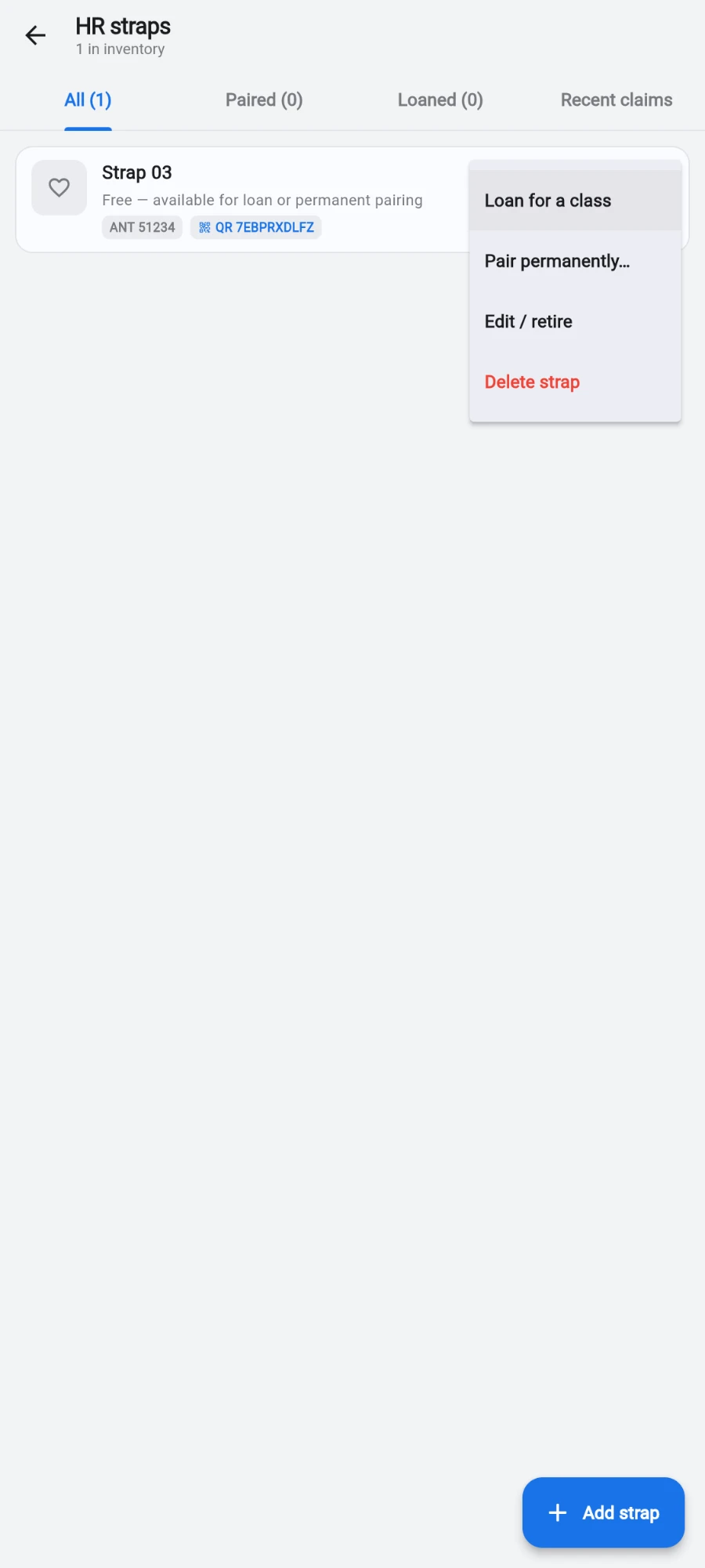
The strap pool and the per-strap actions. -
After class, tap Reclaim loan on any strap still out. The loan history is kept, so you can always see who had which strap and when.
-
To set up the wall itself, go to Settings → Studio TV. It's organised into Screens, Equipment, Experiences, Coefficients and Permissions.
-
Under Screens, tap Pair new screen, start the studio TV app on the box, and enter the 6-digit code it shows (or tap Scan QR instead). Pick the studio the screen lives in, then choose Single TV or Video wall for multi-screen setups.
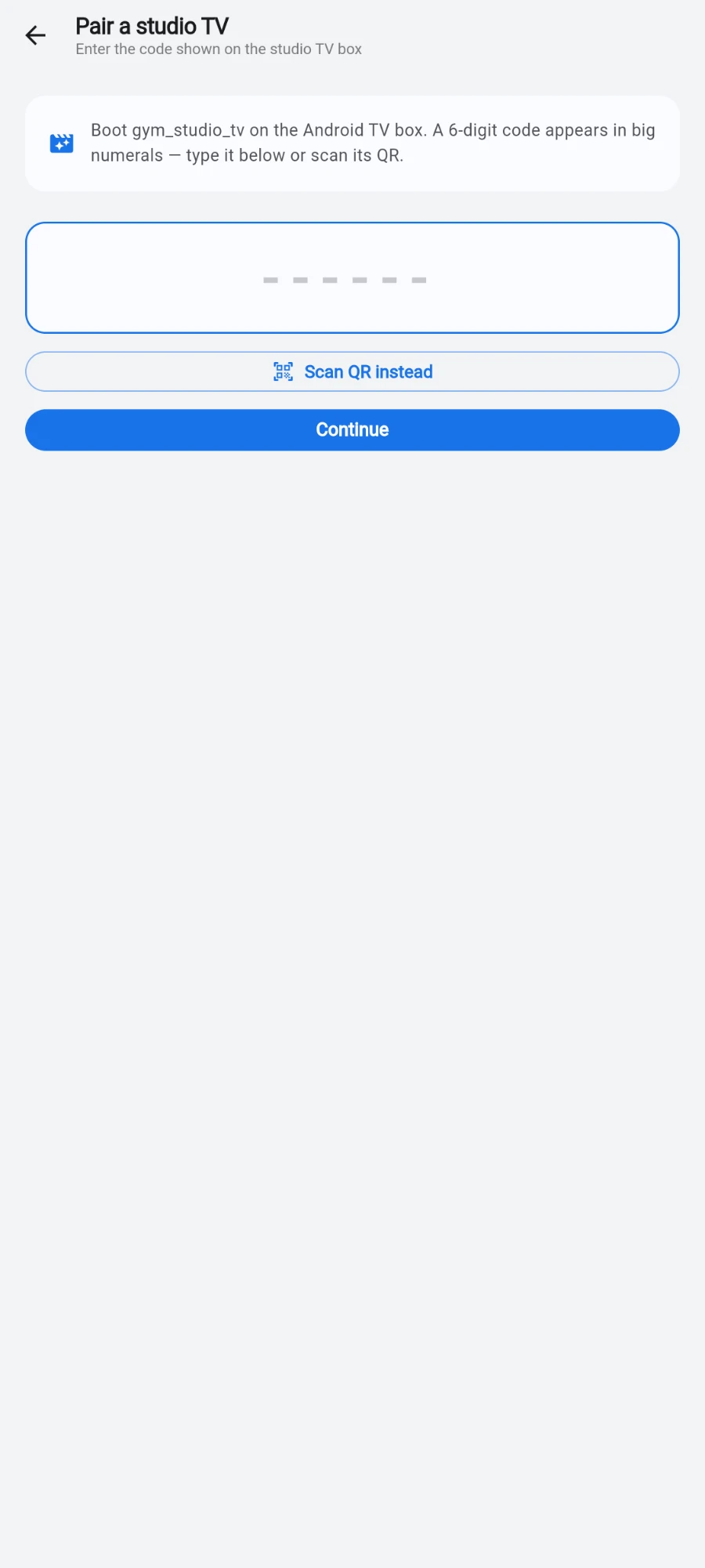
Pairing a studio TV: type the 6-digit code it shows, or scan its QR. -
Under Equipment, walk the floor and power on each connected machine. New broadcasts appear under PENDING BROADCASTS; tap Claim on each and give it a STATION LABEL (like "Bike 07") and a STUDIO.
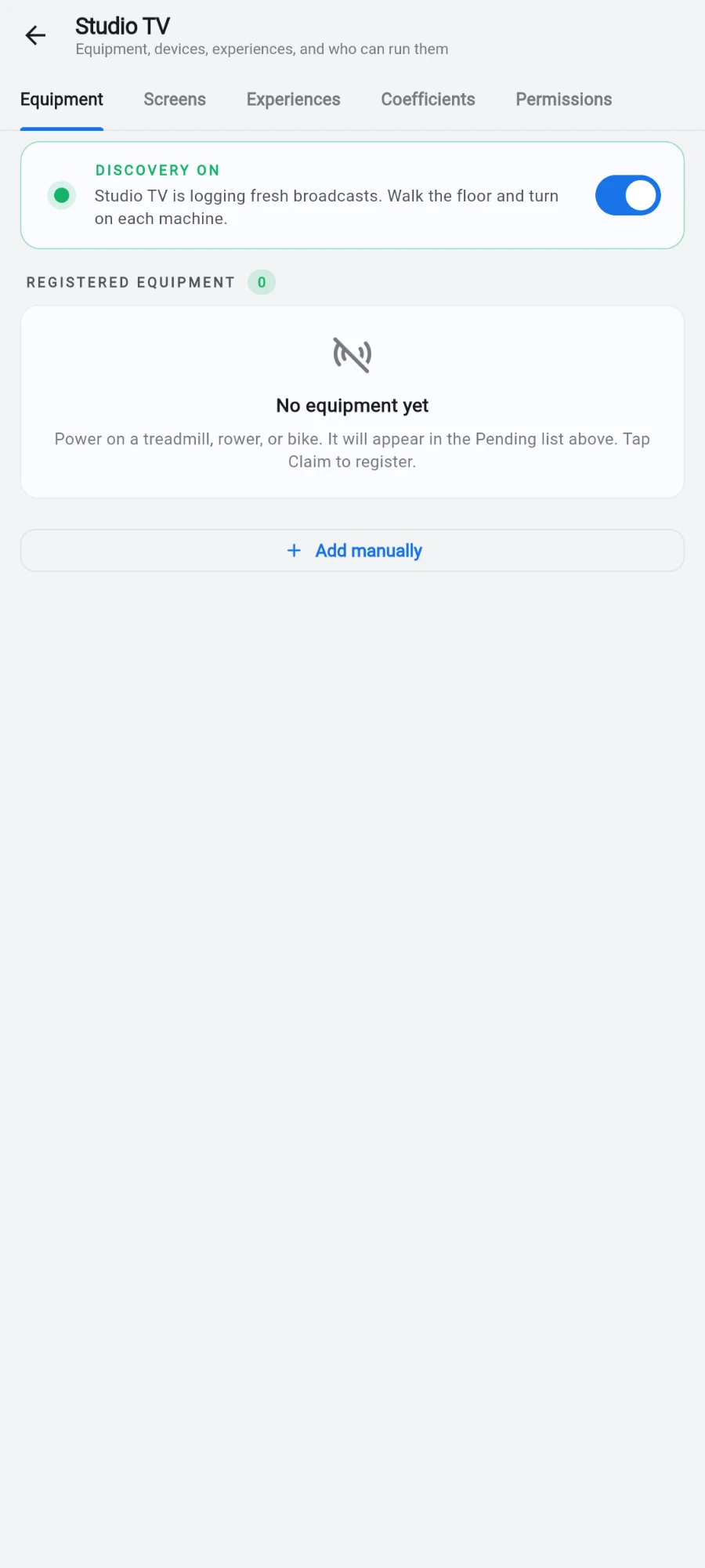
Equipment discovery switched on, waiting for its first broadcast. -
Under Permissions, review what each role can do in class — spotlight, sprints, configuration — for OWNER, MANAGER, TRAINER and RECEPTION, then tap Save permissions.
-
During class, hand out straps (step 4) and the wall populates as members' straps are detected. The coach's Live class console shows a tile per bike with live BPM and zone.
-
From the console, tap a member's tile to send a whisper — Push, Ease or Celebrate — or Spotlight them; the TV animates it within a moment.
-
When the workout is over, tap End class. This closes every open heart-rate session in the class.
What you should see
A strap list split into free, paired and loaned; a Screens list showing each TV box ONLINE with its studio; claimed equipment with station labels; and during class, a live wall where every handed-out strap shows the wearer's name, BPM and zone.
If something goes wrong
- A member's tile says the strap isn't detected — the strap isn't broadcasting yet. Have them moisten the electrodes and fit it snugly; readings appear within seconds of a heartbeat lock.
- A new machine never appears under PENDING BROADCASTS — discovery may be toggled off on the equipment screen, or the machine's console is asleep. Toggle discovery on and start a workout on the machine.
- The TV shows offline — check the box's network. Screens report a heartbeat continuously; a box marked OFFLINE hasn't been heard from in about 90 seconds.
- Wrong member on a bike — reclaim the loan and lend the strap to the right member; re-loaning to a different member automatically closes the earlier loan.
Still stuck? Email hello@prismgym.com — include your gym name, the device, and a photo of what you see.