Set up tills and floats
A till in Prism is a physical counter — the reception iPad, the bar register — with its own printers, its own default cash float, and its own rules about what it may sell. Every location keeps its own tills, and every cash sale flows through an open shift on one of them, so at close-out each drawer answers for exactly the money it should hold.
What you'll do
Register a till, assign its printers and floats, restrict what it can sell, and review closed shifts in the history.
You'll need: an owner or manager account, signed into the location the till belongs to.
Steps
-
Open Settings → Tills and tap Add till.
-
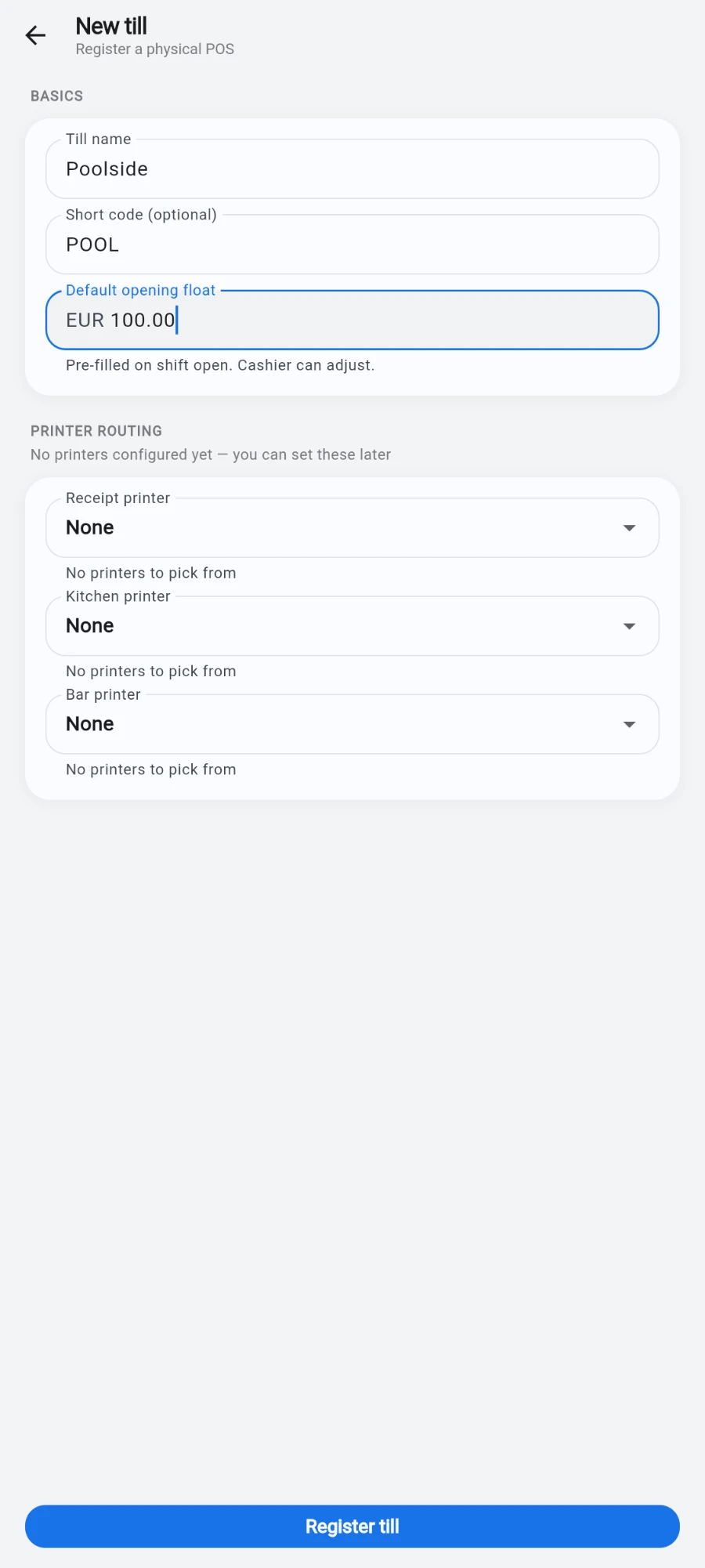
Give it a Till name staff will recognise — Reception, Bar — and optionally a Short code (optional) like T1.
-
Set the Default opening float — it pre-fills at shift open, and the cashier can adjust. Multi-currency gyms set one float per tender, so a drawer can start with both notes and dollars counted.
-
Under Printer routing, pick the Receipt printer, and the Kitchen printer and Bar printer if this till sends dockets. You can leave these for later if printers aren't configured yet.
-
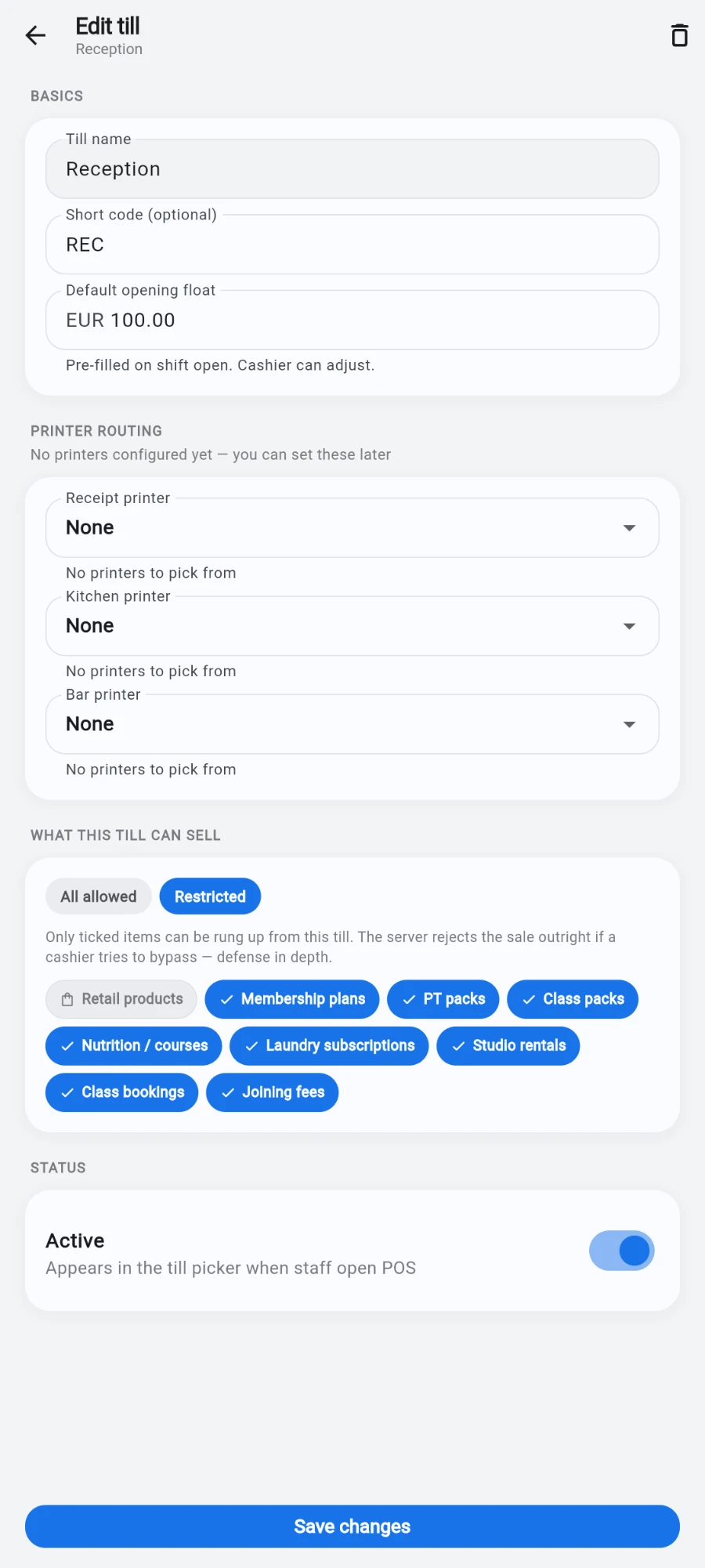
Under What this till can sell, keep All allowed or switch to Restricted and tick the item types — a bar till limited to retail products can never ring up a membership. The restriction is enforced by the server, not just the screen, so a tampered device is refused too.
-
Set the status Active and tap Register till. Each device running POS then picks which till it represents; only one shift can be open per till at a time.
-
Day to day, cashiers open a shift on the till before taking cash and close it with a count at the end — opening float plus cash sales minus the counted drawer is the variance. If a cashier left a shift open at another till, the app surfaces it rather than letting cash quietly leak.
-
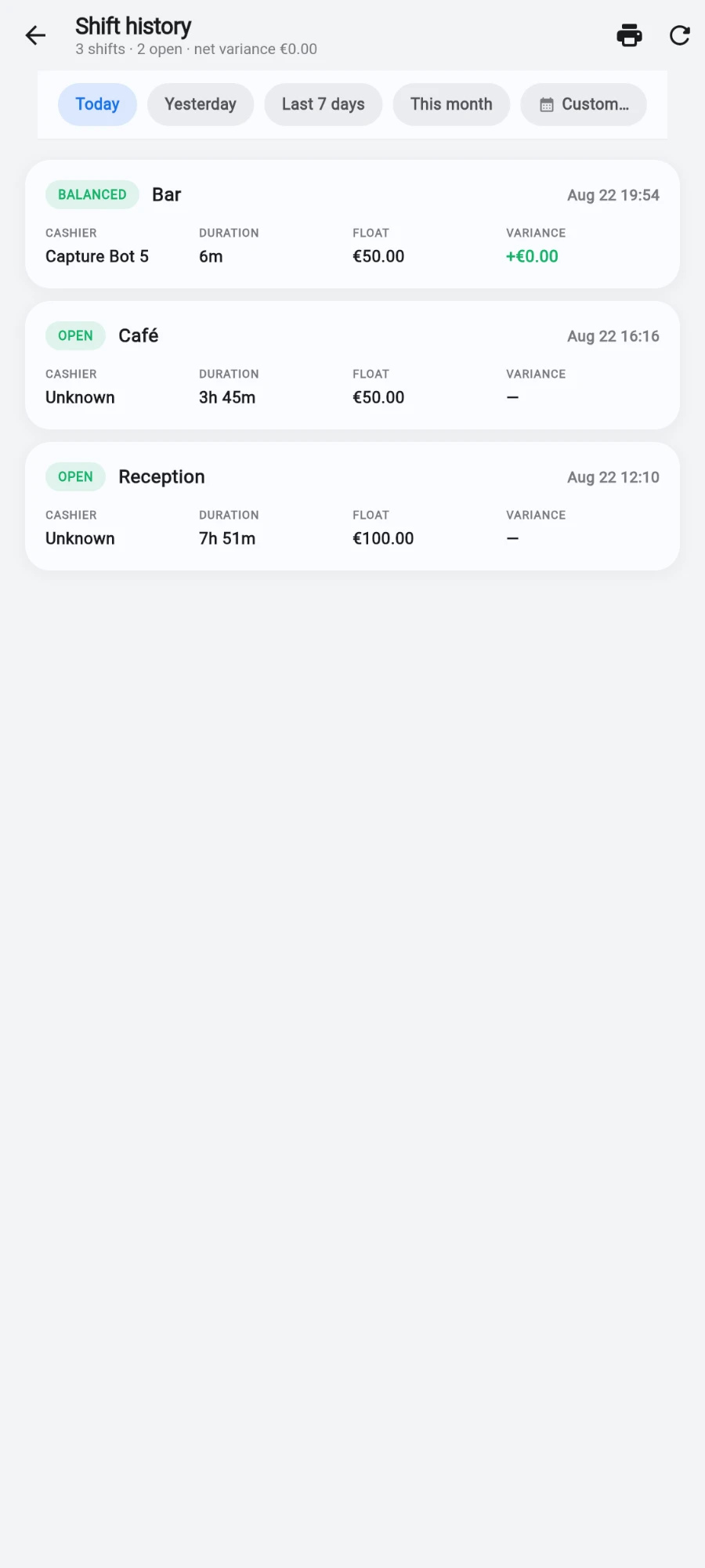
To review, open Settings → Shift history. Each shift shows its status — open, balanced, over or short — with the till, Cashier, Duration, Float and Variance. Filter by date range and use Print report for the day's paper trail.
What you should see
Each counter listed under Tills, POS devices choosing their till at sign-in, and a shift history where most rows read balanced — with over and short rows carrying a variance you can chase while memories are fresh.
If something goes wrong
- Cash sale refused at a configured till — no shift is open on that till from this device. Open the shift first.
- A sale type is missing from the sell sheet — the till's allowlist blocks it; the sheet says so and names the till. Switch tills or loosen the allowlist.
- Variance every night on one till — check whether the float is being recounted at open; a wrong opening float shows up as a matching error at close.
- Docket printed at the wrong station — the till's Kitchen printer or Bar printer assignment points at the wrong device; edit the till.
Still stuck? Email hello@prismgym.com — include your gym name, the device, and a photo of what you see.