Find a member
The Members tab is your live roster. Every member appears as a card that tells you their status, their plan, and when they last walked in — before you ever open a profile. Even rosters of several thousand imported members load in full.
What you'll do
Find any member in seconds using search and the status filter chips, and learn to read the member cards so lapsed or expiring members stand out on sight.
You'll need: a staff account signed in to Gym Admin.
Steps
-
Open the Members tab. The header shows your total member count.
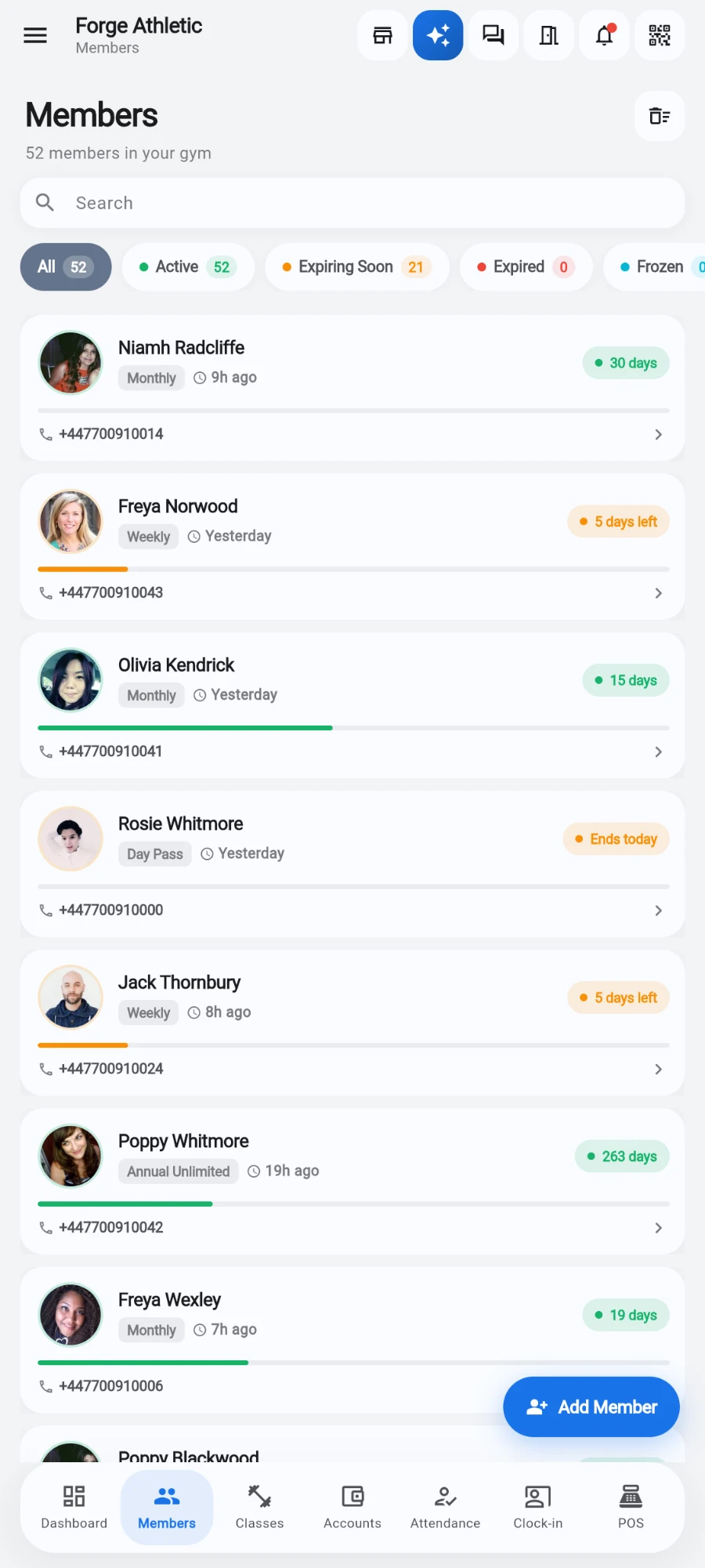
The Members tab — header count, search, filter chips and the roster. -
Type in the search bar — it matches names, phone numbers, and email addresses as you type.
-
Tap a filter chip to narrow the list: All / Active / Expiring Soon / Expired / Frozen. Each chip carries a live count.
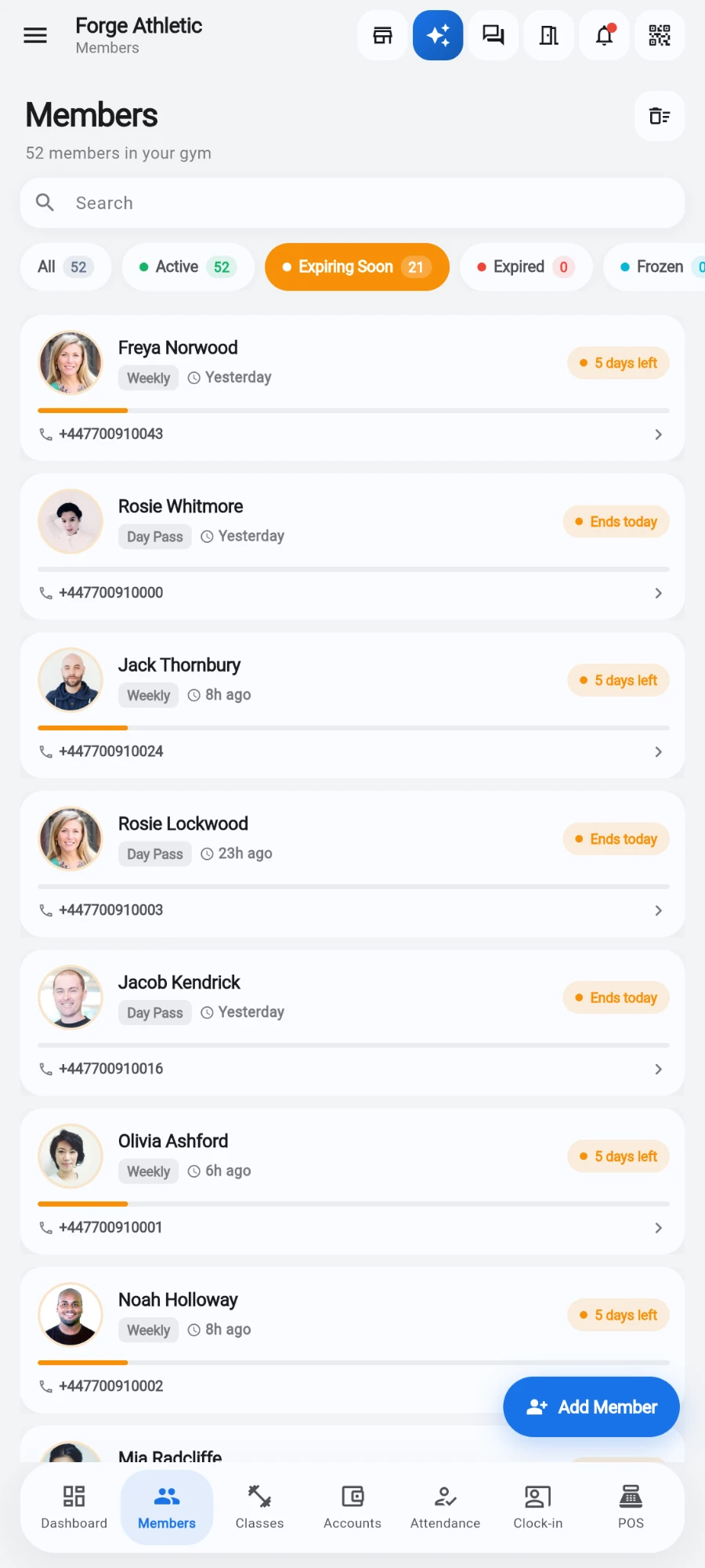
Expiring Soon selected — 21 of the 52 members, each with an orange pill. -
Read the card before you open it: the coloured pill on the right shows No plan, Frozen, Expired, Ends today, or the days remaining.
-
Check the small clock tag next to the plan name — it shows when the member last checked in (Just now, Yesterday, and so on), computed from their full attendance history.
-
Watch the thin progress bar under the name — it fills as the membership term elapses. A freeze pauses it instead of letting it advance.
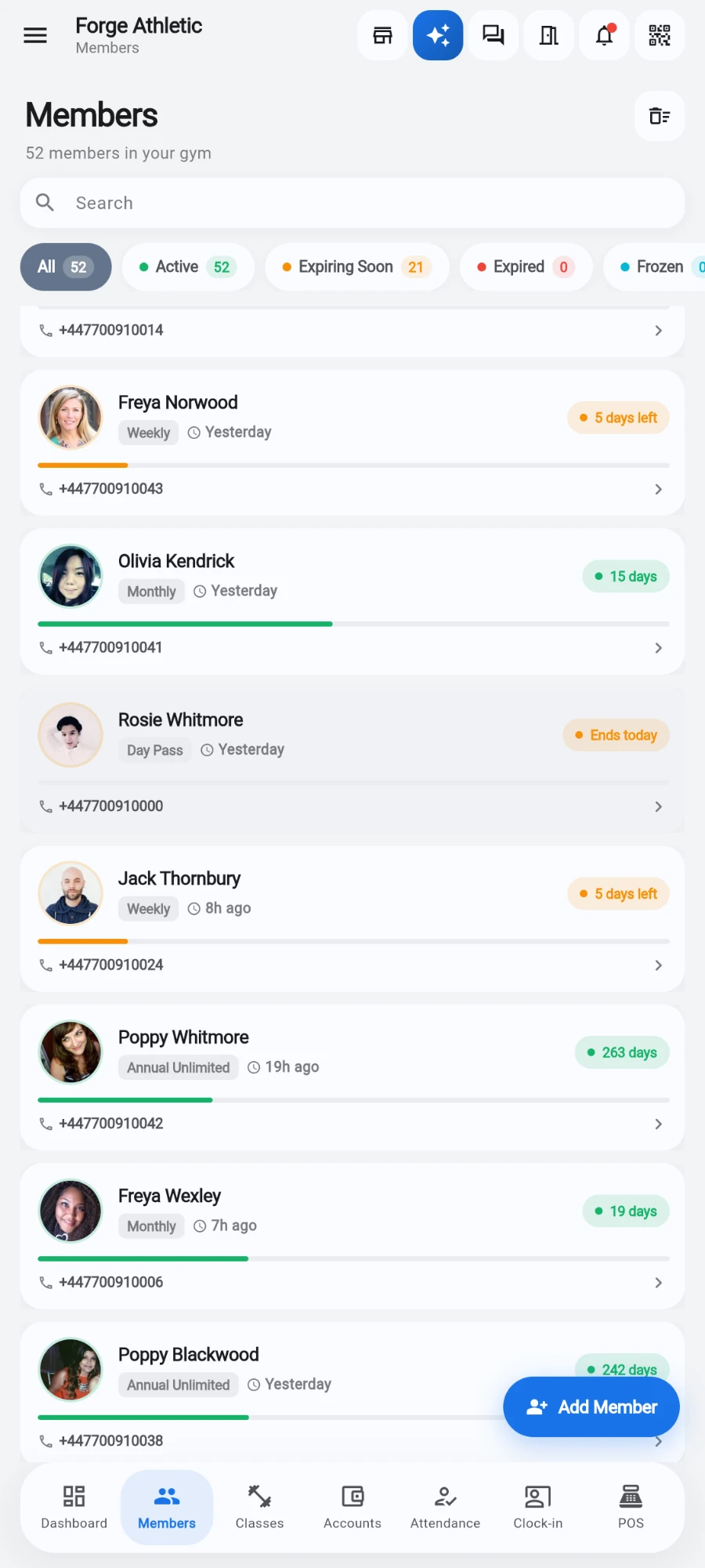
What a card tells you before you open it: plan, last visit, status pill and progress bar. -
Tap the card to open the member's profile.
-
Pull down on the list to refresh it at any time.
What you should see
The filtered list updates instantly as you type or switch chips, and each card gives you status, plan, last visit, and contact details without opening it. On multi-location gyms the list always shows the branch you're currently switched to — flipping location reloads it.
If something goes wrong
- The list is empty on a multi-location account — check which branch you're switched to; members belong to their home branch and the roster reloads when you switch.
- "Timed out loading members" appears — a slow connection stalled the query. Check your internet and tap Retry.
- Search finds nothing for a phone number — search matches the digits as stored; try the last few digits without the country code, or search by name instead.
- A member you deleted still doesn't appear after restoring — pull down to refresh the list; restores made from the Deleted members screen show up on the next reload.
Still stuck? Email hello@prismgym.com — include your gym name, the device, and a photo of what you see.