Getting into the gym
Your phone is your key. The Check in button opens an access sheet with three destinations — Entry, Pay and Kiosk sign-in — and depending on what your gym has installed, you can get through the door with a QR code, a Bluetooth tap or an NFC touch.
What you'll do
Open your entry credential, unlock a door, sign in to the gym-floor kiosk, and check how busy the gym is before you leave home.
You'll need: an active membership linked in the app. For tap-to-unlock, Bluetooth turned on.
Steps
-
Tap the raised Check in button. The sheet asks What do you need? — pick Entry.
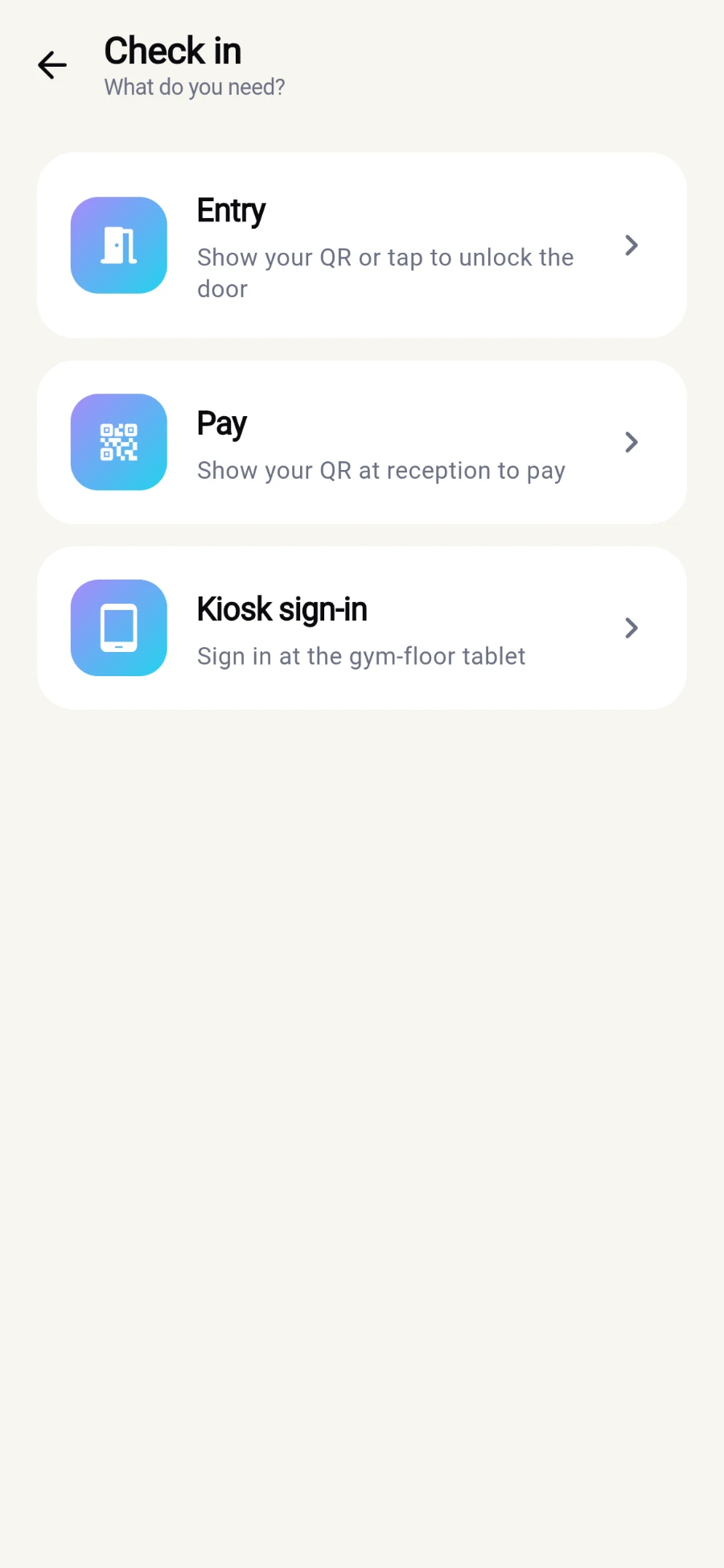
Three destinations behind one button. -
Show the QR code at the door or reception scanner. It's a fresh single-use code that refreshes every 60 seconds — the countdown under it shows when. Your name and plan-expiry pill sit underneath so staff can eyeball validity.
-
If your gym has Bluetooth door readers, a Tap to unlock card appears — Skip the QR when a BLE reader is nearby. Tap it: the app finds the closest reader and walks through Looking for a reader to Access granted — Door is open. If it fails you'll see Tap to retry.
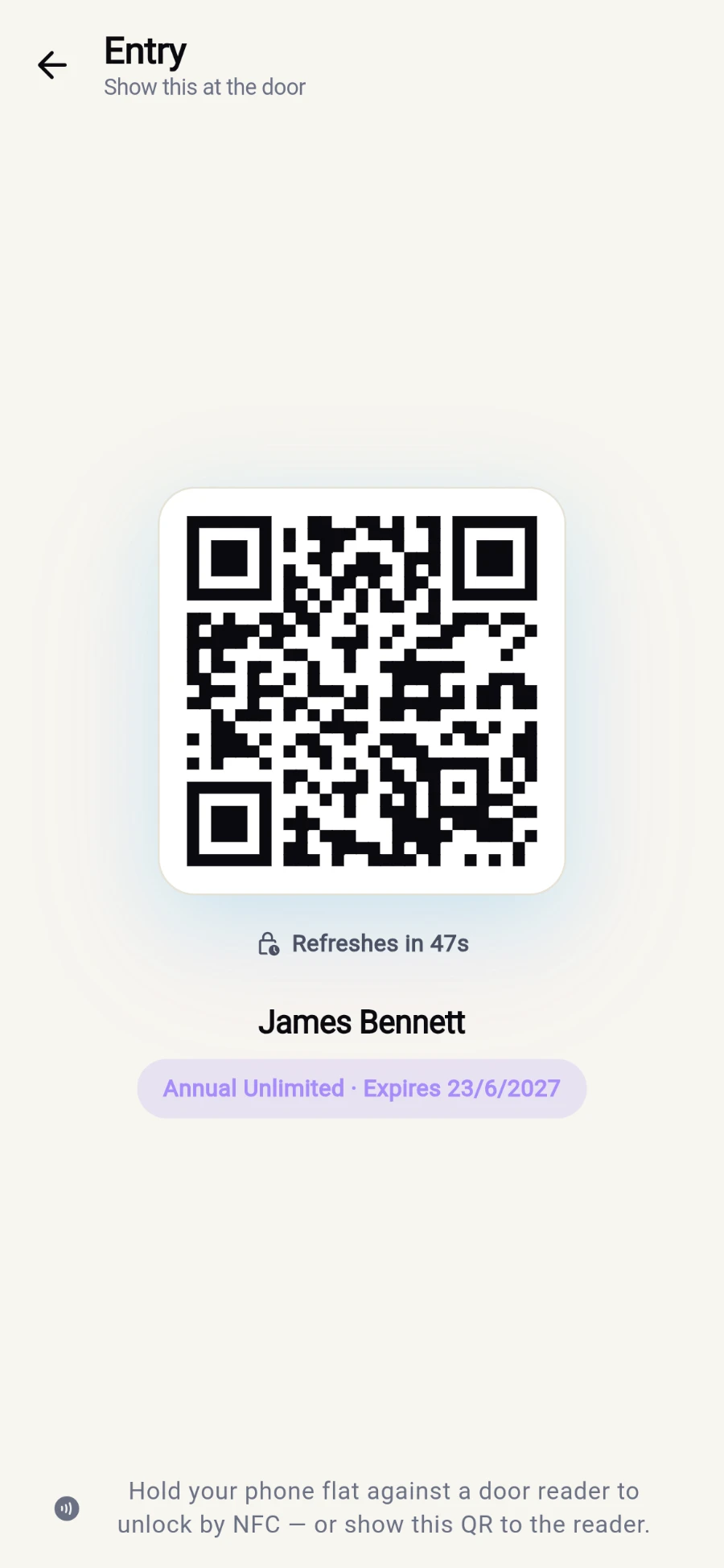
A single-use QR that refreshes every 60 seconds, with your name and plan underneath. -
At NFC-equipped doors, follow the on-screen guidance: hold your phone flat against the reader until it responds.
-
To sign in at the gym-floor tablet, pick Kiosk sign-in instead. Two options: Scan kiosk QR — Point your camera at the QR code on the kiosk screen — or Bluetooth sign-in — Hold your phone near the kiosk and it signs you in hands-free.
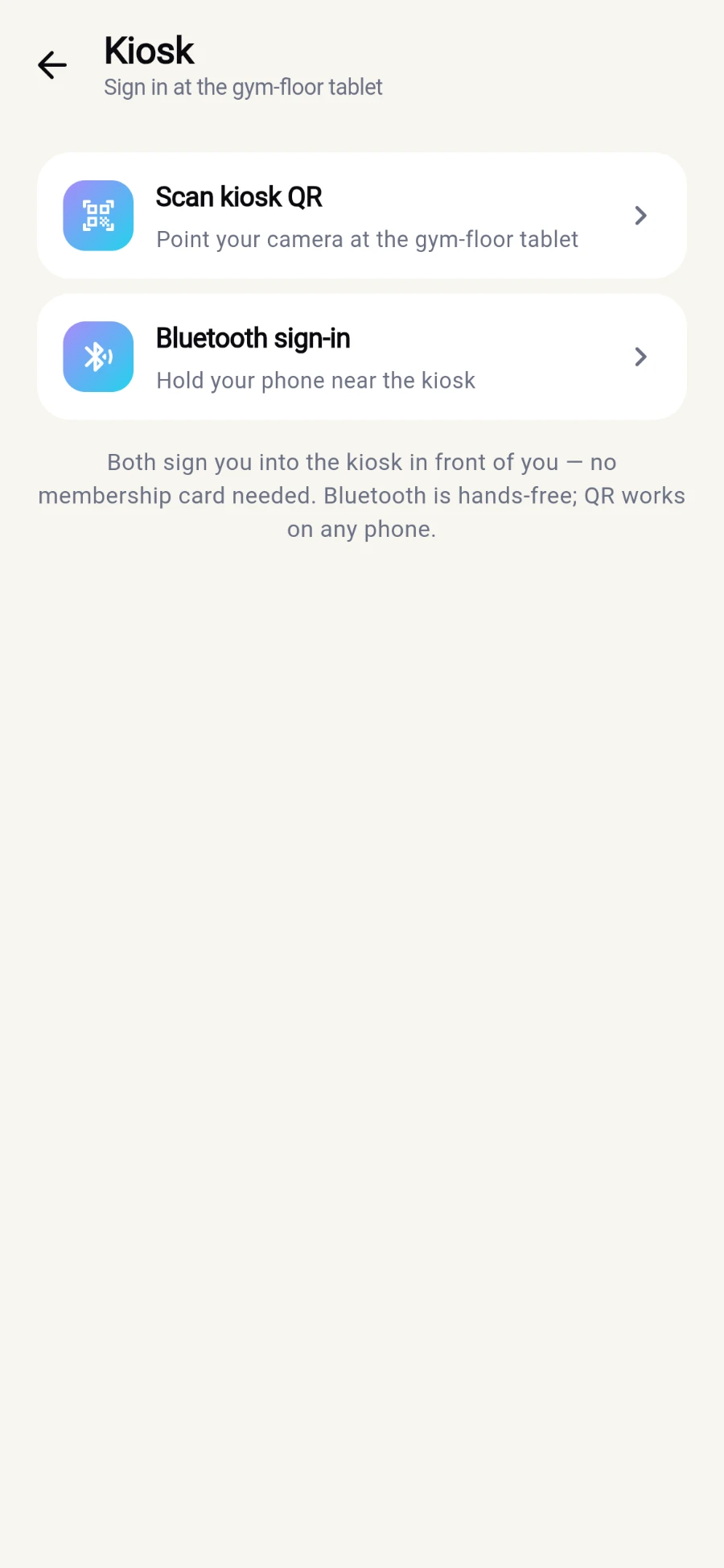
Two ways into the gym-floor tablet - camera or hands-free Bluetooth. -
When you physically arrive, Today can greet you with a You're at the gym banner — Tap to check in or sign in to a kiosk. One tap does it; Dismiss hides it for the visit.
-
Planning your visit? Tap How busy in Quick actions. RIGHT NOW shows gym-wide occupancy, and BY ZONE breaks it down per area, graded from QUIET to PACKED.
What you should see
The door unlocks (or reception waves you through), and your visit is counted — watch Visits this mo. on Today tick up.
If something goes wrong
- "No reader in range. Move closer to the door." — Bluetooth unlocking only works within a few metres of the reader. Step closer and tap again, or fall back to the QR.
- The unlock times out — Connection timed out — try again closer to the door means a weak Bluetooth link; the QR always works.
- The kiosk QR won't scan — the kiosk's code refreshes every 60 seconds; if you catch it mid-change you'll see That code expired — try again. Just re-scan.
- No Tap to unlock card at all — your gym uses QR-only entry; the card is hidden on purpose.
Still stuck? Email hello@prismgym.com — include your gym name, the device, and a photo of what you see.