Set up a studio TV
A studio TV is the big screen inside a group-training room: live heart-rate walls, class countdowns, podium moments and virtual rides. It runs on an Android TV box plugged into any TV. There is nothing to type on the box itself — it shows a 6-digit claim code the moment it starts, and you pair it from the admin app. During pairing you place it in a studio, and that room decides everything the screen shows: its schedule, its rosters, its history.
What you'll do
Start the Studio TV app on the box, claim it from the admin app with the code on screen, give it a name, assign its studio, and watch it flip to the branded Hub.
You'll need: an Android TV box connected to the TV and the gym's Wi-Fi, the Prism Studio TV app installed on it (sideload it once from a USB stick or file manager), a staff sign-in on the admin app, and at least one studio already created under Settings → Studios. For heart-rate features you'll also want the USB ANT+ receiver plugged into the box.
Steps
-
Start the Studio TV app on the box. The TV shows PAIR THIS SCREEN with a large 6-digit code, an Expires in countdown pill, and a QR card.
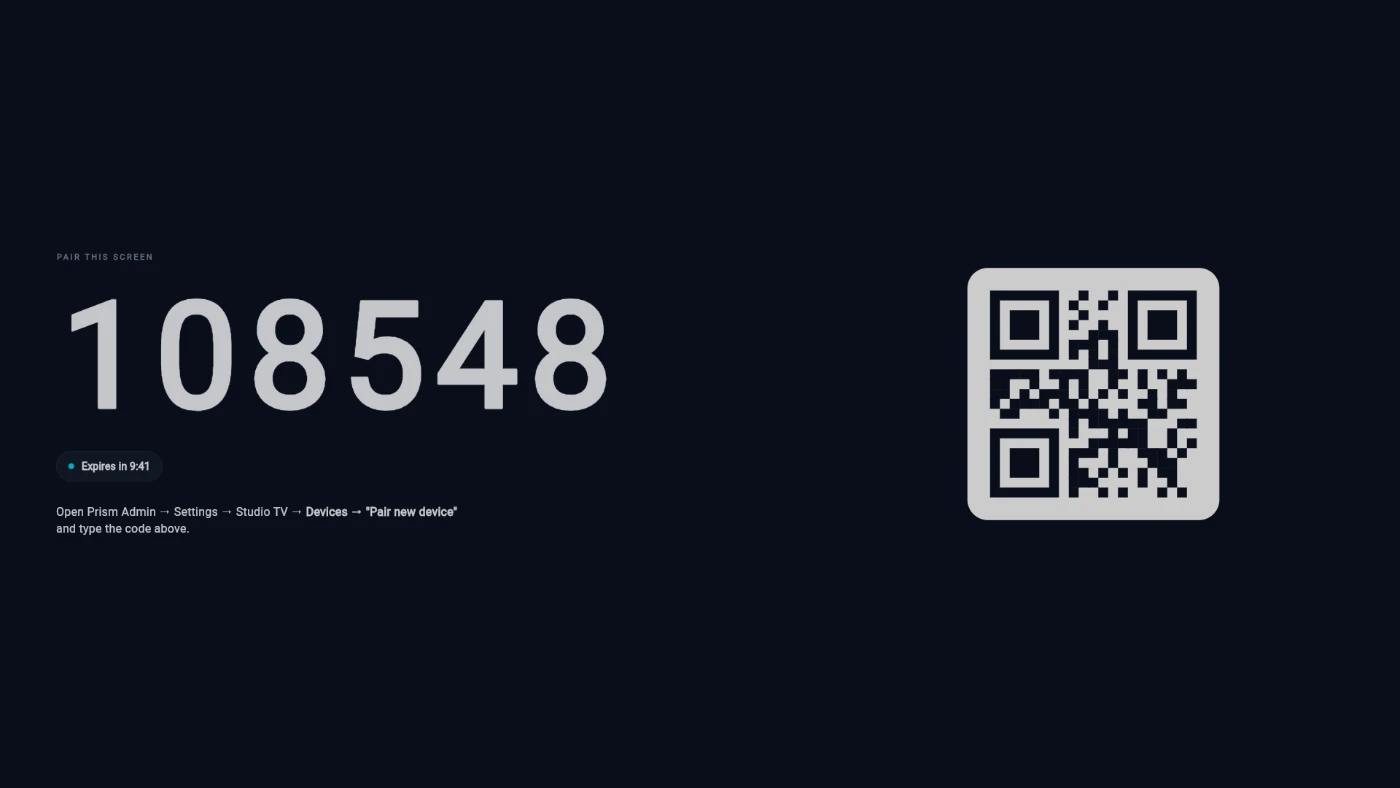
The box shows its claim code as soon as the app starts. -
Check the pill under the code. If it shows an amber warning instead of the countdown, the box has no working internet — fix the network first, and the countdown appears on its own within seconds.
-
In the admin app, open Settings → Studio TV and switch to the Screens tab.
-
Tap Pair new screen. The Pair a studio TV flow opens on its code step.
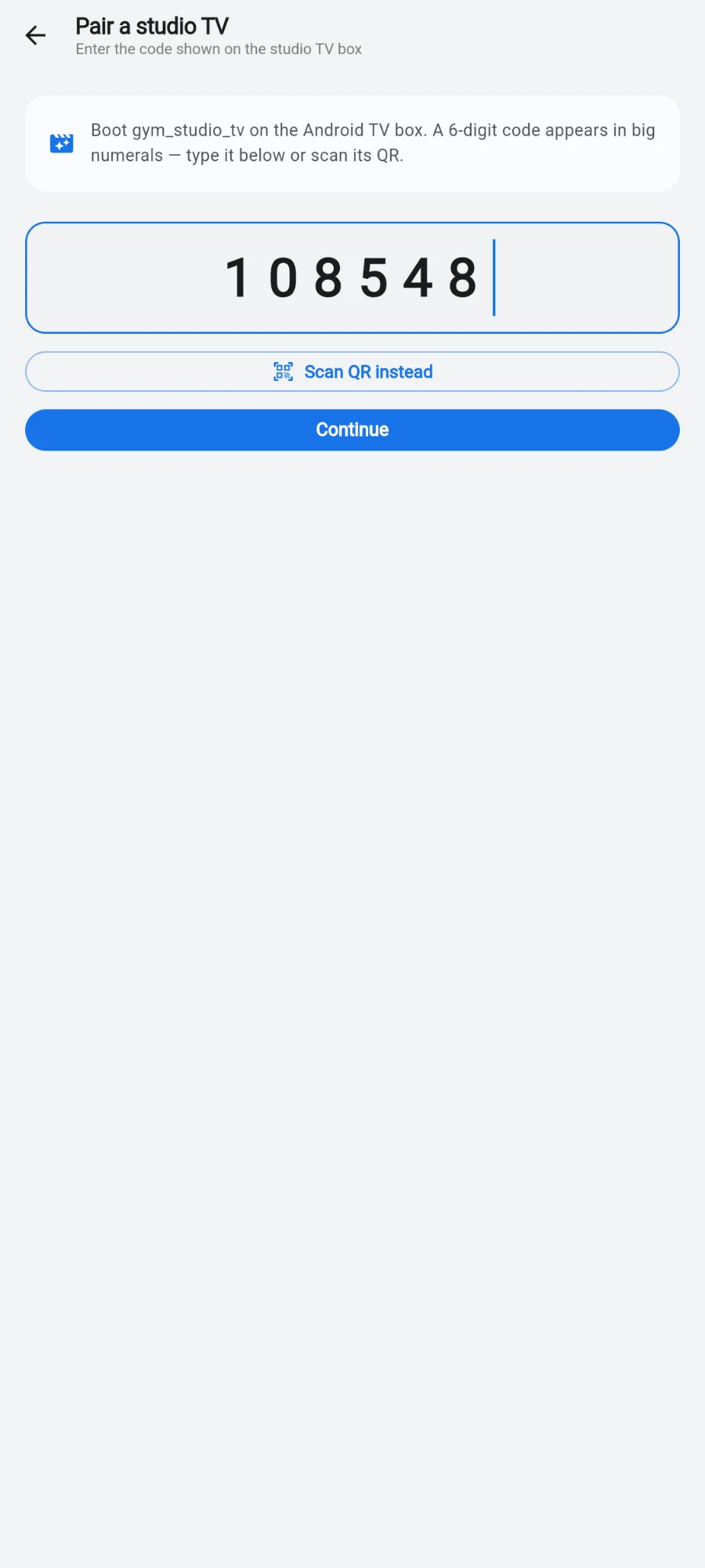
Type the six digits from the TV, or scan its QR. -
Type the 6 digits from the TV, or tap Scan QR instead and point the phone at the QR card — the code fills itself in. Tap Continue.
-
Name the screen — the hint suggests e.g. Cardio floor TV, HIIT wall · centre. Two TVs in the same room can't share a name; a duplicate is rejected with a friendly message.
-
Pick the room under Studio (required). This can't be skipped — the studio decides which schedule, rosters and history this TV shows.
-
Under Video wall, say what this box drives: Single TV (one box, one TV — most studios), 1×3 wall (three TVs side by side, three boxes), or 3×3 wall (a nine-box statement wall).
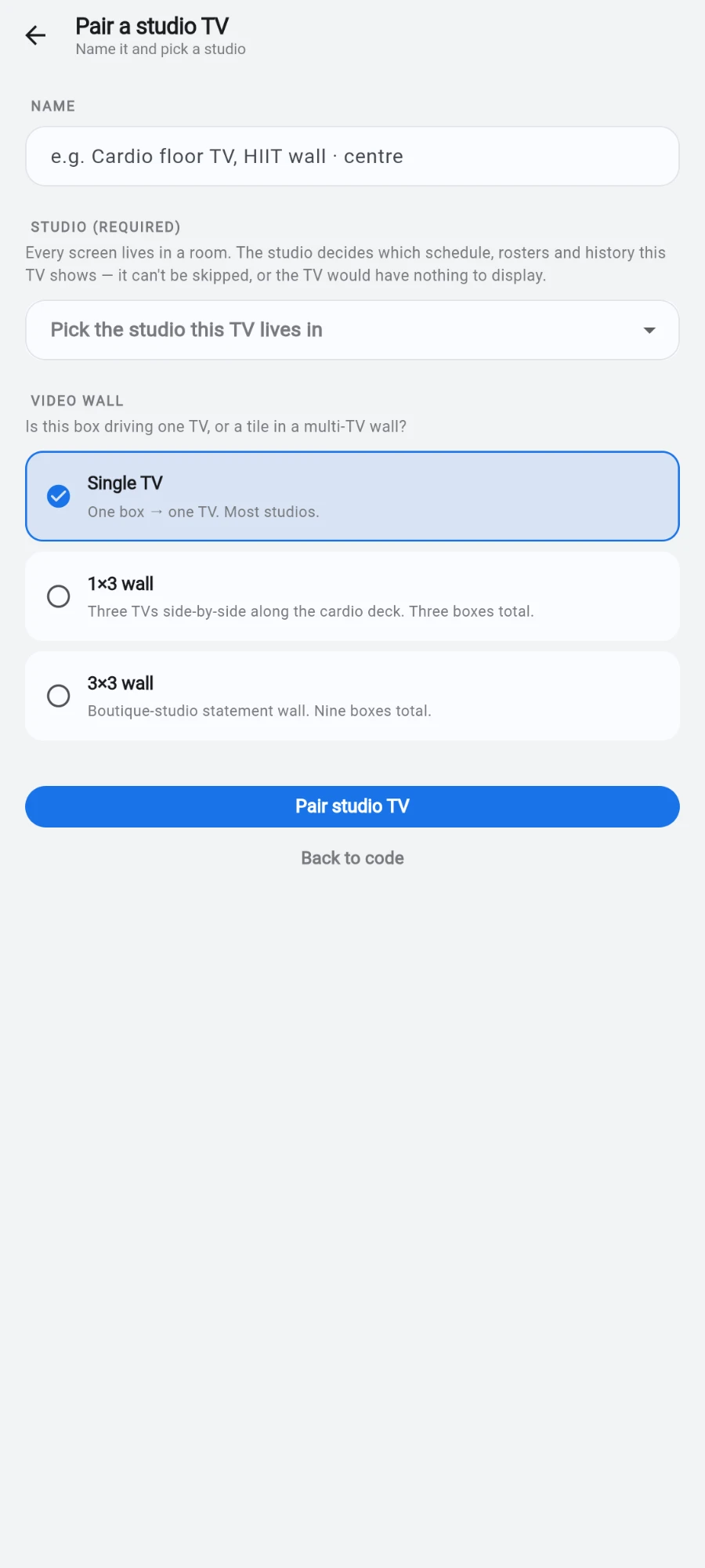
The studio is required — it decides everything the TV shows. -
Tap Pair studio TV. The TV leaves the pairing screen within seconds and opens the Hub, already wearing the gym's logo and colours and naming the studio you picked.
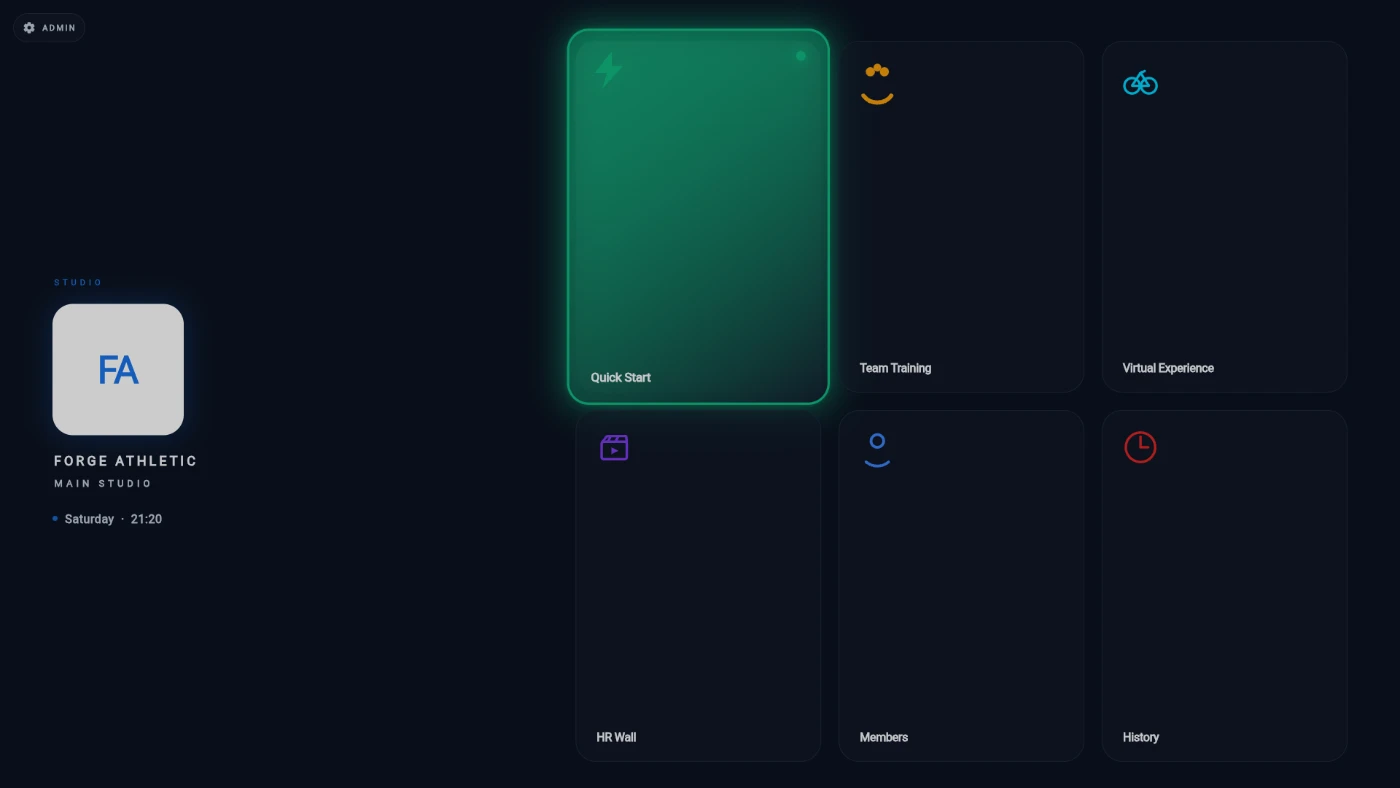
The Hub after pairing — already wearing the gym's brand and naming the studio.
What you should see
The TV sits on the Hub: the gym logo and studio name on the left, six tiles on the right (Quick Start, Team Training, Virtual Experience, HR Wall, Members, History). In the admin app the new screen appears on the Screens tab with its name, online status and app version — the box checks in every minute so support can see it's alive.
If something goes wrong
- The pairing screen shows an amber warning instead of the countdown — the box can reach the TV but not the internet, so the code was never registered. Fix the Wi-Fi; the screen retries on its own every few seconds.
- "That code is invalid or expired" — the 10-minute window passed while you were typing. The TV already shows a fresh code; enter that one.
- The name is rejected — another studio TV in that room already uses it. Pick a different name (for example add a number) or move one of the screens.
- The TV says it's paired but everything is locked behind a setup notice — it lost its studio assignment. On the Screens tab open the device's Studio action and place it in a room; every feature unlocks the moment you do.
- You need to retire or re-home the box — use Unpair on its card. The TV returns to the pairing screen on its next restart, ready to be claimed again.
Still stuck? Email hello@prismgym.com — include your gym name, the device, and a photo of what you see.